


Amer 22 designs
in one theme
Each design is a complete store for one kind of business. Apply yours in one click; the rest stay in the theme.
22 designs, ready to apply
Each has its own home page, header, footer, product cards and colors. Try its demo store before you buy.


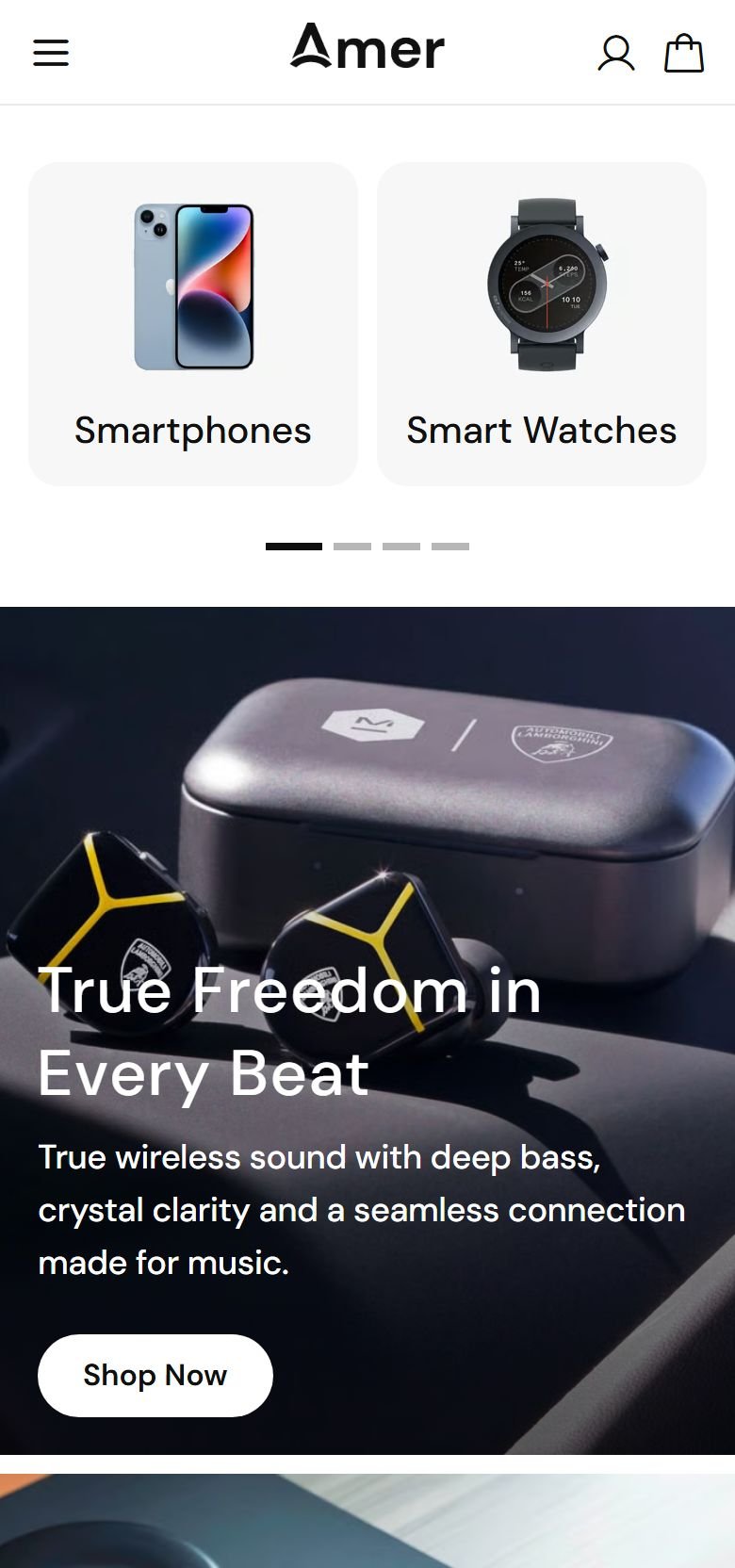
Electronics
Search sits at the top of the page. The home page has a category strip, offer banners, “Product tabs”, FAQs and your store's benefits. Customers build a “Gear bundle” and add it to the cart with one button.


Beauty
A header that floats over the page as a card. The home page has a large picture slider, a “Before / after comparison” the shopper drags, a “Countdown banner”, customer reviews and an Instagram-style gallery.


Perfume & Oud
A minimal header with the logo and menu in the middle. The home page has categories in tall pictures, “Collection tabs” with a large picture that changes per collection, an offer countdown strip, a “Product spotlight” and articles on choosing a scent.
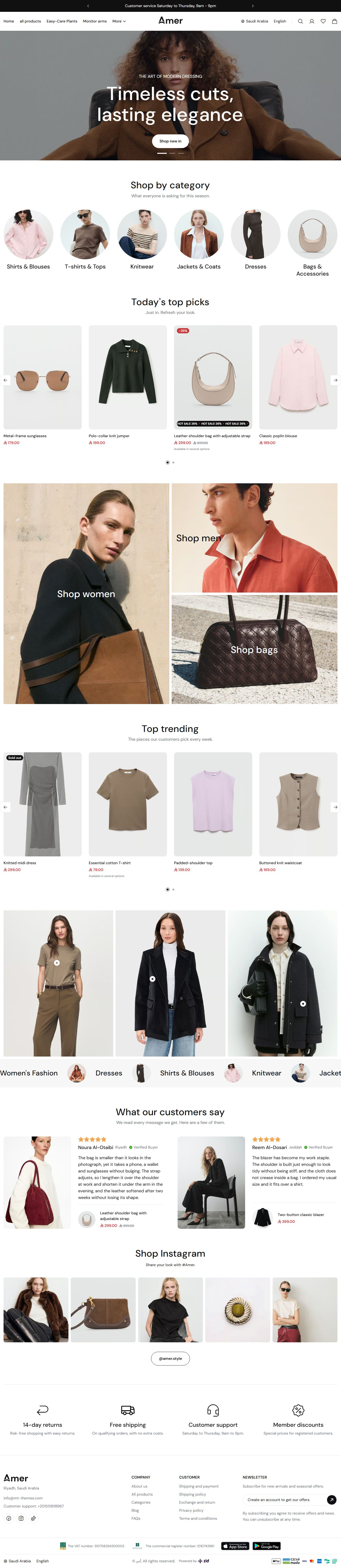

Fashion
The home page has “Shop the look (pinned images)”: the customer taps a pin and buys the piece. It also has category banners, a moving strip of category pictures and an Instagram-style gallery.


Jewelry
The loading screen lifts like a curtain. The home page shows pieces by type in tall pictures, with “Collection tabs”, a seasonal offer countdown and a “Product lookbook” of pieces worn together.


Sneakers
The home page shows categories as large words, each revealing its picture on hover. It also has a banner with features around a shoe picture and a “Benefit showcase” over one wide picture.


Pet care
The home page has categories in colored squares with their product counts, a product slider beside a banner, a “Featured list” for the week's offers and pet-care articles.
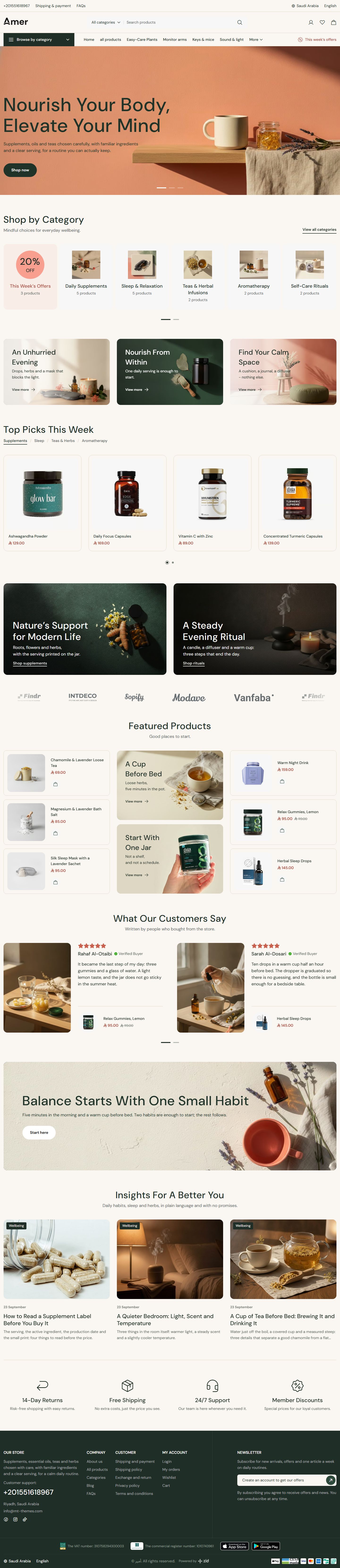

Wellness
Product cards have a thin frame that darkens on hover. The home page has “Product tabs” for each kind, a “Brand logos strip” and articles on sleep and daily habits.
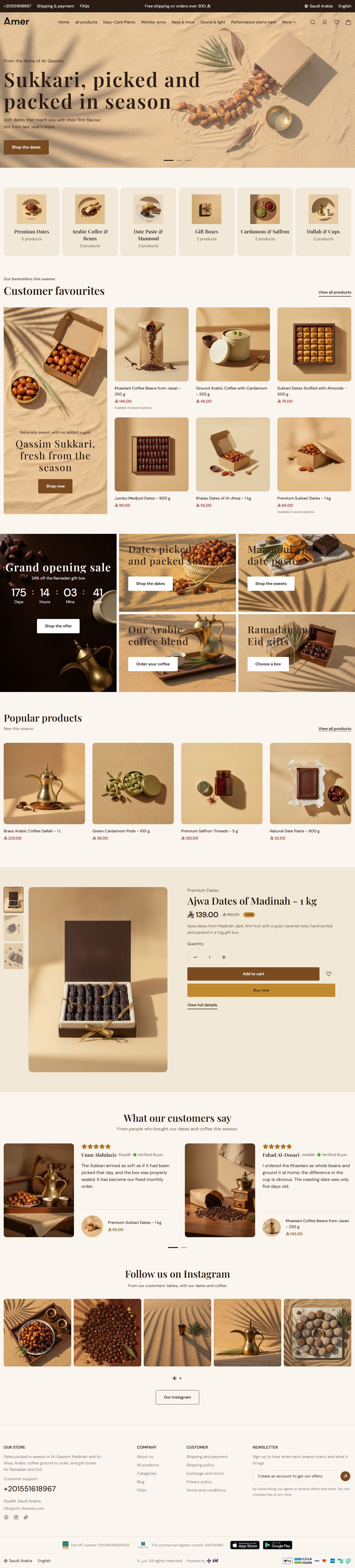

Dates & Coffee
A clear header over the first slider. The home page has a tall banner counting down to an opening offer beside four smaller ones, a “Product spotlight”, customer reviews and a photo gallery.
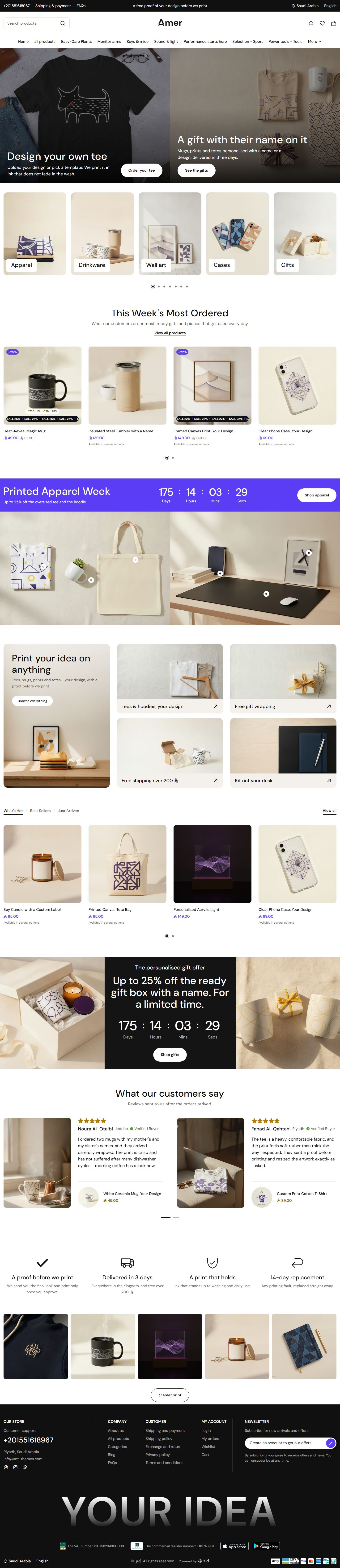

Print on demand
The home page opens with two slides side by side. It has two offer countdowns, “Shop the look (pinned images)” with your products in use, and “Product tabs” for trending and new.


Bags & accessories
The home page opens with a fixed picture grid: one tall card with two beside it. Then come your categories, limited-time offers, a “Brand logos strip” and shoppable photos with pins on the bags.
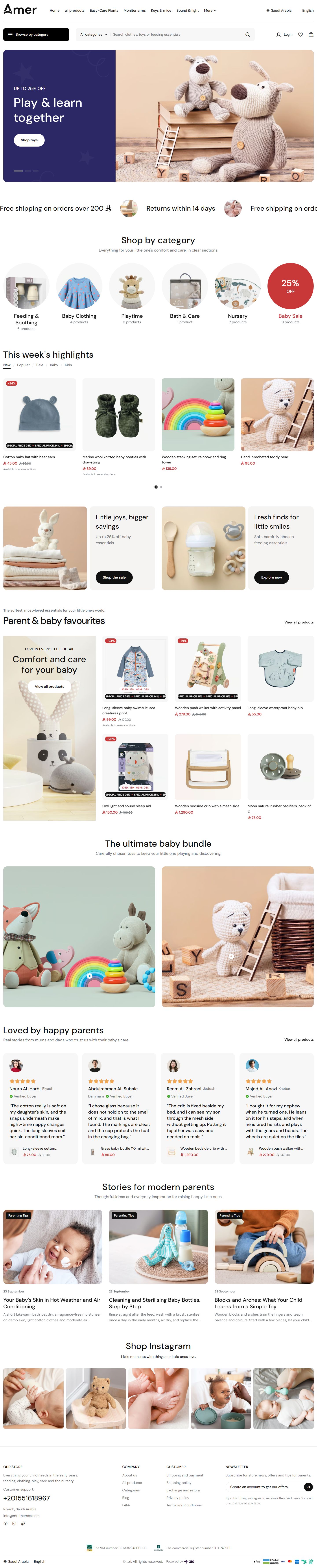

Baby
The first slider puts its text on a colored panel beside the picture. The home page has “Product tabs” for new arrivals, offers and age groups, banners with colored panels, parents' reviews and tips for them.
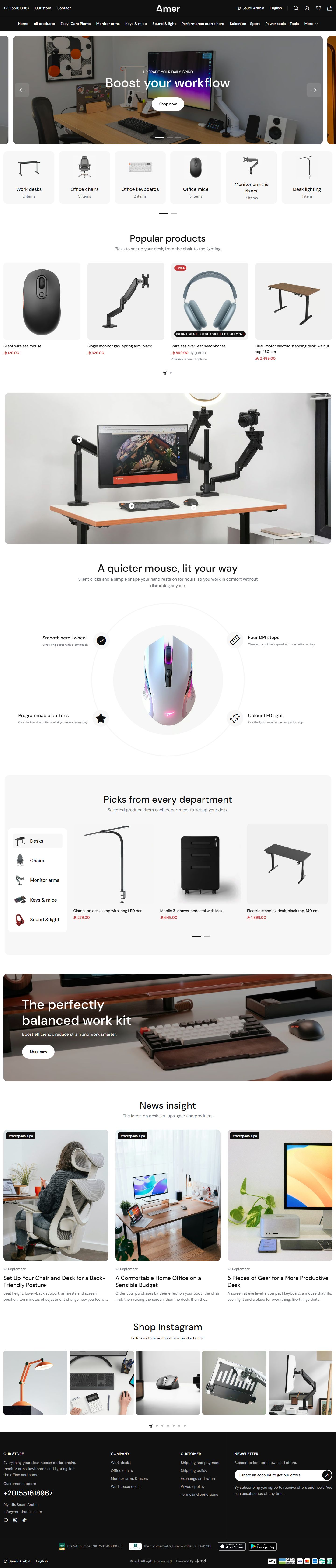

Office
The home page has a desk photo with a pin on each product, a banner with features around a product picture, “Product tabs” with a column of picture tabs and a category strip under the slider.
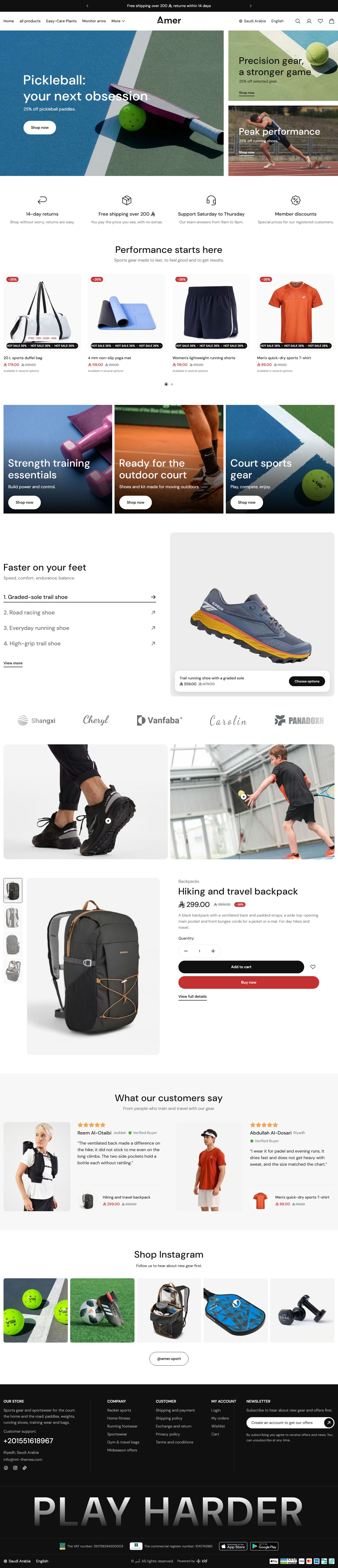

Sport
The home page opens with a fixed grid: one large banner and two cards. It has “Collection tabs” with numbered products and a cart button on each, a “Brand logos strip” and a “Product spotlight”.


Tools & hardware
The home page has “Product tabs” with a banner per tab beside the products, “Product scenes (thumbnail swap)” of tools at work, an offer countdown and articles on choosing tools and safety.


House plants
The home page has a slider with its text on a colored panel, a product slider with a banner and two products under it, a “Product spotlight” of two products with the price on each buy button, and articles on watering and light.
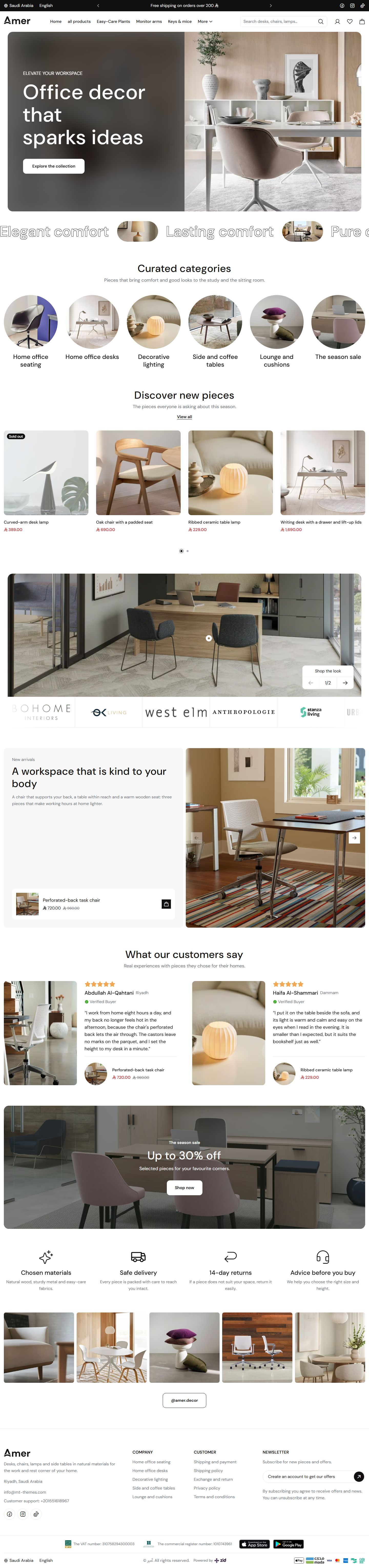

Office decor
The home page opens with a split picture, its text on a blurred half. It has room photos with pins on the pieces, “Product scenes (thumbnail swap)” whose large picture changes with each product, and a “Brand logos strip” in boxes.
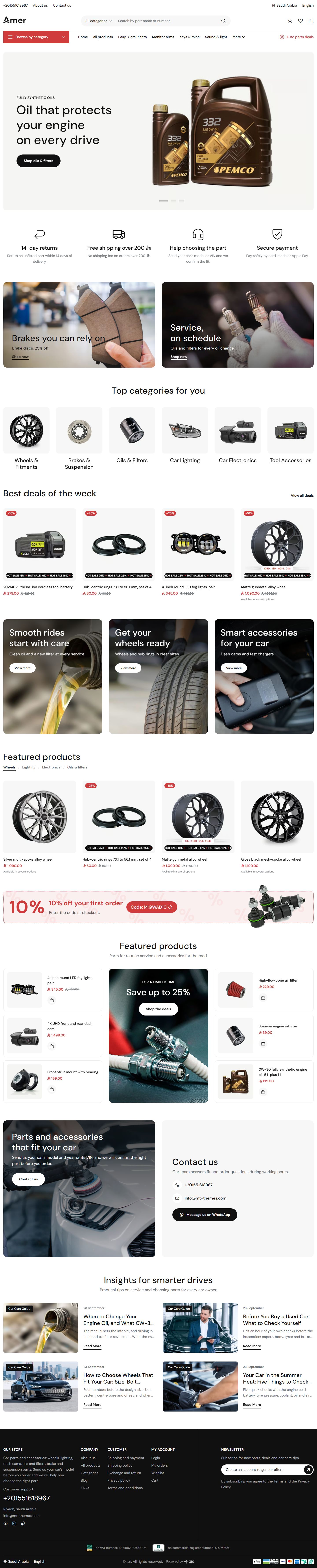

Car parts
The home page has a discount strip with a code customers copy in one tap. A contact card with phone, email and WhatsApp sits beside a banner, so customers can ask which part fits their car. It also has “Product tabs” and maintenance articles.


Furniture
The home page has a wide picture with a turning circle of text. Its “Product lookbook” shows a room corner with pins, the pieces beside it and a button that adds them all to the cart. It also has “Collection tabs” by corner and an offer countdown.


Headphones
Product cards sit in a light rounded box. The home page has a “Brand statement” about your brand, five banners in one grid, a large word behind a product picture and one big customer review over a dark picture.
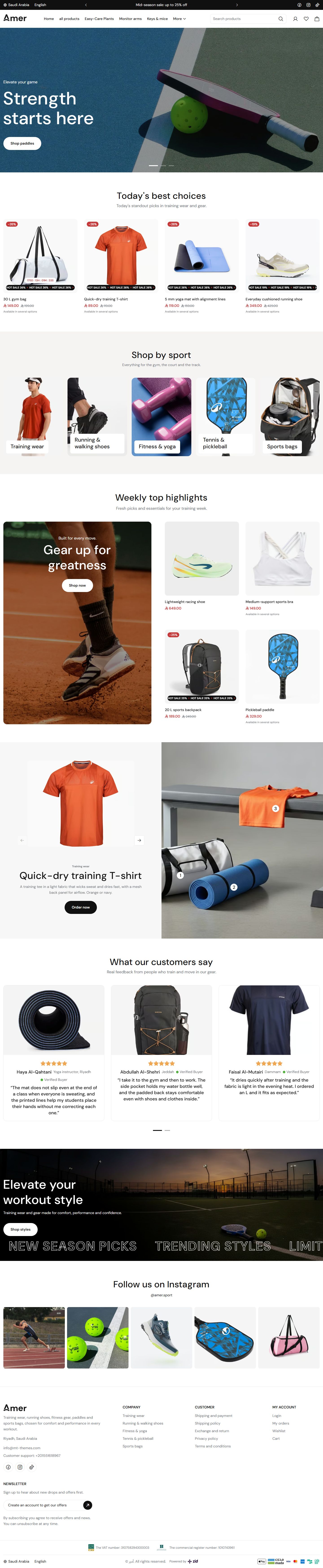

Activewear
The home page lets customers shop by sport through tall pictures, and has a “Product lookbook” pairing a product slider with a photo of numbered pins. It also has a tall banner beside four products and a wide picture with large moving text along its bottom.
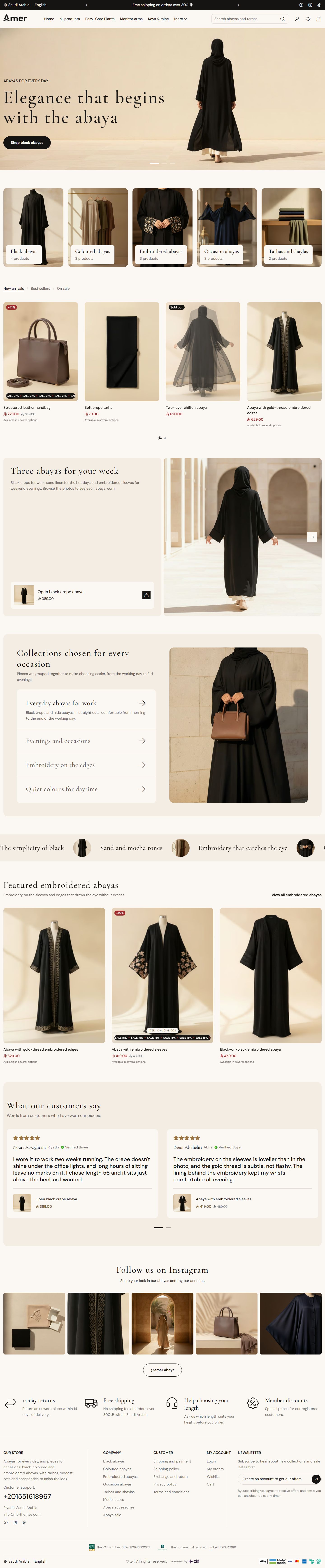

Abayas
Black and warm brown on cream, with Naskh-style Arabic headings. The home page has “Collection tabs” for work days, evenings and embroidery, “Product scenes (thumbnail swap)” showing the abayas one by one, and an Instagram-style gallery.
All designs come in one theme at one price, with the same features and settings.
Compare any 3 designs
Every section and feature is in all of them. Only the look differs.
| Part |  ElectronicsFor phones, audio and smart devices |  BeautySoft and calm, for makeup, skin and hair care |  Perfume & OudRich and quiet, for perfume, oud, incense and gift sets |
|---|---|---|---|
| Header design | Two rows: logo and search above, “Browse by category” and menu below | Floating card: logo, “Browse by category”, menu and search | Minimal: logo and centered menu |
| Product card design | Standard: image on a light panel, text below | Standard: image on a light panel, text below | Standard: image on a light panel, text below |
| Footer design | Dark: two groups with a divider and a large moving text | Light: four columns | Store benefits above the columns |
| Loading screen style | Thin spinning ring | Thin spinning ring | Thin spinning ring |
| Fonts | DM Sans | DM Sans | DM Sans, headings in Cormorant Garamond |
| Home page sections | 11 sections | 12 sections | 12 sections |
| Every theme feature | Included | Included | Included |
| Demo store | Live demo | Live demo | Live demo |
You can mix them. Each part has its own style option: a header from one design and product cards from another, with no code.
Switch designs in Zid's editor
No developer, no second install. Every design is inside the theme editor.
-
1
Install Amer
Buy it from Zid's theme store and press
Activate
. -
2
Open
Customize
and clickPreview presets
On Zid's themes page, click
Customize
. In the editor,Switch layouts in one click.
is followed byPreview presets
: click it to open thePresets
panel with every design, its name and pictures. -
3
Choose a design and press
Apply
Zid asks
Apply changes to current theme?
: confirm, and the design replaces your customization in the editor. Visitors see it afterPublish
.
Or import a design from a file. Every design has a ready file: download it, press Import
in the Amer editor and choose it. It does what Apply
does, but at once, with no confirmation. Every design's file
Before you switch
- 1
Choose your design first, then edit it: applying replaces your customization, it does not add to it.
- 2
Before you apply or import, press
Export
. It downloads settings.json with your customization in both languages, unpublished changes included, and importing it brings it all back. - 3
Visitors see no change until you press
Publish
, and your products and categories stay untouched.
Details
Apply
andImport
make the global settings, header, footer and home sections exactly what the file says: a section it lacks is removed, a setting it lacks goes back to its default, and a part it lacks in one language is emptied in that language (a file with no English home page empties yours).- Before publishing:
Undo all changes
returns to the published version and drops every unpublished change. - After publishing: in
History
, pressRestore
on the newest entry (markedCurrent version
). The version live before your last publish comes back as an edit: check it and pressPublish
. - Unpublished changes are not in the history. Only your exported file brings them back:
Import
it, thenPublish
. - The file holds none of your products, categories, store pages or store settings, and its images are only links.
- Import a file only into the theme it came from or was made for: Zid does not check it.
Features in every design
22 ready designs in one theme
Each design is a complete store, sections and texts included.
25 home sections, more than 80 looks
Sliders, categories, tabs, banners, lookbooks, reviews and a blog, arranged as you like.
Your store's look, colors and fonts
Six ready looks, any color, 29 Arabic and 12 English fonts.
Many header and footer designs
11 headers, 4 footers and a “Browse by category” button with pictures.
Product cards that sell
Three designs with a second picture and quick buttons on hover, and a sale ribbon.
Offer countdowns
A countdown appears by itself when a sale has an end date in Zid.
Cart drawer with suggestions
With the discount code and a free shipping bar.
A complete product page
Four gallery layouts, zoom, a size guide and an add-to-cart bar that stays in view.
Flexible category pages
Filters at the side or above the products, and 2 to 6 products per row.
WhatsApp button with a welcome window
In your colors, opening the welcome window or the chat right away.
Popup and internal ads
A popup that shows when you choose, and ads inside your pages.
Made for phones
A fixed button bar at the bottom and a mobile menu in your colors.
Arabic and English
Every design in both languages, with the page direction set by itself.
Ready for search engines
One main heading per page, and light pictures that load as the customer reaches them.
Theme user guide
One guide for every design: the settings are the same.
Download any design, ready to import
Every design has a file with its demo store look. Download it, import it into Amer, then put in your own texts and pictures.
-
Electronics
Download
-
Beauty
Download
-
Perfume & Oud
Download
-
 Fashion
Download
Fashion
Download
-
 Jewelry
Download
Jewelry
Download
-
 Sneakers
Download
Sneakers
Download
-
 Pet care
Download
Pet care
Download
-
 Wellness
Download
Wellness
Download
-
 Dates & Coffee
Download
Dates & Coffee
Download
-
 Print on demand
Download
Print on demand
Download
-
 Bags & accessories
Download
Bags & accessories
Download
-
 Baby
Download
Baby
Download
-
 Office
Download
Office
Download
-
 Sport
Download
Sport
Download
-
 Tools & hardware
Download
Tools & hardware
Download
-
 House plants
Download
House plants
Download
-
 Office decor
Download
Office decor
Download
-
 Car parts
Download
Car parts
Download
-
 Furniture
Download
Furniture
Download
-
 Headphones
Download
Headphones
Download
-
 Activewear
Download
Activewear
Download
-
 Abayas
Download
Abayas
Download
No design by that name.
How to import it
- Download the file.
- In your Zid dashboard, click
Customize
on Amer, thenImport
and choose the file. - Check the result and press
Publish
.
Import replaces your customization without asking, so press Export
first. Your products and categories stay as they are. More about it in “Switch designs in Zid's editor”.
Guide contents
Start here
New to Amer? Start here: what the theme includes, how to apply a design, where each setting is, and the picture sizes.
Amer is a Zid theme in Arabic and English with 22 ready designs: electronics, beauty, perfume and oud, fashion, jewelry, sneakers, pet care, wellness, dates and coffee, print on demand, bags and accessories, baby, office, sport, tools and hardware, house plants, office decor, car parts, furniture, headphones, activewear and abayas. All come inside the one theme you buy.
Everything is changed in the Zid theme editor, with no code: look, colors and fonts, the header (eleven designs), footer (four), home page sections (25 kinds, most in several designs), product card, product, category and cart pages, loading screen, advertising popup, WhatsApp button and cart recommendations.
Tips
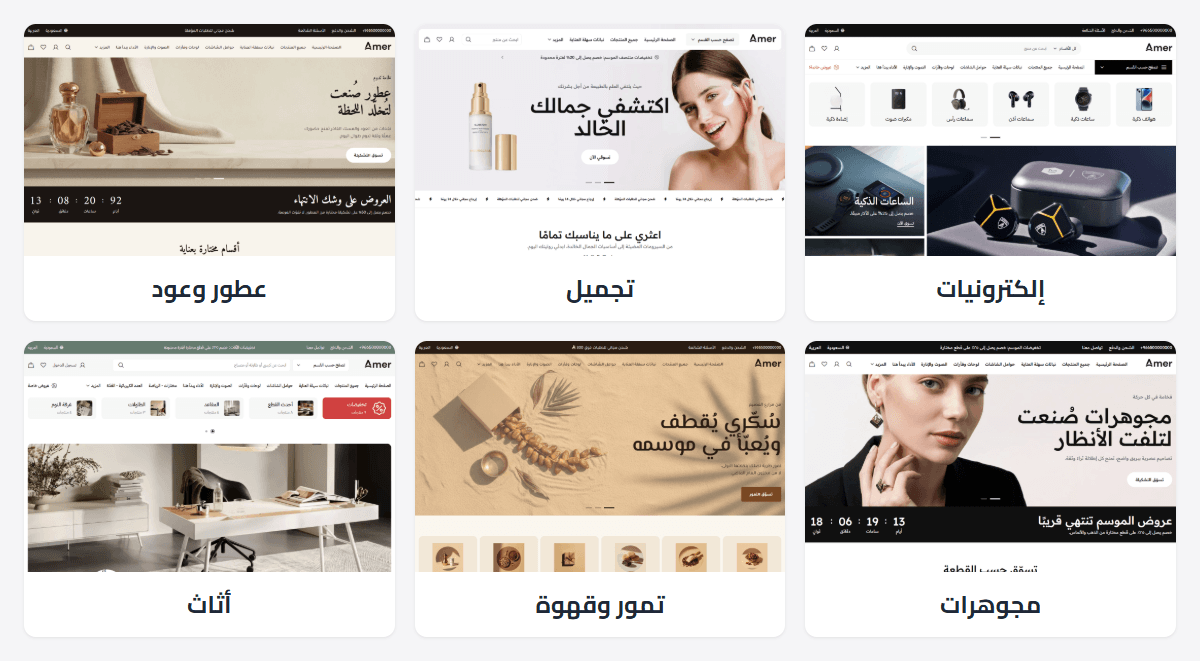
- Start from the design closest to your business and adjust it. Each part has its own design choice, so the header can come from one design and the product card from another.
- Every design has a live demo store; browse it first.
A design puts a complete home page in your store, with its sections and text, plus its header, footer, colors and fonts. You apply it in the theme editor, and it stays a draft until you press “Publish”.
Note: applying replaces; it does not add. “Page settings”, the header, footer and home sections become exactly the design’s, in both languages; sections you added are removed, and settings the design does not set return to defaults. Your products, categories, pages and store settings are not touched.
Step by step
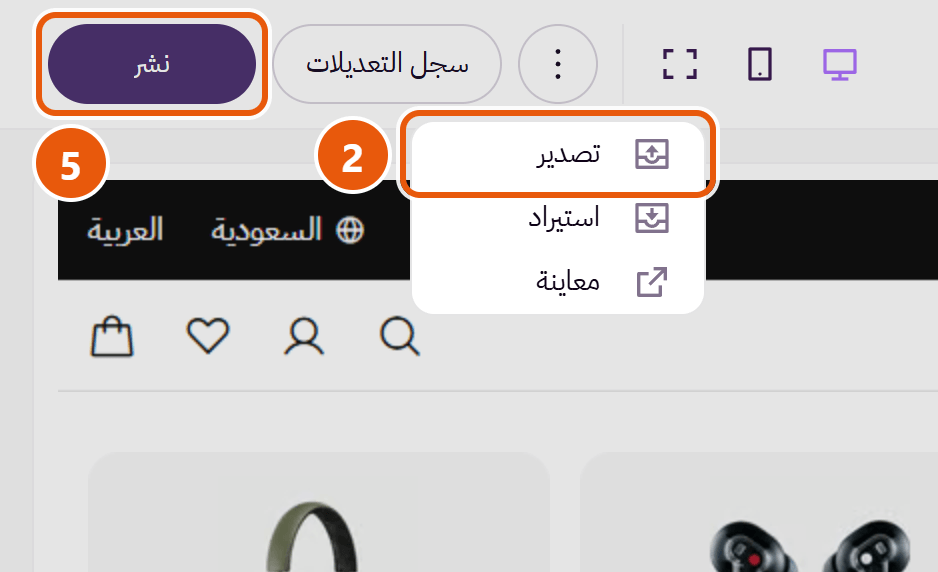
- On the themes page of your Zid dashboard, press “Customize” on Amer.
- First press “Export” and keep the file: a copy of your current customization in both languages, to go back to.
- Next to “Switch layouts in one click.” press “Preview presets”; the “Presets” panel lists every design.
- Choose a design and press “Apply”, then “Apply” again when Zid asks “Apply changes to current theme?”.
- Check both languages, upload your pictures, then press “Publish”.
Tips
- Have a design file (JSON)? Press “Import” and choose it. Zid applies it at once, with no question, and it replaces like “Apply”; import only a file made for Amer.
- Pictures do not come with a design; their fields arrive empty for yours. A section whose picture field says it needs one stays hidden until you upload it.
- Each design is named after its business (electronics, perfume and oud, abayas...) and has a demo store to browse before applying.
- After applying, change anything: a section’s look in “Section design”, the header in “Header design”, any text and color.
- Changed your mind before publishing? Press “Undo all changes”. After? See “I applied a design and want my old store back” in “Questions and fixes”.
The editor has three parts: “Header” for the header, “Page content” for the home page sections, and “Footer” for the footer. A fourth, “Page settings”, holds what applies to every page (look, colors, fonts, product card, product page, WhatsApp); open it with the small button beside the “Home page sections” title.
Settings inside every section come in nearly the same order:
- “Section design”.
- Content: title, text, pictures, lists (slides, products, questions) and buttons.
- Layout: “Full screen width”, columns and height.
- Motion: autoplay, arrows and dots.
- Colors and background.
- Space above and below.
- “Hide this section” last.
Some fields show only with certain designs, or once the option above them is on (“Layer color” appears with “Color layer over the background”). Cannot find a field? Check the chosen design or switch on the option above it. In lists (slides, questions, reviews) add an entry with “Add item”.
Step by step
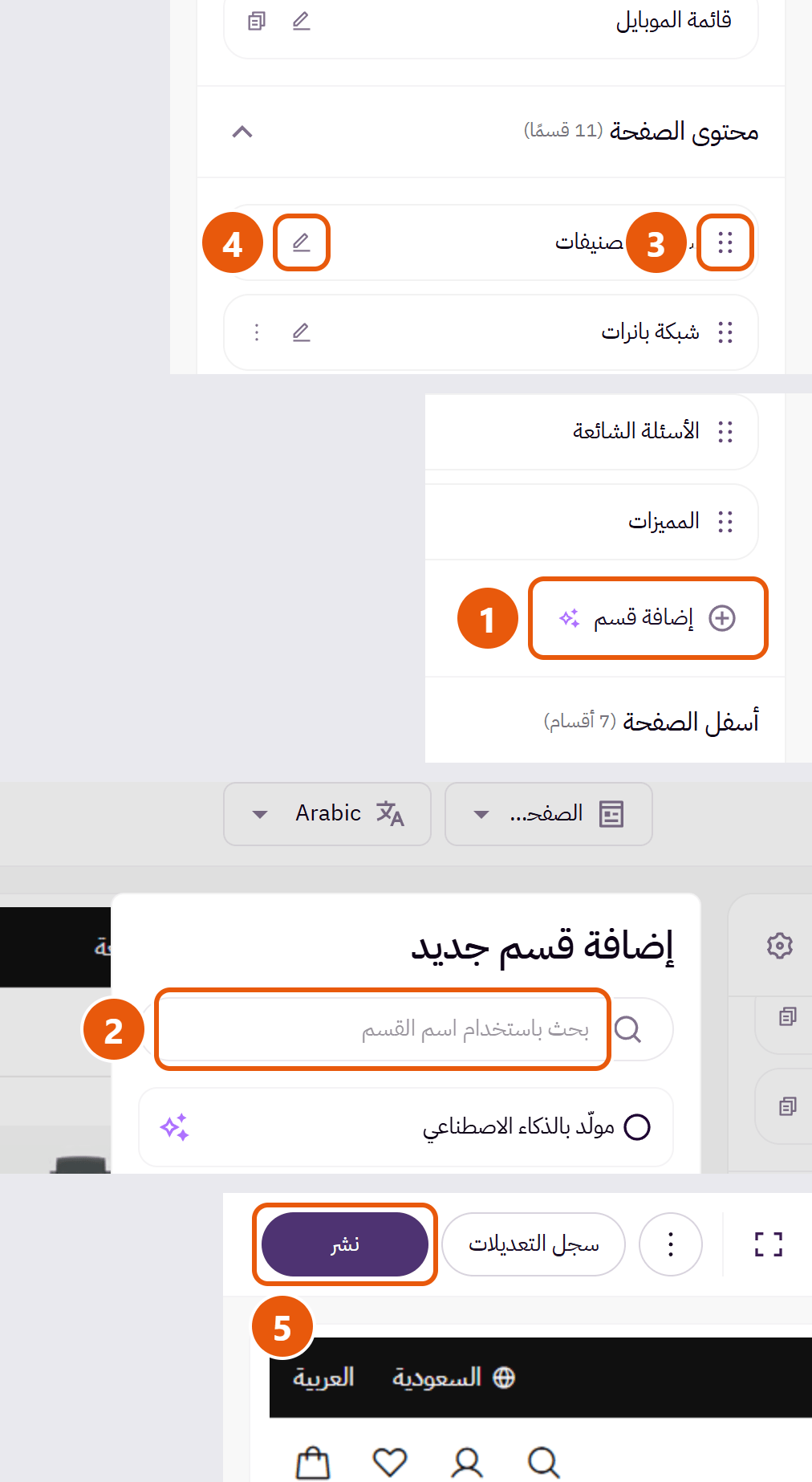
- Under “Page content”, press “Add section”.
- Find the section by name and choose it.
- Drag it into place; the list order is the page order.
- Open its settings with the pencil, choose “Section design” first, then fill in the content.
- Press “Publish”.
Tips
- To hide a section without deleting it, tick “Hide this section” inside it, or choose “Hide” from the menu beside its name. Its content is kept.
- The same menu has “Duplicate”, “Rename” (a name you recognize) and “Delete”.
- Arabic and English each have their own sections. To carry one over, choose “Copy section to English language” from its menu, then translate its text.
- Open a section with the pencil, not the row; the row is for dragging and may move.
- Changing “Section design” changes only the look; what you wrote and uploaded stays.
Upload each picture in its field in the section, with “Upload image”; it is kept in your Zid store, not in the theme. Designs do not carry the demo store’s pictures, so every field waits for yours.
Most sections show the suggested size for each design under the picture field, in pixels (px): width, then height. Most pictures are cropped to fill their space, so keep what matters (the product, a face, words) in the middle, and upload at the suggested size or a little larger. In most sections phones load a smaller copy by themselves.
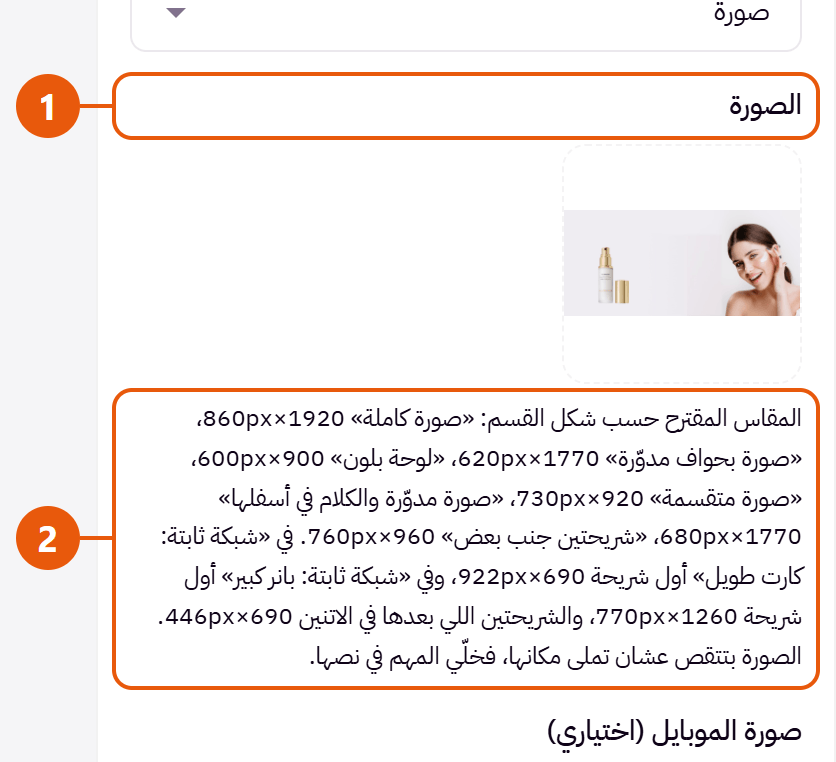
Tips
- “Main slider”: in “Full image, text over it” slides are wide, about 1920 by 860. Phones cut the sides, so upload a near-square “Mobile image (optional)”, about 1000 wide.
- “Category carousel”: about 600 by 600 in most designs. An empty “Image (optional)” shows the category’s own Zid picture.
- “Banner grid”: square in “Two or more banners in a row”; about 690 by 388 when “Banner style” is “Wide rounded image with an underlined link”. Other designs show their size under the field.
- “Feature banner”: about 2115 by 690 in “Full-width single banner”; in “Features around a product image” the product picture is a 700 by 700 PNG with a clear background.
- “Countdown banner”: about 1920 by 600 in “Full banner, countdown over the image”; each picture about 1180 by 1000 in “Two images, countdown between them”.
- “Before / after comparison”: both pictures exactly the same size, about 1920 by 720.
- “Benefit showcase”: about 1920 by 900.
- “Collection tabs”: about 1520 by 1400 in “A list of names that swaps a big image”; 1440 by 1440 in “Numbered products beside the product image with an add-to-cart bar”.
- “Featured list”: about 450 by 294 in “Product columns with two small stacked banners”; 450 by 608 in “Product columns with one tall banner”.
- “Product carousel”: the banner is about 840 by 1552 in “Two product rows with a side banner (best with the title at the side and three per row)”, 900 by 1216 in “A tall banner beside four products (best with the title centered and four per row)”, and 1380 by 800 in “A banner with two products under it and four beside it (best with the title at the side and four per row)”.
- “Product scenes (thumbnail swap)”: about 1410 by 1092 in “Small thumbnails that switch the large image, with the product over it”; 1400 by 1400 in the other two.
- “Product lookbook”: 700 by 700 in “Product grid, image and total price”; other designs show their size under the field. Pins keep their spot on the picture.
- “Product tabs”: each tab banner about 1104 by 752 in “A banner per tab beside a product grid (up to 8 products)”. In “Rounded panel, a column of image tabs beside the products” the tab picture is a 124 by 124 PNG with a clear background, desktop only.
- “Product spotlight”: in “Details on one side, product images in the middle, an extra image on the other side” the extra picture is 1166 by 1544, large screens only.
- “Shop the look (pinned images)”: 1440 by 960 or larger, products away from the edges.
- “Gallery (Instagram style)”: 700 by 700.
- “Testimonials”: customer photo 700 by 700, face in the middle.
- “Blog”: about 1200 by 800, the same for every post so the cards line up.
- “Brand logos strip”: PNG or SVG with a clear background, 88 tall or more at the default logo height, twice the height if you raise it. Logos show whole, never cropped.
- “Benefits” and “Policy marquee”: square PNG icons with a clear background, 104 by 104 or larger in Benefits, 48 by 48 or larger in the strip.
- “Section background image” in any section: fills the section and is cropped to fit; calm, about 1920 wide.
- “Logo” in “Header”: a PNG with a clear background, 175 tall or more.
- “Internal advertisements”: 1440 by 810 (16:9), 768 by 432 for phones.
- “Welcome window image (your photo or logo)”: 96 by 96, shown in a circle.
General settings and identity
These change every page at once, under “Page settings” in the editor: look, colors, fonts, product card, category page, loading screen, advertising popup, internal ads, WhatsApp button and cart recommendations.
Your store's whole style in one step: each look sets colours, fonts, buttons, cards and product pictures together. Start here, then adjust in “Main colors” and “Fonts”.
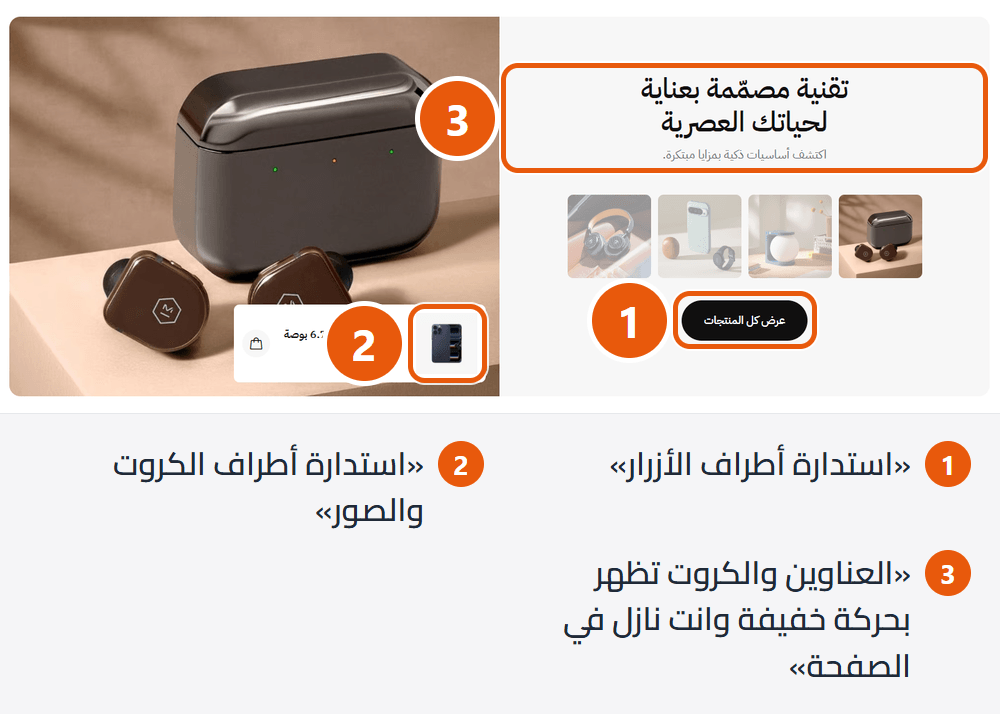
Store look
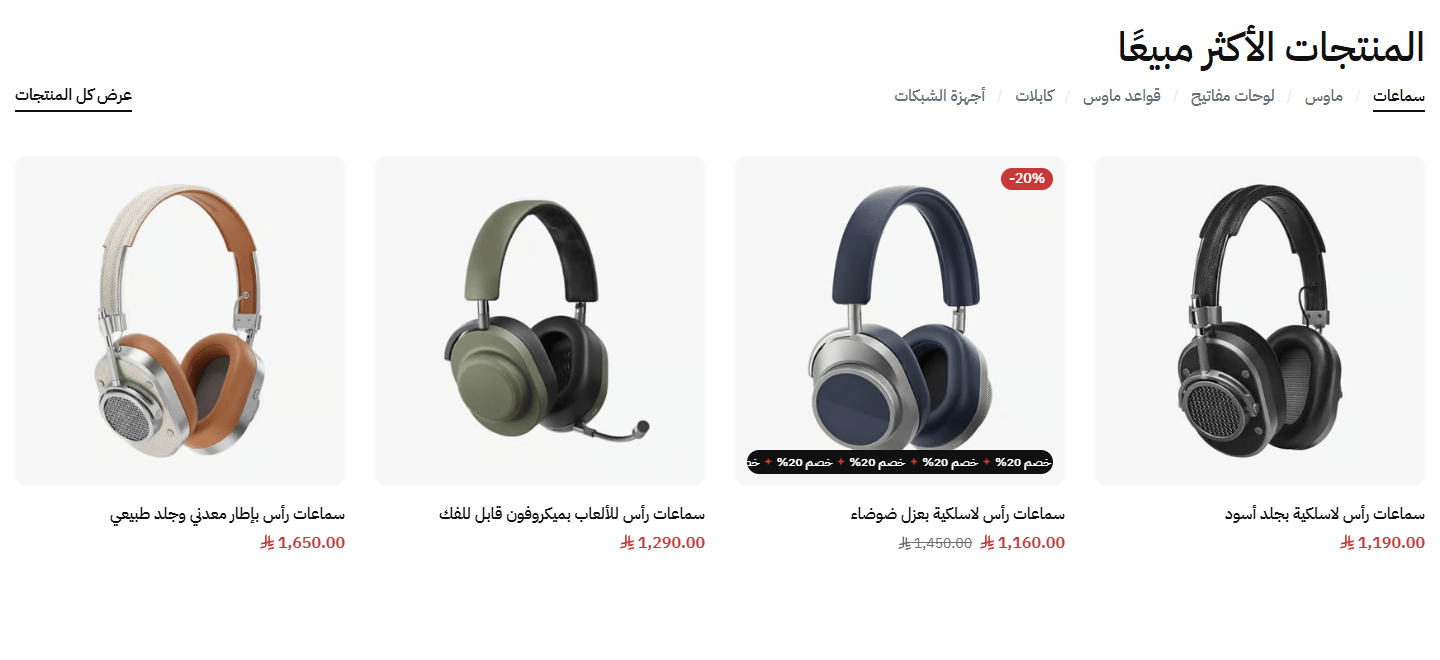
Black buttons, red card prices and discount badges, a white page, square pictures. For electronics and any clean, direct store.
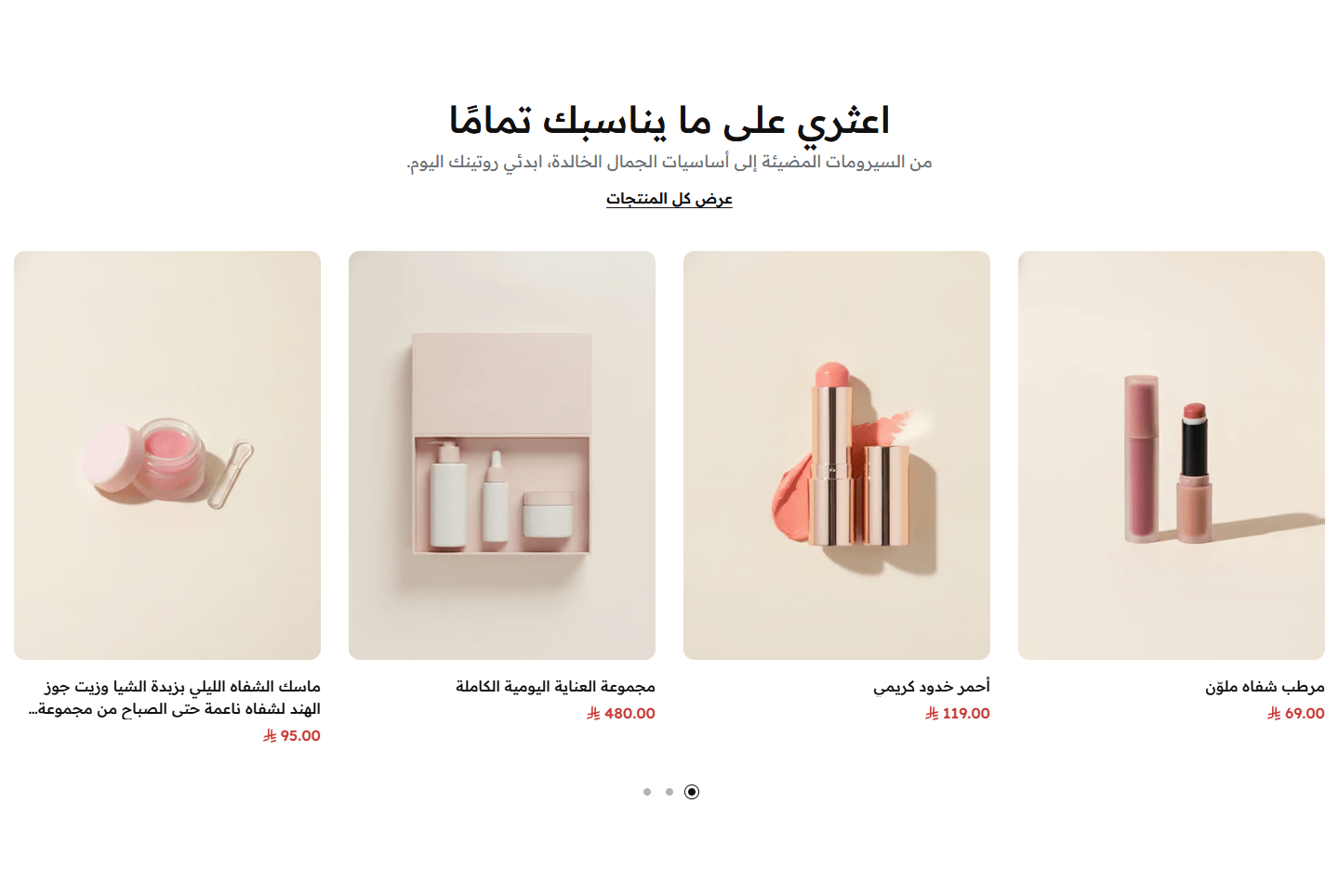
The colours of “Tech (electronics)”, with Readex Pro for Arabic and tall 3:4 pictures. For beauty, skincare and fashion.
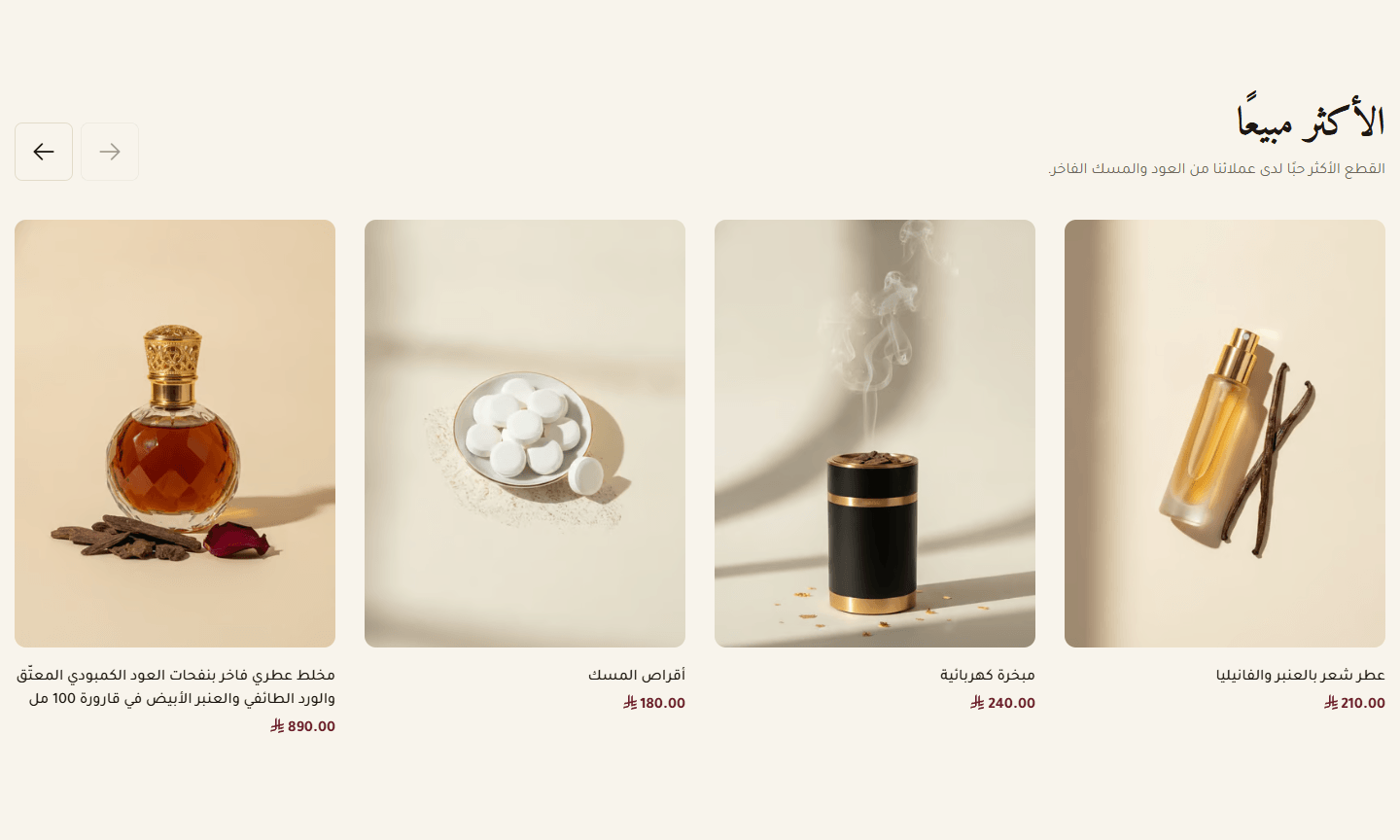
Deep burgundy buttons, antique gold details and stars, a warm ivory page, Amiri headings, tall 3:4 pictures. For perfume, oud, jewellery and premium gifts.
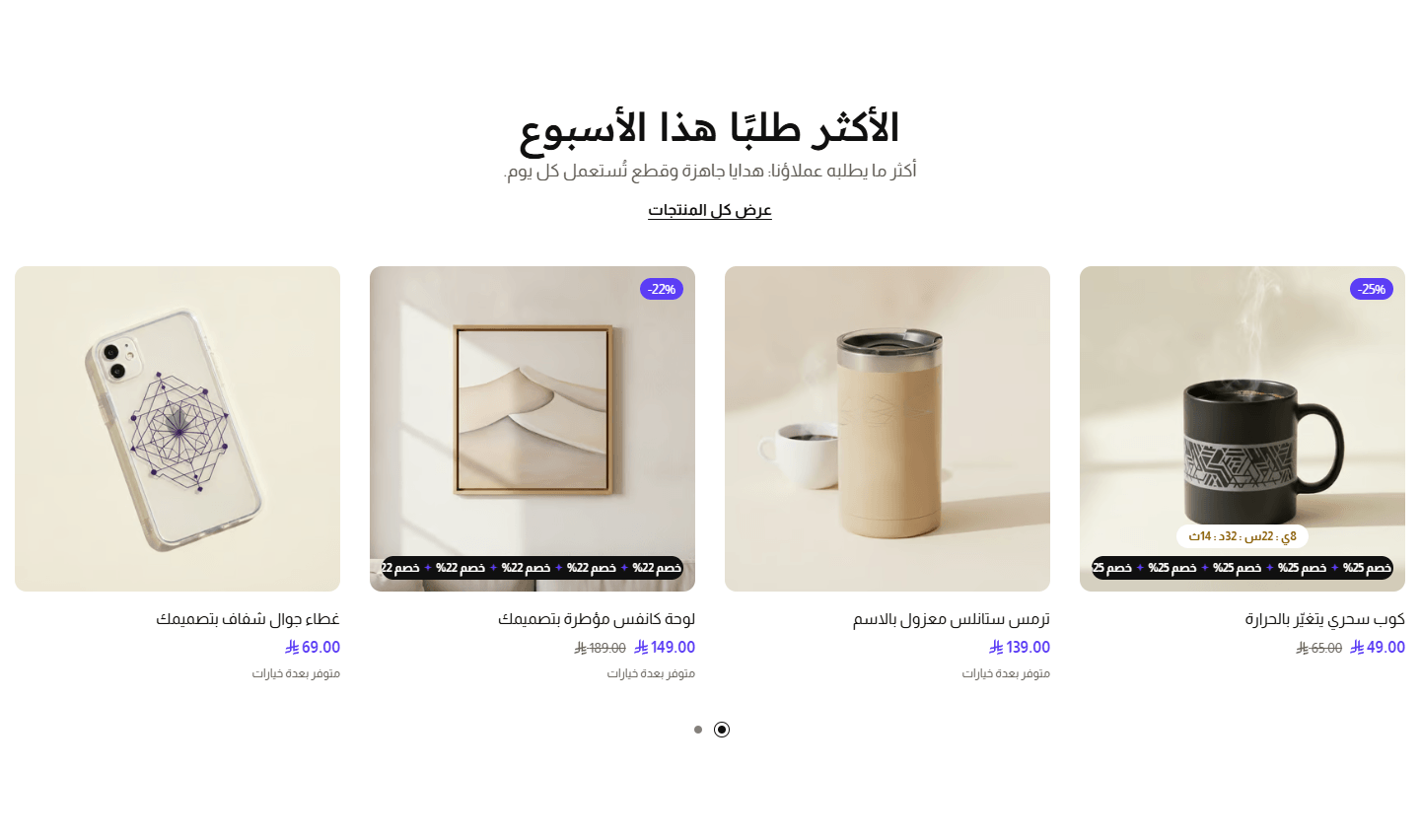
Violet buttons and prices, yellow touches (the cart icon count, the product page discount badge), paper-coloured panels, square pictures. For print on demand, gifts and youthful stores.
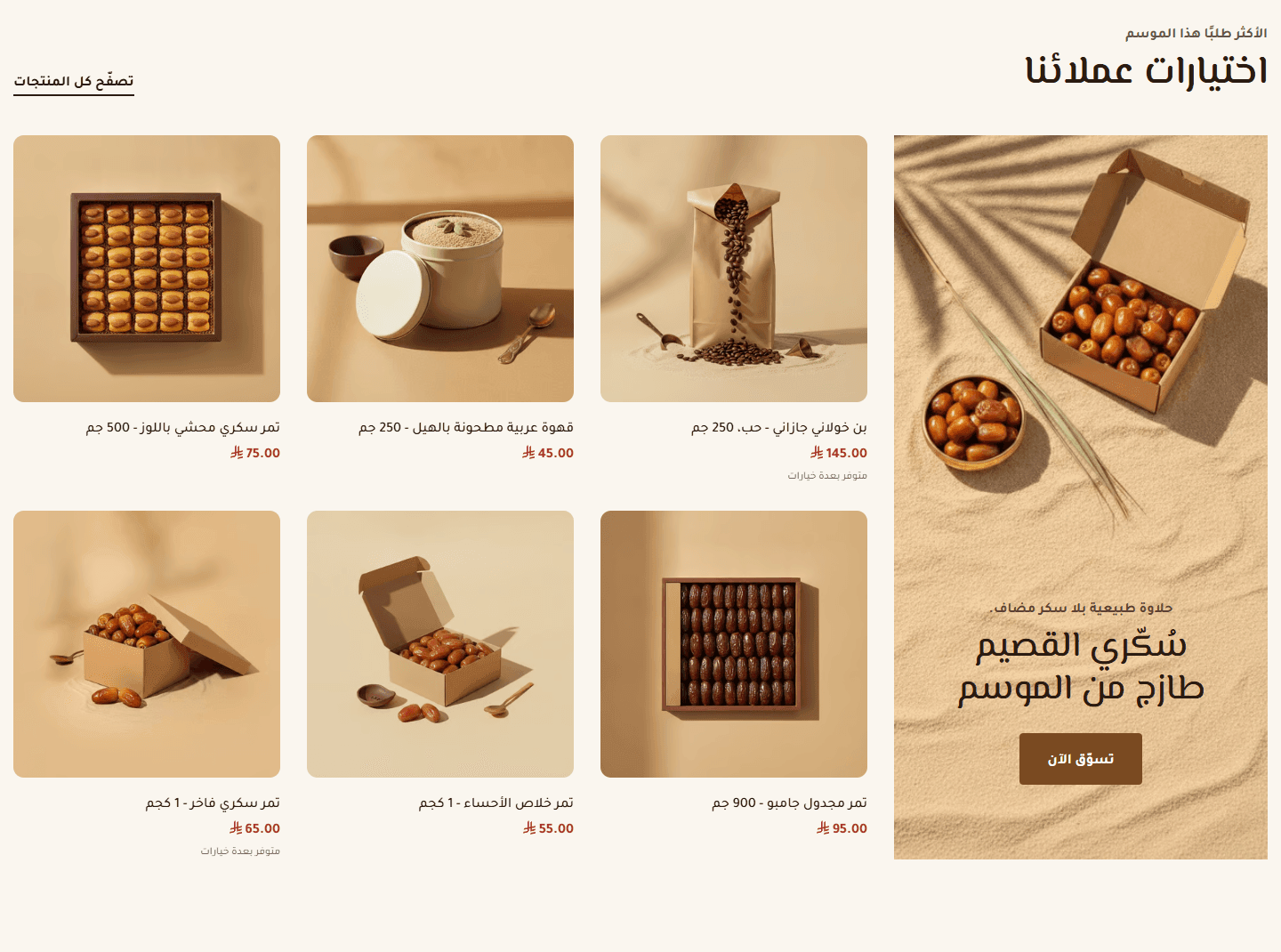
Date-brown buttons with near-square corners, gold details, a cream page with sand panels, El Messiri headings. For dates, coffee, spices and local produce.
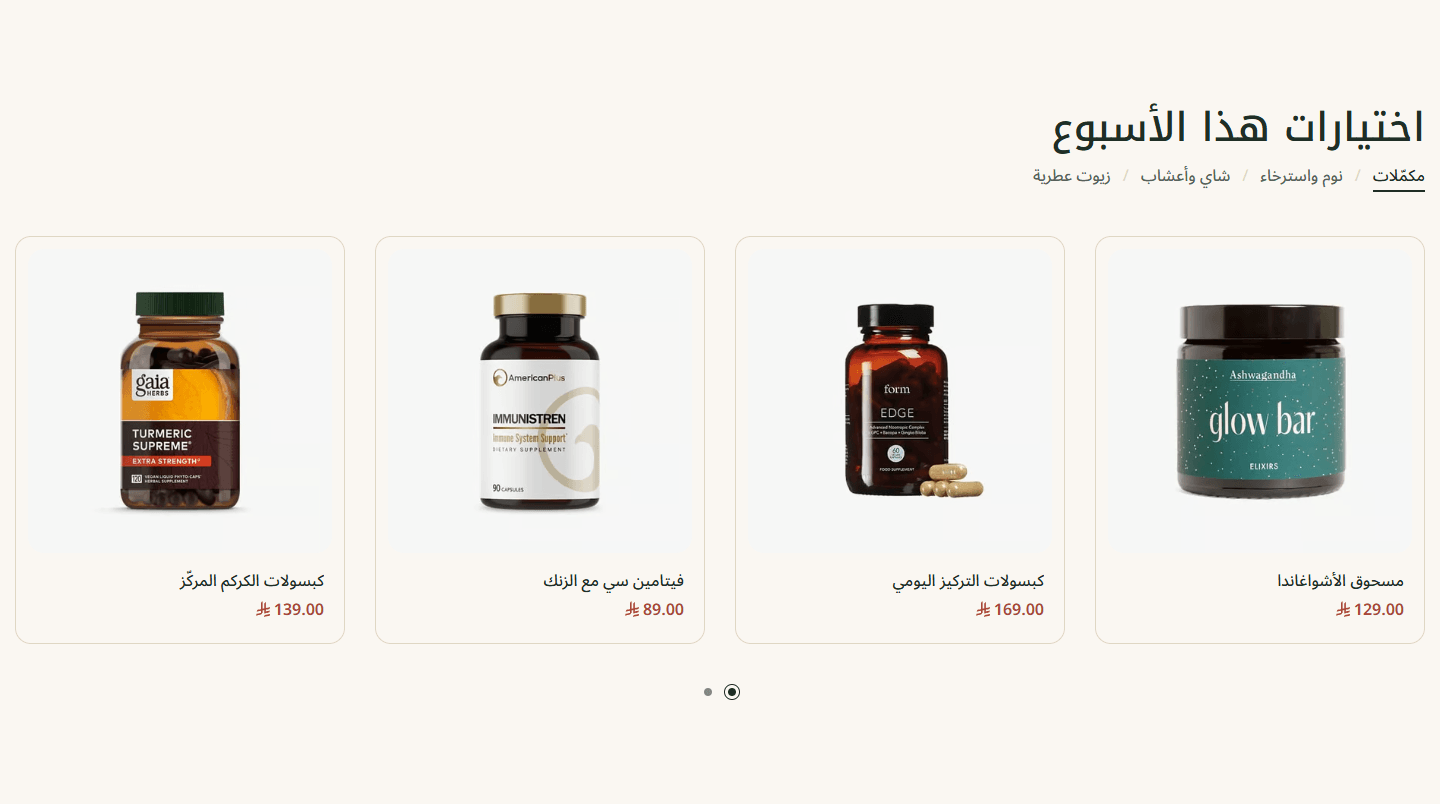
Herbal green buttons, coral touches, a cream page, rounder cards. For wellness, supplements and natural care.
Step by step
- Open the “Look” settings.
- Pick the closest look in “Store look”; the preview changes with it.
- For other corners, change “Button corners” or “Card and image corners”.
- Save, then press “Publish”.
Settings
- Store look: Changes colours, fonts, corners and product picture shape at once, the advertising popup and loading screen included. A colour or font you set in “Main colors” or “Fonts” overrides the look.
- Button corners: Across the store. “Square” is sharp; from “4px” to “20px” corners get rounder; “Fully rounded (pill)” makes a capsule. “As the look” keeps the look's.
- Card and image corners: For product cards, pictures and banners. “Square” is sharp, “24px” the roundest, “As the look” keeps the look's.
- Headings and cards fade in as you scroll down: Home page headings and cards rise gently into place as the customer reaches them. Turn off for no motion.
Tips
- In “Tech (electronics)” and “Soft (beauty)”, while “Primary color (buttons)” is empty, buttons take your store's main colour from Zid; other looks use their own. In every look, set it in “Primary color (buttons)”.
- The look changes appearance only; home sections, text and pictures stay. For a complete design with its sections, apply it from “Preview presets”.
- Visitors who turned motion off on their device do not see the fade-in; that is expected.
Your brand colours across the store: buttons, offers, headings, text, backgrounds and badges. Any colour left empty takes the “Store look” colour.
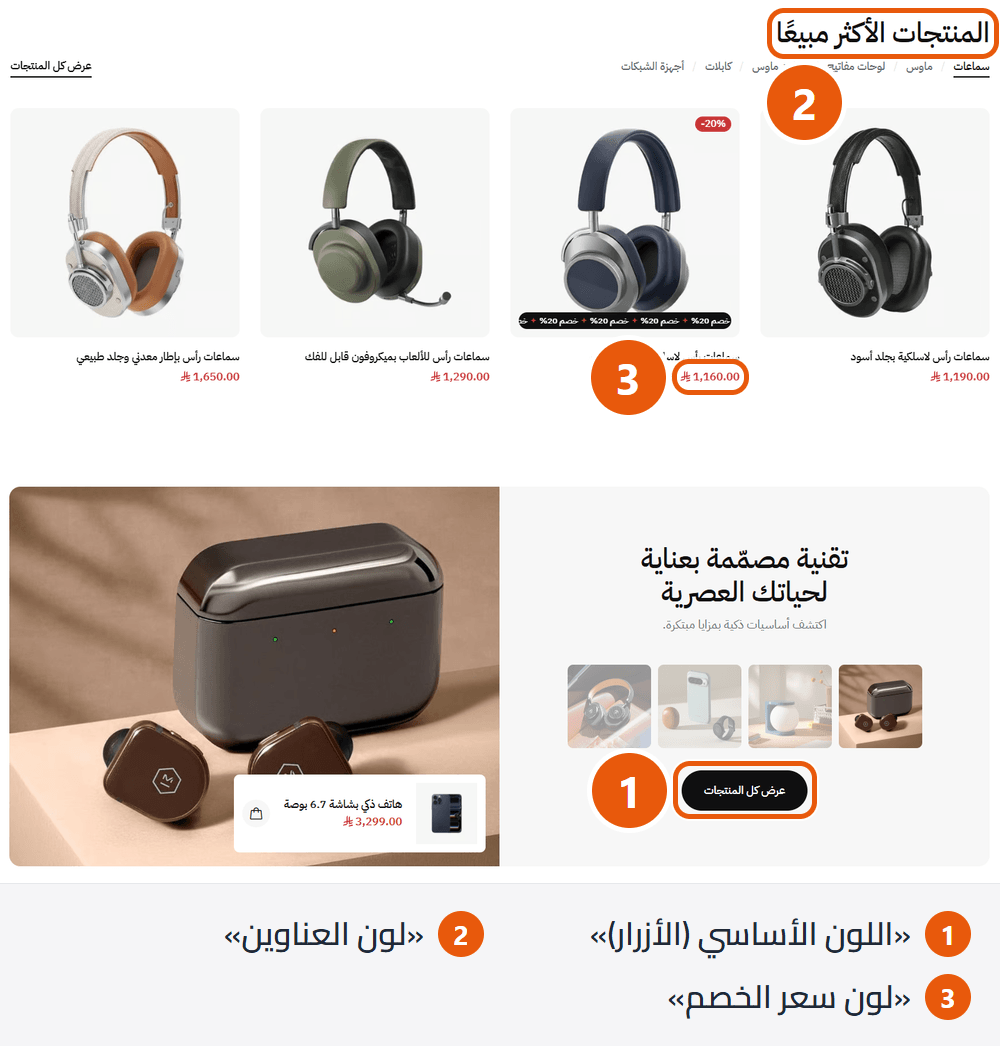
Step by step
- Open “Main colors”.
- Put your brand colour in “Primary color (buttons)”.
- An offers colour goes in “Accent color (offers and highlights)”.
- Leave the rest empty, or change only what you need.
- Check desktop and mobile, then press “Publish”.
Settings
- Primary color (buttons): Main buttons such as “Add to cart” and “Complete Order”, plus the WhatsApp and back-to-top buttons unless they have their own. The first colour to change.
- Text on buttons (empty: picked automatically to stay readable): Words and icons inside those buttons. Empty picks white or dark to suit the button.
- Accent color (offers and highlights): Eye-catching details: the count on the cart and wishlist icons, the offer countdown on cards. Links, menu items and icons take it on mouse-over.
- Headings color: Section and page headings, product names on cards, and the large price on the product page.
- Text color: Ordinary text such as descriptions and paragraphs.
- Secondary text color (small details): Small text such as lines under headings and notes. Lighter than “Text color”, still readable.
- Page background color: Every page's background, and the header and some footer designs unless coloured in “Header and footer colors, page background”.
- Cards and panels background color: Light backgrounds: behind a product picture on its card, boxes and panels.
- Dividers and borders color: Thin lines between parts, card and field borders.
- Sale price color: Prices on product cards, on sale or not, and the discount percentage badge on cards, whose text adjusts itself. The large product page price takes “Headings color”.
- Rating stars color: On cards and the product page.
- Badges background color (discount and product badge): Two badges: the one you give a product in Zid (such as “New”) on cards, and the discount badge on the product page. Empty keeps the Zid badge green. The discount badge on cards takes “Sale price color”.
- Badges text color (empty: picked automatically to stay readable): Words on those badges. Empty picks white or dark to suit the badge.
Tips
- Start with two: “Primary color (buttons)” and “Accent color (offers and highlights)”; usually enough.
- A light button colour (yellow, beige) turns its words dark by itself. If you fill “Text on buttons (empty: picked automatically to stay readable)” yourself, check it shows.
- Keep “Text color” dark enough on “Page background color”, especially for phones.
- With “Tech (electronics)” and “Soft (beauty)”, an empty “Primary color (buttons)” gives buttons your store's main colour from Zid's settings.
A font for Arabic, one for English, and optionally a headings font for each. “As the look” keeps the look's choice.
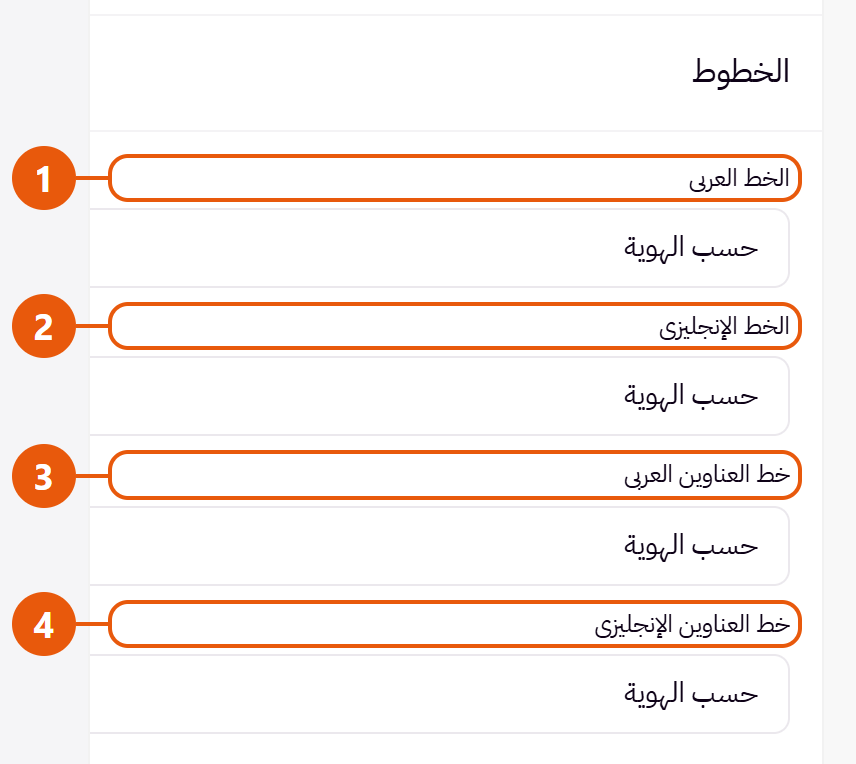
- Arabic font: For the Arabic store. Headings use it too unless the look has a headings font or you set “Arabic headings font”.
- English font: For the English store. “As the look” means DM Sans in every look.
- Arabic headings font: “Same as the Arabic font” uses the text font; “As the look” keeps the look's headings font if it has one.
- English headings font: “Same as the English font” uses the text font; “As the look” keeps the look's headings font if it has one.
Tips
- Decorative fonts (Aref Ruqaa, Lalezar, Jomhuria, Rakkas) suit “Arabic headings font” only; they tire the eye in descriptions. Give “Arabic font” a plain one such as Cairo, Tajawal or Almarai.
- One text font and one headings font are enough; each extra font slows the page a little.
- After changing a font, check long headings and product names in both languages.
Colours of their own for the header or footer (a dark header with white text, say), and a light pattern behind page content.
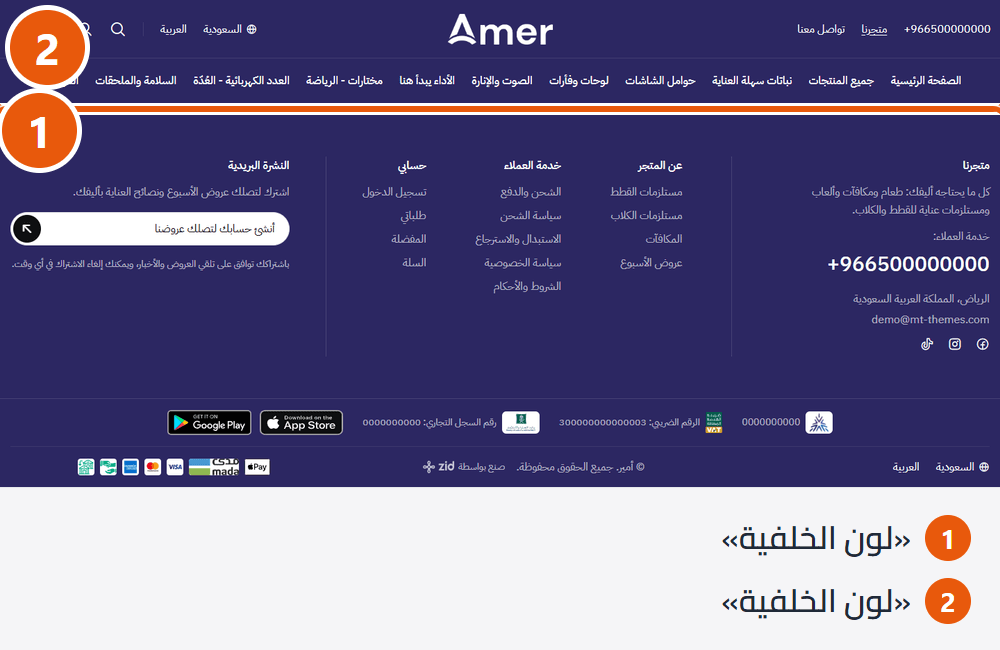
- Header
- Background color: The header's background (logo and menu). Empty takes “Page background color”.
- Text color: Header text and icons. Change it with the background: dark on light, white on dark.
- Lower menu row background color (empty: same as the header): For the separate lower menu row, in the designs that have one.
- Lower menu row text color (empty: same as the header): Menu text in that row.
- Footer
- Background color: The footer's background. Empty keeps each footer design's own colour.
- Text color: Footer text and links.
- Page background
- Page background image (optional): A pattern repeated behind every page's content; sections with their own background colour cover it.
Tips
- Change the header background and text together: darker background, lighter text.
- For the page background use a small, light, seamless pattern, not a large detailed picture.
- The “Top bar” is coloured in its own settings. With the “Clear over the first home section” header design, the colour while clear is “Text and icon color while clear (empty: the header's own)” in “Header”.
The product card is each product's tile on the home page, category pages and search results. These settings apply to every card at once: design, buttons, picture shape and what it shows.
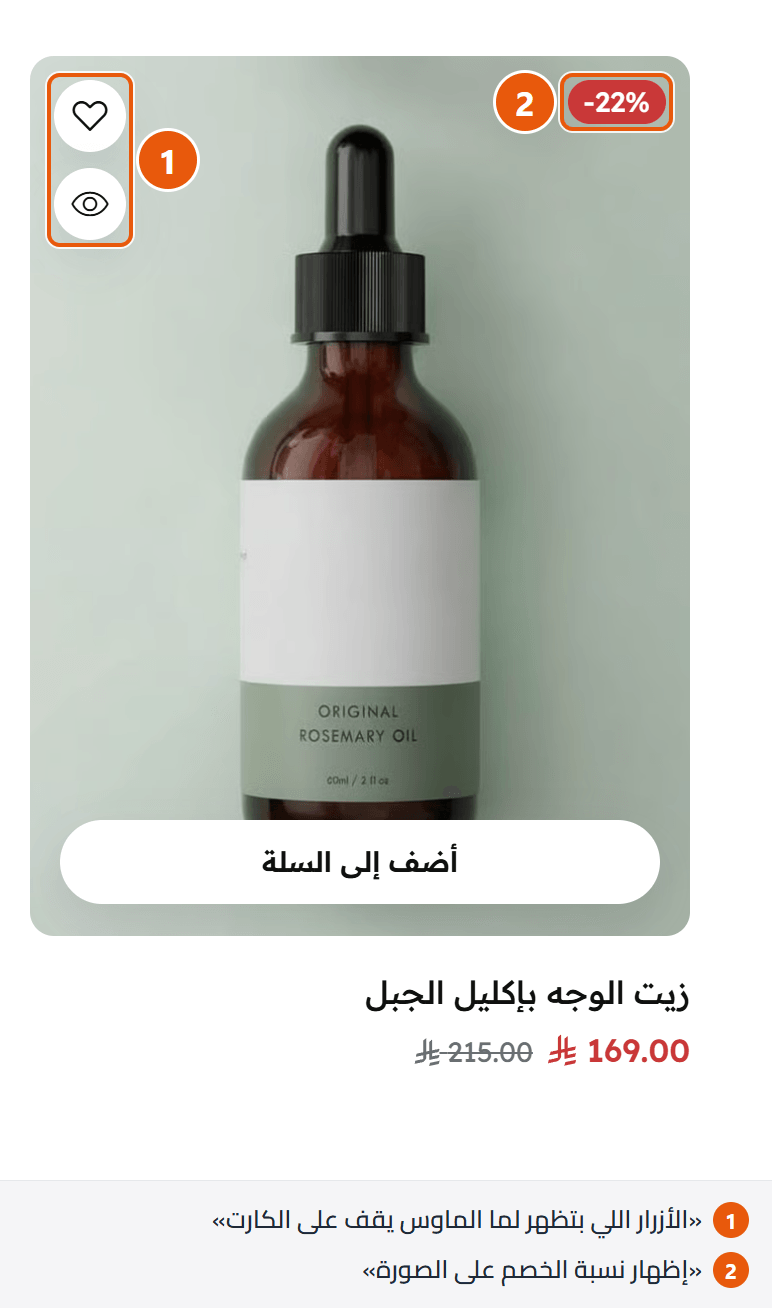
Product card design
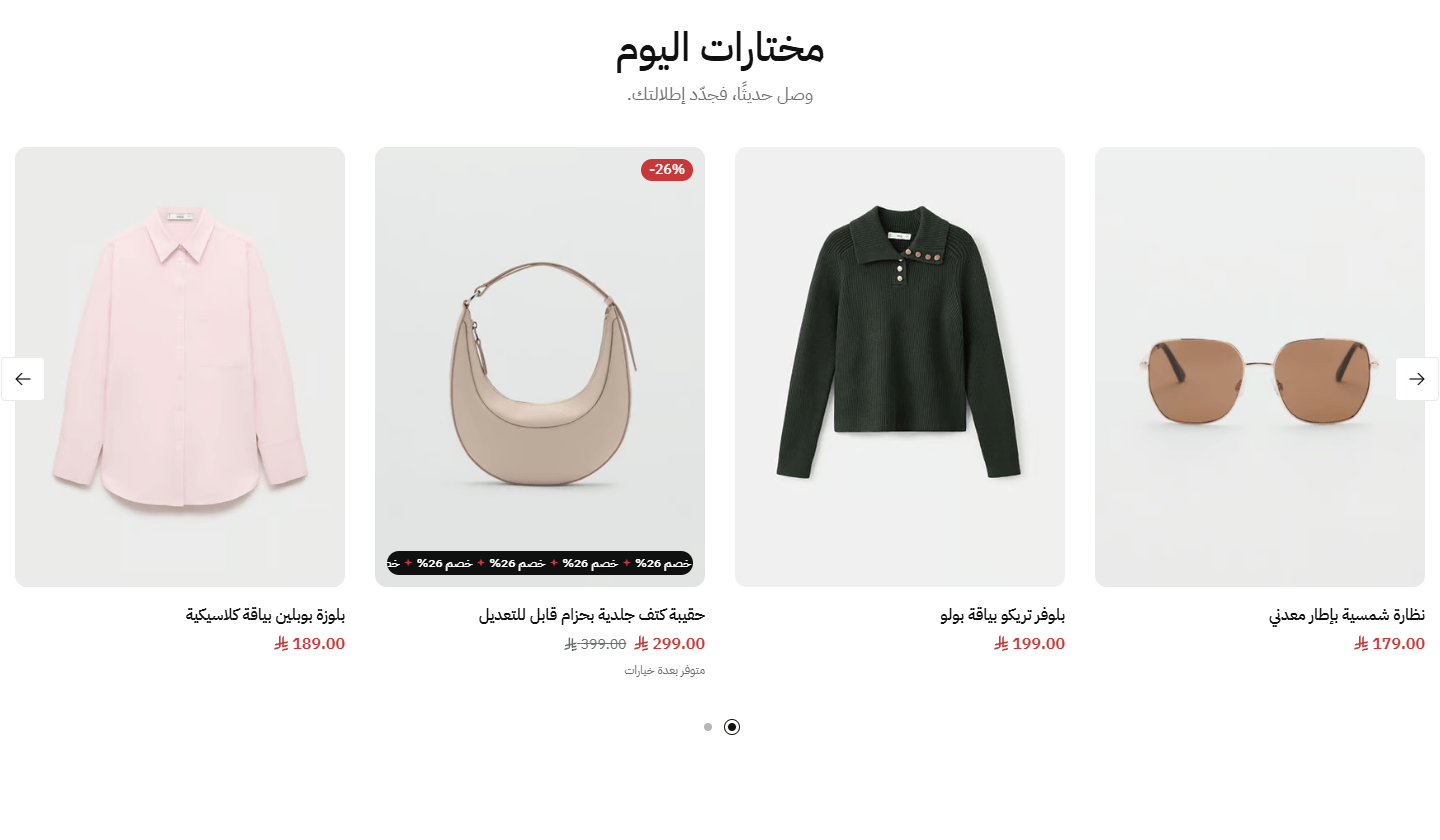
The picture on a light rounded panel, text below, no frame. The classic card, for most stores.
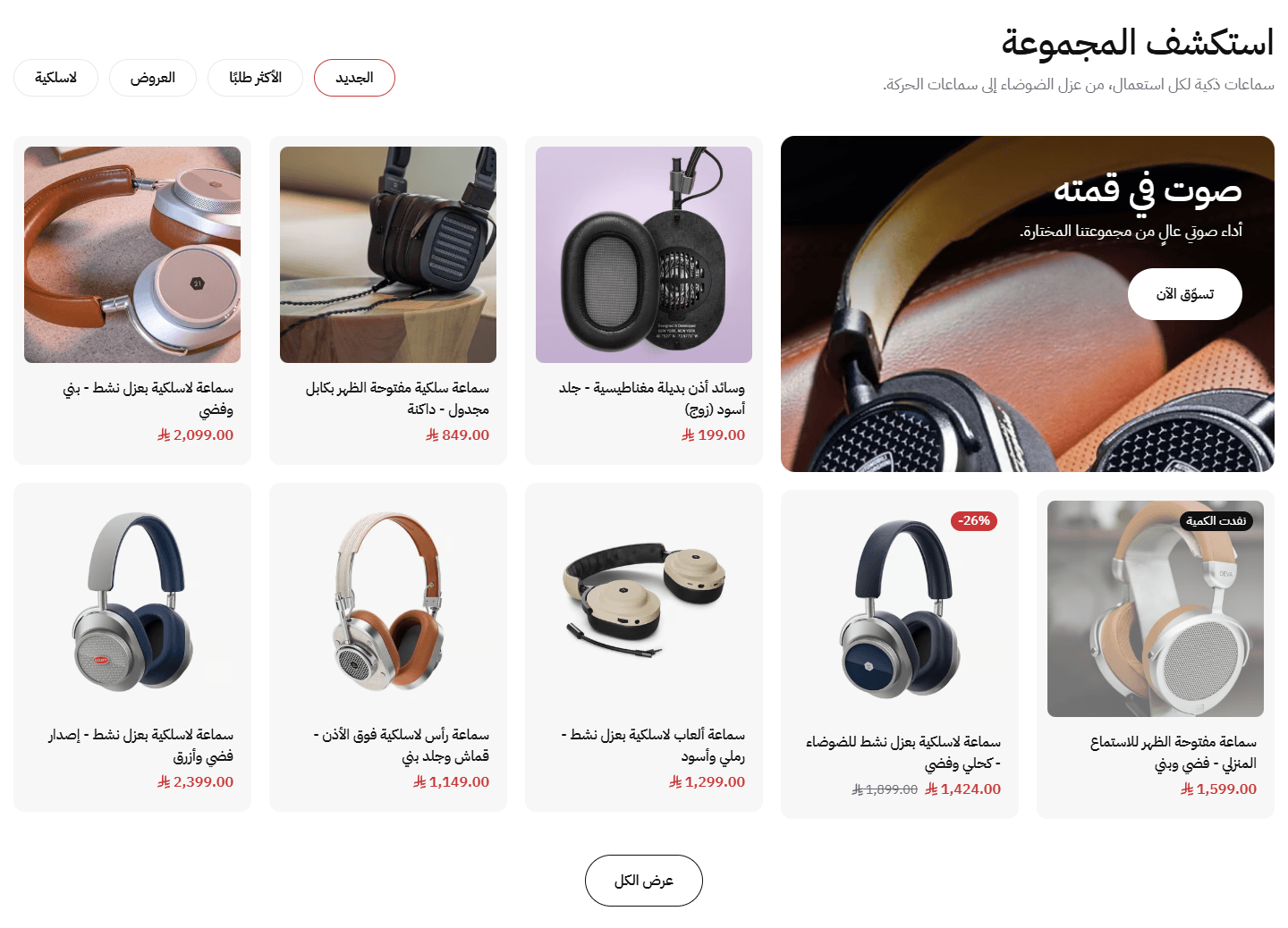
Each product reads as a tile of its own. Good for making products stand out on a white page.
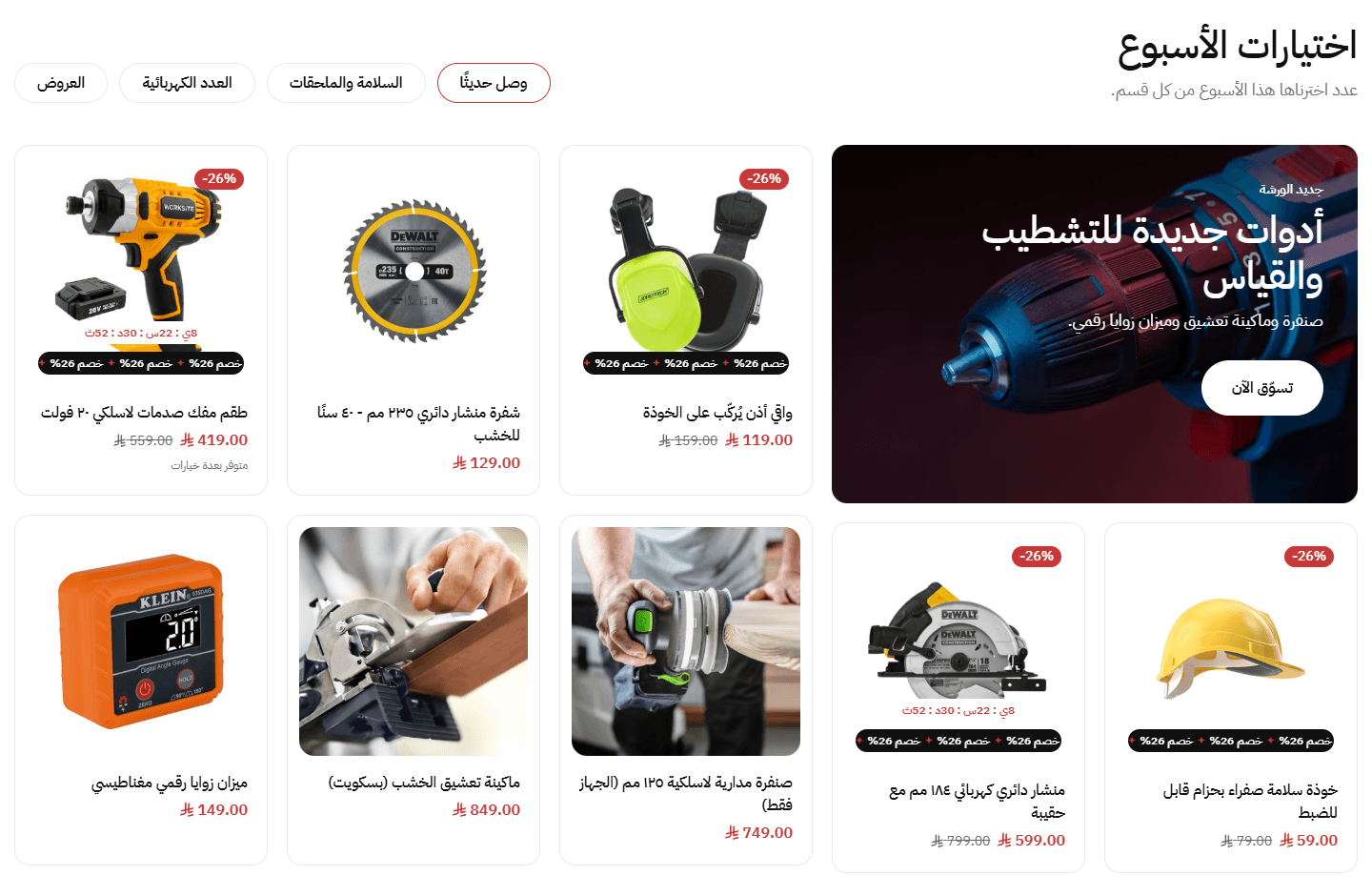
A thin light frame, the picture on the page colour. Tidy for stores with many products to compare.
Step by step
- Open “Product card”.
- Pick a “Product card design”.
- Pick the “Buttons shown when the mouse is over the card”.
- Match “Product image shape” to your pictures.
- Check a category page, then press “Publish”.
Settings
- Product card design: For every card in the store at once.
- Buttons shown when the mouse is over the card: The heart for the wishlist, the eye for a quick look without leaving the page, and “Add to cart”. Always visible on phones and tablets.
- Product image shape: The product page pictures use it too. Pick the closest to your photos so little is cropped.
- How the image fits: “Fill the space (may be cropped)” may trim the edges; “Whole image, never cropped” shows it all with space around it, for mixed photo sizes or when the whole product must show.
- Show the rating (stars): Stars and number of ratings under the name, when reviews are on in Zid and the product has a rating.
- Show the discount percentage on the image: Such as -20%, on products on sale.
- Show the product badge you set in Zid: Such as “New” or “Best seller”, on the card picture.
- Show “Available in several options” and “Tax free”: A line under the price: “Available in several options” for products with sizes, colours or fields to fill, or “Tax free” when exempt. Not shown for sold-out products.
- Show the offer countdown: A countdown in days, hours, minutes and seconds on the picture, for sales with an end date in Zid. Large desktop screens only.
- Moving sale strip on the product image: the word before the percentage, like “Sale” (leave empty for none): The word runs with the discount (“Sale 20%”) in a moving strip over every product on sale. Large desktop screens only.
- Show the second product image on hover: The picture swaps to the product's second one, if any. Off: the first only enlarges slightly.
- Open the cart drawer after adding a product (anywhere in the store, not only from cards): After an add the drawer opens so the customer can go on to checkout. Off: just a small tick or message.
Tips
- Pictures look best in one shape and background. With a square “Product image shape”, upload around 1000×1000.
- The moving sale strip and offer countdown show on large desktop screens only; phones show the discount percentage on the picture.
- The heart shows only when the wishlist is on in Zid. On phones it is not on the card, only on the product page.
- “A row of icons in the middle of the image” is centred on large desktop screens and at the picture's side on smaller ones.
- The drawer opens after an add only while “Show the cart drawer” is on in “Cart drawer”.
Category pages, the all-products page and search results: filter position, products per row, grid or list, and how more products load.
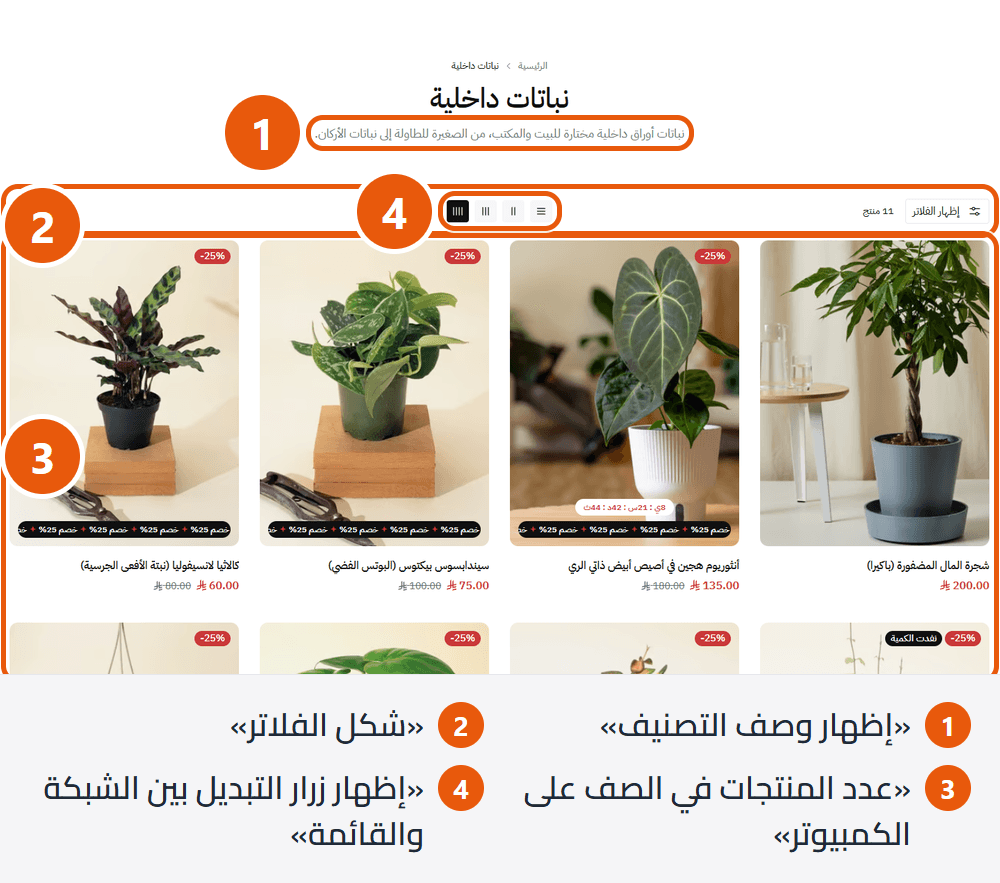
- Show the category description: The category's Zid description under its name. Helps customers and Google.
- Show the sub-categories strip: The category's Zid sub-categories in a strip under the title, each with picture and name.
- Full screen width page: Products and filters use the full width instead of a centred column. Useful with 5 or 6 per row.
- Filters layout: The side panel leaves products full width; the two columns keep filters always in view; “A dropdown per filter” puts a small button per filter above the products. The column and the “Wide panel that opens above the products” become a side panel below large desktop screens.
- Products per row on desktop: 5 and 6 show on wide screens only; ordinary laptops show 4. Phones always show 2; tablets 3 (or 2 if you pick 2).
- How products show when the page opens: “Grid” is cards side by side; “List” is one product per row with picture, name, price, a short description and the add button, for products that need explaining.
- Show the grid/list switch: Customers pick list or grid, and the column count, themselves.
- How more products load: When products span more than one page. “Page numbers” are ordinary; a “Load more” button adds the next ones below; “Load automatically while scrolling” adds them as the customer reaches the end.
Tips
- Filters come from your products' attributes in Zid (size, colour...); a category with no filters has no filter button.
- For categories with many products in sizes and colours, “Column beside the products, start side” lets customers filter while seeing the products.
- These settings also apply to all-products and search, except the description and the sub-categories strip (category pages only).
- Give each sub-category a square picture in Zid; one without shows the first letter of its name (after the Arabic article «ال»).
A short screen as the page opens, with your logo or store name in gentle motion, gone once the page is ready. Six styles.
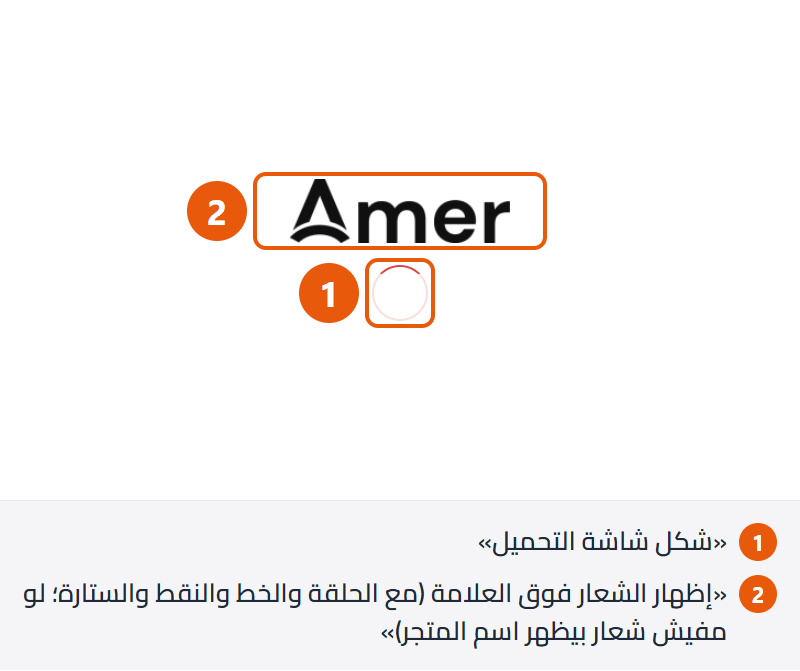
- Show the loading screen: Off: pages open straight away.
- Loading screen style: The logo, a spinning ring, a line along the top, the store name, dots, or a curtain. “Store name revealed in the heading font” suits a store without a logo.
- Text shown (empty: the store name): Such as your brand name in English or a short phrase.Shown when “Loading screen style” is “Store name revealed in the heading font”
- Show the logo above the mark (with the ring, line, dots and curtain; the store name when there is no logo): The header's logo, mid-screen. Always shown with “Logo fading in and out”; no effect with “Store name revealed in the heading font”.
- A small line under the mark (optional): Such as “Getting the best offers ready”.
- How often it shows: “On every page” on each page, “Once per visit” the first page only (kindest to customers), “Once every 24 hours” once a day.
- Shortest time on screen (1000 = 1 second; 0 = leaves as soon as the page is ready): So the motion is not a flicker when the page is quick. The default 400 is under half a second.
- Longest time on screen in seconds (then it leaves even if the page is still loading): 1 to 6, so customers never wait on a slow connection.
- Background color (empty: the page background). With a dark color, use a light logo so it shows: The whole screen.
- Mark color (ring, line, dots or curtain) and the line under it - empty: the look's color: If the background is too close to it, it switches itself to white or dark so it shows.
Tips
- In the editor it shows on every preview reload (up to two seconds) so you can see it; customers see it per “How often it shows”.
- It leaves once the first part of the page appears, not after every picture, so it does not slow the store.
- Keep “Longest time on screen in seconds (then it leaves even if the page is still loading)” at 3 seconds or less.
A window shown a few seconds after a visitor arrives, with an offer, discount code or news, in one slide or several. You set where, when, how often and its colours, and each new campaign can show again even to those who saw the last.
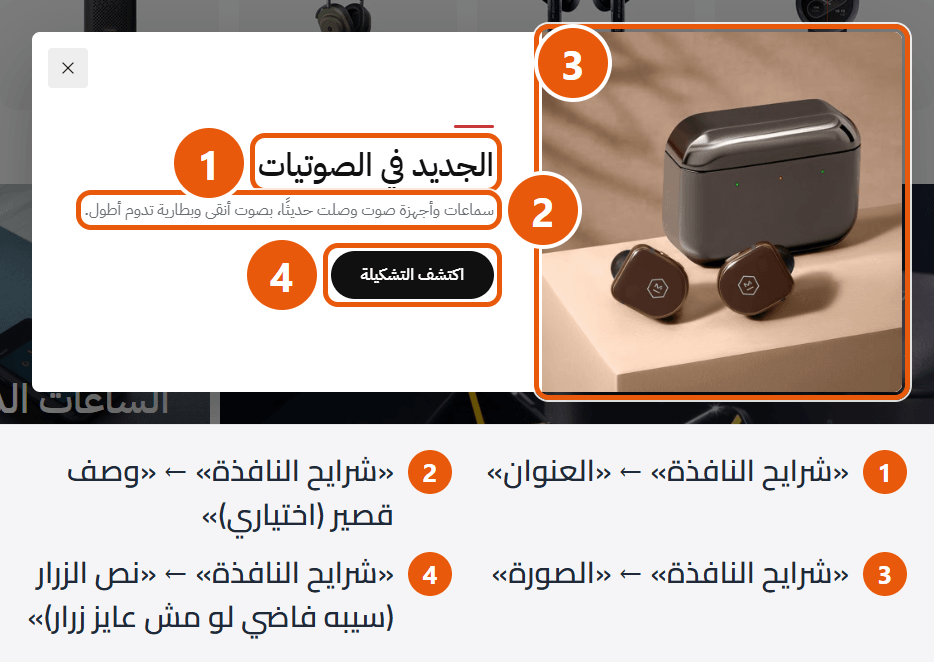
Step by step
- Open “Advertising popup” and turn on “Show the advertising popup”.
- Add a slide in “Popup slides”: “Image”, “Title”, and the code in “Short description (optional)”.
- Write “Button text (leave empty for no button)” and set “Button link (needed for the button to show)”.
- Set “Pages it shows on”, “Seconds after the page opens” and “How often it shows”.
- For each new offer change “Campaign name (change it to show the popup again to visitors who already saw it)”, then press “Publish”.
Settings
- Show the advertising popup: The main switch. The popup needs at least one slide with a picture or words.
- Popup slides: One offer per slide; add more for several offers and the customer moves through them.
- Title: Such as “20% off your first order”.
- Short description (optional): Such as “Use the code WELCOME20 at checkout”.
- Image: Cropped to fill its space; keep what matters in the middle. A picture with no words fills the whole window.
- Mobile image (optional): On phones the picture sits above the words at full window width, so landscape works best.
- Image description for Google and screen readers (alt) - optional: Such as “Winter offer, 30% off”.
- Button text (leave empty for no button): Such as “Shop the offer”; the button needs a link.
- Button link (needed for the button to show): Such as your offers category.
- Open the link in a new tab: Only useful for links outside your store.
- Image position: On desktop; phones always put it above the words.
- Pages it shows on: “Home page only” or “Every page”.
- Seconds after the page opens: 0 to 120 seconds. 4 to 8 lets the visitor see the store first.
- How often it shows: “Once per visit” is once while the store stays open in the same tab; “Once every 24 hours” once a day; “On every page” on each page, which can annoy.
- Hide on mobile: If it gets in the way on a small screen.
- Campaign name (change it to show the popup again to visitors who already saw it): Customers never see it. Change it for each new offer (“ramadan-offer”, say) and the popup shows again even to those who saw the old one.
- Autoplay: Adds a “Pause slides” button.
- Seconds on each slide: From 1 to 60.Shown when “Autoplay” is on
- Start again after the last slide: Instead of stopping at the end.
- Show arrows: To move between slides.
- Show dots under the slider: Show the slide count. With several slides and arrows, autoplay and dots all off, the dots come back so customers can reach the rest.
- Window background color: With a dark background and “Text color” empty, the words turn light by themselves.
- Text color: Title and description.
- Button background color: With “Button text color” empty, its words adjust themselves.
- Button text color: The button's words.
- Color behind the window: The layer covering the page so the popup stands out; black is usual.
- Strength of the layer behind the window (0 clear - 100 solid): 50 suits most stores.
Tips
- On desktop: beside the words the picture sits in a nearly square space about 360 pixels wide, so a square such as 720×720 looks sharp. Above the words it is a strip the window's width (about 870 pixels) and 220 to 320 high.
- On phones the picture sits above the words, 190 to 300 pixels high, cropped from the bottom; keep what matters at the top or upload a landscape “Mobile image (optional)”.
- Customers close it with its close button, a click outside it, or Esc.
- Cannot see it while testing with “Once per visit”? Open the store in a private (incognito) window, or change “Campaign name (change it to show the popup again to visitors who already saw it)”.
Banners above or below the content of store pages (categories, products, cart, blog), never on the home page. Each ad can be limited to certain pages or categories, such as a shoe offer on the shoes category only.
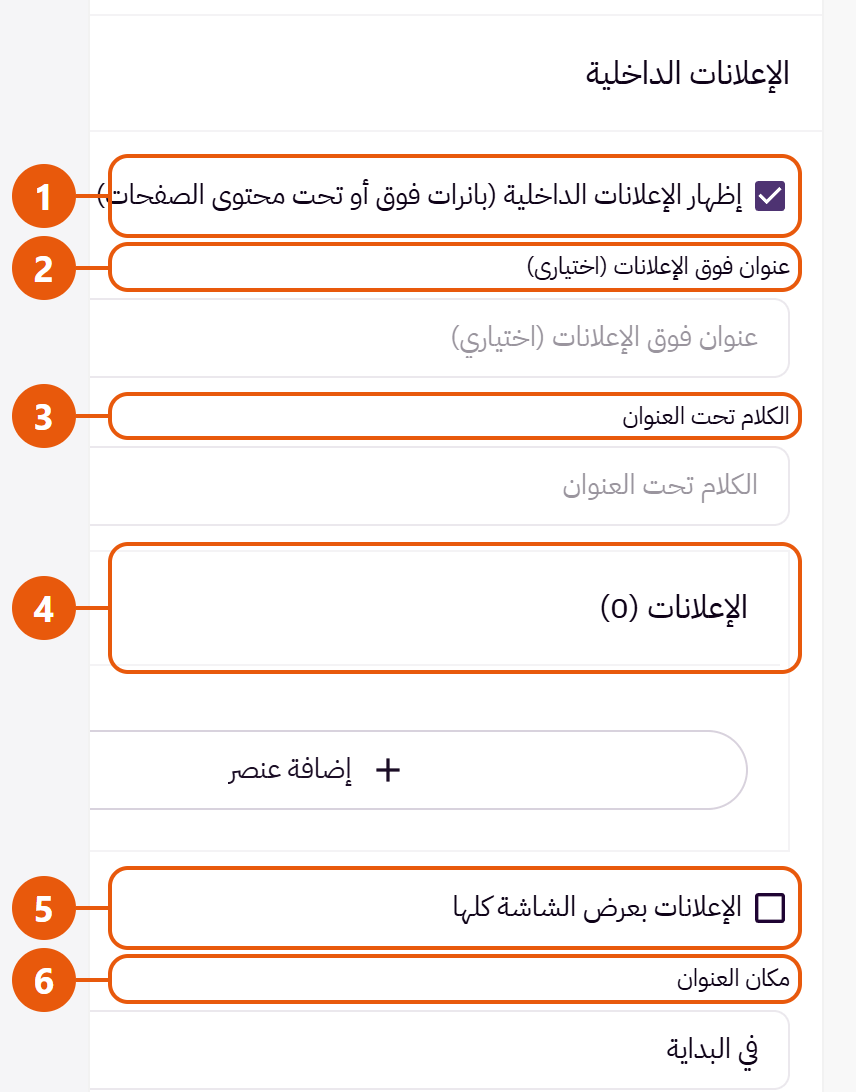
Step by step
- Open “Internal advertisements” and turn on “Show the internal ads (banners above or below the page content)”.
- Add an ad in “Ads”, upload its “Image” and write its “Title”.
- Set its page in “Link (the whole ad opens it; needed for the button to show)”.
- Choose “Where on the page” and tick “Pages it shows on (leave empty: every page)”.
- For one category, add it in “Show only in these categories (leave empty to show everywhere)”.
- Check the page in the preview, then press “Publish”.
Settings
- Show the internal ads (banners above or below the page content): The main switch; off hides every ad without deleting it.
- Title above the ads (optional): Such as “This week's offers”, wherever ads appear.
- Text under the title: A short line.
- Ads: One ad per offer, each with its own place and pages.
- Small line above the title: Such as “Limited time”.
- Title: The large title on the ad.
- Short description (optional): One or two sentences under the title.
- Image: The frame is 16:9 landscape and the picture is cropped to fill it; keep what matters in the middle.
- Mobile image (optional): For when the desktop picture has small text or details that would be cut. Empty uses the same picture.
- Image description for Google and screen readers (alt) - optional: Such as “30% off sneakers”.
- Button text (leave empty for no button): Such as “Shop now”; the button needs a link.
- Link (the whole ad opens it; needed for the button to show): A category or product, opened by a tap anywhere on the ad.
- Open the link in a new tab: Only useful for links outside your store.
- Where on the page: Above or below the page content.
- Pages it shows on (leave empty: every page): Search results show on the “All products page”, so tick it for ads with search results.
- Show only in these categories (leave empty to show everywhere): The ad shows on these category pages only. Leave empty for a general ad such as free shipping.
- Category name (for this panel only): To recognise the row in the panel; customers never see it.
- Category: The one whose page shows the ad.
- Text position: On the ad: start, centre or end.
- Text color: White shows on dark pictures; on light ones use “Color layer over the image”.
- Background color when there is no image: For a text-only ad such as “Free shipping over 200 SAR”.
- Color layer over the image: A see-through colour so the words show on the picture.
- Layer color: Black is the usual choice.Shown when “Color layer over the image” is on
- Layer strength (0 clear - 100 solid): 30 to 50 is usually enough: words show, picture stays clear.Shown when “Color layer over the image” is on
- Ads at full screen width: Edge to edge instead of the page content width.
- Title position: For the title and the line under it.
- Ads side by side on desktop: On desktop and tablet, 1 to 3. Any more are reached with arrows and dots.
- Ads side by side on mobile: 1 or 2; one is clearer.
- Autoplay: Pauses under the mouse, with a “Pause slides” button.
- Seconds on each slide: From 1 to 60.Shown when “Autoplay” is on
- Start again after the last slide: Instead of stopping at the end.
- Show arrows: Shown when there are more ads than fit at once.
- Show dots under the slider: Show how many ads there are and which is in view.
- Space above the ads: On desktop and tablet; phones use it while “Space above the ads on mobile” is “Default”. “Default” is the theme's own spacing.
- Space below the ads: On desktop and tablet; phones use it while “Space below the ads on mobile” is “Default”.
- Space above the ads on mobile: “Default” uses the desktop space.
- Space below the ads on mobile: “Default” uses the desktop space.
Tips
- Pictures: 1440×810 (16:9) for desktop, 768×432 for phones. Text in the picture shrinks on phones, so put it in the ad's fields.
- Never on the home page; use the home page banner sections there.
- With no pages ticked and no categories, the ad shows on every page in the list and on the FAQ page; good for a general offer such as free shipping.
- With 2 or 3 side by side the pictures shrink, so keep words short.
A floating WhatsApp button in the screen corner so customers reach you in one tap, and a small back-to-top button. WhatsApp can open the chat directly or first show a welcome window with your messages.
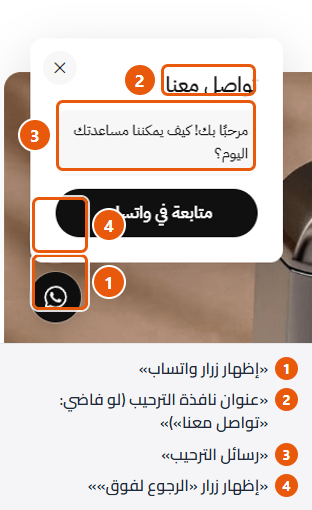
Step by step
- Open “WhatsApp and back-to-top button”.
- Turn on “Show the WhatsApp button”.
- Type your number in “WhatsApp number with country code, like 966500000000 (empty: your store's number)”.
- To open WhatsApp directly, turn off “When the button is tapped: show a welcome window first (off: WhatsApp opens directly)”.
- Optionally write “A ready message typed for the customer when WhatsApp opens (optional)”.
- Try the button, then press “Publish”.
Settings
- Show the WhatsApp button: In the corner of every store page.
- WhatsApp number with country code, like 966500000000 (empty: your store's number): No leading zero. A wrong number hides the button; empty uses your store's contact number in Zid.Shown when “Show the WhatsApp button” is on
- A ready message typed for the customer when WhatsApp opens (optional): Pre-typed in the message box, such as “Hi, I have a question about a product”; the customer can edit it.Shown when “Show the WhatsApp button” is on
- When the button is tapped: show a welcome window first (off: WhatsApp opens directly): On: a small window with your welcome and a “Continue in WhatsApp” button. Off: WhatsApp directly.Shown when “Show the WhatsApp button” is on
- Welcome window title (empty: “Contact us”): Such as “Customer care”.Shown when “Show the WhatsApp button” is on and when “When the button is tapped: show a welcome window first (off: WhatsApp opens directly)” is on
- Welcome window image (your photo or logo): In a small circle at the top, so customers feel they are talking to real people.Shown when “Show the WhatsApp button” is on and when “When the button is tapped: show a welcome window first (off: WhatsApp opens directly)” is on
- Welcome messages: Short chat-bubble messages, such as “Hello, how can we help?”.Shown when “Show the WhatsApp button” is on and when “When the button is tapped: show a welcome window first (off: WhatsApp opens directly)” is on
- Message text: Each message gets its own bubble.
- Hide the WhatsApp button on mobile: If it covers something on phones.Shown when “Show the WhatsApp button” is on
- WhatsApp button color: The circle and the “Continue in WhatsApp” button. Empty takes “Primary color (buttons)”.Shown when “Show the WhatsApp button” is on
- WhatsApp button icon and text color: The WhatsApp icon and the words on “Continue in WhatsApp”.Shown when “Show the WhatsApp button” is on
- Welcome window background color: The whole window.Shown when “Show the WhatsApp button” is on and when “When the button is tapped: show a welcome window first (off: WhatsApp opens directly)” is on
- Welcome window text color: Title and words.Shown when “Show the WhatsApp button” is on and when “When the button is tapped: show a welcome window first (off: WhatsApp opens directly)” is on
- Welcome messages background color: The message bubbles.Shown when “Show the WhatsApp button” is on and when “When the button is tapped: show a welcome window first (off: WhatsApp opens directly)” is on
- Show the back-to-top button: A small arrow that appears in the corner once the customer scrolls, back to the top in one tap.
- Shows once the customer has scrolled this far: 0 to 3000; the default 300 is a short scroll.Shown when “Show the back-to-top button” is on
- Back-to-top button color: Empty takes “Primary color (buttons)”.Shown when “Show the back-to-top button” is on
- Back-to-top arrow color: The arrow in the button.Shown when “Show the back-to-top button” is on
Tips
- Button missing? The number is usually wrong: it must start with the country code (966 Saudi Arabia, 20 Egypt), no 00 or leading zero.
- WhatsApp's familiar green makes the button clear at a glance; put it in “WhatsApp button color” if you like.
- The welcome picture shows in a small circle: 96×96, what matters in the middle.
A “You may also like” row on the cart page and in the drawer, so customers add one more thing before paying.
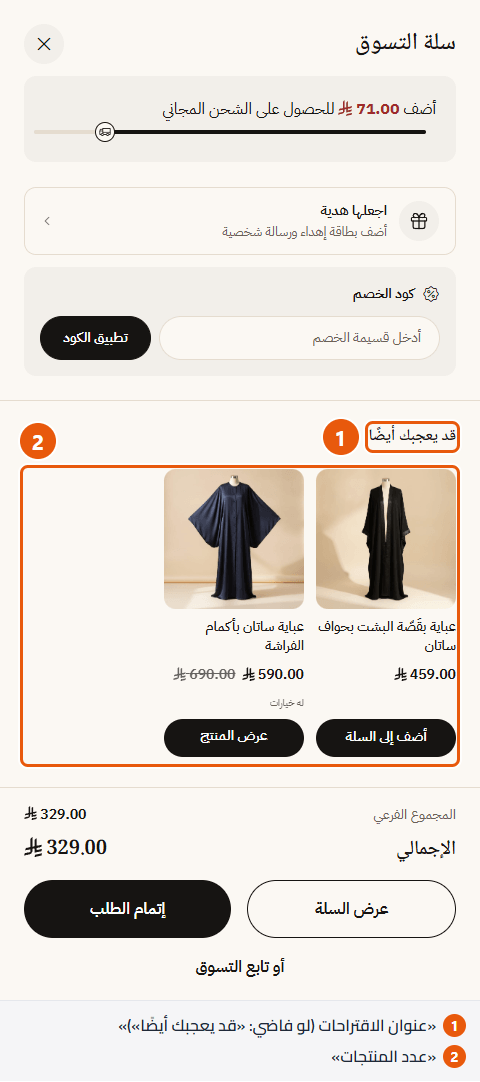
- Show “You may also like” suggestions in the cart: The main switch; off means no suggestions anywhere.
- Show on the cart page: At the end of the page, under the products and order summary.
- Show in the cart drawer: Under the items.
- Suggestions title (empty: “You may also like”): Such as “You might also like” or “Complete your order”.
- Number of products: The most shown, 2 to 24; customers move through them with arrows or by dragging.
- Show the price: Under each product's name.
- Show sold-out products: Leave off so customers are not shown what they cannot buy.
Tips
- Suggestions come from products related in Zid to the cart's items, otherwise from your other products. Nothing in the cart is suggested.
- No suggestions while the cart is empty.
- A product without options is added at once; one with options (size, colour) opens its page first.
Turns off the right-click menu, so saving your pictures is harder. A deterrent, not full protection.
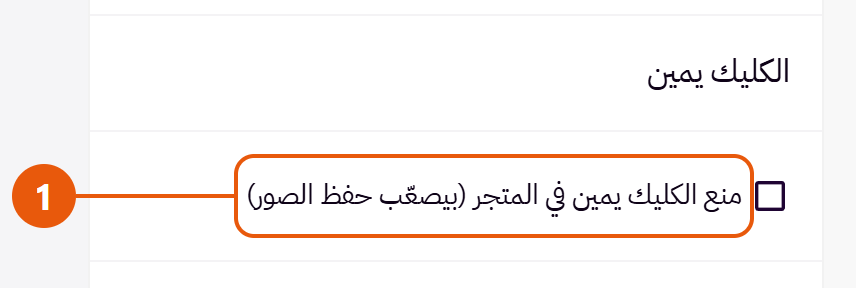
- Turn off right-click in the store (makes saving images harder): Except inside fields customers type in (discount code, address) so they can paste. Selecting and keyboard copying still work.
Tips
- A determined visitor can still screenshot; your logo on the photos protects them better.
Where you paste code from other services, such as an ad pixel (Snapchat, TikTok or Meta), analytics or chat, without editing theme files. It runs on every page.
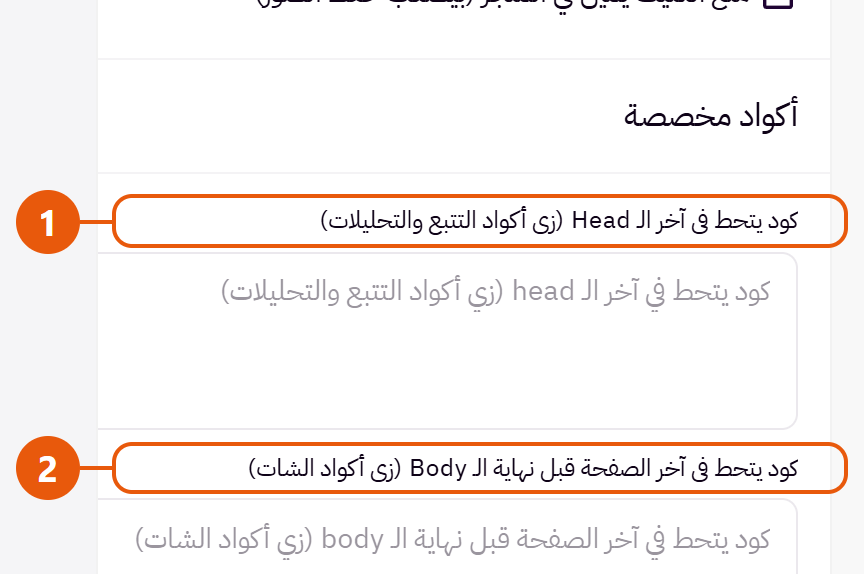
- Code added at the end of the head (like tracking and analytics code): For code a service says goes in the head; the usual place for Snapchat, TikTok or Meta pixels and analytics.
- Code added at the end of the page, before the body closes (like chat widgets): For code a service says goes before the body closes; the usual place for chat and support widgets.
Tips
- Paste the code exactly as sent and check the store; faulty code can break pages or stop something working.
- Never paste code from a source you do not trust; it runs for all your customers.
- If the service is already connected through Zid itself, do not add it here too, or visits count twice.
Header

The top of every page, under “Header” in the editor: “Header” (eleven designs), “Top bar” (four designs), “Browse by category”, “Mobile menu” and “Mobile bottom bar”. Pick the “Header design” first, then the logo, search and messages.
The top of every page: logo, menu, search, and the account, wishlist and cart icons. Here you pick one of eleven designs, upload and size the logo, set search, and choose whether the header returns when shoppers scroll up.
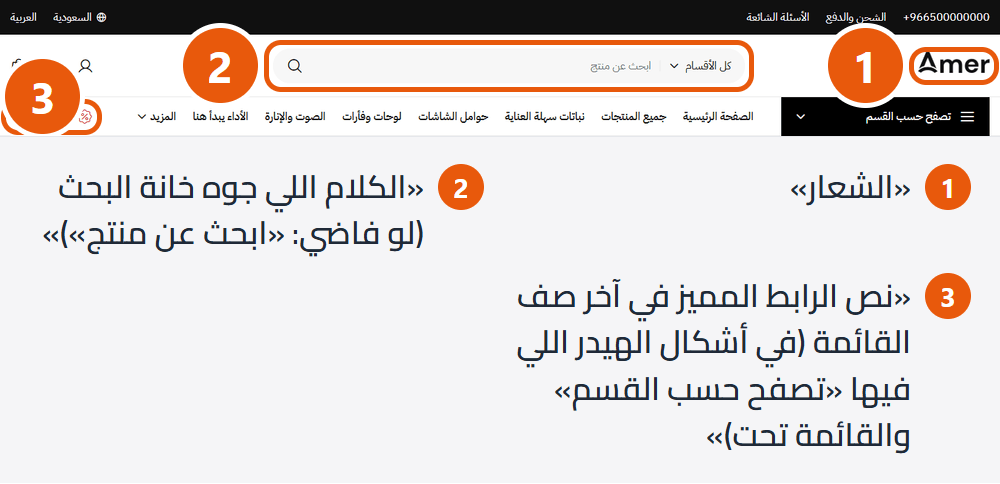
Header design

Calm: icons on the other side, with country and language beside them on large computers; search opens in a window. For fashion and stores with few categories.

The full header: a wide search box with a category picker, and a highlighted link below if you write one. For stores with many products and categories, such as electronics or car parts.

A framed search box, icons at the end, the menu centred on the row below. Balanced for mid-sized stores such as bags or print on demand.

Country and language on top too; below, a dark “Browse by category” button, a wide search with categories, and the icons. When search matters most, as for baby products.

A small framed search and the icons at the end. Practical and light for most stores.

The top row in the cards' background colour, with the icons; below, the menu and the highlighted link if you write one. For furniture and stores with many categories.
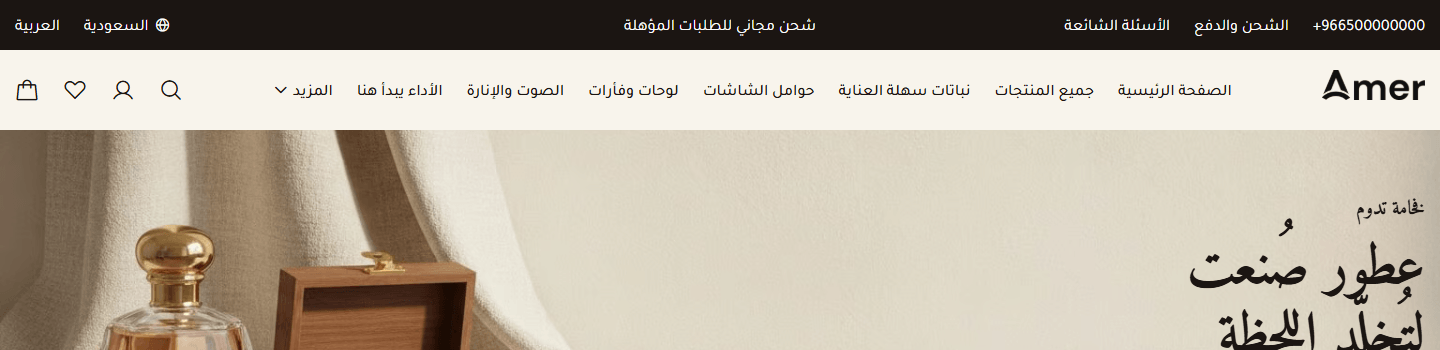
Just icons at the end; search opens in a window. On the home page it sits over the first section with its background, covering the top of that picture. For premium stores such as jewellery or perfume.
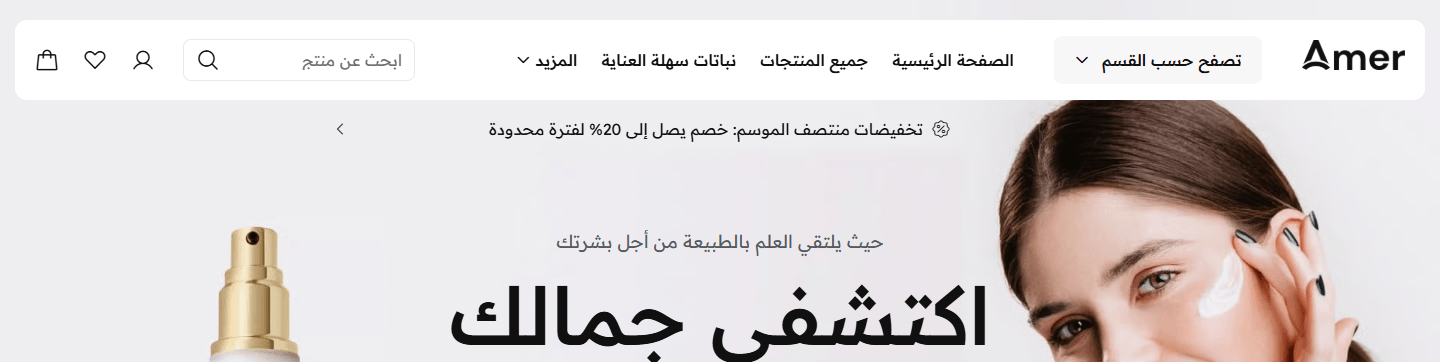
A rounded card over the first home section, with a small search. Add messages and a rotating line shows beneath it on computers. For beauty, and a home page opening on a strong picture.
No background over the first picture; solid again once the shopper scrolls back up. Logo at the start, menu centred. For a home page opening on a large picture.

Everything on one row; “Browse by category” on large computers only, a small search. For sneakers and sports stores.

Phone number and your links at the start, icons at the end. When shoppers must find your contact details at once, as in pet care.
Step by step
- On the Zid themes page press “Customize” on Amer, open “Header”, then the “Header” group.
- Upload your logo in “Logo”; a PNG with a clear background is best.
- Choose “Logo height” and “Logo height on mobile”, watching the preview.
- A long logo needs a compact version in “Mobile logo (optional)”.
- Press “Publish”.
Settings
- Header design: For computers. On phones and tablets every design is the same: menu button, logo, icons. Try a few in the preview.
- Keep the header clear over the first home section (turn off when that section is not an image): When the shopper scrolls back up, it pins to the top and turns solid. Other pages are unaffected.Shown with “Clear over the first home section”
- Text and icon color while clear (empty: the header's own): White over a dark picture, dark over a light one.Shown with “Clear over the first home section” and when “Keep the header clear over the first home section (turn off when that section is not an image)” is on
- Logo: On every page, and in the footer's “Light: logo above the store details” design. Empty uses your Zid logo; with no logo at all, the store name shows.
- Mobile logo (optional): Phones and tablets only, such as the mark alone or your initials. Empty uses the main logo.
- Logo height: On computers; the width follows. Bigger if it looks small, smaller if it crowds the menu.
- Logo height on mobile: On phones and tablets. Small enough never to run into the icons.
- Line the logo up with the icons automatically: Nudges the logo up or down to suit its shape. If it lands wrong, turn this off and use “Move the logo up or down (minus moves it up)”.
- Move the logo up or down (minus moves it up): If it is still not level with the icons. Change a small step at a time.
- Hide search: Removes the header's search box and icon and the mobile bottom bar's “Search” button; the mobile menu's search stays. Only for very small catalogues.
- Text inside the search box (empty: “Search products”): Shown in the header, search window and mobile menu. Write something inviting, such as “Find your fragrance”.
- Suggested searches in the search window (empty: your categories): Buttons under “Popular searches” before the shopper types; each opens its results. Empty shows your categories with pictures.
- Search term: Such as “black abaya” or “wireless earbuds”; words your shoppers really search.
- Hide the language button: From the top bar, header and footer. It never shows for a single-language store.
- Hide the country button: From the top bar, header and footer. With “Hide the language button” too, the button at the foot of the mobile menu goes as well.
- Phone number (empty: your store's number): At the start of the header on computers; a tap starts a call. Empty shows your Zid store number.Shown with “Two rows: contact links first, logo in the middle, menu alone below”
- Links beside the phone number: Such as “Contact us” or “FAQs”. A link needs both its “Link text” and “Link”.Shown with “Two rows: contact links first, logo in the middle, menu alone below”
- Link text: One or two words.
- Link: A store page such as /faqs, or an outside site.
- Underline the link: So it stands out; for your most important link.
- Highlighted link text at the end of the menu row (in the header designs with “Browse by category” and the menu below): A link with a % sign at the end of the menu row on computers, such as “Special offers!”, straight to your offers. Empty hides it.
- Highlighted link goes to (empty: the products page): Such as your offers category.
- Messages under the header: A line under the floating header on computers; messages turn every five seconds, with arrows, and the line fades once the header pins. Good for an offer or code.Shown with “Floating card: logo, “Browse by category”, menu and search”
- Message text: One short line such as “10% off your first order”. An empty one does not show.
- Link (optional): Clicking the message opens this page.
- Keep the header on screen while scrolling: The header scrolls away going down and returns pinned as soon as the shopper scrolls up a little, keeping search and cart close. Off keeps it at the top of the page only.
- Message text color: Change it if the words are hard to read over the first home picture.Shown with “Floating card: logo, “Browse by category”, menu and search”
Tips
- On phones and tablets every design is the same header: menu button at the start, logo centred, icons at the end.
- Menu links come from the main menu in your Zid dashboard, not the theme. An item whose sub-items have their own sub-items opens a wide panel of columns; items that do not fit on the row gather under “More”.
- Logo: a PNG with a clear background, 175px tall or more. It is never wider than 220px on computers and 160px on phones and tablets, so a very wide logo looks smaller than the height you chose.
- The country and language buttons open a Zid window. They show in the top bar, footer and foot of the mobile menu, and in header designs that include them when the top bar does not. “Hide the language button” and “Hide the country button” remove them everywhere.
- In designs that sit over the first home section, keep important words away from the top of that picture.
- In two-row designs with “Browse by category”, the second row folds away on computers while pinned; shoppers bring it back with the menu button before the logo. Other designs pin with all rows.
- In any link box, type the page from the / (such as /products), not the full address, so English shoppers land on the English page.
- Header settings are saved per language: after Arabic, switch the editor to English and check there too.
The thin bar above the header: short rotating messages (free shipping, an offer), your contact number and quick links, country and language. Four designs.
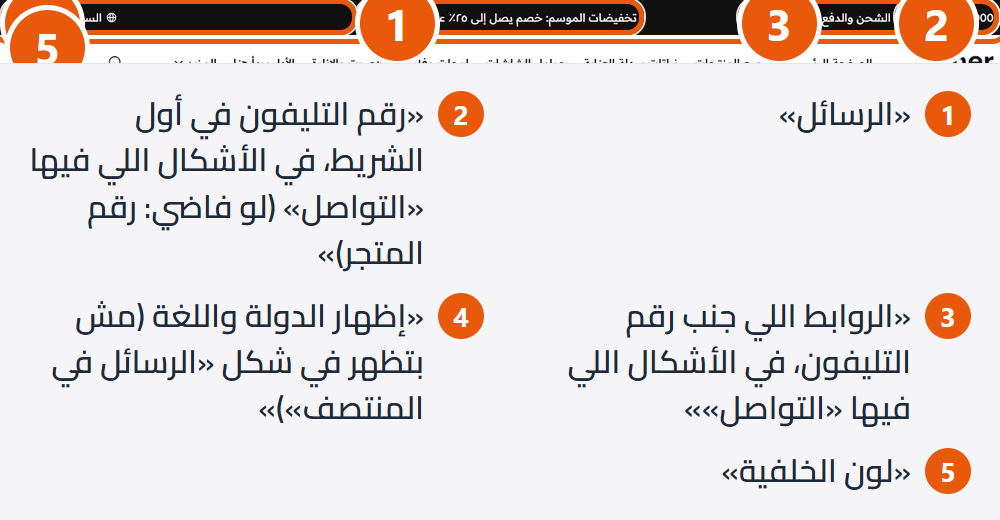
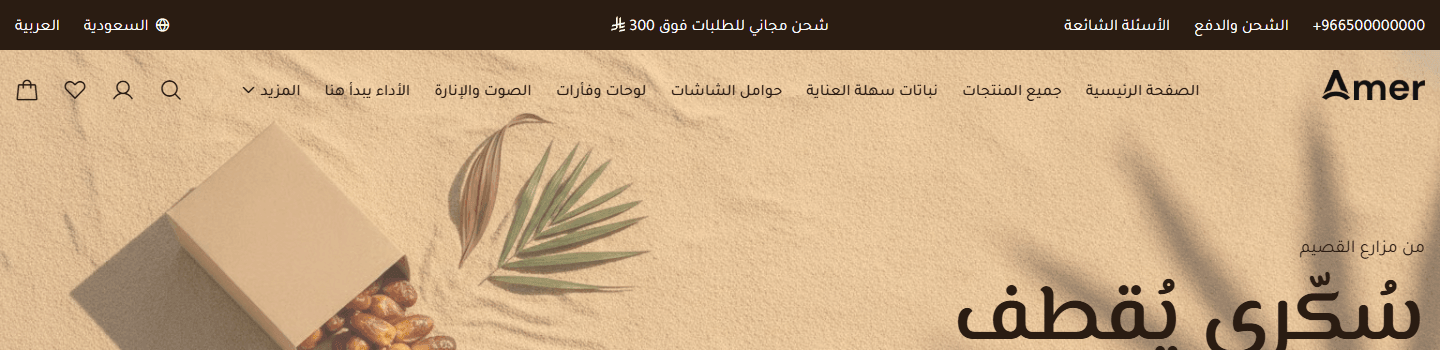
Top bar design

Just your messages, with arrows for more than one. Shows on phones too, so it suits a message everyone must see.

A dark bar: number and links at the start, country and language at the end, messages in the middle on large computers only. Hidden on phones.

Like “Contact, messages, country and language” on a light background. Quiet with a light header.

On phones only the message shows.
Step by step
- Open “Header”, then “Top bar”, and turn on “Show the top bar”.
- Add a message in “Messages” and write its “Message text”, such as “Free shipping on orders over 200 SAR”.
- To open a page on click, put its link in “Link (optional)”.
- Repeat per message and choose “Seconds on each message”.
- Press “Publish” and check the bar on a computer and a phone.
Settings
- Top bar design: For messages on phones too, pick “Messages in the middle” or “Country and language, messages between arrows, social accounts”.
- Show the top bar: Turn off when you have nothing to announce.
- Show the top bar on: “Every page” keeps the message in view; “The home page only” keeps other pages cleaner.
- Messages: They take turns and pause under the pointer; a single one stays still.
- Message text: One line read in a second, such as “10% off with code WELCOME”. Long text is cut at the end.
- Link (optional): The message opens this page, such as your offers page.
- Phone number at the start of the bar, in the designs with contact (empty: your store's number): A tap starts a call. Empty shows your Zid store number, so fill it only for another number, such as sales.
- Links beside the phone number, in the designs with contact: Such as “Shipping and payment” and “FAQs”. A link needs both its “Link text” and “Link”.
- Link text: One or two words.
- Link: Such as /faqs or /shipping-and-payment.
- Show country and language (not in the “Messages in the middle” design): They open Zid's country and language window. While the bar shows them, header designs do not repeat them.
- Show your social accounts (from your Zid store details): Icons at the end of the bar (Facebook, Instagram, TikTok, Snapchat, X, YouTube, LinkedIn). An account missing in Zid does not show.Shown with “Country and language, messages between arrows, social accounts”
- Seconds on each message: Four to six seconds is enough to read; the shortest that takes effect is two.
- Background color: Empty keeps the design's: dark, or light in “Light with a line: contact, messages, country and language”.
- Text color: Words and icons; readable on the background.
Tips
- In “Contact, messages, country and language” and “Light with a line: contact, messages, country and language” messages show on large computers only and the bar is hidden on phones; for phones pick another design.
- Messages and links are per language: after Arabic, switch the editor to English and write them.
- In link boxes type the page from the / (such as /faqs), so English shoppers land on the English page.
The “Browse by category” button opens your categories with pictures; one with sub-categories opens them beside it. Useful with many categories, so shoppers reach any from any page. It shows on computers, in header designs that include it.
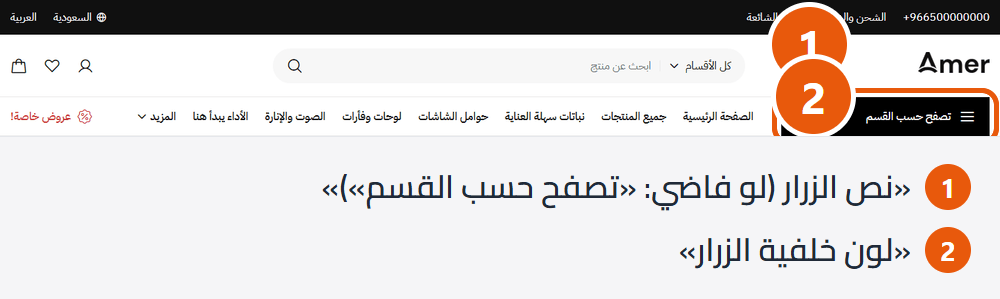
Step by step
- Open “Header”, then the “Browse by category” button group.
- In “Categories shown”, choose “I choose them”.
- Add one in “Categories you choose” and pick it in “Category”.
- A shorter name goes in “Category name (empty: its name from Zid)”; add an “Icon (optional)” if you like.
- Repeat in the order you want, then press “Publish”.
Settings
- Show the “Browse by category” button (in the header designs that have it): Turn off when you have few categories and the menu is enough.
- Button text (empty: “Browse by category”): Such as “Departments” or “Shop by category”.
- Categories shown: Automatic lists your Zid categories and updates with each new one; “I choose them” lets you set the categories and their order.
- Maximum number of categories: Top-level categories; the rest are under “All categories” at the end. Ten or fewer is easiest.Shown when “Categories shown” is “All store categories and their sub-categories (automatic)”
- Categories you choose: In your order; each still opens its sub-categories beside it.Shown when “Categories shown” is “I choose them”
- Category: The category this line opens.
- Category name (empty: its name from Zid): For a shorter or clearer name.
- Icon (optional): Square, best at 64×64px. Empty uses the category's Zid picture, or a plain placeholder when it has none.
- Button background color: Empty keeps the header design's; your brand colour makes it stand out.
- Button text color: Words and icons; pick one that reads on the background.
Tips
- The pictures beside categories come from your Zid category pictures; give each one a picture.
- The button appears in header designs whose name includes “Browse by category”, and in “One row: logo, “Browse by category”, menu and search” on large computers only. Never on phones and tablets, where categories are in the mobile menu.
The menu that slides in from the menu button on phones and tablets: search, your store menu, extra links, phone and email, sign-in, country and language.
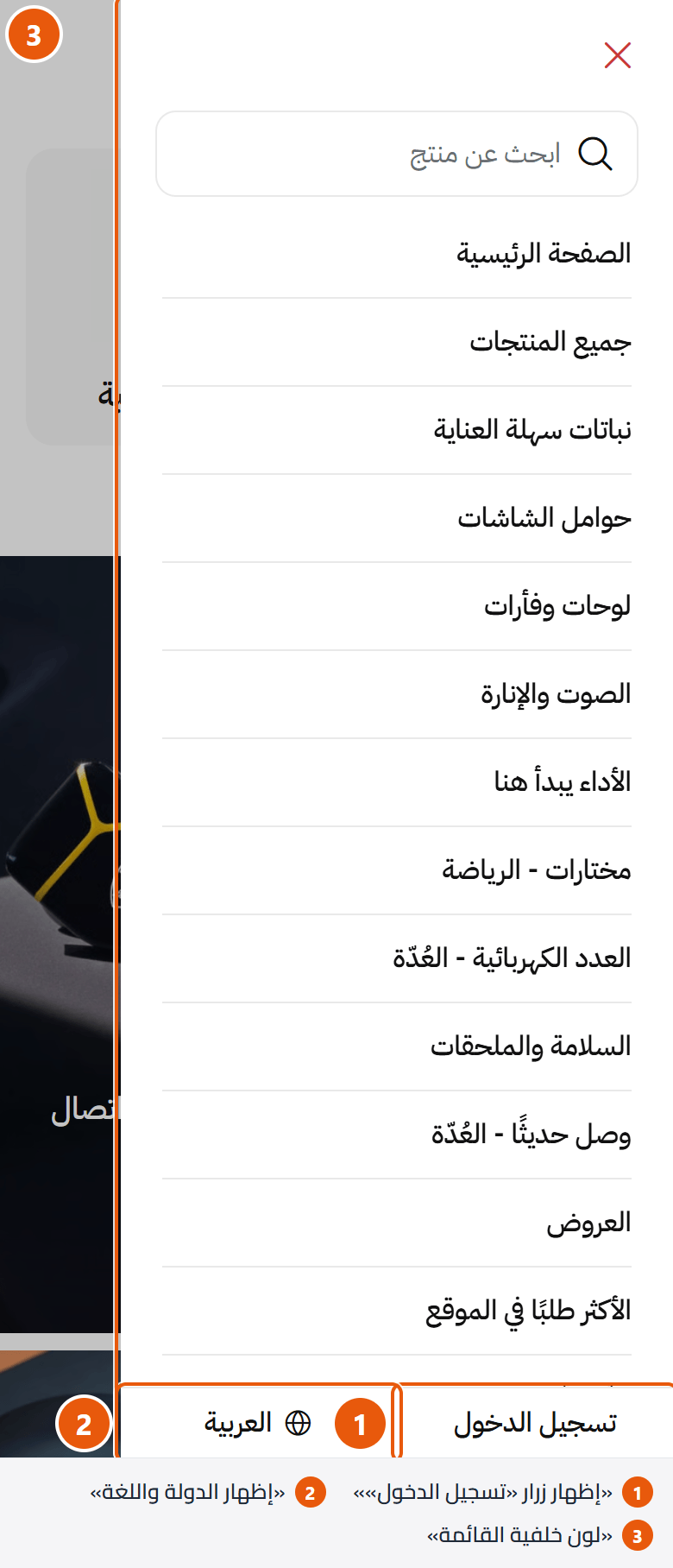
Step by step
- Open “Header”, then “Mobile menu”.
- Add a link in “Extra links under the main menu”.
- Write its “Link text”, such as “About us”, and the page in “Link”.
- For sites outside your store (YouTube, say) turn on “Open the link in a new tab”.
- Press “Publish” and check on a phone.
Settings
- Title at the top of the menu (optional): Such as a greeting or your store name. Empty leaves just the close button.
- Extra links under the main menu: Under your store menu, on phones and tablets only, for pages not in the main menu such as “About us” or “FAQs”. A link needs both its “Link text” and “Link”.
- Link text: Short and clear.
- Link: A store page such as /faqs, or an outside site.
- Open the link in a new tab: For outside links only, so shoppers do not leave your store.
- Show “Need help?” (your store's phone and email): Your Zid store email and phone, tappable to write or call. Hidden when your store has neither.
- Show the “Login” button: At the foot of the menu. For a signed-in shopper it reads “Hello” with their name and opens their account.
- Show country and language: At the foot of the menu; opens Zid's country and language window. Also hidden when “Hide the language button” and “Hide the country button” are both on in “Header”.
- Menu background color: Empty uses the page background.
- Text color: Title, main items, extra links, + buttons, and the sign-in and country and language buttons. Sub-items and contact details stay muted; “Need help?”, close and search keep the headings colour. Empty uses the headings colour.
- Divider color: Between items and around search. Empty uses your store's divider colour.
- Color behind the menu: This layer currently shows one fixed dark colour in every store, so leave it black.
- Strength of the layer behind the menu (0 clear - 100 solid): Higher darkens the page while it stays visible. The default suits most stores.
Tips
- Menu items come from the main menu in your Zid dashboard; an item with sub-items has a + button that opens them.
- Shoppers close it with the close button or by tapping the page behind.
A bar of buttons fixed to the bottom of phone and tablet screens: shop, search, account, wishlist and cart within one thumb. Not shown on computers.
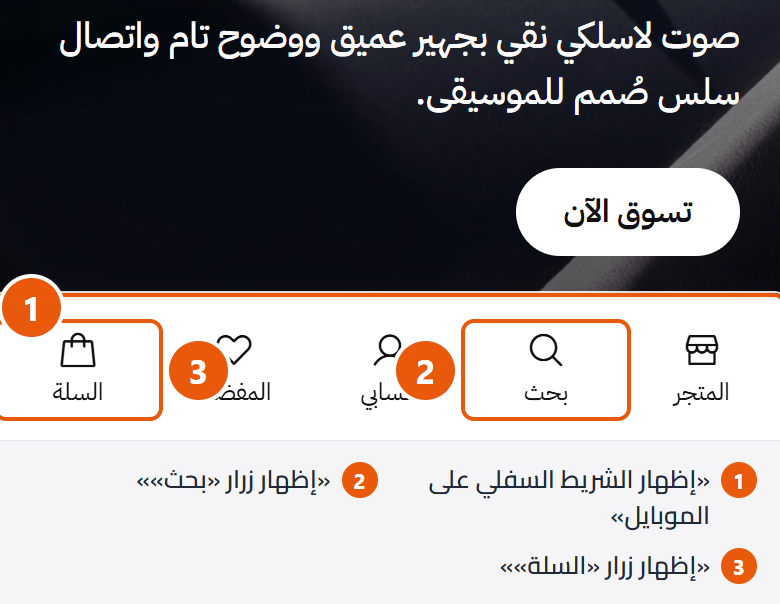
Step by step
- Open “Header”, then “Mobile bottom bar”.
- Turn on “Show the bottom bar on mobile”.
- Switch off buttons you do not need, each by its own switch (such as “Show the “Wishlist” button”).
- For a particular category, put its link in ““Shop” button link (empty: the products page)”.
- Press “Publish” and check on a phone.
Settings
- Show the bottom bar on mobile: Keep it on in most stores; it keeps the cart close. With every button off, it disappears.
- Show the “Shop” button: Opens the products page or the link below it.
- “Shop” button link (empty: the products page): Such as your offers or main category.
- Show the “Search” button: Opens the search window; hidden while “Hide search” is on in “Header”.
- Show the “Account” button: Opens the shopper's account, or the sign-in window if not signed in.
- Show the “Wishlist” button: The products the shopper saved.
- Show the “Cart” button: Shows the item count and opens the cart. Keep it on in most stores.
Tips
- On small phones the search and wishlist icons move from the header into this bar while their buttons are on, keeping the header uncluttered.
- The footer leaves room for the bar, so the copyright line and payment icons are never hidden.
Home page sections
The home page is built from sections you add, reorder and hide under “Page content”. Amer has 25 kinds, 18 of them in several designs, picked in “Section design”, the first field of a section. Options sections repeat (spacing, background, width, hiding) are explained once, at the top of this chapter.
These repeat across most sections of the page, so they are stated once here instead of under every one of them. Each section below says which of them it has.
- Title: The section’s main heading; leave it empty for none.
- Full screen width: Content spans the screen instead of the fixed page width. Good for banners and large pictures; leave it off for text-heavy sections so lines stay readable.
- Section background color: Transparent takes the page background; a color sets the section apart. In “Countdown banner” and “Testimonials” the field’s name says which part it colors.
- Section background image: Fills the section behind its content, cropped to fit. A calm picture about 1920 wide; if text is hard to read, turn on “Color layer over the background”.
- Color layer over the background: A see-through color over the picture or color so text reads clearly.
- Layer color: Black darkens for light text; white lightens for dark text.Shown when “Color layer over the background” is on
- Layer strength (0 clear - 100 solid): Start at 40 and raise it if text is still hard to read.Shown when “Color layer over the background” is on
- Space above the section: “This design's own” keeps the design’s space; a smaller number sits closer; “None” removes it. Phones use the same unless you change “Space above the section on mobile”.
- Space below the section: Like “Space above the section”; phones use the same unless you change “Space below the section on mobile”.
- Hide this section: Without deleting it; its content is kept. Handy for a seasonal offer or countdown.
- Keep the image fixed while scrolling (parallax) - not in “Big word behind a product image”: Only in “Feature banner”: the picture stays still while the page moves over it, for depth. On phones it scrolls normally, and while on, the picture is not mirrored on Arabic pages even with “Mirror the image on Arabic pages” on.
The first thing visitors see: picture or video slides, each with a title, a few words and a button to a category, product or offer. Put your main offer or newest collection here.
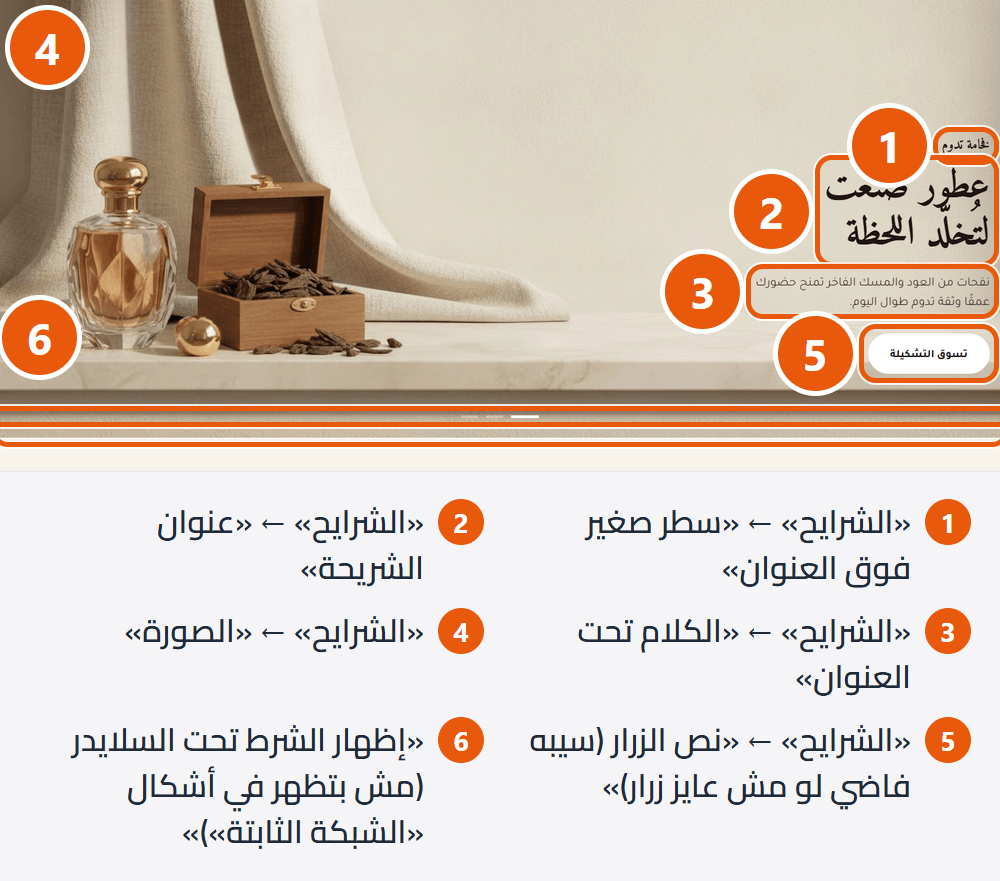
Section design
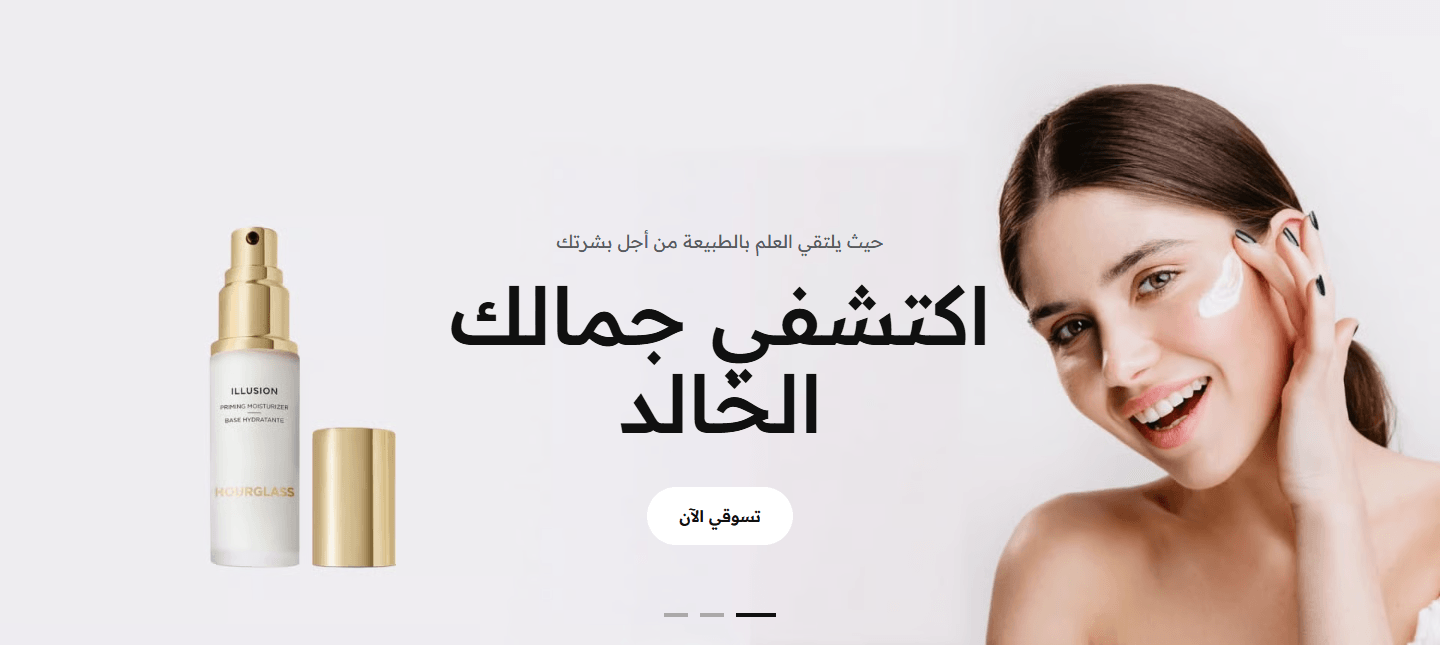
A screen-wide picture with the text on it, for strong photos. The only design where a YouTube video plays inside the slide.
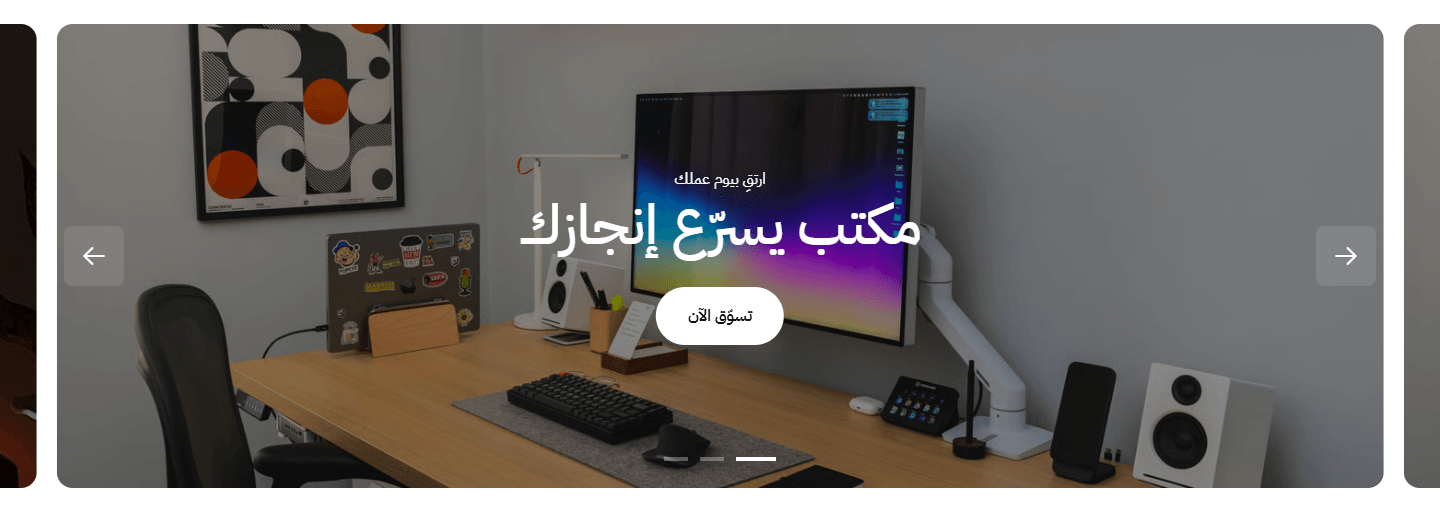
A softer look within the page width. With “Full screen width” on, the edges of the previous and next slides show, hinting at more offers.
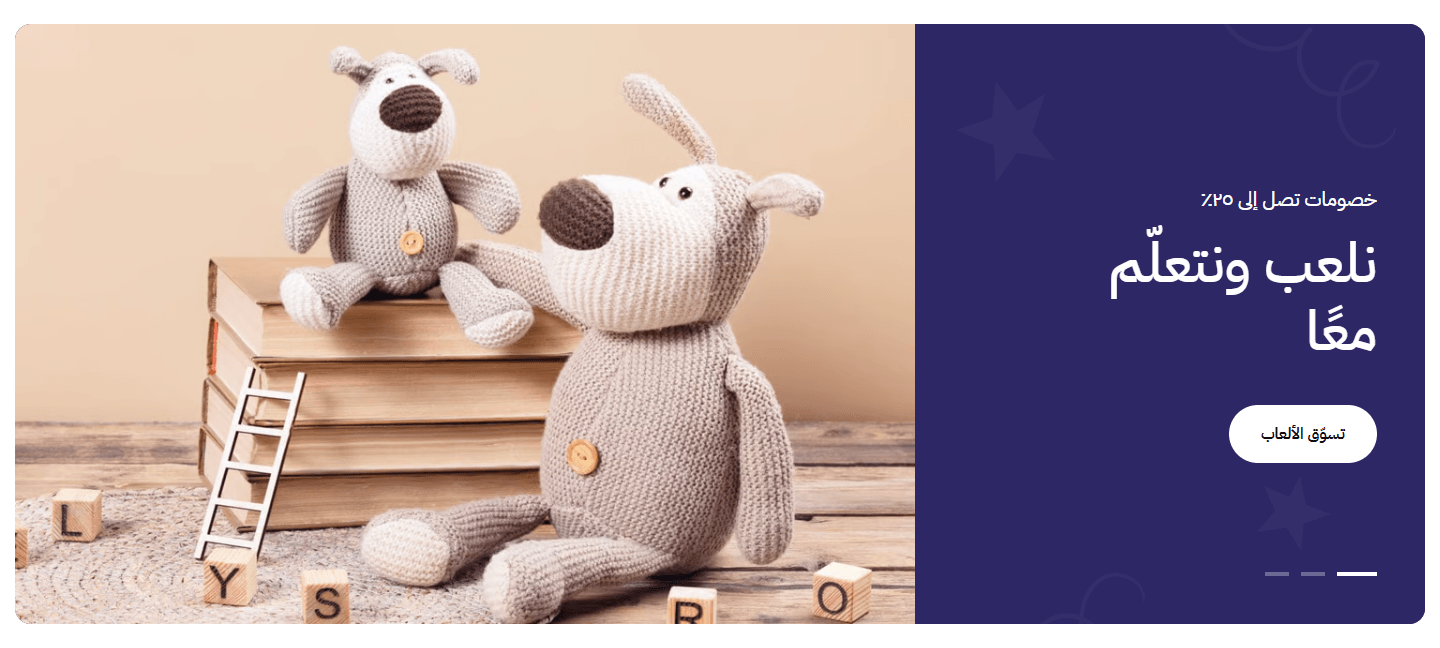
A panel in your colour with the picture uncovered beside it; for photos with details that matter. On phones the picture becomes the text's background.
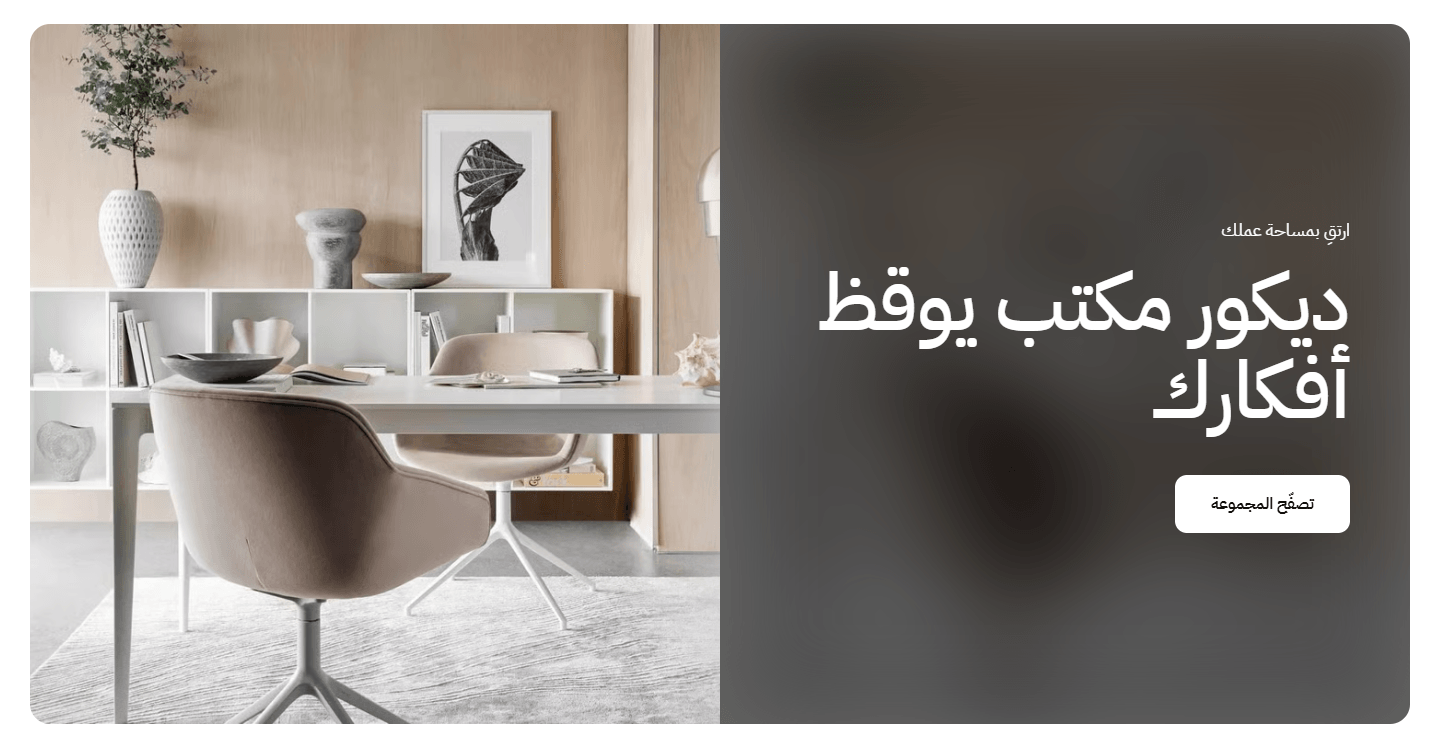
The same picture twice, so text reads on any photo. On phones and upright tablets only the sharp picture shows, with the text on it.
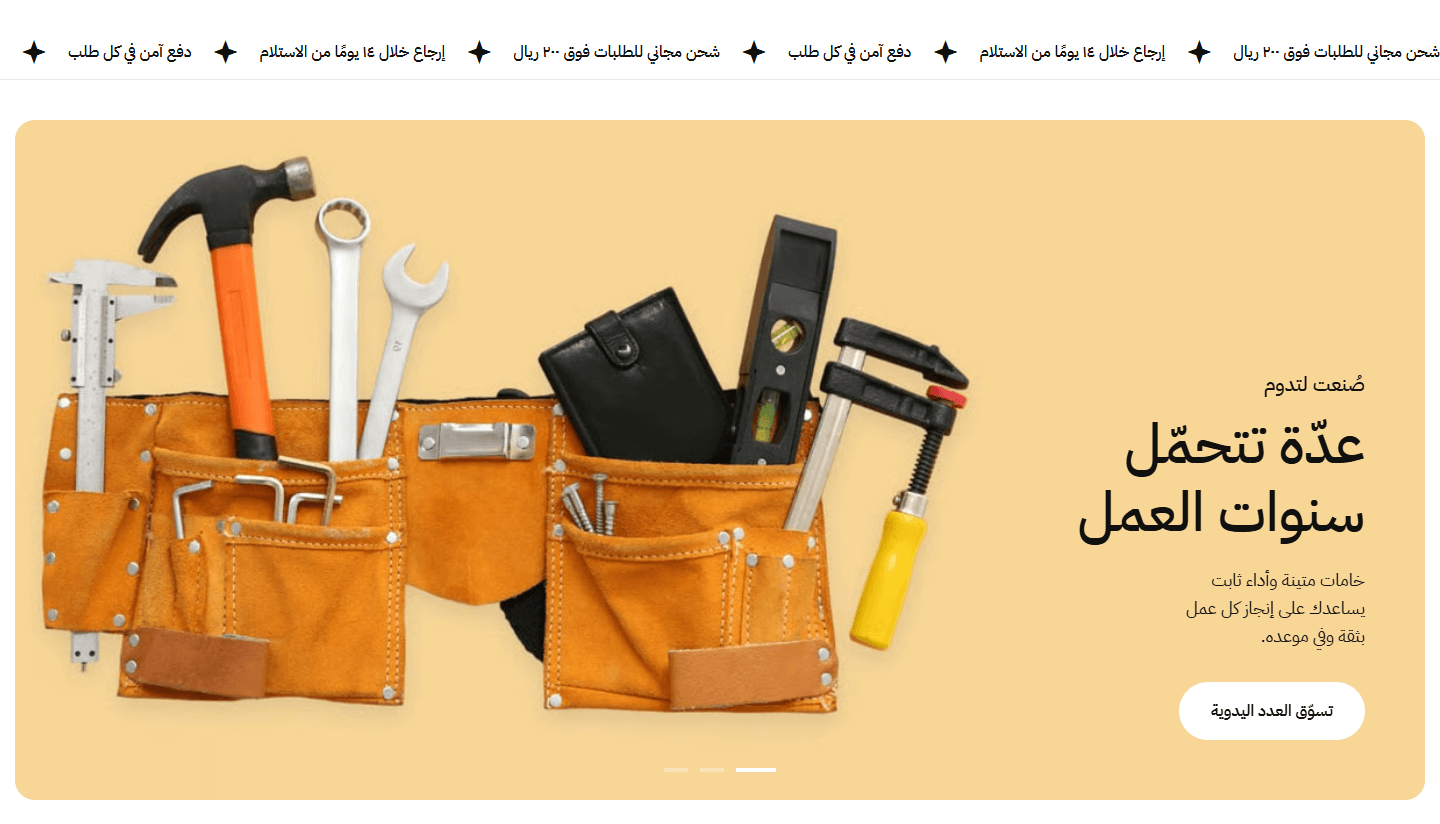
Short messages such as Free shipping or 10% off, for an announcement running with your pictures. For text in the bottom corner, choose “Bottom” in “Text position, top to bottom” in each slide.
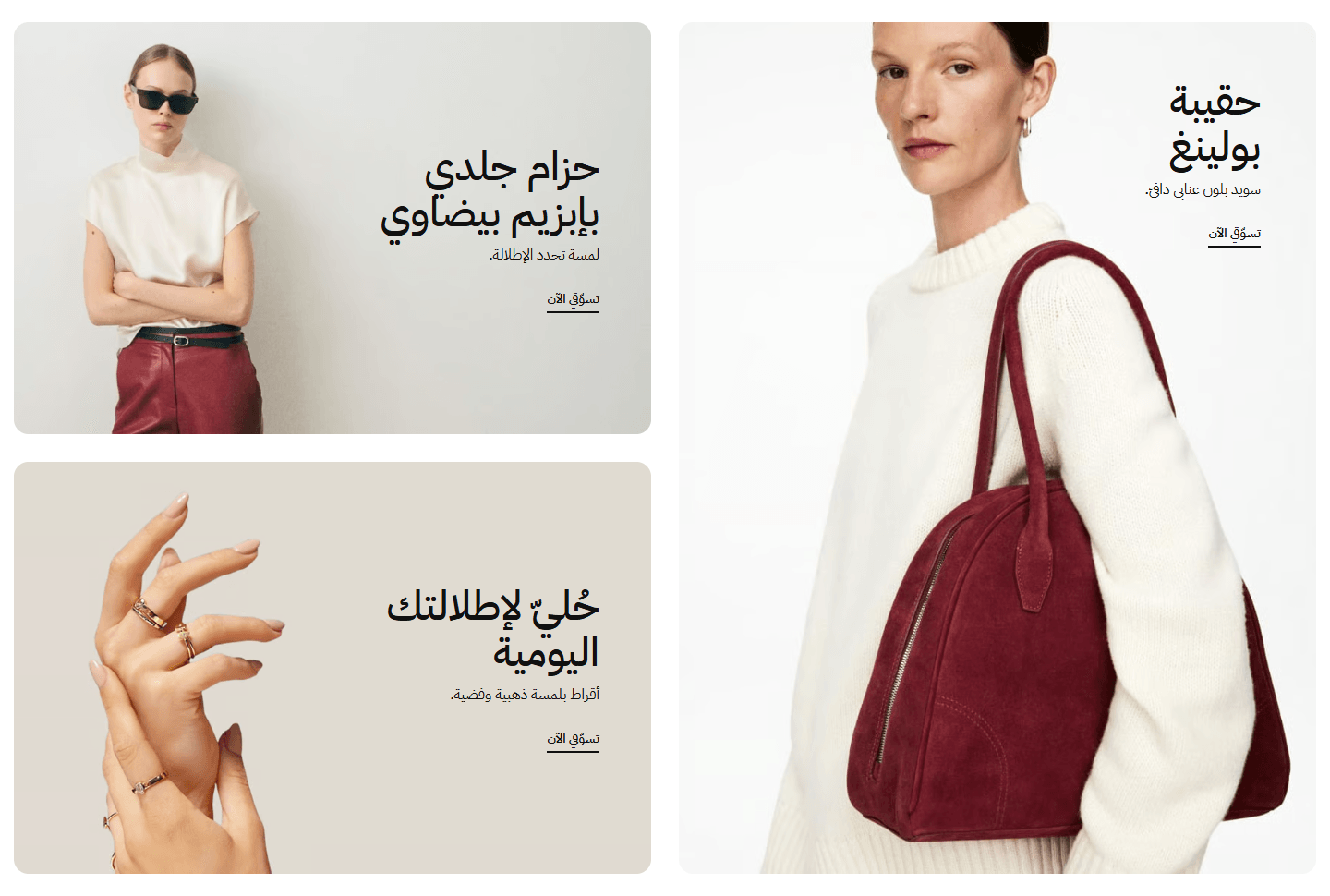
Not a slider: the first three slides together; a picture grows slightly under the mouse. For three categories or offers seen at once.
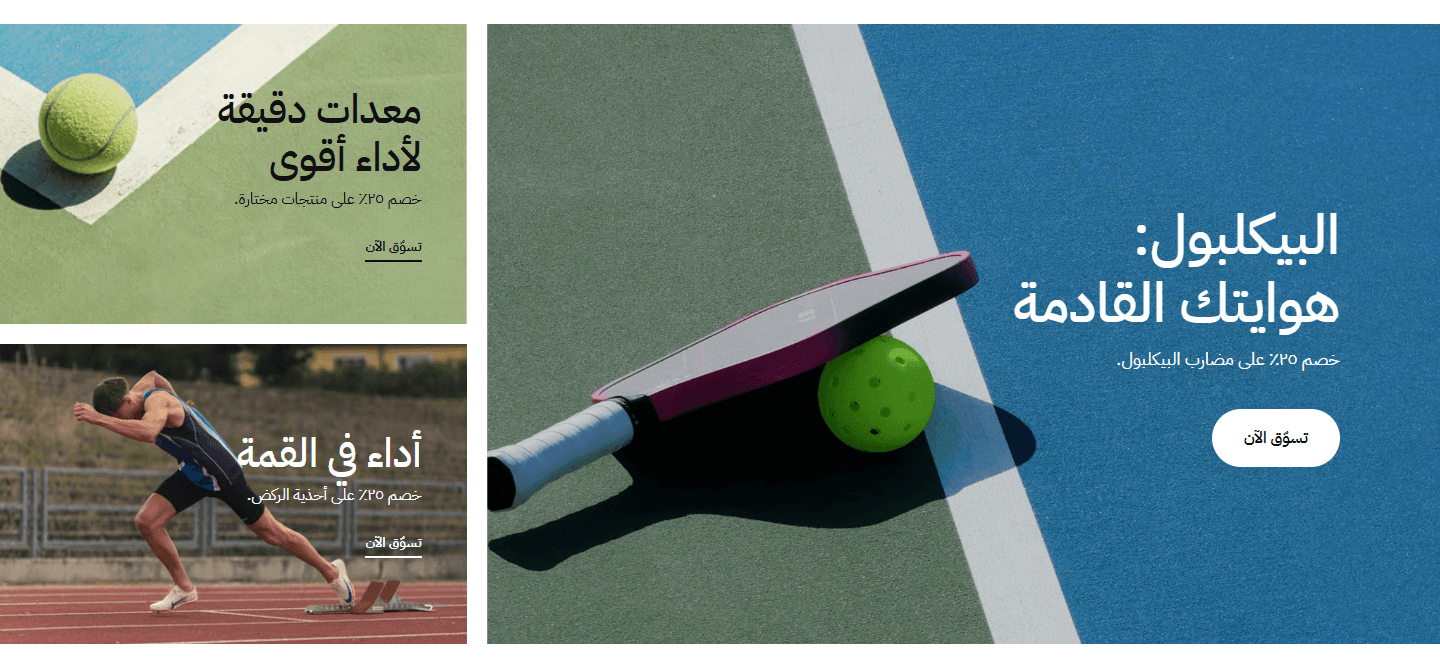
Also not a slider: one main offer with two smaller ones.
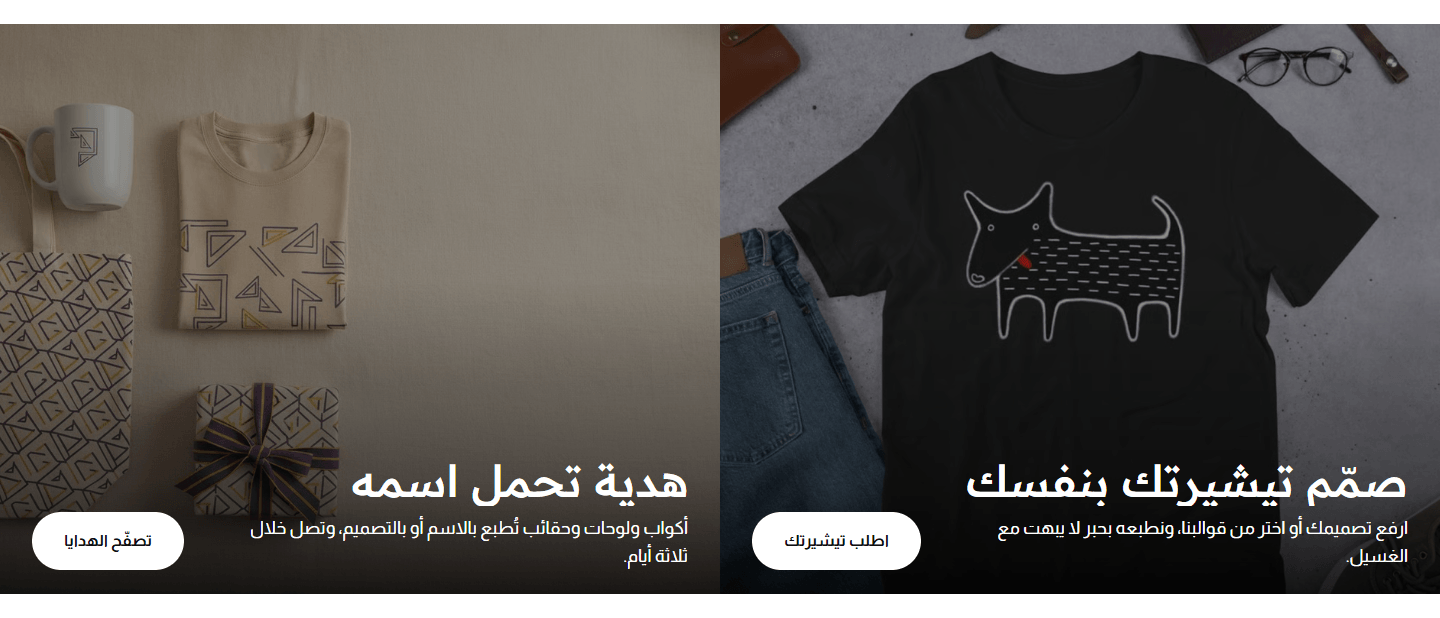
They move two at a time; phones show one. For two equal collections such as men's and women's. A tap on the picture opens the button's link.
Step by step
- Open “Slides” and add a slide.
- Leave “Slide type” on “Image” and upload the “Image”; for a wide picture also upload an upright one in “Mobile image (optional)”.
- Write the “Slide title”, plus “Text under the title” and “Small line above the title” if you like.
- Write the “Button text” and choose the “Button link”; the button needs both.
- Place the text on the empty part of the picture with “Text position” and “Text position, top to bottom”.
- Check desktop and phone before publishing.
Settings
- Section design: Your slides stay when you switch, so try a few.
- Slides: Shown in this order; with none, the section does not appear.Up to 12 items
- Small line above the title: Such as Summer collection or Limited-time offer. Hidden on phones in “Rounded image”, and in “Full image, text over it” unless “Store look” is “Luxe”.
- Slide title: Two to four words read fastest, especially on a phone.
- Text under the title: A line or two explaining the offer. In “Full image, text over it” it is hidden on phones, so keep the key point in the title.
- Slide type: The video or YouTube link field appears to match.
- Video file: Plays muted on a loop, so choose a short, light clip that does not need sound.Shown when “Slide type” is “Uploaded video”
- YouTube video link: In “Full image, text over it” it plays inside the slide; elsewhere the slide shows your “Video cover image” with a play mark, and a tap opens YouTube.Shown when “Slide type” is “YouTube video”
- Image: Cropped at the edges, so keep what matters in the middle. Each design's size is written under the field.
- Mobile image (optional): Replaces the main picture on phones, for wide desktop pictures where the product gets lost. Empty uses the main one.
- Video cover image (uploaded and YouTube videos only): Shown until the video starts. Required with YouTube, as it is what the slide shows.
- Image description for Google and screen readers (alt) - optional: Such as Black evening dress. Not shown on the page.
- Mirror the image on Arabic pages: Arabic pages only. Turn on when the Arabic text lands on the product, moving it to the other side. Leave off if the picture has writing, or it reads backwards.
- Button text (leave empty for no button): Such as Shop now. The button needs text and a link.
- Button link (needed for the button to show): A category, product or any page. In “Two slides side by side, text at the bottom” and the “Still grid” designs, a tap on the picture opens it too.
- Open the button link in a new tab: For outside links such as Instagram; leave off for your own pages.
- Second button text (leave empty for no second button): Beside the first, such as See the collection. Needs text and a link.
- Second button link (needed for the button to show): Such as another category or your offers page.
- Open the second button link in a new tab: Only for links outside your store.
- Text position: “Start” is right in Arabic, left in English. Put it on the picture's empty side.
- Text position, top to bottom: On the empty part of the picture, so it reads easily.
- Text position on mobile: Keep “Same as desktop” unless the text covers something important on a phone.
- Text position on mobile, top to bottom: Keep “Same as desktop” unless it needs moving on the small screen.
- Background color (shows when there is no image; in “Color panel” it is the panel's color): Also used when “Slide type” is “Color only”. In “Color panel for the text, the image beside it” the text turns white or dark by itself to stay readable.
- Color layer over the slide image: For when white text is hard to read on a light photo. In “Color panel for the text, the image beside it” and “Split image”, on desktop it covers only the text part.
- Layer type: “Solid” covers evenly; “Gradient” is strong on one side and fades, leaving part of the picture clear.Shown when “Color layer over the slide image” is on
- Layer color: Black is usual behind white text; your brand colour works too.Shown when “Color layer over the slide image” is on
- Layer strength (0 clear - 100 solid): 30 to 50 is usually enough.Shown when “Color layer over the slide image” is on
- Title color: This slide only; unchanged, it keeps the design's colour.
- Color of the text under the title and the small line: This slide only.
- Button text color: First button. Change only the background and a readable text colour is picked for you.
- Button background color: One that stands out on the picture, or your brand colour.
- Button border color: Useful for a see-through, outline-only button.
- Second button text color: Change only the background and a readable text colour is picked for you.
- Second button background color: A colour unlike the first shows the first is the main action.
- Second button border color: A thin line around the button.
- Moving message strip above the slides (one message per line; leave empty for none): A small star separates messages. Clear the box to remove the strip.Shown with “Rounded image, text at its bottom, a moving message strip above”
- Slide height on desktop, px (leave at 560 to keep the design's own height): At 560 each design keeps its own height; any other number applies to whichever design. In the “Still grid” designs it is the large card's height.
- Slide height on mobile, px (leave at 420 to keep the design's own height): Raise it if the text feels crowded.
- Space between the text and the slide's edge on desktop, px (leave at 24 to keep the design's own): Raise it if the text sits too close to the edge.
- Space between the text and the slide's edge on mobile, px (leave at 16 to keep the design's own): The same space on phones.
- Autoplay (not in the “Still grid” designs): Pauses while the mouse is over the slider.
- Time on each slide (1000 = 1 second): The default 6000 is six seconds. Give visitors time to read.Shown when “Autoplay (not in the “Still grid” designs)” is on
- Start again after the last slide (not in the “Still grid” designs): Off: the slider stops at the last slide.
- Slide change animation (not in the “Still grid” designs): “Smooth” fades or slides by design; “Instant, no animation” swaps at once.
- Animation length (1000 = 1 second): The default is 800; smaller is quicker.Shown when “Slide change animation (not in the “Still grid” designs)” is “Smooth (fade or slide, by design)”
- Play the slide's video by itself (muted): As soon as the slide shows. Off: the visitor uses the play button.
- Show arrows (not in the “Still grid” designs): Handy on desktop with several slides. In “Rounded image” and “Rounded image, text at its bottom” hidden on phones and upright tablets; in “Full image, text over it” shown only on very wide screens when the mouse passes over.
- Show bars under the slider (not in the “Still grid” designs): Show the current slide; tapping a bar jumps to its slide. In “Split image” shown only on phones and upright tablets.
- Show the slide progress bar (not in the “Still grid” designs): Fills as slides pass, with the slide number beside it, e.g. 2 / 5.
- Arrow background color: The circle or square behind the arrows.
- Arrow and bar color: Change it if they do not show on your pictures.
- Current slide's bar color: So it stands out from the others.
- Progress bar color (empty part): Before it fills.Shown when “Show the slide progress bar (not in the “Still grid” designs)” is on
- Progress bar color (filled part): Fills as slides pass.Shown when “Show the slide progress bar (not in the “Still grid” designs)” is on
- Pattern over the panel color (tablet and up): Laid over the text panel's colour. Use a PNG with a transparent background so the colour shows through.Shown with “Color panel for the text, the image beside it”
- Space above the section on mobile: “This design's own” matches the desktop “Space above the section”, or the design's own if that was never changed.
- Space below the section on mobile: “This design's own” matches the desktop “Space below the section”, or the design's own if that was never changed.
Plus the options in "Options every section shares", in the Home page sections chapter, except "Title", "Keep the image fixed while scrolling (parallax) - not in “Big word behind a product image”".
Tips
- Each design's size is under the “Image” field, e.g. 1920×860px for “Full image, text over it”. Pictures are cropped at the edges, so keep the product in the middle.
- In most designs a phone slide is taller than wide, so an upright or square “Mobile image (optional)” looks clearer than a cropped wide one.
- The “Still grid” designs show only the first three slides and never move; later slides do not appear, and arrows and autoplay do not work.
- A button needs both text and a link to show.
- If a picture has writing (a brand name on a box, say), leave “Mirror the image on Arabic pages” off.
- “Full screen width” stretches the slider across the screen. In “Full image, text over it” it only widens the text area; in “Rounded image” neighbouring slides peek in; in “Color panel for the text, the image beside it” panel and picture split the screen in half.
- “Section background color” shows in the space around the slides, not inside the pictures.
- “Section background image” is mostly covered by the slides, showing only around them.
- “Color layer over the background” covers the section's background, not the slides; for a slide's picture use “Color layer over the slide image”.
Your categories with pictures and names; a tap lands on its products. Pick them yourself or let the section bring them in.
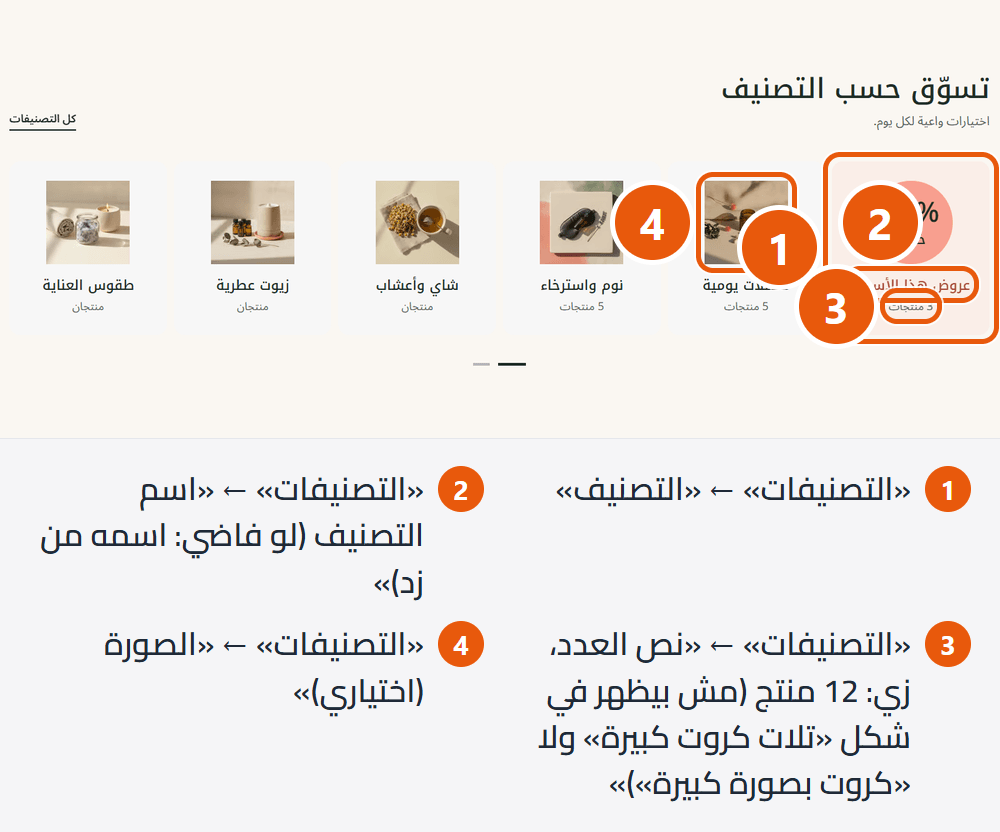
Section design
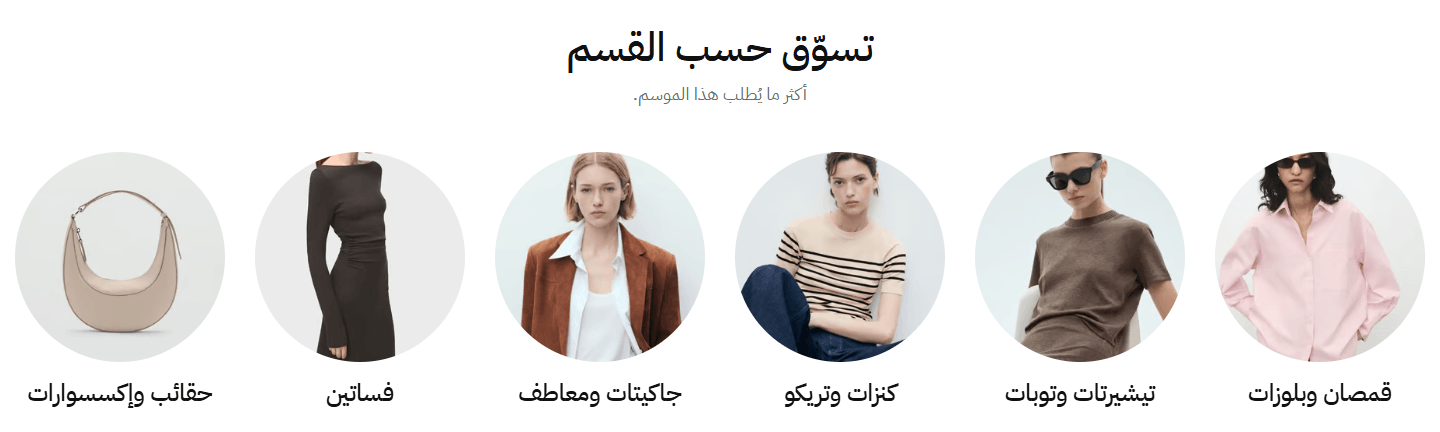
A sliding row; each category a circle, rounded picture or card, with an optional “View all” button and offer tile. The most flexible, for most stores.

Light, with many categories side by side. Good under the “Main slider” for quick access.
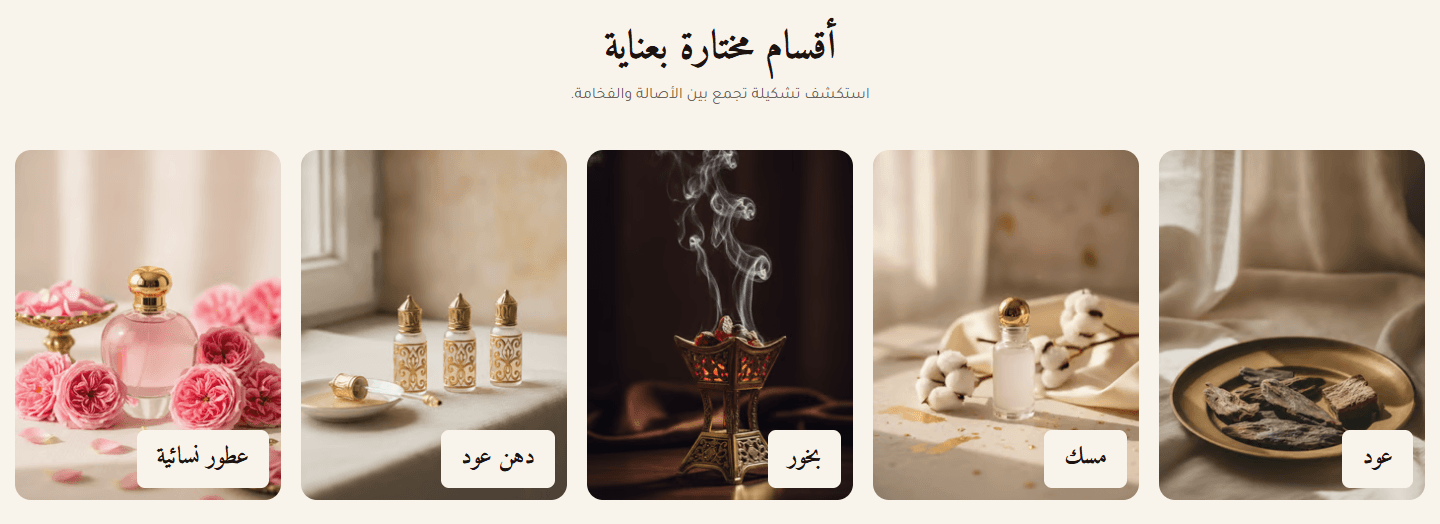
Name and product count under each picture, a title above. For fashion, jewellery and perfume, where the picture sells.
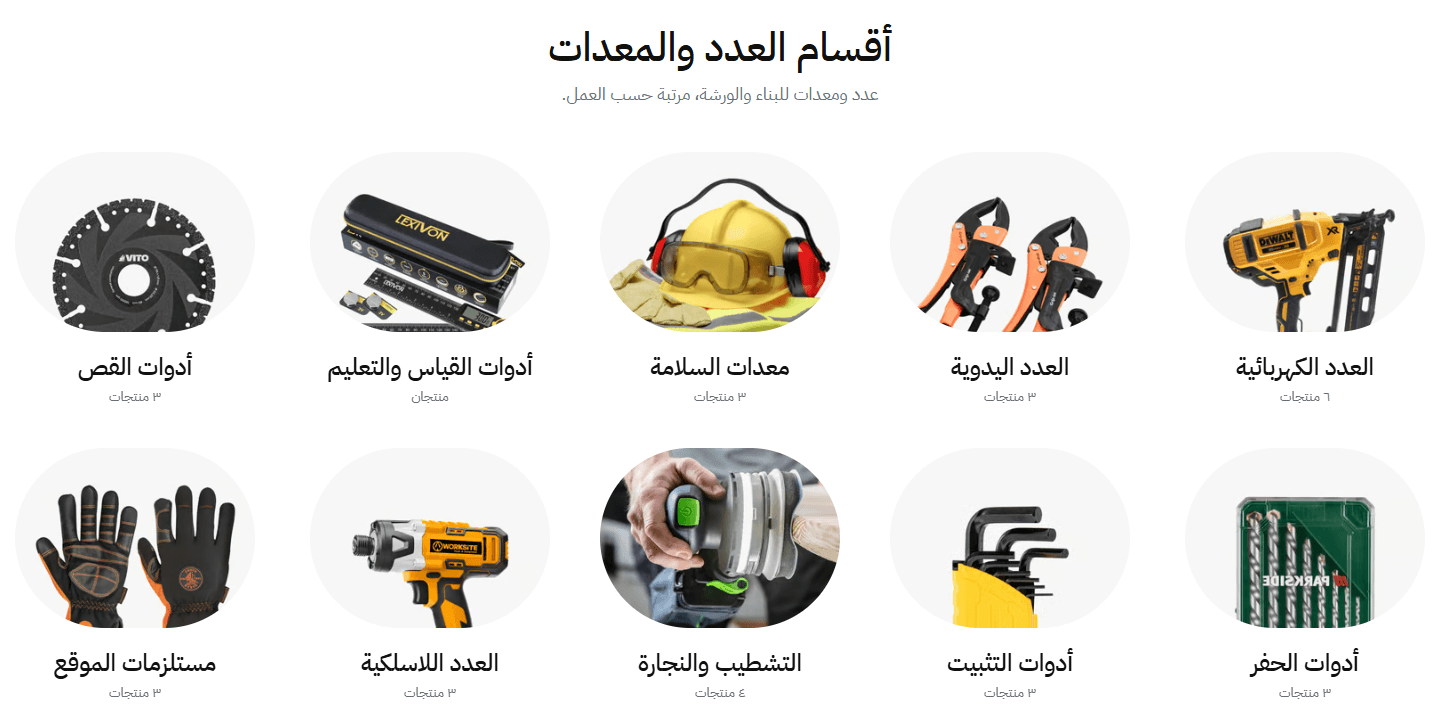
Fully rounded, with name and product count below. For showing more categories at once.

Huge names, no slider; the picture appears behind a name under the mouse. Modern, for a few categories. Names only on phones.
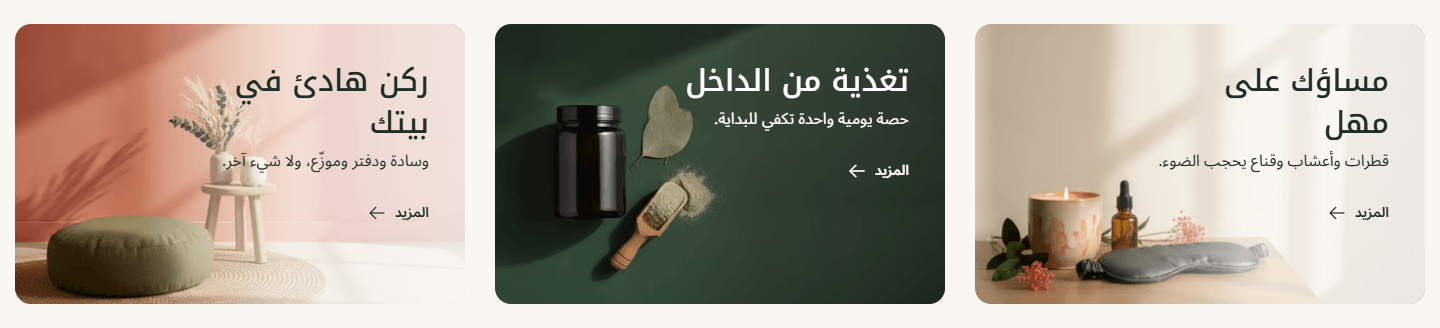
Name, a short line and a button on each picture; for saying something about each category, such as a campaign or seasonal collection.

Light-coloured chips. Cheerful for baby, pet and gift stores.
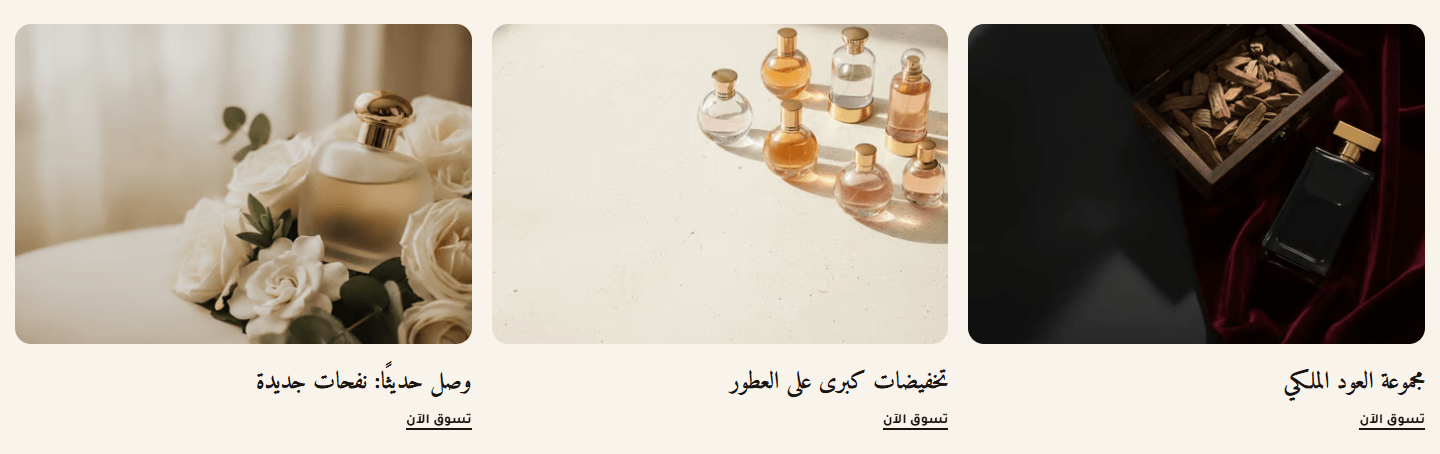
Still cards, three per row and one on phones, for three main categories. Extras wrap to a new row.
Step by step
- Add an item in “Categories”.
- Pick one in “Category”; its name, picture and link come with it.
- For a shorter name or better picture, fill “Category name” and “Image (optional)”.
- Repeat per category; list order is page order.
- Or turn on “Pull the store's categories automatically” and set “Maximum categories”.
Settings
- Section design: Your categories stay; each design shows what it has room for.
- Look of each category: The card holds a small picture, the name and count on a coloured background.Shown with “Category row with a title”
- Chip colors: “A different light color for each chip” cycles through seven light shades.Shown with “Small colored chips: image, name and count”
- Text under the title: A short line explaining the section.Shown with “Tall images with the product count”
- Row title: Such as Shop by category. Empty for none.Shown with “Category row with a title”
- Text under the row title: A short line explaining the section.Shown with “Category row with a title”
- Section title: Centred above the pictures. Empty for none.Shown with “Wide rounded images, one or two rows”
- Text under the section title: A short line explaining the section.Shown with “Wide rounded images, one or two rows”
- Categories: In this order. Empty brings in your main categories.Up to 12 items
- Category: Its name, picture and link come from it.
- Category name (empty: its name from Zid): For a shorter or different name on the home page; for an offer tile, its name.
- Count text, e.g. 12 products (not shown on the “Three large cards” or “Image cards” designs): You type it (nothing is counted), so update it when the number changes, or leave it empty.
- Short text over the image (“Image cards” design only): Under the name, such as New collection on sale.
- Image (optional): Replaces the Zid picture if you want. Each design's size is under the field.
- Mirror the image on Arabic pages - “Image cards” design only: So the text lands on the empty side. Leave off if the picture has writing.
- Offer tile instead of the image (“Category row”: a circle with the offer text; “Small colored chips”: a % icon): Shown among your categories. Pair it with “A link I choose” under “What the tile opens” for your offers page.
- Offer text, e.g. 20% (“Category row” design only): With this and “Word under the offer” both empty, a price-tag icon shows.Shown when “Offer tile instead of the image (“Category row”: a circle with the offer text; “Small colored chips”: a % icon)” is on
- Word under the offer, e.g. OFF (“Category row” design only): Under the offer text.Shown when “Offer tile instead of the image (“Category row”: a circle with the offer text; “Small colored chips”: a % icon)” is on
- What the tile opens: “A link I choose” for any page, such as offers.
- Link (the whole card opens it): In “Category row with a title”, “Image cards” and “Small colored chips” a tile can have only a link, no category.Shown when “What the tile opens” is “A link I choose”
- Button text (empty: “View more”) - “Image cards” design only: Such as Shop the collection.
- Text color over the image (“Image cards” design only): “Dark” for light pictures, “White” for dark ones.
- Chip color, empty: from “Chip colors” (“Small colored chips” design only): This chip only; a dark colour turns its text white.
- Pull the store's categories automatically instead of “Categories” above (an empty “Categories” pulls them anyway): Your main categories with names and pictures, no sub-categories; new ones appear by themselves. While on, your picks under “Categories” do not show.
- Maximum categories (when automatic): “All” shows every main category.
- “View all” button text (leave empty to hide it): Such as All categories.Shown with “Category row with a title”
- “View all” button link (empty: the categories page): Any page of your store.Shown with “Category row with a title”
- First section on the page? Turn on to load its first image right away (not on “Big words”: its images show only on hover): Lower down the page, leave it off so the page opens faster.
- Title position: “At the side” puts the title at the start and “View all” opposite.Shown with “Category row with a title”
- Category rows: “Start again after the last slide” works only with one row.Shown with “Wide rounded images, one or two rows”
- Autoplay (not on the “Big words” or “Three large cards” designs): Every 4 seconds, pausing under the mouse.
- Start again after the last slide (not on the “Big words” or “Three large cards” designs, or when the categories are in two rows): Instead of stopping at the end.
- Show arrows (not on the “Big words” or “Three large cards” designs): Wide desktop screens only; phones swipe.
- Space above the section on mobile: “This design's own” matches the desktop “Space above the section”, or the design's own if that was never changed.
- Space below the section on mobile: “This design's own” matches the desktop “Space below the section”, or the design's own if that was never changed.
Plus the options in "Options every section shares", in the Home page sections chapter, except "Keep the image fixed while scrolling (parallax) - not in “Big word behind a product image”".
Tips
- For an offers tile among categories: add an item with no category, fill “Category name”, turn on “Offer tile instead of the image”, and choose “A link I choose” under “What the tile opens” with your offers page. Works in “Category row with a title” and “Small colored chips”.
- Sizes: square 600×600px for most, 540×710px in “Tall images with the product count”, 600×450px in “Wide rounded images”, 1100×690px in “Image cards” and 1000×700px in “Three large cards”. Pictures are cropped, so keep what matters in the middle.
- Pictures with the same background and lighting keep the row tidy.
- With “Pull the store's categories automatically” on, names and pictures come from your Zid categories, so set pictures on the Zid categories page.
- A dark “Section background color” in “Category row with a title” turns the title and names light by themselves, except names in “Card with a background and the product count”, which sit on light cards.
A moving strip of short promises (free shipping, easy returns, secure payment) that reassures visitors and keeps your strengths in view.
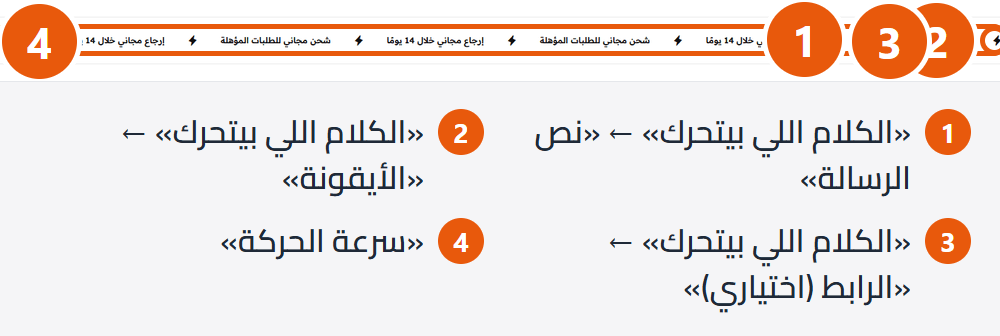
Section design

Large type with a small round picture after each message, on a light screen-wide band. For categories or products; each message can open its page with a link.

A small icon and small type between two thin lines. The classic look for shipping, returns and payment promises.

Huge hollow letters with a thin outline, and a wide pill picture after each message. Bold, for a few words such as a collection name or your slogan.

A star in the “Accent color” after each message, on a wide light band. Calm and elegant, no pictures.
Step by step
- Add a message in “Moving messages”.
- Keep “Message text” short, e.g. Free shipping on orders over 200 SAR.
- In “Icon and text, moving” pick an “Icon”, or set “Icon type” to “Your own image” and upload an “Icon image”.
- In “Round image and text, moving” or “Large outlined words and pill images”, upload the “Image”.
- To open a page (such as your returns policy), fill “Link (optional)”.
- Adjust “Movement speed” and “Movement direction” until it reads easily.
Settings
- Section design: Your messages stay; each design shows what it has room for: icon or picture.
- Text size: “Extra large” is biggest with thinner letters; “Large, a little bolder” is slightly smaller and thicker, for longer messages.Shown with “Large outlined words and pill images”
- Every second message in plain grey (no outline): Alternate messages, for variety.Shown with “Large outlined words and pill images”
- Moving messages: The strip repeats them to fill the screen; with none, the section does not appear.Up to 10 items
- Message text: Two to five words read best while moving.
- Icon type (“Icon and text” design only): “Your own image” for an icon in your brand's style.
- Icon: Match the words: a truck for shipping, an arrow for returns, a shield for guarantees.Shown when “Icon type (“Icon and text” design only)” is “Ready-made icon”
- Icon image (square): Shown very small (16×16px), so keep it simple; a transparent PNG works best.Shown when “Icon type (“Icon and text” design only)” is “Your own image”
- Image (“Round image” and “Large outlined words” designs only): A circle in “Round image and text, moving”, a pill in “Large outlined words and pill images”.
- Link (optional): The whole message opens this page, such as your returns policy. Leave empty for information only.
- Movement speed: “Slow” is easiest to read; “Fast” grabs attention.
- Movement direction: “With the reading direction” moves the words right on Arabic pages and left on English ones; “Against the reading direction” moves them the other way.
- Pause when the mouse is over it: So visitors can read or click a message. Keep it on when messages have links.
- Space above the section on mobile: “This design's own” matches the desktop “Space above the section”, or the design's own if that was never changed.
- Space below the section on mobile: “This design's own” matches the desktop “Space below the section”, or the design's own if that was never changed.
Plus the options in "Options every section shares", in the Home page sections chapter, except "Title", "Keep the image fixed while scrolling (parallax) - not in “Big word behind a product image”".
Tips
- The strip repeats messages to fill the screen, so three or four short ones are enough.
- In “Round image and text, moving” the picture is an 80×80px circle; upload 160×160px. In “Large outlined words and pill images” it shows at 160×80px (smaller on phones and tablets); upload 320×160px.
- Visitors with reduced motion on their device see a still strip; that is expected.
- “Full screen width” stretches “Text only, wide band” on very wide screens; the others already run edge to edge.
- “Section background color” becomes the band's own colour in “Round image and text, moving”, instead of the light one.
A sliding row of products: newest, on sale, or one category's, with an optional advertising banner beside it (picture, title, button).
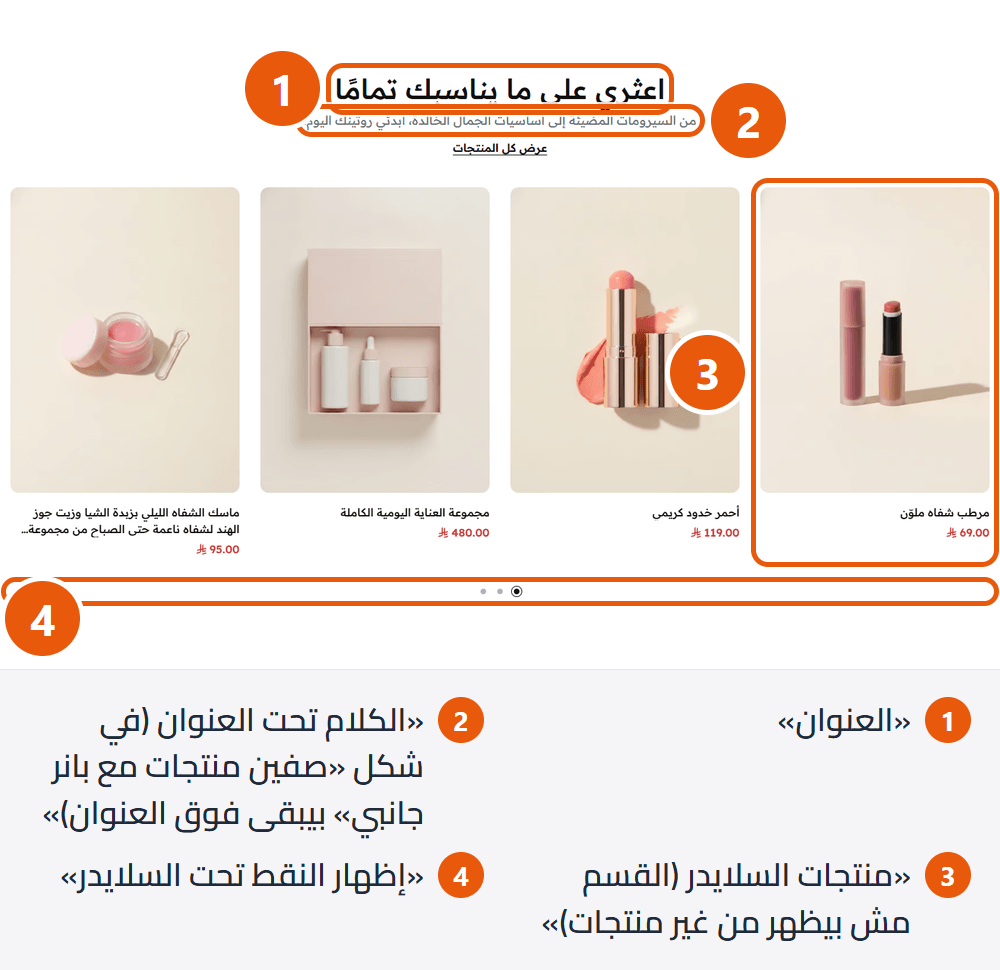
Section design
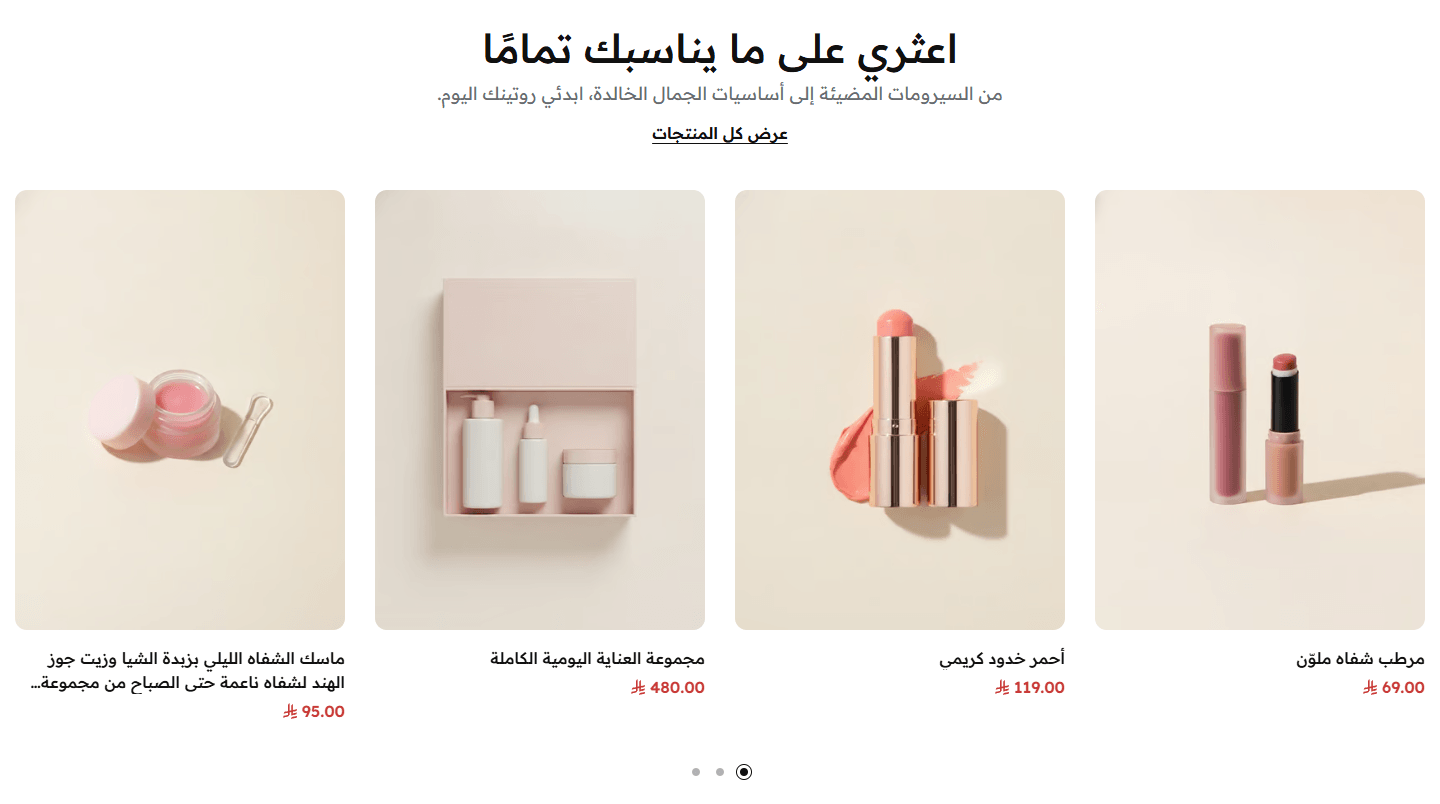
No banner. The simplest, fitting anywhere, such as new arrivals or best sellers.
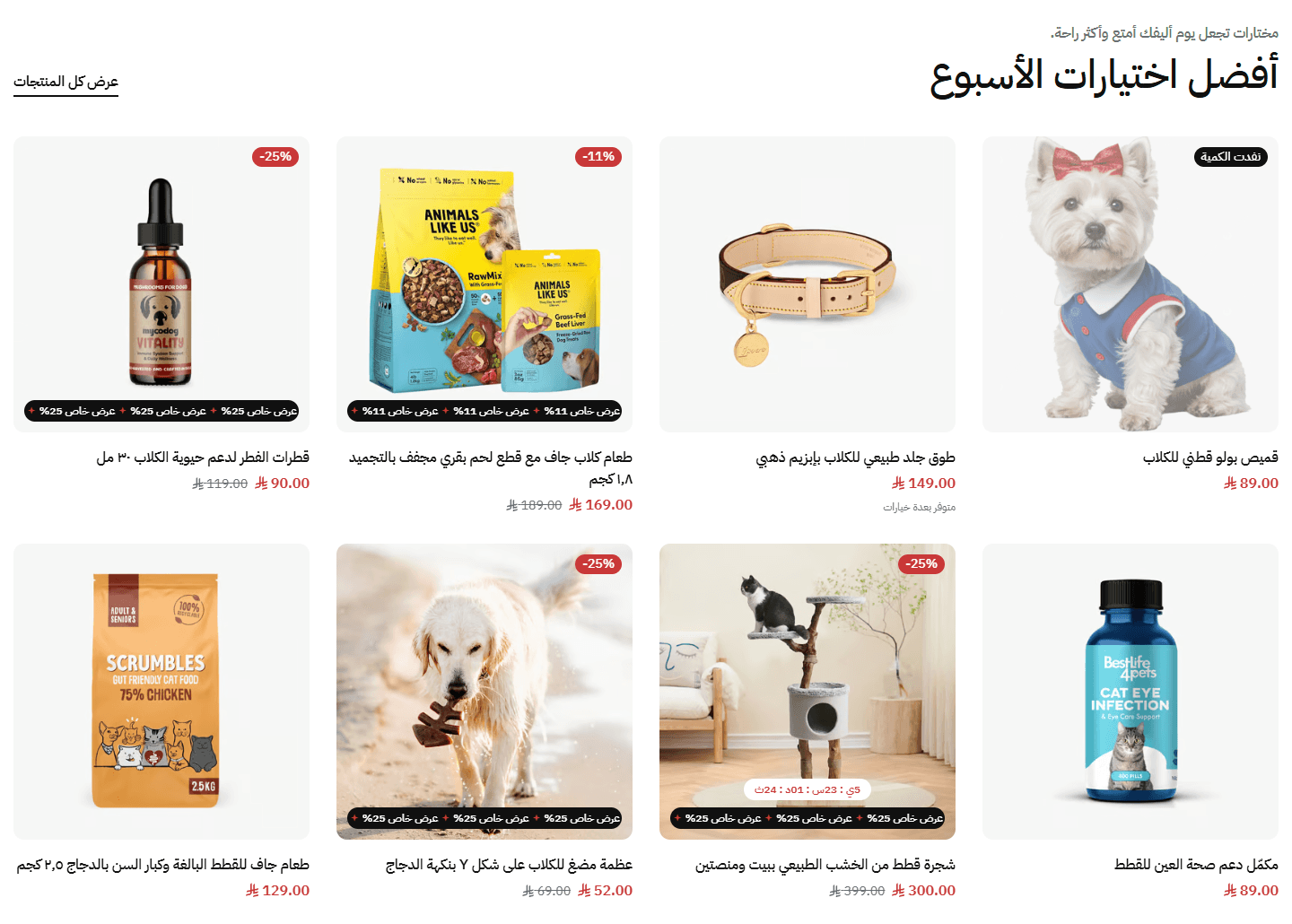
The banner shows on desktop and sideways tablets only. For a whole collection with a picture that sums it up.
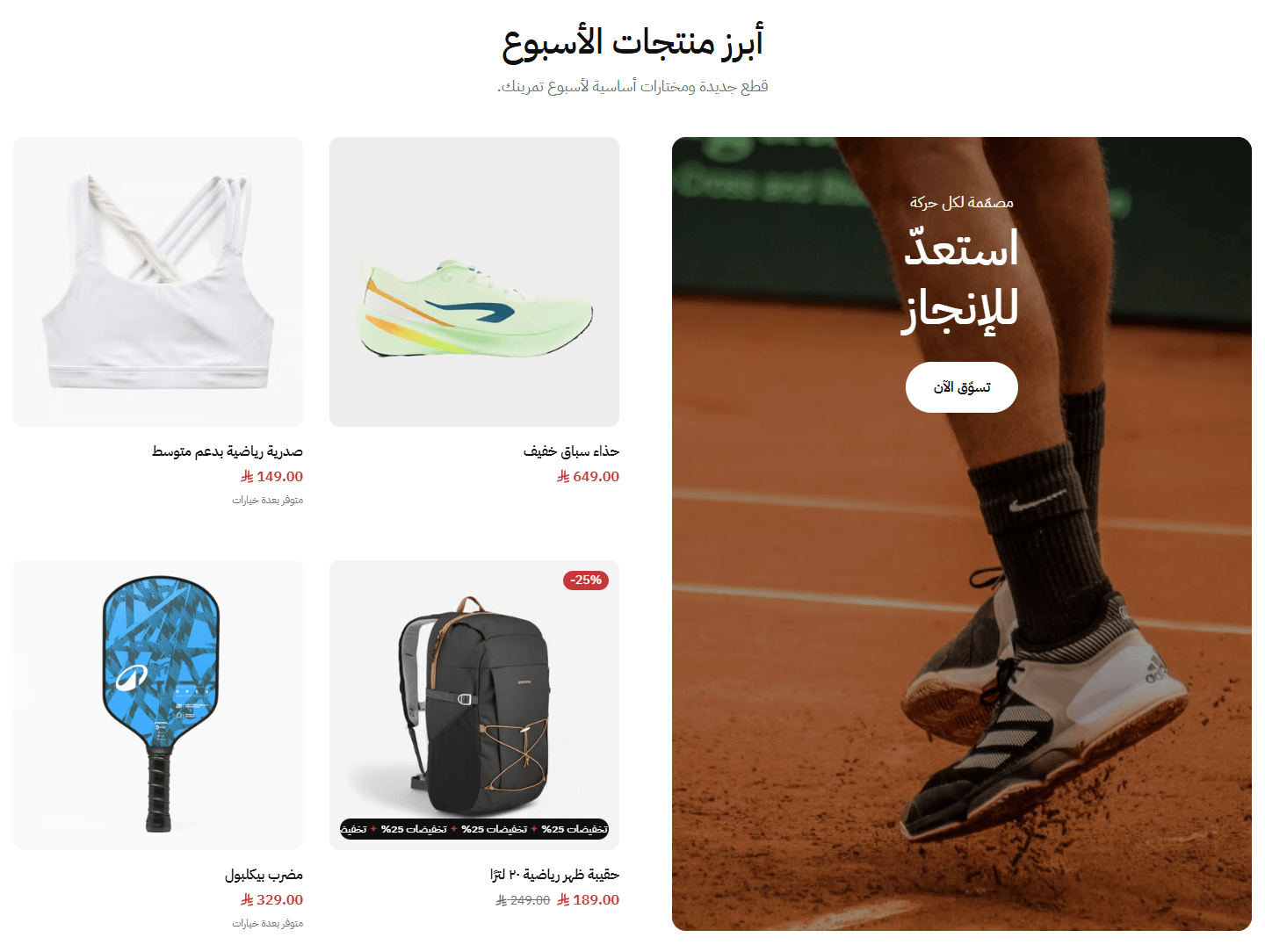
The banner takes half the width, products two by two; on phones and upright tablets it moves above them. For a campaign or star product.
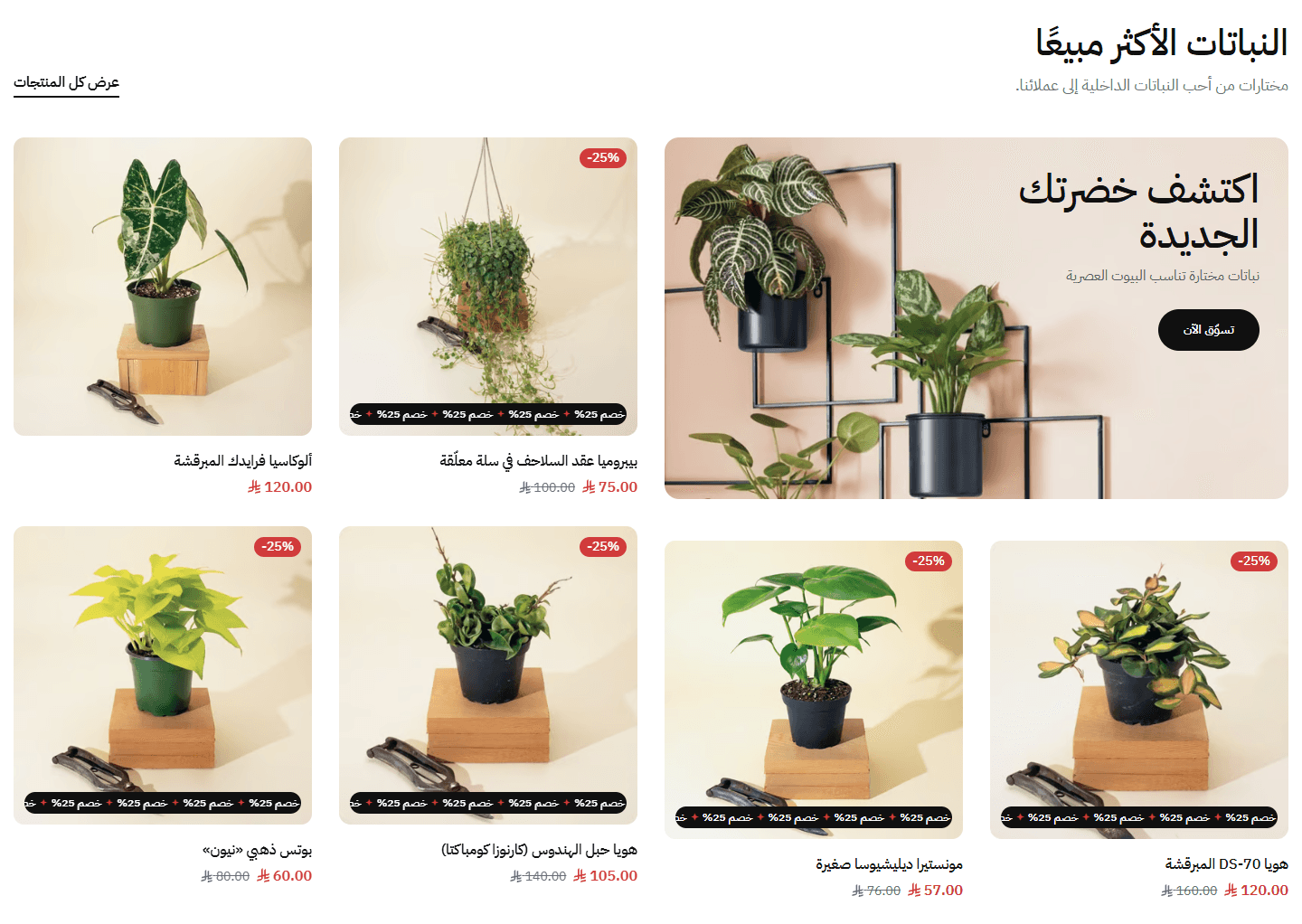
Six products and an advert together; needs six or more products to fill.
Step by step
- Write the “Title”, e.g. Best sellers.
- Choose the “Slider products” source: newest, on sale or a category.
- Set products per row for desktop, tablet and mobile.
- In banner designs, upload the picture and fill the title, button and link.
- For a button to all products, fill the “View all” text and link.
Settings
- Section design: Products and title stay; each banner design has its own fields, shown when picked.
- Text under the title (in “Two product rows with a side banner” it sits above the title): Such as Our customers' favourites.
- Slider products (the section does not show without any): Newest, on sale, or a category you choose; up to 20.
- Banner image: Upright and desktop-only, cropped to the products' height; keep what matters in the middle.Shown with “Two product rows with a side banner (best with the title at the side and three per row)”
- Banner image description for Google and screen readers (alt) - optional: Not shown on the page; empty uses the banner title.Shown with “Two product rows with a side banner (best with the title at the side and three per row)”
- Small line above the banner title: Such as Deal of the week.Shown with “Two product rows with a side banner (best with the title at the side and three per row)”
- Banner title (each line here is a line on the banner): A tap opens the “Banner link”.Shown with “Two product rows with a side banner (best with the title at the side and three per row)”
- Banner button text (leave empty for no button): Such as Shop now. The picture and title open the link anyway.Shown with “Two product rows with a side banner (best with the title at the side and three per row)”
- Banner link (empty: the products page): Such as the collection's page.Shown with “Two product rows with a side banner (best with the title at the side and three per row)”
- Banner text position on the image: “Top” when the product sits low in the picture, so the words stay off it.Shown with “Two product rows with a side banner (best with the title at the side and three per row)”
- Tall banner image: On desktop as tall as the products; on phones and upright tablets above them. The text sits at the top centre, so keep that part plain.Shown with “A tall banner beside four products (best with the title centered and four per row)”
- Tall banner image description for Google and screen readers (alt) - optional: Not shown on the page; empty uses the banner title.Shown with “A tall banner beside four products (best with the title centered and four per row)”
- Small line above the tall banner title: Such as New collection.Shown with “A tall banner beside four products (best with the title centered and four per row)”
- Tall banner title (each line here is a line on the banner): A tap opens the “Tall banner link”.Shown with “A tall banner beside four products (best with the title centered and four per row)”
- Tall banner button text (leave empty for no button): Such as Discover the collection.Shown with “A tall banner beside four products (best with the title centered and four per row)”
- Tall banner link (empty: the products page): Any page of your store.Shown with “A tall banner beside four products (best with the title centered and four per row)”
- Wide banner image: The text sits in the top corner where reading starts (right in Arabic, left in English), so keep that part plain.Shown with “A banner with two products under it and four beside it (best with the title at the side and four per row)”
- Wide banner image description for Google and screen readers (alt) - optional: Not shown on the page; empty uses the banner title.Shown with “A banner with two products under it and four beside it (best with the title at the side and four per row)”
- Mirror the wide banner image on Arabic pages, so the text sits on its calm side: Turn it on when the picture's right side is busy and its left plain. Leave it off if it has writing or a logo, or they read backwards.Shown with “A banner with two products under it and four beside it (best with the title at the side and four per row)”
- Wide banner title (each line here is a line on the banner): A tap opens the “Wide banner link”.Shown with “A banner with two products under it and four beside it (best with the title at the side and four per row)”
- Short line under the wide banner title: Such as Up to 30% off.Shown with “A banner with two products under it and four beside it (best with the title at the side and four per row)”
- Wide banner button text (leave empty for no button): Such as Shop now.Shown with “A banner with two products under it and four beside it (best with the title at the side and four per row)”
- Wide banner link (empty: the products page): Any page of your store.Shown with “A banner with two products under it and four beside it (best with the title at the side and four per row)”
- “View all” button text (leave empty to hide it; not shown while the arrows sit beside the title): Such as View all. Under the title when “Center”, opposite it when “At the side”.
- “View all” button link (needed for the button to show): Such as the category itself.
- Title position: “At the side” puts it at the start, with the arrows opposite if “Show arrows” is on.
- Space under the title: Raise it if the title sits too close to the products.
- Products per row on desktop (beside the tall or wide banner: half this number): In “A tall banner beside four products” and “A banner with two products under it and four beside it” half shows beside the banner (4 becomes 2); in “Two product rows with a side banner” it applies as is.
- Products per row on tablet: 2 to 4.
- Products per row on mobile: 2 shows more; 1 makes pictures bigger.
- Product rows: “Start again after the last slide” works with one row only.Shown with “Two product rows with a side banner (best with the title at the side and three per row)”
- Autoplay: Every 3 seconds, pausing under the mouse.
- Start again after the last slide (not with two product rows, nor in “A tall banner” or “A banner with two products under it”): Instead of stopping at the end.
- Show arrows: With the title “At the side”, beside it on any screen bigger than a phone; with “Center”, at the products' sides on wide screens only.
- Show dots under the slider: Hide by themselves when every product fits. In “Plain slider” with the title “At the side”, phones only.
- Banner button color: Pick whichever stands out on your picture.Shown with “Two product rows with a side banner (best with the title at the side and three per row)”
- Banner title color: Change it if it does not show on your picture.Shown with “Two product rows with a side banner (best with the title at the side and three per row)”
- Banner small line color: The line above the banner title.Shown with “Two product rows with a side banner (best with the title at the side and three per row)”
- Tall banner button color: Pick whichever stands out on your picture.Shown with “A tall banner beside four products (best with the title centered and four per row)”
- Tall banner title color (over the image): Without a picture, text uses the theme's colours.Shown with “A tall banner beside four products (best with the title centered and four per row)”
- Tall banner small line color (over the image): The line above the title.Shown with “A tall banner beside four products (best with the title centered and four per row)”
- Darken the tall banner image so its text reads (0 = none): So white text reads. 20 to 40 suits most light pictures.Shown with “A tall banner beside four products (best with the title centered and four per row)”
- Wide banner button color: Pick whichever stands out on your picture.Shown with “A banner with two products under it and four beside it (best with the title at the side and four per row)”
- Wide banner title color: Change it if it does not show on your picture.Shown with “A banner with two products under it and four beside it (best with the title at the side and four per row)”
- Wide banner short line color: The line under the banner title.Shown with “A banner with two products under it and four beside it (best with the title at the side and four per row)”
- Space above the section on mobile: On phones and upright tablets. “This design's own” matches the desktop “Space above the section”, or the design's own if that was never changed.
- Space below the section on mobile: On phones and upright tablets. “This design's own” matches the desktop “Space below the section”, or the design's own if that was never changed.
Plus the options in "Options every section shares", in the Home page sections chapter, except "Keep the image fixed while scrolling (parallax) - not in “Big word behind a product image”".
Tips
- Want specific products? Make a category holding just those and choose it in “Slider products”.
- Banner sizes: 840×1552px in “Two product rows with a side banner”, 900×1216px in “A tall banner beside four products”, 1380×800px in “A banner with two products under it and four beside it”.
- In “A banner with two products under it and four beside it”: six or more products put two under the banner, five put one, four or fewer none.
- Product cards are styled once for the whole store in “Product card” under “Page settings”.
Picture banners whose words and buttons are typed in the editor, not built into the picture, so you change them any time, in Arabic and English, each on its own page. Seven designs, including a row of banners, a tall banner with smaller ones, sliders and a discount strip with a one-tap code. For your categories and offers.
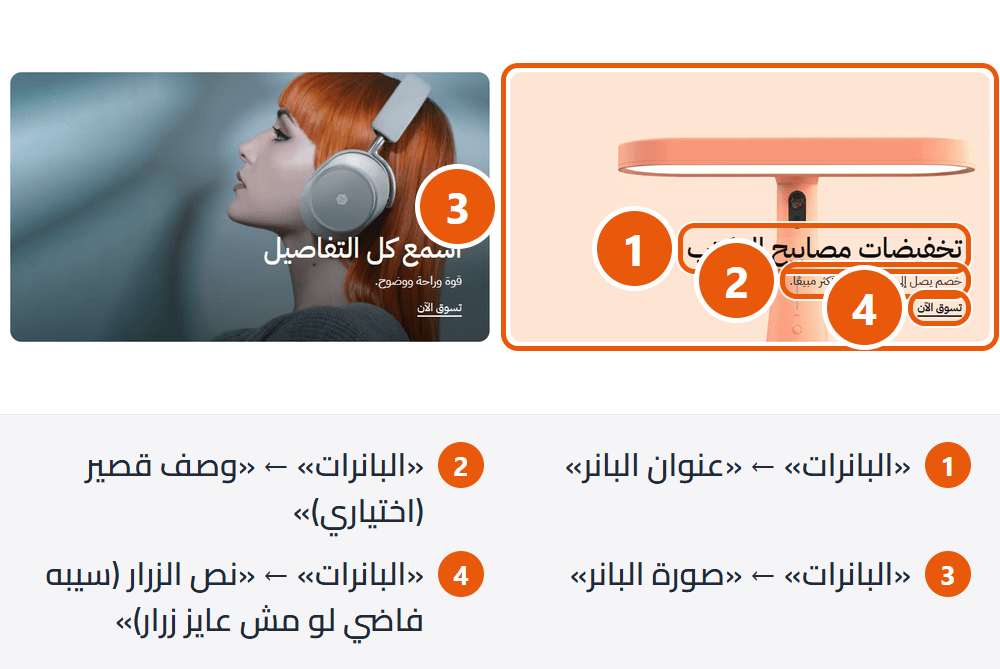
Section design
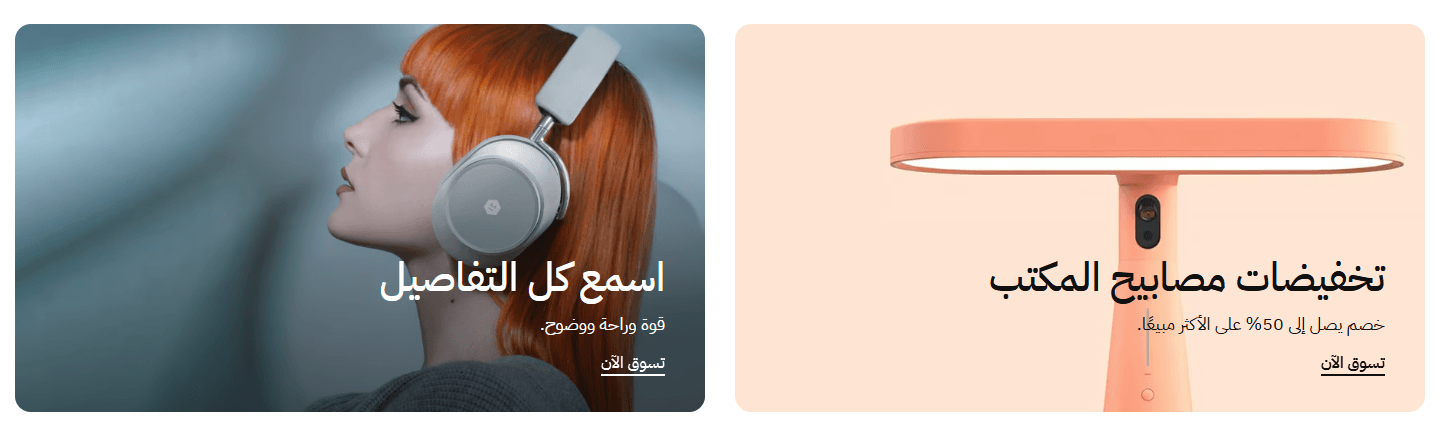
Same size (up to four per row), stacked on phones. “Banner style” sets their shape. The simplest for two to four categories or offers.
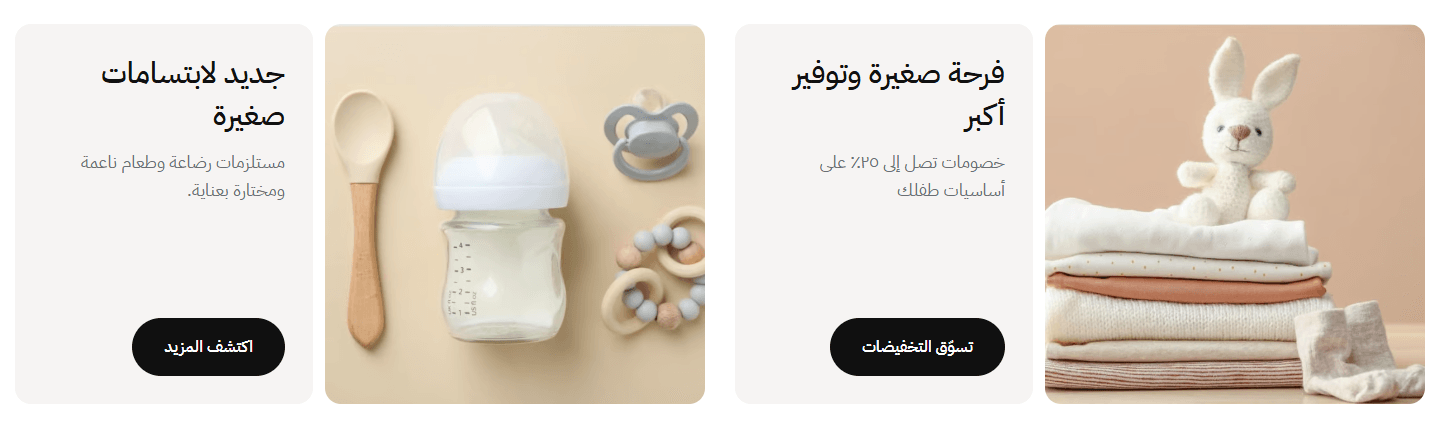
A square picture and a panel with title, description and a button in your store's button colour. One on phones; the picture sits above the panel on smaller screens. When words matter as much as the picture.
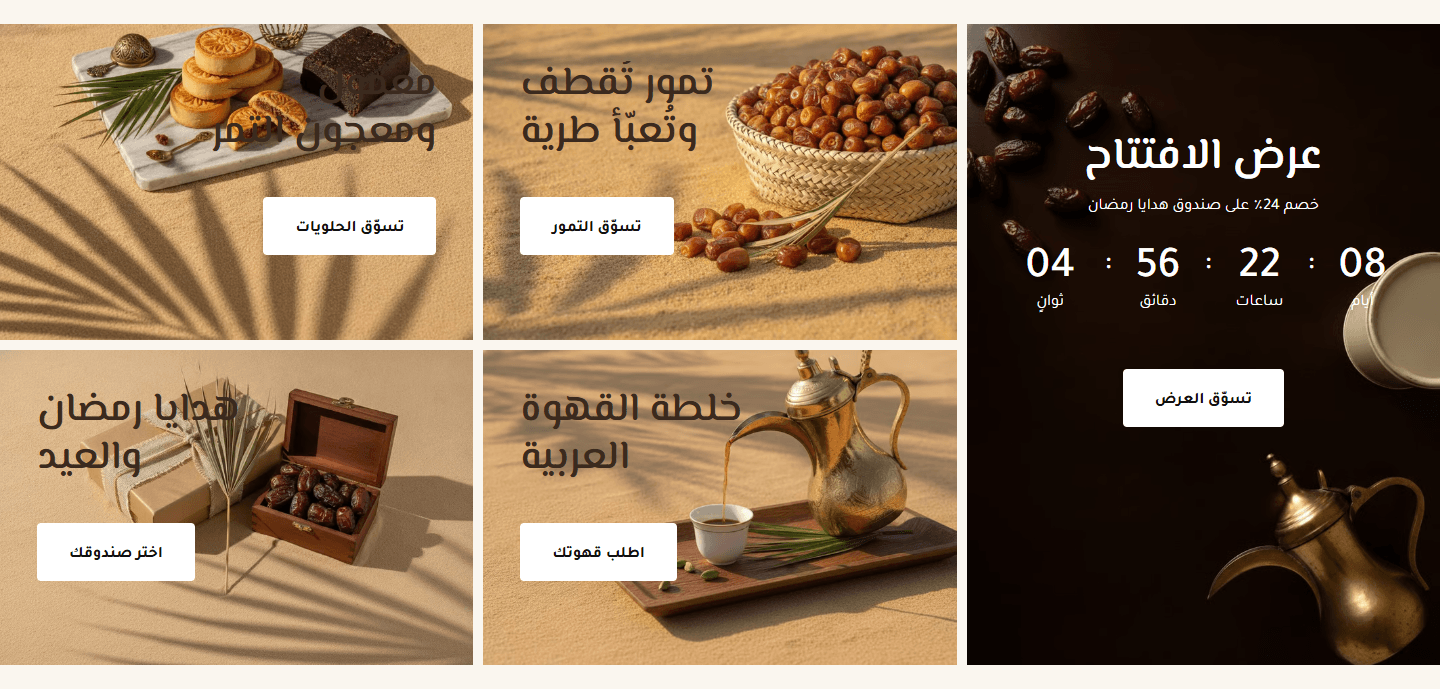
The tall one can carry a countdown. For one big offer with four categories or offers.
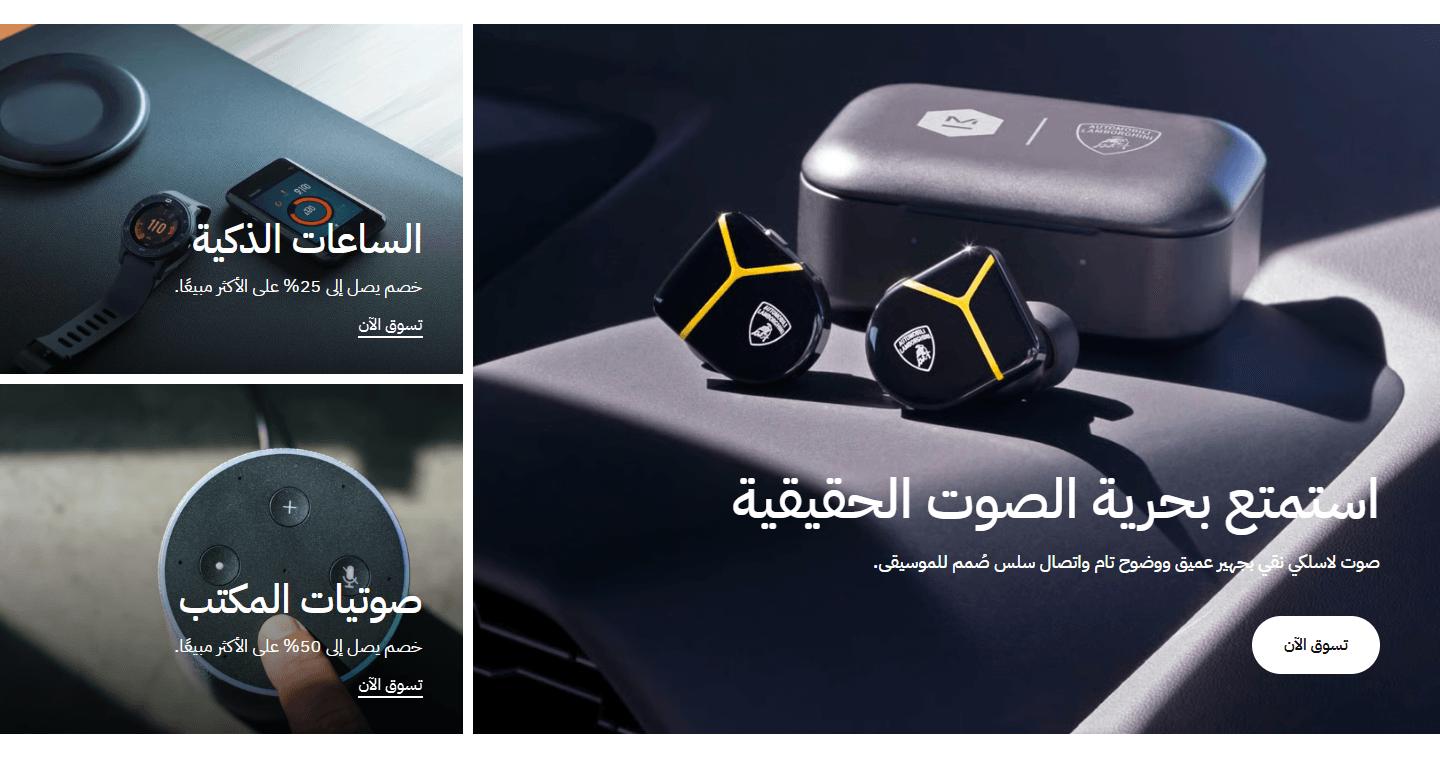
Four arrangements in “Tall banner layout”. For one main offer with smaller ones around it.
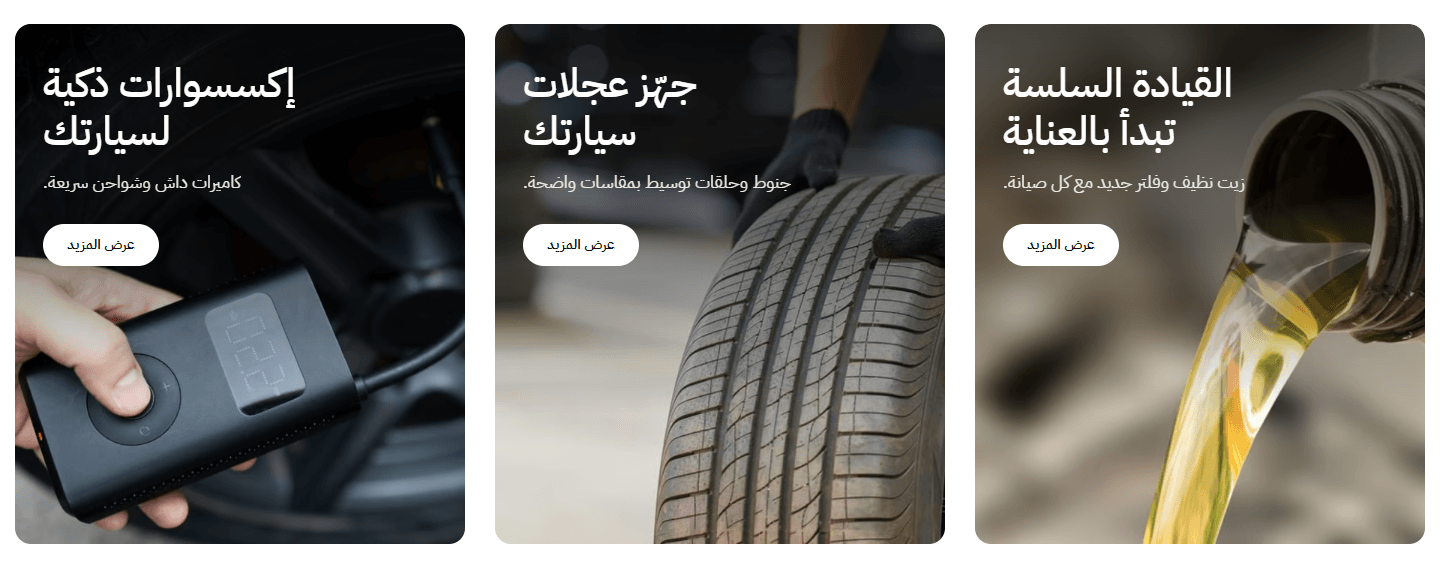
Two or one on smaller screens. For model shots and anything photographed upright.

A big figure such as the discount, a title and description, and a code copied on tap. On computers a picture overhangs the strip. For announcing a coupon between sections.
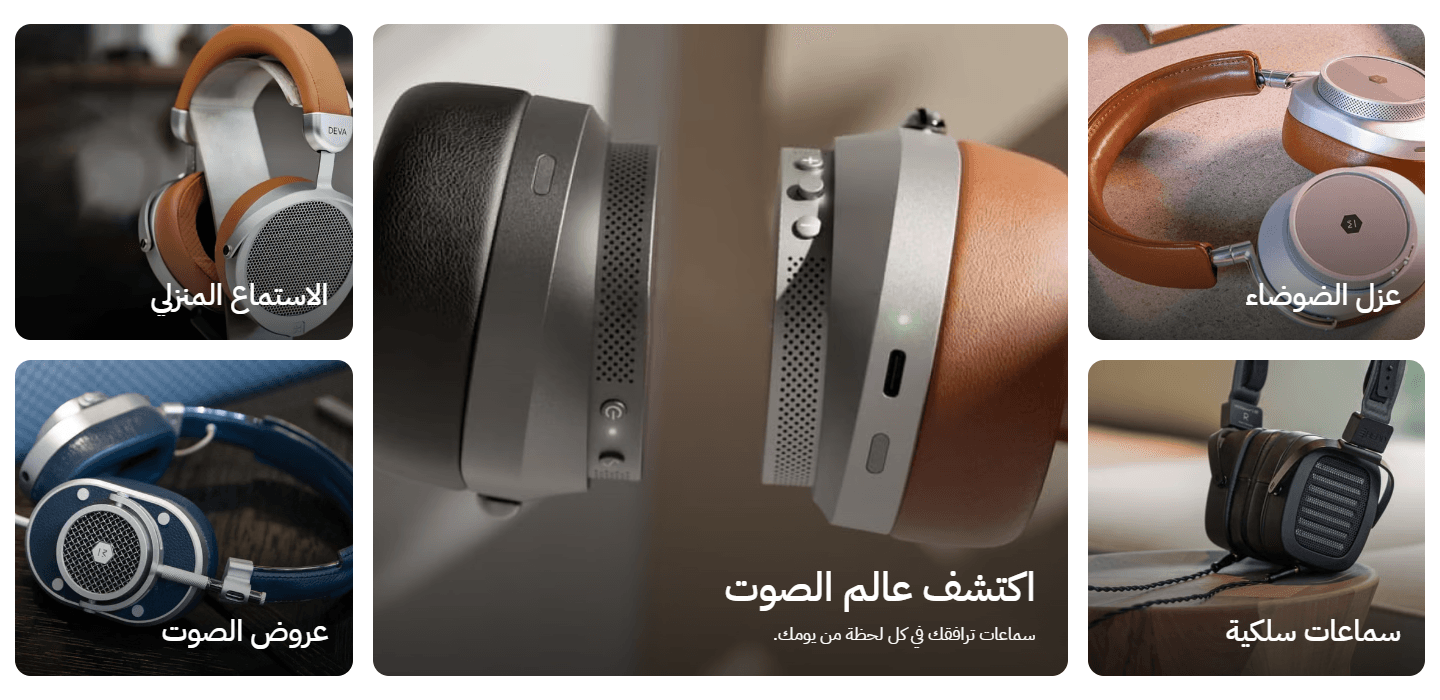
The third in the list is the large middle one; on smaller screens it goes on top, the rest below. For categories around one strong picture.
Step by step
- Open “Banner grid” and choose a “Section design”.
- Add a banner in “Banners” and upload the “Banner image”.
- Fill “Banner title”, and “Button text (leave empty for no button)” for a button.
- Set the page link.
- Choose “Text colors” that read on your picture.
- Check the preview, then press “Publish”.
Settings
- Section design: Your banners stay when you switch, but each design suits a different number.
- Banner style: “Square image with a button” has a coloured shade under the words and a white button; “Wide rounded image with an underlined link” has no shade.Shown with “Two or more banners in a row”
- Text at the top or the bottom of the image: “Top” for pictures where the product sits low, so the words stay off it. It applies to every banner in the section.Shown with “Two or more banners in a row” and when “Banner style” is “Square image with a button”
- Tall banner layout: Try all four and keep the one that suits your banner count and picture shapes.Shown with “A tall banner with smaller ones beside it (up to four)”
- Big figure at the start of the strip (e.g. 35%): Catches the eye at the start, such as the discount.Shown with “A discount strip with a code that copies on click (uses the first banner only)”
- Discount code (customers tap it to copy): Important: it must be a coupon you created in Zid; the section only shows it, it does not create it.Shown with “A discount strip with a code that copies on click (uses the first banner only)”
- Banners: Each banner with its picture, words and link.Up to 5 items
- Small line above the banner title (optional): Such as new, or 20% off.
- Banner title: Keep it short: some designs cut a very long title after one to three lines.
- Short description (optional): Keep it short: some designs cut it after one to three lines.
- Banner type: “Banner with an offer countdown” adds a countdown under the words until the offer ends.
- Offer end date and time (write it like 2026-12-31 23:59): The countdown runs down to this moment.Shown when “Banner type” is “Banner with an offer countdown”
- Countdown word for “days” (empty: Days): Such as Day instead of Days.Shown when “Banner type” is “Banner with an offer countdown”
- Countdown word for “hours” (empty: Hours): The word under the hours number.Shown when “Banner type” is “Banner with an offer countdown”
- Countdown word for “minutes” (empty: Mins): The word under the minutes number.Shown when “Banner type” is “Banner with an offer countdown”
- Countdown word for “seconds” (empty: Secs): The word under the seconds number.Shown when “Banner type” is “Banner with an offer countdown”
- Message after the offer ends (empty: the countdown hides): Such as this offer has ended.Shown when “Banner type” is “Banner with an offer countdown”
- Banner image: Edges may be cropped, so keep what matters in the middle. Each design's size is under the field; without one, a block in your store's colour shows.
- Mobile image (optional): For when the desktop picture crops badly on phones. In “A discount strip with a code that copies on click (uses the first banner only)” it is the strip's small picture on tablets and phones.
- Image description for Google and screen readers (alt) - optional: Such as black smart watch. Not shown on the page.
- Button text (leave empty for no button): Such as shop now.
- Link (the whole banner opens it; in “A discount strip” the button does): In “A discount strip with a code that copies on click (uses the first banner only)” the button needs its words to show.
- Text position: “Start” is right in Arabic and left in English; “End” the opposite.
- Text colors: “Light (white text)” for dark pictures, “Dark (black text)” for light ones, “Light (white title, light grey text)” for a softer description. In “A discount strip with a code that copies on click (uses the first banner only)” it colours the whole strip: the light choices fill it with your accent colour and white words; “Dark (black text)” turns its border, figure, title and code the dark text colour.
- Text color: In “A discount strip with a code that copies on click (uses the first banner only)” it colours the whole strip (border, figure, title, code); white takes your accent colour.Shown when “Text colors” is “A color you pick (in “Text color” below)”
- First section on the page? Turn on to load its first image right away: Anywhere else, leave it off so the page opens faster.
- Zoom the image on hover: A slight zoom. The large banner in the tall-banner designs never zooms.
- Color of the panel holding the title and button (its text is dark; with a dark color set each banner’s “Text colors” to “Light”): The panel beside the picture.Shown with “An image beside a colored panel with the title and button (two per view, slider)”
- Shade color under the text: A soft shade rising from the picture's bottom so words read; dark, or close to your store's colours.Shown with “Two or more banners in a row” and when “Banner style” is “Square image with a button”
- Faint pattern behind the strip (optional): Stretched behind the whole strip; empty leaves it plain.Shown with “A discount strip with a code that copies on click (uses the first banner only)”
- Space above the section on mobile: When it should differ from computers, such as bringing sections closer on a small screen.
- Space below the section on mobile: When it should differ from computers.
Plus the options in "Options every section shares", in the Home page sections chapter, except "Title", "Keep the image fixed while scrolling (parallax) - not in “Big word behind a product image”".
Tips
- Size varies by design and is written under “Banner image”: square in “Two or more banners in a row”, about 450×520 px in “Portrait banners with the text at the top (three per view, slider)”.
- Write the end with digits 0-9 (not ١٢٣), exactly: 2026-12-31 23:59 (year-month-day, then 24-hour time: 11 pm is 23:00). The countdown uses the visitor's device clock and time zone.
- For “A discount strip with a code that copies on click (uses the first banner only)”, put the strip's banner first in the list.
- In “A tall banner with smaller ones beside it (up to four)”, the “The tall one two-thirds wide, images to the screen edge (with 4 or 5 banners: three columns)” arrangement reaches the screen edges without “Full screen width”.
- Words not reading? Change “Text colors”, or in “Two or more banners in a row” with “Square image with a button” pick a darker “Shade color under the text”. Better than writing words into the picture.
A banner counting down the days, hours, minutes and seconds to your offer's end, so visitors feel time is short and buy now. Beside it a button, or in “Simple strip, countdown beside it” a one-tap discount code; you also choose what happens when time is up.
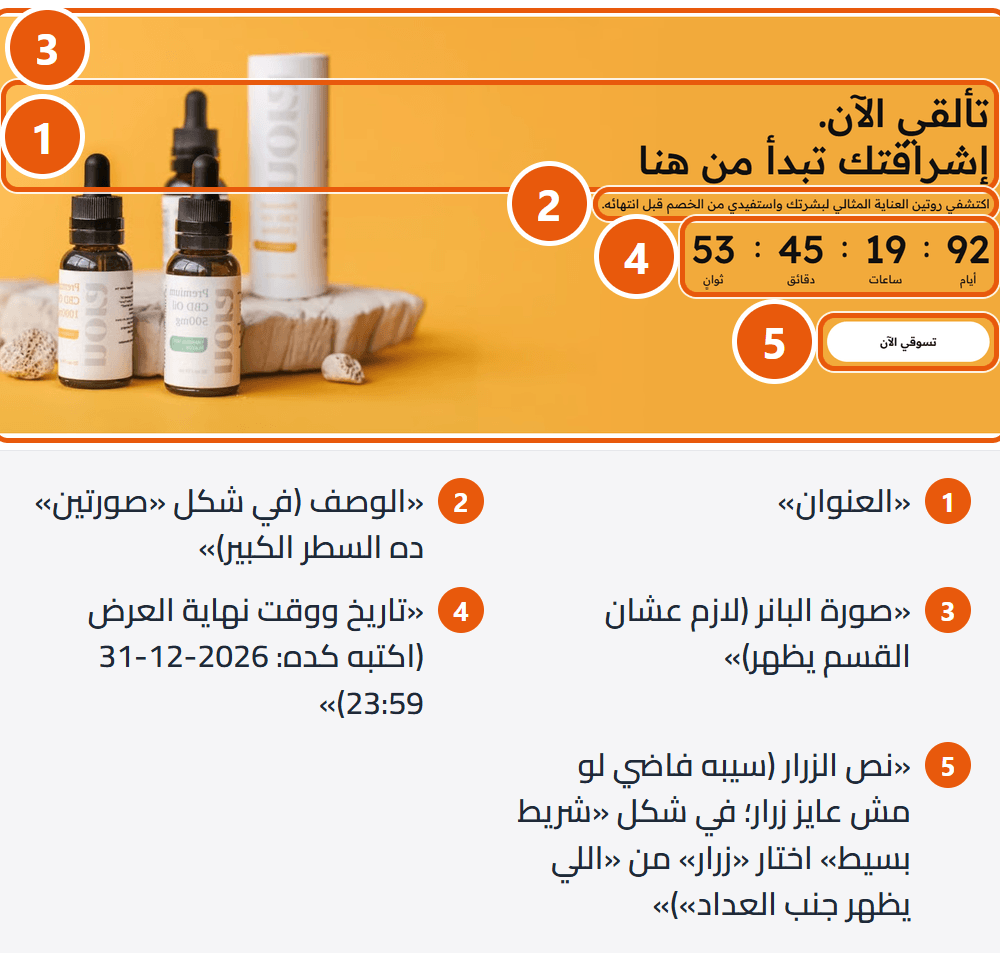
Section design
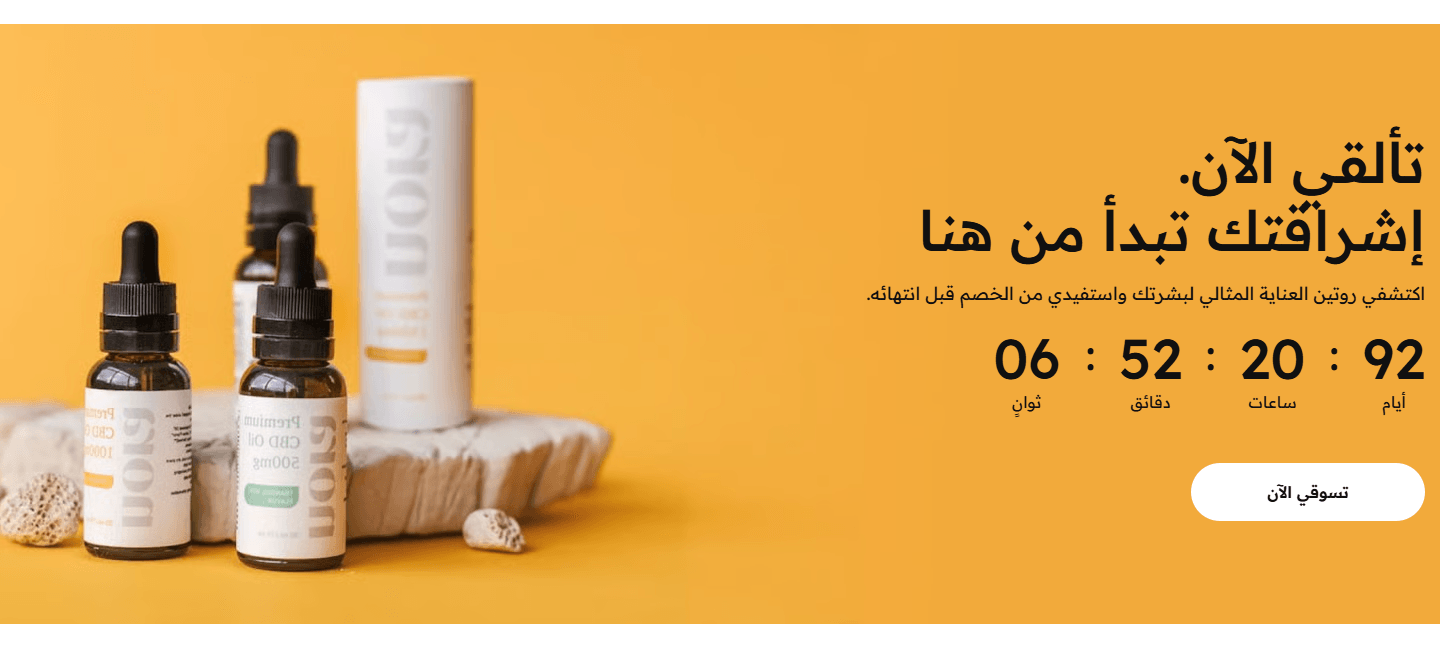
A section-wide picture carrying title, description, countdown and a white button; words on the right in Arabic, left in English. The strongest for a big offer such as a seasonal sale.

A dark strip with no pictures: words and countdown, then a button or discount code. Between two sections without taking room.
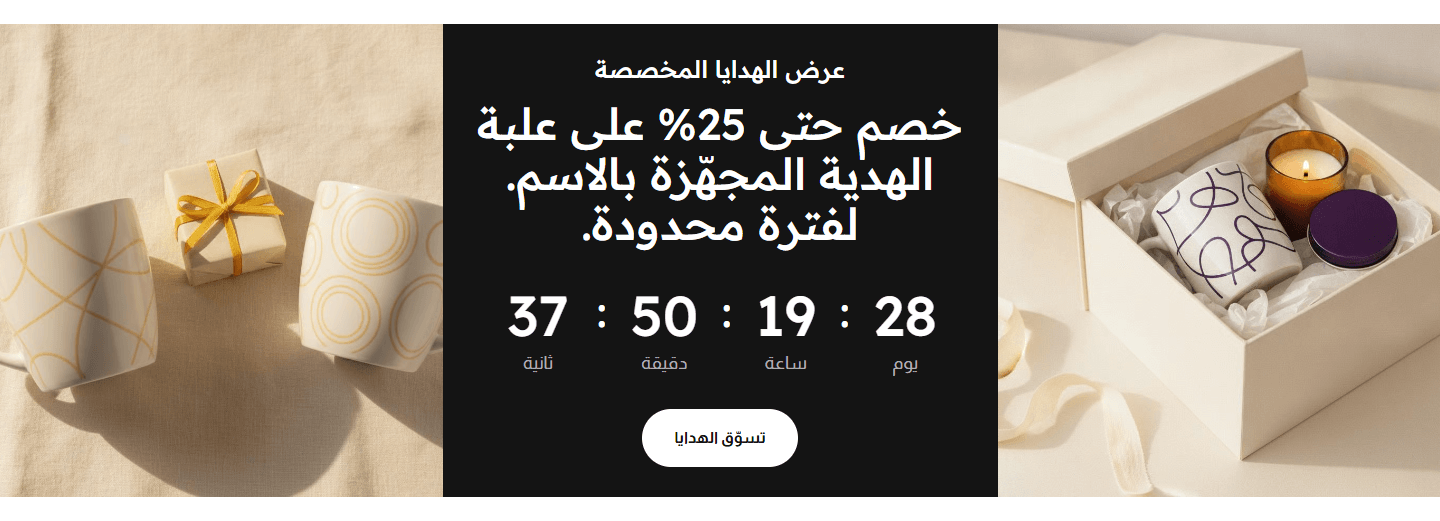
Between them a coloured panel with a small line, a big line, the countdown and a button. On phones and tablets the pictures sit above and below. For seasonal and holiday offers.
Step by step
- Open “Countdown banner” and choose a “Section design”.
- Write the end in “Offer end date and time (write it like 2026-12-31 23:59)”, exactly in that format.
- Fill “Title” and the description.
- Upload the banner picture, or the side pictures in “Two images, countdown between them”.
- Choose “When the offer time is up”.
- Check the preview, then press “Publish”.
Settings
- Section design: The date and words stay when you switch.
- Description (in “Two images” this is the big line): Says exactly what the offer is.
- Banner image (needed for the section to show): Words and countdown sit on it, so choose one with a calm area.Shown with “Full banner, countdown over the image”
- Image description for Google and screen readers (alt) - optional: Such as black smart watch. Not shown on the page.Shown with “Full banner, countdown over the image”
- Mirror the image on Arabic pages: Arabic words sit on the right; if your picture's empty space is on the left, turn this on to bring it behind them. Leave off if the picture has writing.Shown with “Full banner, countdown over the image”
- Side images - the first before the text, the second after it: With just one, it shows before the words.Shown with “Two images, countdown between them”Up to 2 items
- Image: On computers it is cropped to the words' height; keep what matters in the middle.
- Image description for Google and screen readers (alt) - optional: Such as black smart watch. Not shown on the page.
- Offer end date and time (write it like 2026-12-31 23:59): Empty means no countdown.
- Countdown word for “days” (empty: Days): Such as Day instead of Days.
- Countdown word for “hours” (empty: Hours): The word under the hours number.
- Countdown word for “minutes” (empty: Mins): The word under the minutes number.
- Countdown word for “seconds” (empty: Secs): The word under the seconds number.
- When the offer time is up: “A message in its place” says the offer is over or to watch for the next; you write it in “Message after the offer ends”.
- Message after the offer ends: Such as this offer is over - watch for the next one.Shown when “When the offer time is up” is “A message in its place”
- What shows beside the countdown: “A discount code customers copy” for a coupon; “Button” for the offer's page.Shown with “Simple strip, countdown beside it”
- Discount code (customers tap it to copy): Important: it must be a coupon you created in Zid; the section only shows it, it does not create it.Shown with “Simple strip, countdown beside it” and when “What shows beside the countdown” is “A discount code customers copy”
- Button text (leave empty for no button; in “Simple strip” pick “Button” in “What shows beside the countdown”): Such as shop now. The button needs a link.
- Button link (needed for the button to show): Such as your offers page or one category.
- First section on the page? Turn on to load its first image right away: Anywhere else, leave it off so the page opens faster.Shown with “Full banner, countdown over the image”
- First section on the page? Turn on to load the side images right away: Anywhere else, leave it off so the page opens faster.Shown with “Two images, countdown between them”
- Text and countdown color (empty: white): Title, description and countdown numbers, if white does not read.
- Space above the section on mobile: When it should differ from computers, such as bringing sections closer on a small screen.
- Space below the section on mobile: When it should differ from computers.
Plus the options in "Options every section shares", in the Home page sections chapter, except "Keep the image fixed while scrolling (parallax) - not in “Big word behind a product image”".
Tips
- Write the end exactly like this: 2026-12-31 23:59 (year-month-day, then 24-hour time: 11 pm is 23:00). Arabic numerals (١٢٣) work too.
- The countdown uses the visitor's device clock and time zone. A mistyped date shows no countdown; once it passes, the banner does what you chose in “When the offer time is up”.
- Picture for “Full banner, countdown over the image”: about 1920×600 px; words sit right in Arabic (left in English), so keep that side calm.
- Side pictures in “Two images, countdown between them”: about 1180×1000 px each.
- A line break in the title shows on computers and tablets only.
- In “Two images, countdown between them” the “Title” is the small line at the top.
- An empty “Section background color” gives the strip and the panel between the pictures your store's “Headings color”.
- In “Two images, countdown between them” a “Section background image” shows behind the words panel instead of its colour.
- “Color layer over the background” calms the background so words read; in “Two images, countdown between them” it covers the side pictures too.
Several product groups in one place, each in a named tab (best sellers, new in, offers). A tab shows its products at once without reloading, keeping the page short.
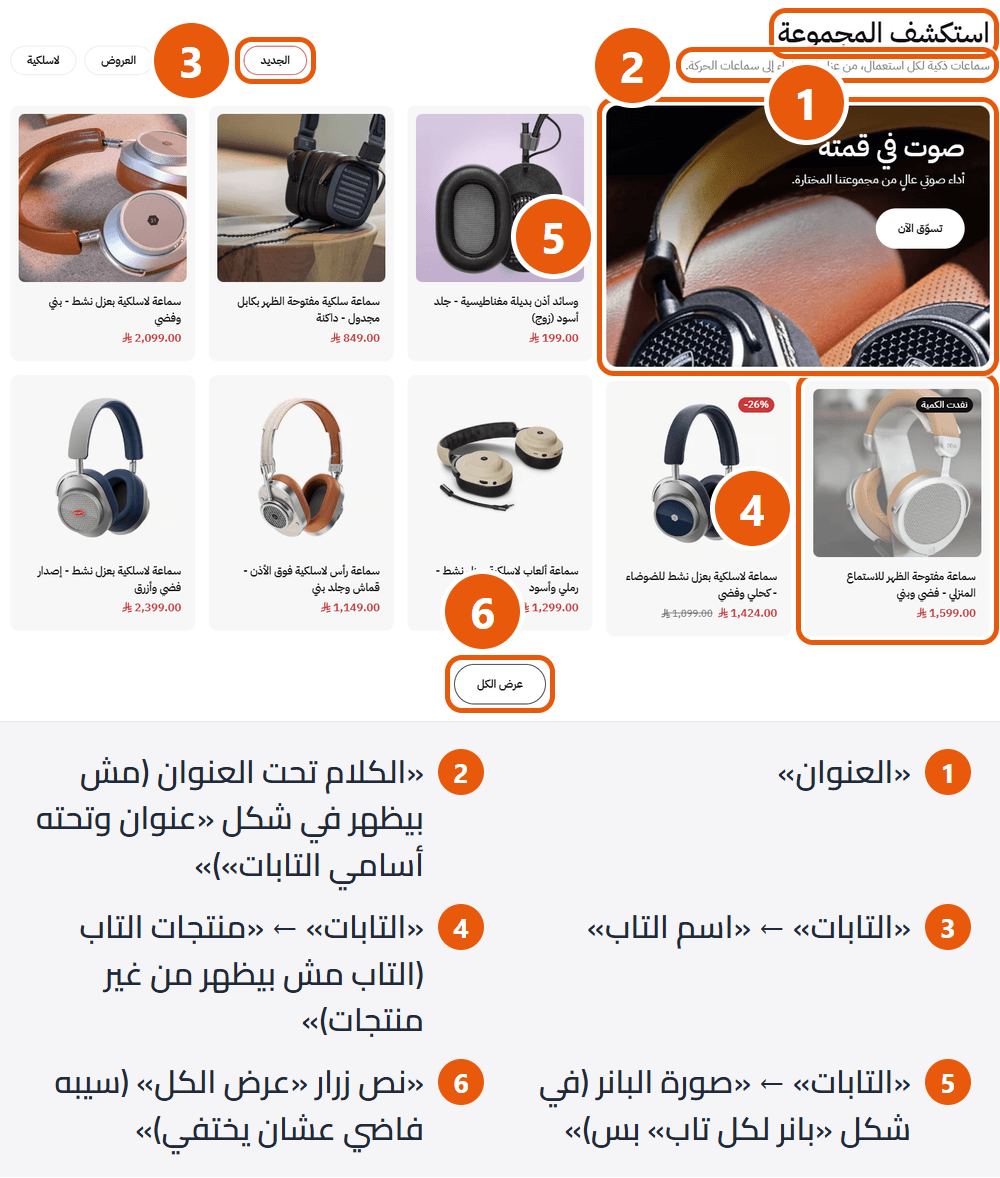
Section design
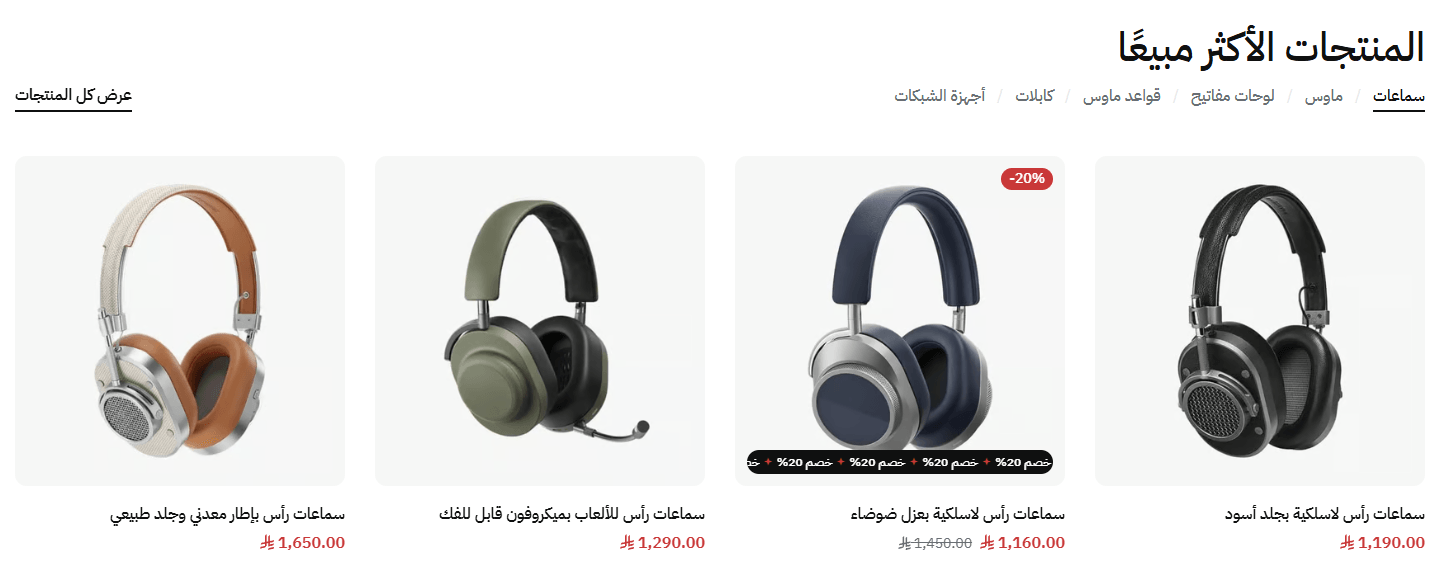
The simplest: four products on a computer, three on a tablet, two on a phone. For most stores.
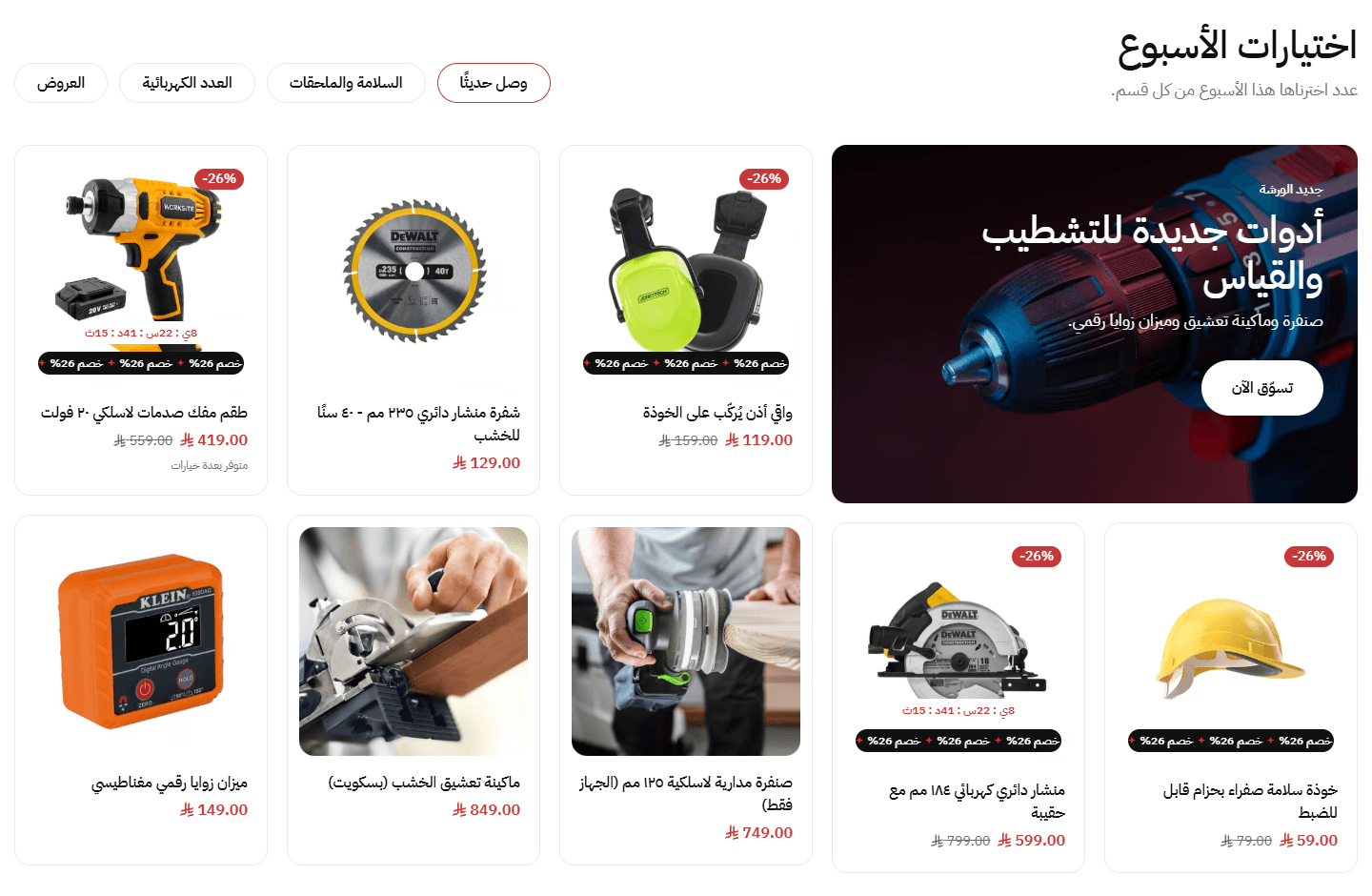
A banner per tab with picture, words and button; the first two products under it, the rest beside it. On smaller screens the grid moves below. For an advert per group.
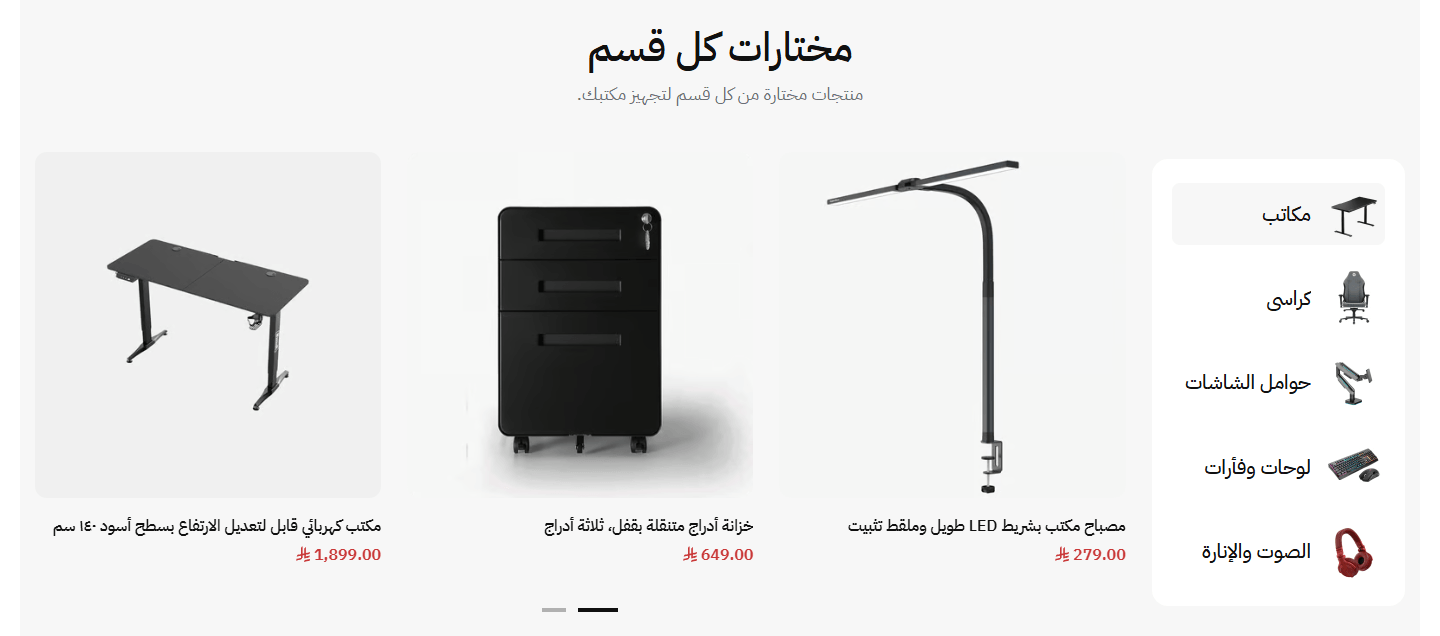
Tabs form a column with a small picture and name; on phones and tablets a swipeable row without pictures. Tidy for groups with clear icons or pictures.
Step by step
- Open the “Product tabs” section.
- Choose a “Section design”.
- Add a tab in “Tabs” and fill “Tab name”.
- Choose its products in “Tab products (a tab with none is not shown)”.
- Repeat per tab; the first opens by default.
- Check the preview, then press “Publish”.
Settings
- Section design: Your tabs and products stay when you switch.
- Text under the title (not shown in the “Title with the tab names under it” design): Tells visitors what they will find here.
- Tabs: A tab missing its name or products does not show.Up to 10 items
- Tab name: A word or two so tabs fit side by side.
- Tab products (a tab with none is not shown): Shown when the visitor opens the tab.
- Small image beside the tab name (in the “Rounded panel, a column of image tabs” design only): Square, such as an icon for the group or one of its products. Computers only.
- Banner image (in the “A banner per tab” design only): Above the first two products; its words are white, so pick a darkish picture.
- Banner image description for Google and screen readers (alt) - optional (in the “A banner per tab” design only): Such as black smart watch. Not shown on the page.
- Small line above the banner title (in the “A banner per tab” design only): Such as for a limited time.
- Banner title (in the “A banner per tab” design only): A line break you type shows on large screens only.
- Banner description (in the “A banner per tab” design only): A line or two explaining the offer.
- Banner button text (in the “A banner per tab” design only): Such as shop now, on a white button. Empty for none.
- Banner link (in the “A banner per tab” design only): Opens from anywhere on the banner; empty opens nothing.
- “View all” button text (leave empty to hide it): In “Title with the tab names under it, products in a slider” a link at the end of the heading row (under the tabs on phones); in the other two, a centred button under the products.
- “View all” button link (needed for the button to show): Such as all products or one category.
- Space above the section on mobile: When it should differ from computers, such as bringing sections closer on a small screen.
- Space below the section on mobile: When it should differ from computers.
Plus the options in "Options every section shares", in the Home page sections chapter, except "Keep the image fixed while scrolling (parallax) - not in “Big word behind a product image”".
Tips
- Tab missing? Check it has a name and products.
- Keep names short, or phone visitors must swipe the tab row to see them all.
- The banner in “A banner per tab beside a product grid (up to 8 products)” is about 1104×752 px; its words start from the top corner (right in Arabic, left in English), so keep that corner dark and calm.
- Tab pictures in “Rounded panel, a column of image tabs beside the products”: 124×124 px, ideally a transparent PNG.
- The “View all” button needs both words and a link.
- “Section background color” colours the panel itself in “Rounded panel, a column of image tabs beside the products”; empty takes “Cards and panels background color” from “Main colors”, usually light grey or beige.
A list of names beside a big picture that changes with the name tapped. One look for your categories (a big picture and short description each), one for chosen products (a picture carrying price and cart button). For a few categories or star products without crowding.
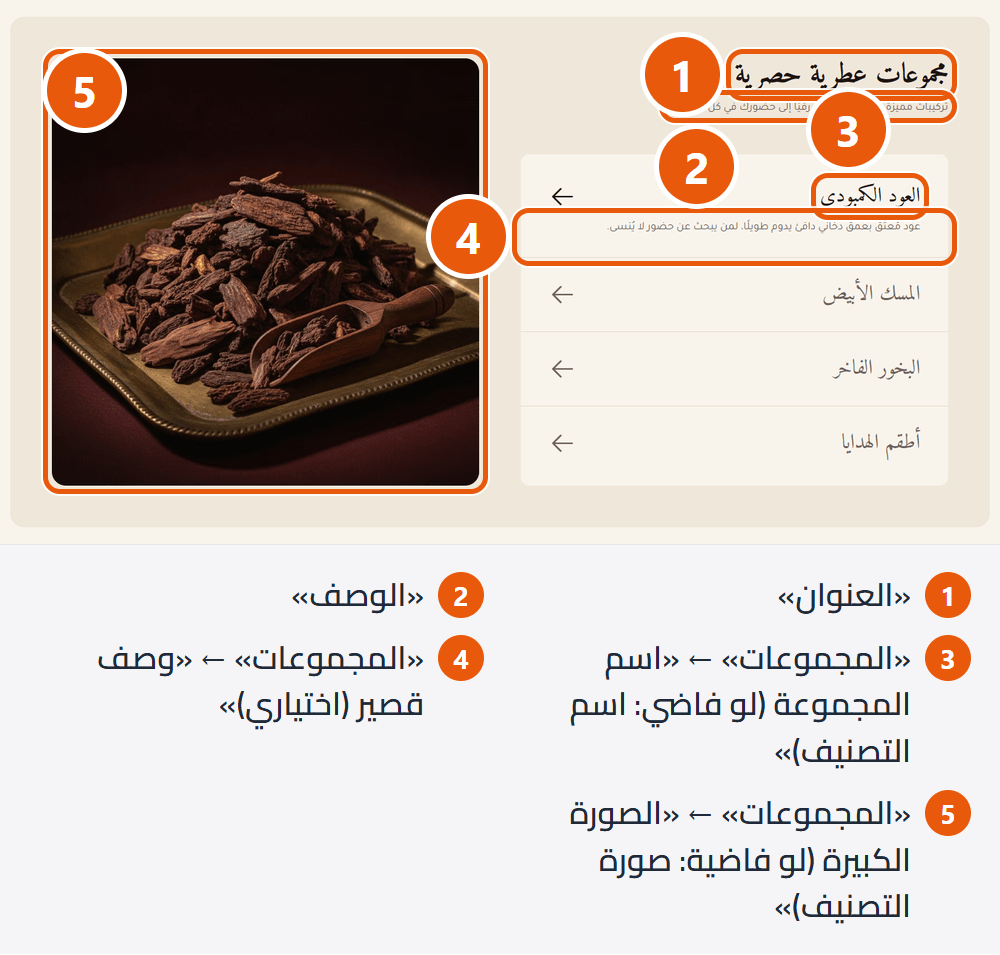
Section design
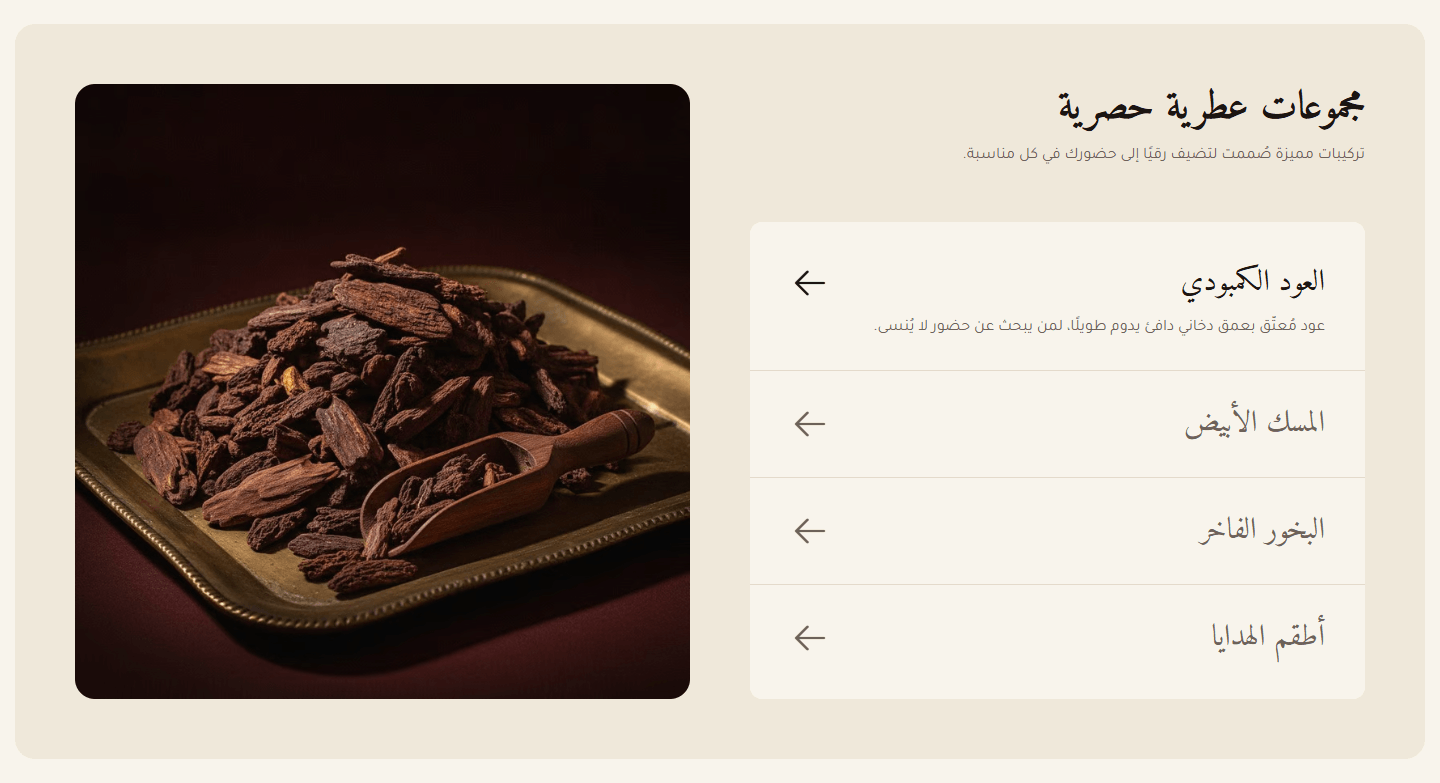
Tapping a name shows its description and swaps the picture; tapping the picture opens the category or your link. On smaller screens the picture moves under the list. For jewellery, fashion and categories with strong pictures.
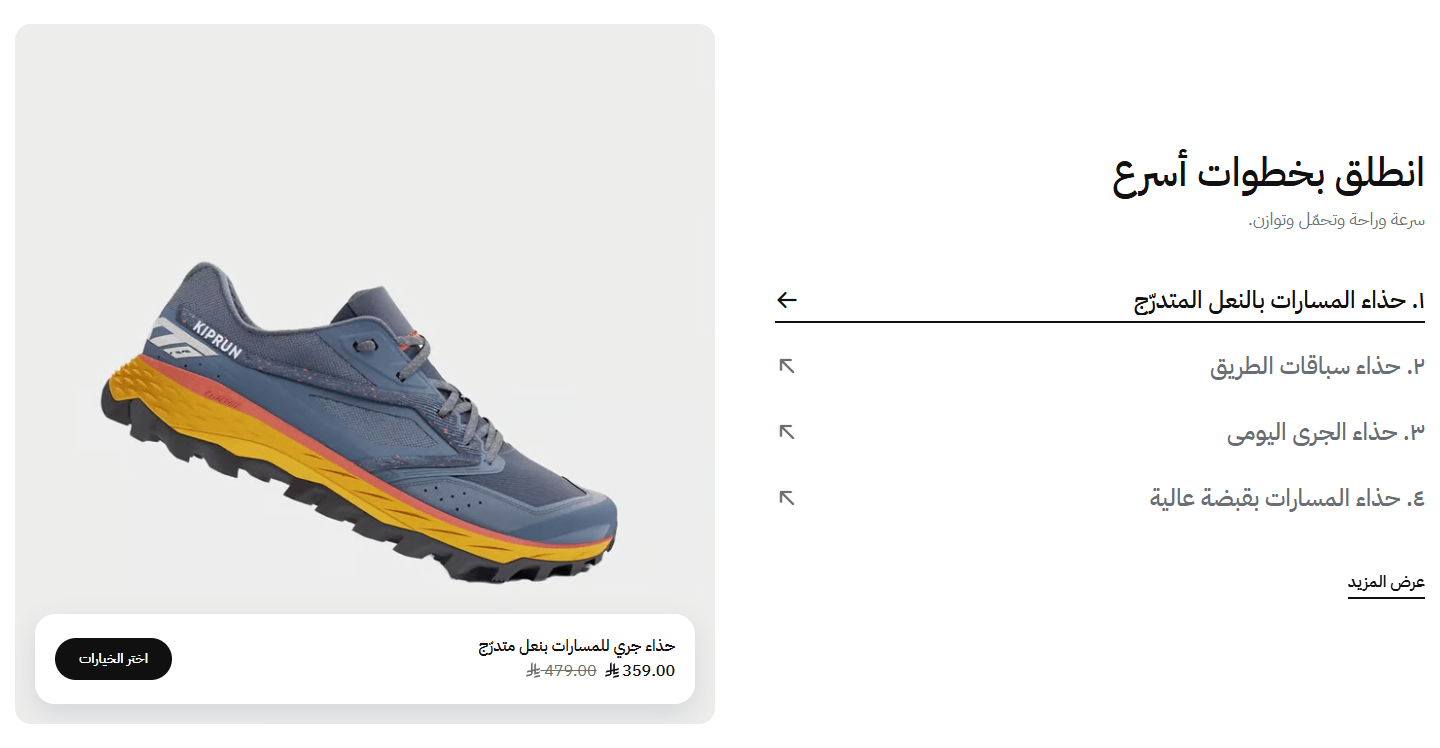
Each picture carries a white bar with name, price and cart button, so visitors add without opening the product. For your best-known products.
Step by step
- Open “Collection tabs” and choose “A list of names that swaps a big image” in “Section design”.
- Add a collection in “Collections”.
- Pick a “Store category (optional): fills the name, image and link you leave empty”.
- For another name or picture, fill “Collection name (empty: the category's name)” and “Big image (empty: the category's image)”.
- Add a “Short description (optional)”; repeat up to six collections.
- Check the preview, then press “Publish”.
Settings
- Section design: Categories or products. Each has its own list (“Collections” or “Products (one tab each)”); what you fill for one does not show in the other.
- Description: A line or two introducing the section.
- Collections: The first opens by default.Shown with “A list of names that swaps a big image”Up to 6 items
- Store category (optional): fills the name, image and link you leave empty: Pick one of your store's categories.
- Collection name (empty: the category's name): A collection with no name and no category is not shown.
- Short description (optional): Shown under the name when opened; tapping again closes it.
- Big image (empty: the category's image): With none here or on the category, a plain tile with an icon shows.
- Big image link (empty: the category page): With neither link nor category, the picture opens nothing.
- Product shown over the big image (optional): A small card over the collection's picture with its picture, name, price and cart button. With options the button opens its page; sold out hides it.
- Products (one tab each): Each product is a name in the numbered list; the first opens by default.Shown with “Numbered products beside the product image with an add-to-cart bar”Up to 6 items
- Product: Its name, price and cart button sit on its picture. With options (size, colour) the button opens its page.
- Tab name (empty: the product's name): One line; write a shorter name if the product's is long.
- Big image (empty: the product's image): Square, for something other than the product's main picture.
- “View all” button text (leave empty to hide it): An underlined link under the product list.Shown with “Numbered products beside the product image with an add-to-cart bar”
- “View all” button link (needed for the button to show): Such as these products' category or all products.Shown with “Numbered products beside the product image with an add-to-cart bar”
- First section on the page? Turn on to load its first image right away: Anywhere else, leave it off so the page opens faster.
- Number the tabs (1. 2. 3.): Arabic numerals on Arabic pages. Off for names without numbers.Shown with “Numbered products beside the product image with an add-to-cart bar”
- Space above the section on mobile: When it should differ from computers, such as bringing sections closer on a small screen.
- Space below the section on mobile: When it should differ from computers.
Plus the options in "Options every section shares", in the Home page sections chapter, except "Keep the image fixed while scrolling (parallax) - not in “Big word behind a product image”".
Tips
- Collection picture about 1520×1400 px; its edges may be cropped, so keep what matters in the middle.
- Product picture in “Numbered products beside the product image with an add-to-cart bar” about 1440×1440 px; the white bar covers its lower part, so keep that part plain.
- If the category has no picture, upload one for the collection so the icon tile does not show.
- On phones, “Numbered products beside the product image with an add-to-cart bar” shows the picture first, the list under it.
- “Section background color” in “A list of names that swaps a big image” shows only around the light card, more with extra space above and below.
Photos of your products in use or in place (each one a scene), each with its product, price and cart button. Visitors browse the scenes and buy what they like without searching. For stores with good in-use photos.

Section design
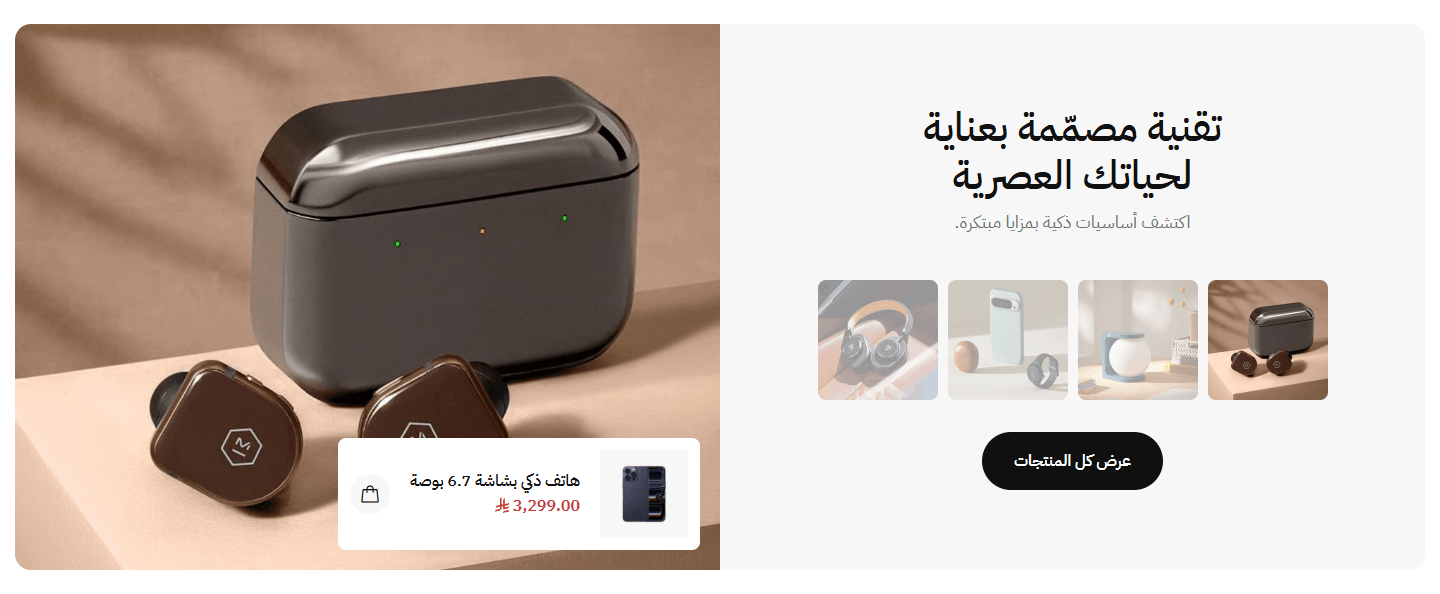
Your text in a light panel over small pictures; pressing one switches the large photo, which carries a product card with a cart button. Small pictures appear with more than one scene.
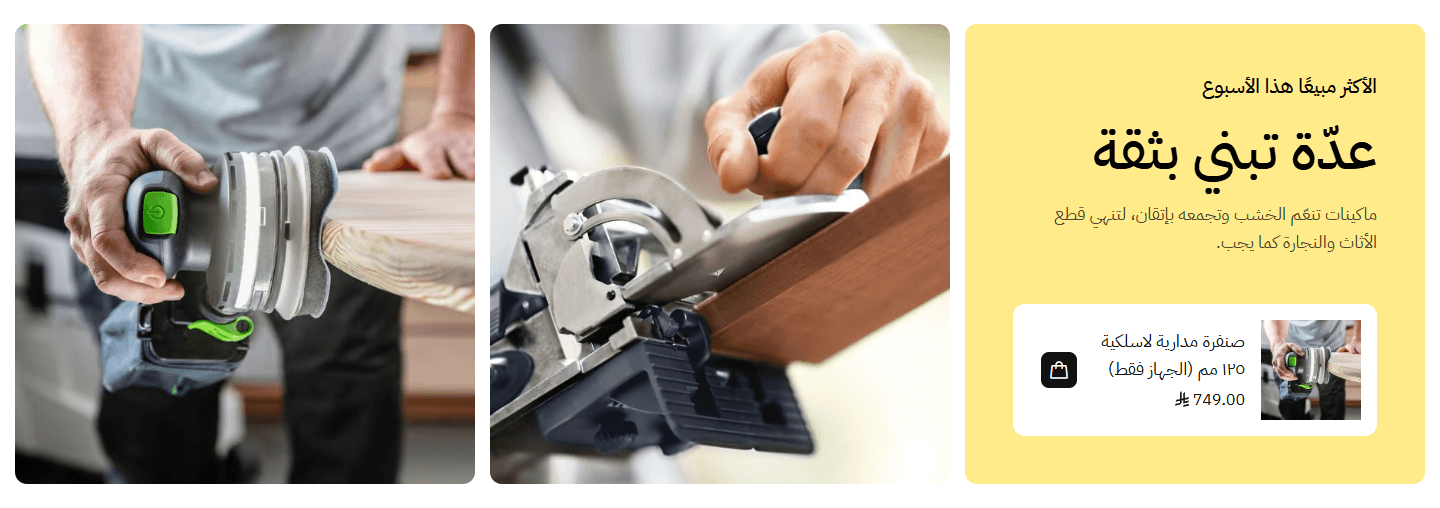
The panel, in your colour, holds your text, a product card and a button; each of the two photos leads to its product. The second shows on computers only.
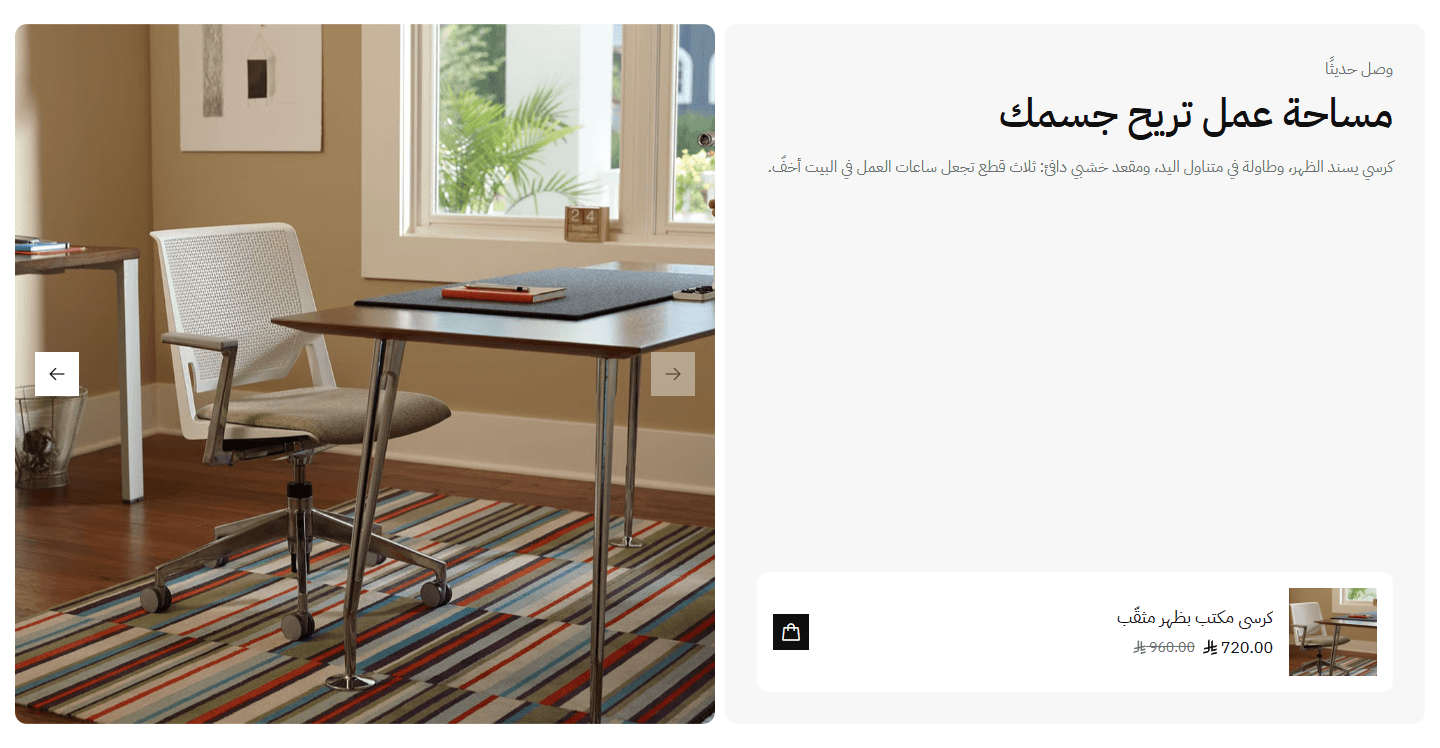
Products show one at a time beside a square photo with arrows; changing one changes the other.
Settings
- Section design: Everything you filled in stays when you switch, so try each in the preview.
- Small line above the title: Such as the collection or season.
- Description: Introduces the scenes.
- Scenes (each an image and a product; both are needed for it to show): Up to 8, one per product you want to show: its in-use photo plus the product.Up to 8 items
- Image description for Google and screen readers (alt) - optional: Such as Grey sofa in a living room. Not shown on the page.
- Image: The product in use or in place. Cropped, so keep the product in the middle.
- Small image (optional, “Small thumbnails that switch the large image” design only): When it should differ from the scene photo, such as a close-up. Empty uses the scene photo.
- Product: In “Small thumbnails that switch the large image, with the product over it” and “A grey panel with the text and the products one at a time, beside a large image that changes with them” a card with name, price and cart button; in “A colored panel with the text and one product, beside the first two images” pressing the photo opens its page. With options (size, colour) the cart button opens its page.
- Product on the panel (empty: the first scene's product): Choose one here to show a product other than the first scene's.Shown with “A colored panel with the text and one product, beside the first two images”
- Button text (leave empty for no button): Such as Shop all.
- Button link (needed for the button to show): Such as a category. It starts as the all-products page; clearing it hides the button.
- Color of the text panel: The panel holding the text and product.Shown with “A colored panel with the text and one product, beside the first two images”
- Text color on the panel: Readable on the panel colour.Shown with “A colored panel with the text and one product, beside the first two images”
- Space above the section on mobile: “This design's own” follows “Space above the section”.
- Space below the section on mobile: “This design's own” follows “Space below the section”.
Plus the options in "Options every section shares", in the Home page sections chapter, except "Keep the image fixed while scrolling (parallax) - not in “Big word behind a product image”".
Tips
- Scene photo 1410×1092 px in “Small thumbnails that switch the large image, with the product over it”, 1400×1400 in the other two; “Small image (optional, “Small thumbnails that switch the large image” design only)” 240×240.
- Scene missing? Check it has a photo and a product.
- “Small thumbnails that switch the large image, with the product over it” sits flush against its neighbours; for a gap use “Space above the section” and “Space below the section”.
- A product with options (size, colour) has a card button that opens its page instead of adding to cart.
- In “Small thumbnails that switch the large image, with the product over it”, a “Title” typed on two lines keeps them on computers.
The logos of the brands you sell, or your partners, in a strip that keeps moving: proof you stock genuine brands, and each logo can lead to its brand's products.
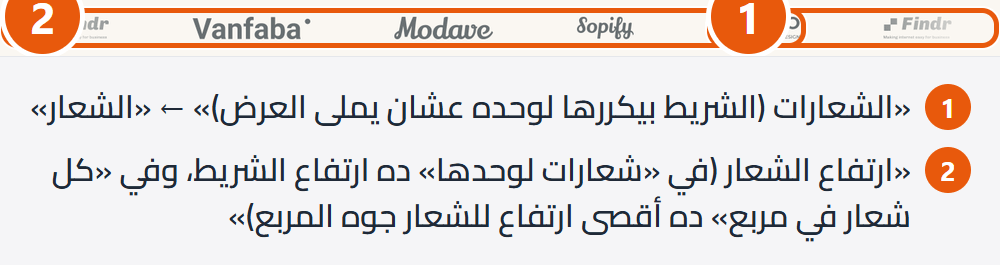
Section design

No frames, in a slim strip. The cleanest, for clear logos with transparent backgrounds.

Across almost the full screen width; the boxes even out logos of different shapes and sizes.
Step by step
- Open or add the “Brand logos strip” section.
- Add an item to the logos list.
- Upload the logo and type the brand's name.
- To lead to the brand's products, paste its category link in the link field.
- Repeat per brand, check the preview, then publish.
Settings
- Section design: Your logos and settings stay when you switch.
- Text under the title: Optional, such as that every brand is genuine.
- Logos (the strip repeats them by itself to fill the width): Up to 20, one logo per item.Up to 20 items
- Brand name (the logo's description for Google - needed if you add a link): Not printed, but it is the logo's description for Google and screen readers. Always fill it in.
- Logo: Whole, never cropped, at the height set below (or less for a smaller file). An item with no picture is left out.
- Link (optional, e.g. the brand's category page): The brand's category page works best. Empty for show only; a linked logo fades slightly under the mouse.
- Open the link in a new tab: Only for links outside your store.
- Logo height (in “Logos moving in a strip” the strip's height; in “Each logo in an outlined box” the most a logo gets inside its box): Raise it if logos look small; lower it for a quieter strip. Boxes have a fixed size, so a logo never outgrows its box.
- Movement speed: “Slow” is easier with many logos; “Fast” gives more movement.
- Movement direction: “With the reading direction” moves right on Arabic pages and left on English ones; “Against the reading direction” helps when another moving strip should run the other way.
- Pause when the mouse is over it: So visitors can read or click a logo. Keep it on, especially with links.
- Fade at both ends (a logo fades in and out instead of being cut off): Turn it off for logos fully visible to the edge.
- Space above the section on mobile: “This design's own” follows “Space above the section”; go smaller if the gap looks big on phones.
- Space below the section on mobile: “This design's own” follows “Space below the section”; go smaller if the gap looks big on phones.
Plus the options in "Options every section shares", in the Home page sections chapter, except "Keep the image fixed while scrolling (parallax) - not in “Big word behind a product image”".
Tips
- PNG or SVG with a transparent background, at least twice the logo height (88 pixels at 44), so it stays sharp on phones.
- Trim empty space around each logo before uploading; it shrinks the logo and makes logos uneven.
- The section has no space above or below; for room, set “Space above the section” and “Space below the section”.
- Visitors with reduced motion on their device see a still strip.
- “Full screen width” takes the strip to both screen edges; the heading stays put.
A row or slider of your products in use, with pins on them; pressing a pin shows a card with the product, price and a link. Up to six photos and twelve pins, with photos per row and height set per screen size.
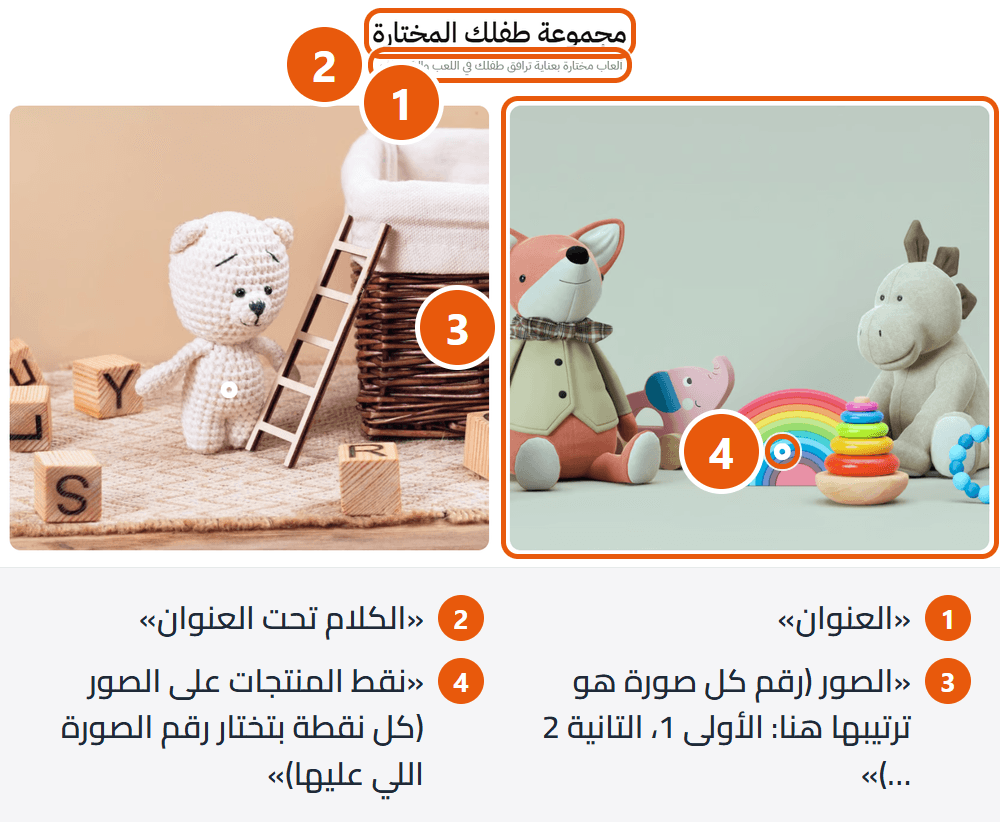
Step by step
- Add each photo in “Images (an image's number is its place here: first 1, second 2 …)”.
- Add a pin in “Product pins on the images (each pin picks the number of its image)” and choose its “Product (the pin shows once you pick one)”.
- Set its photo’s place in “Number of the image the pin sits on (1 = the first image in “Images”)”.
- Move “Pin position across (% from the left)” and “Pin position down (% from the top)” until it sits on the product.
Settings
- How the images are shown: “Slider: images slide” brings up the slider and navigation settings.
- Text under the title: Introduces the look.
- Images (an image's number is its place here: first 1, second 2 …): Up to six. Pins find their photo by number, so after reordering or deleting, check the pins’ numbers.Up to 6 items
- Image description for Google and screen readers (alt) - optional: It also names the photo in the editor’s list; not shown on the page.
- Image: At its own proportions; may be cropped a little in the slider or with a fixed “Image height”, so keep products away from the edges.
- Mobile image (optional): Such as a portrait crop of the same shot. Pins sit at the same places, so products must be in the same spots.
- Product pins on the images (each pin picks the number of its image): Up to 12 for the whole section, each with a product, a photo number and a position.Up to 12 items
- Pin name (to find it in the list): For you to find it in the editor, e.g. Handbag; visitors see the product's name.
- Product (the pin shows once you pick one): Pressing the pin shows a card with the product’s picture, name, price and page link.
- Number of the image the pin sits on (1 = the first image in “Images”): If no photo has that number (say 5 with only 3 photos), the pin goes on the first.
- Pin position across (% from the left): 0 is the far left, 100 the far right, the same in Arabic and English since the picture never flips. Move it while watching the preview.
- Pin position down (% from the top): 0 is the top edge, 100 the bottom.
- Product card opens to the: On computers the card opens beside the pin; “Automatic” picks the wider side, and a side without room switches. On tablets and phones it sits above or below the pin, full width on small phones.
- Title position: “Start” is right in Arabic, left in English.
- How wide the images run (with “Full screen width” they reach the screen edges): “Page width” matches other sections; “Wider than the page” is a little wider; the rest reach the screen edges with the stated margin or none.
- Images per row on desktop: In the slider, how many show at a time.
- Images per row on tablet: Small laptops too.
- Images per row on large or sideways phones (a phone held upright always shows one): 2 for two photos side by side.
- Space between images on desktop: 0 makes the photos touch.
- Space between images on tablet: 0 makes the photos touch.
- Space between images on mobile: 0 makes the photos touch.
- Image height: Fixed suits photos of mixed sizes; it crops the excess.
- Minimum image height (0: no minimum, except 400px on phones): A shorter photo is enlarged to reach it and cropped at the sides. Useful for very wide photos.
- Image corner radius: 0 keeps corners sharp.
- Round the top corners only: The bottom corners stay square.
- Autoplay: Without the visitor pressing anything.Shown when “How the images are shown” is “Slider: images slide”
- Time on each slide (1000 = 1 second): 5000 is 5 seconds.Shown when “How the images are shown” is “Slider: images slide” and when “Autoplay” is on
- Start again after the last slide: Instead of stopping at the end.Shown when “How the images are shown” is “Slider: images slide”
- Show arrows: Round, at the sides; hidden on phones, where visitors swipe.Shown when “How the images are shown” is “Slider: images slide”
- Moving between images: The card hides itself when every photo is on screen.Shown when “How the images are shown” is “Slider: images slide”
- Text above the count (optional): Such as Shop the look.Shown when “How the images are shown” is “Slider: images slide” and when “Moving between images” is “A card on the image's corner with arrows and a count (1 / 3)”
- Space above the section on mobile: “This design's own” follows “Space above the section”.
- Space below the section on mobile: “This design's own” follows “Space below the section”.
Plus the options in "Options every section shares", in the Home page sections chapter, except "Keep the image fixed while scrolling (parallax) - not in “Big word behind a product image”".
Tips
- Photos 1440×960 px or larger; photos side by side need the same proportions so the row lines up.
- Pins stay on their product even when a photo is cropped, since their place is measured on the photo.
- On small phones the card spans the width over a dark layer, below or above depending on the pin so it never covers it; in the slider it shows inside the photo. A tap outside closes it.
- After reordering or deleting photos, check “Number of the image the pin sits on (1 = the first image in “Images”)” on every pin.
- On phones a photo is never under 400 px tall unless you set “Minimum image height (0: no minimum, except 400px on phones)”.
A picture of a complete look (an outfit, a room corner) with pins on its products, and the look’s products beside it. Hovering or pressing a pin reaches its product; some designs add the whole look to the cart with one button. Five designs.
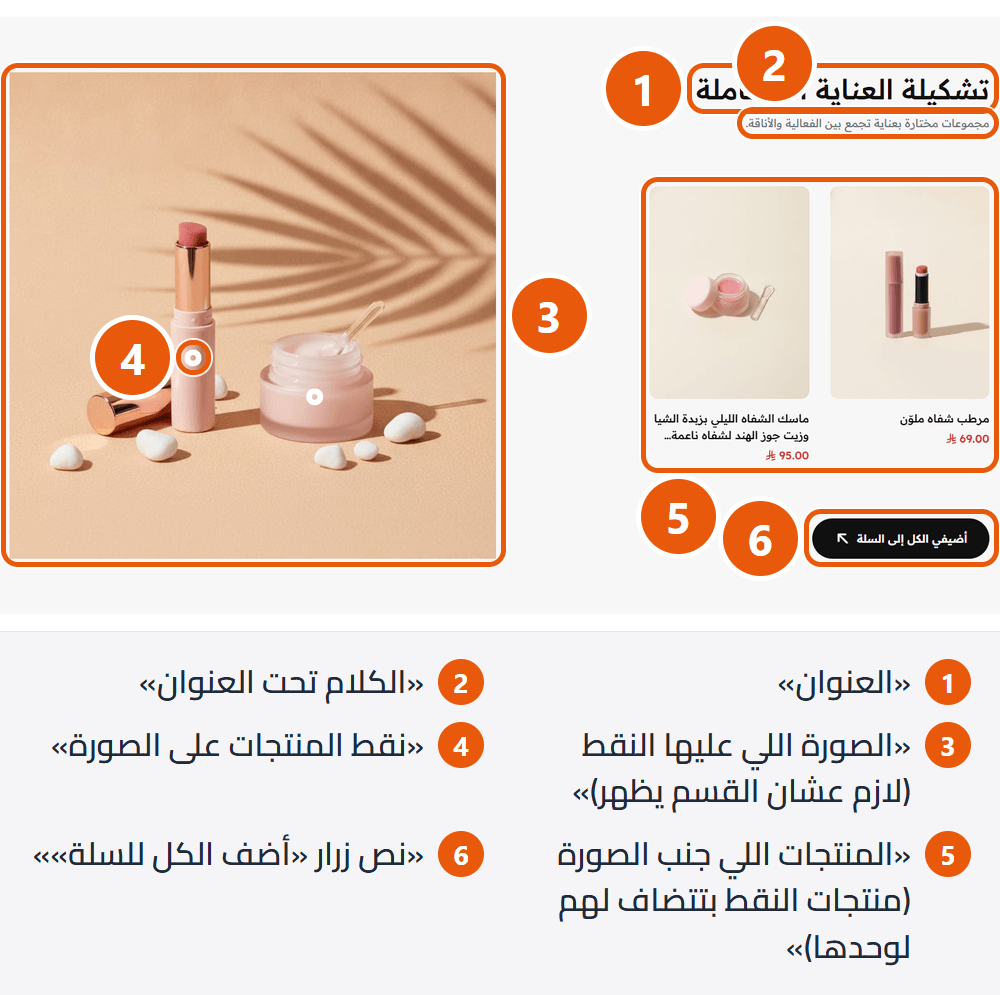
Section design
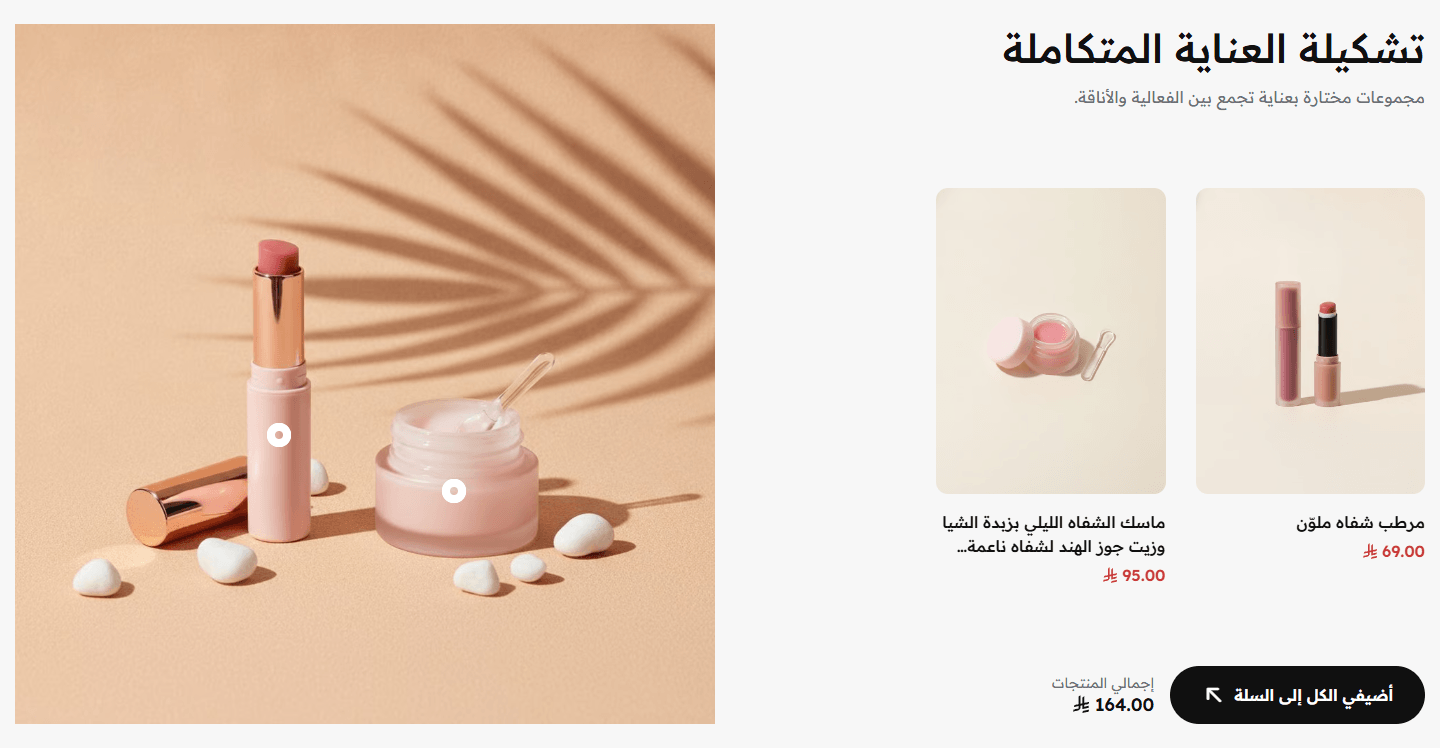
The look’s products in a slider (two per row), with an add-all button and total below. On computers hovering a pin moves the slider to its product and highlights it.
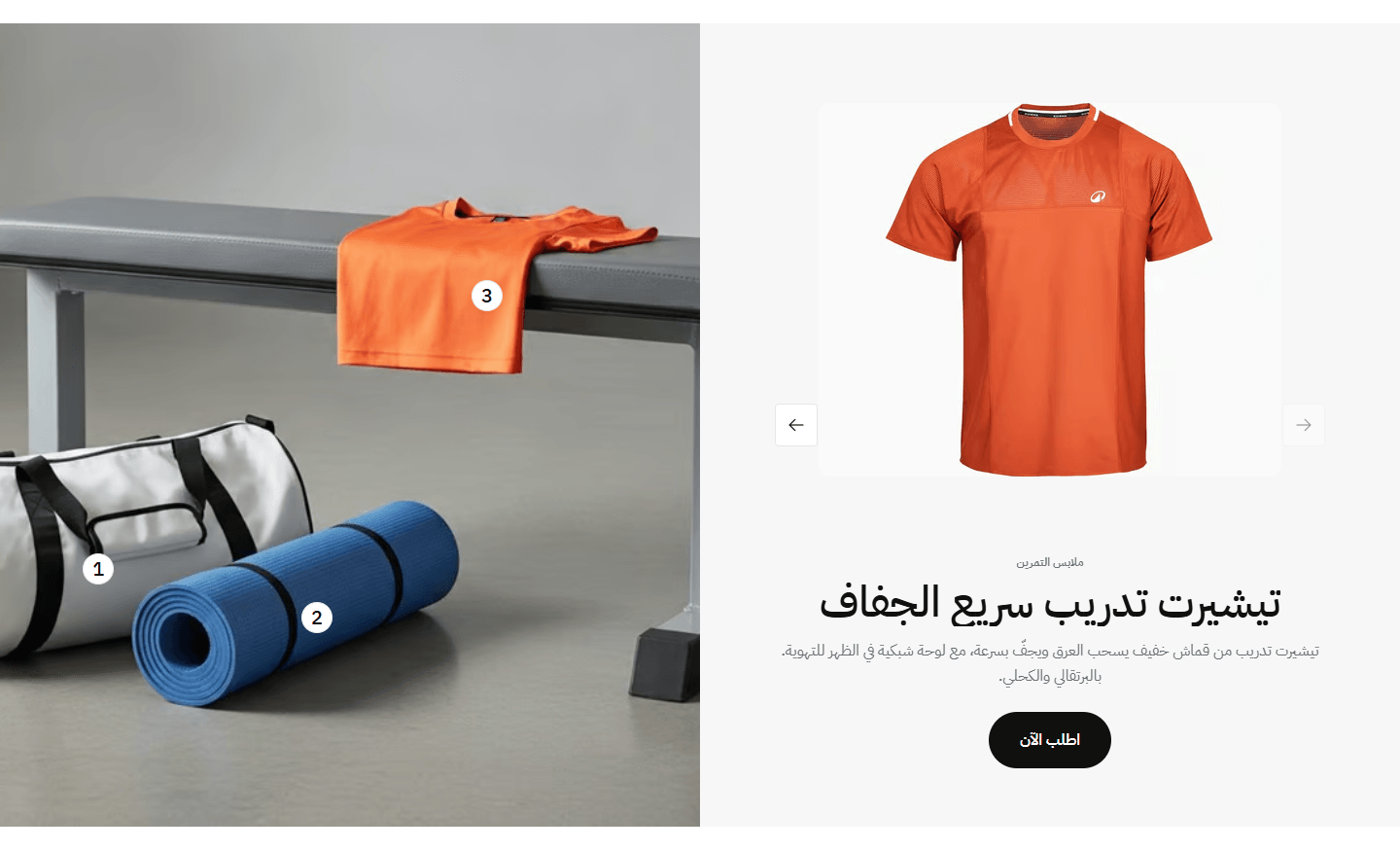
One large product at a time with picture, category, name, a line of description and a button to its page; hovering a pin moves to its product. Best with “Full screen width”.
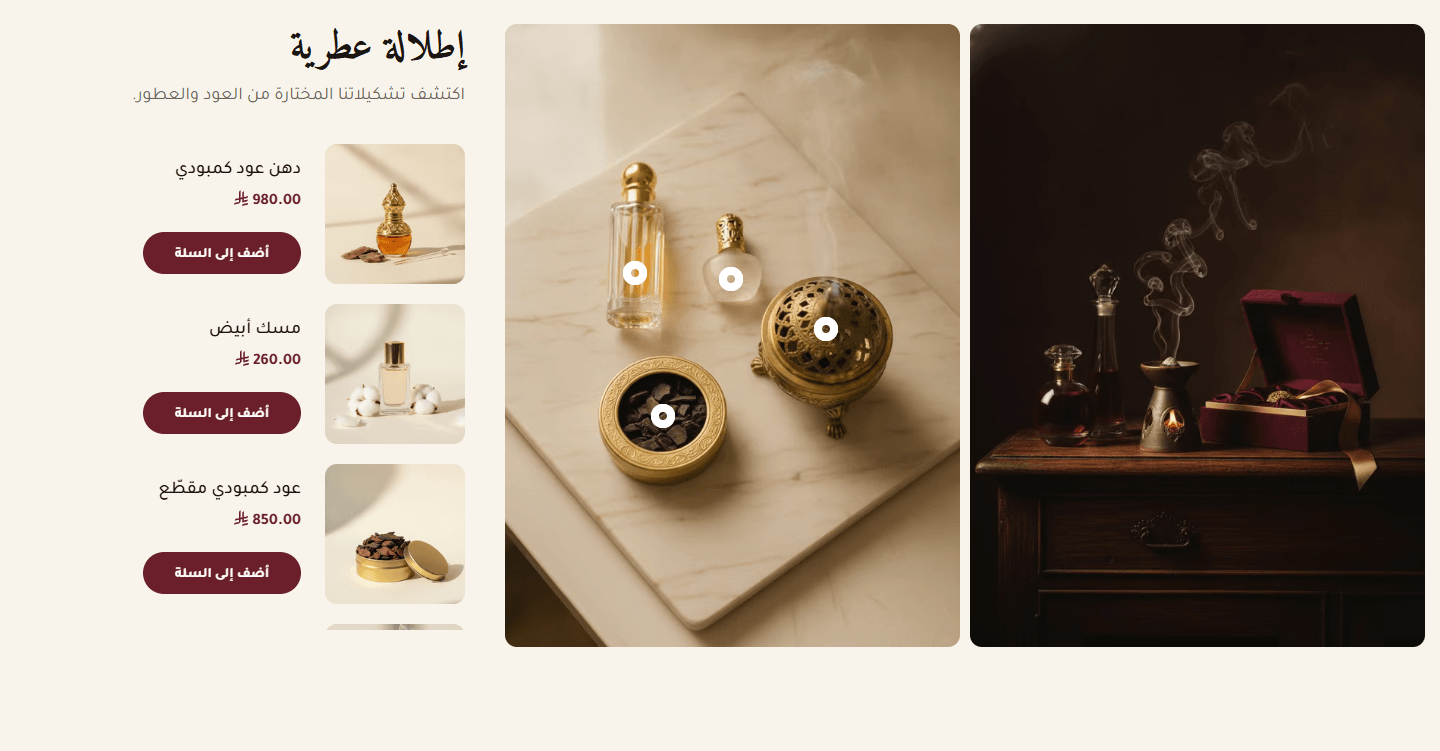
The second image, without pins, shows on computers only, if you upload it. Each listed product has “Add to cart”, or “View product” when it has options or is sold out. On phones the list becomes a slider.
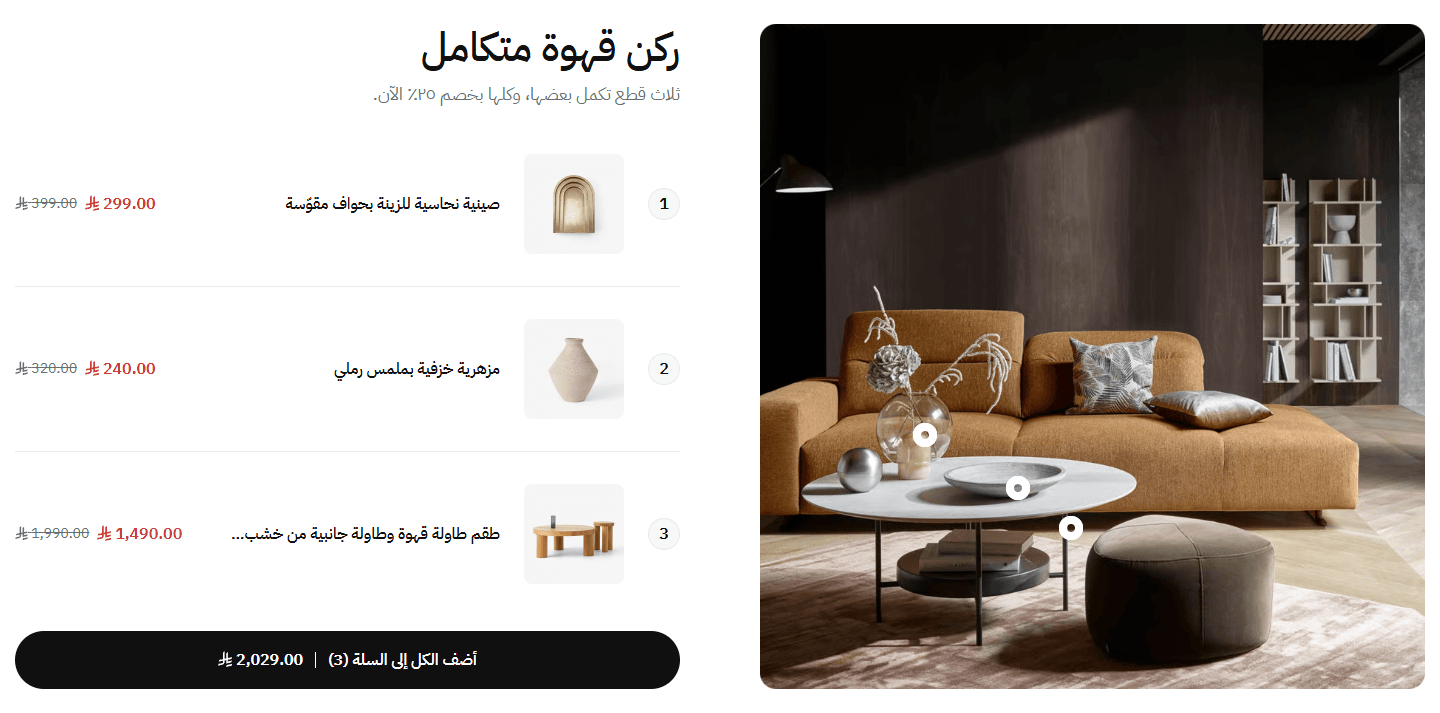
Each product with picture, name and price; under the list a full-width button adds all, showing the count and total. For furniture and sets.
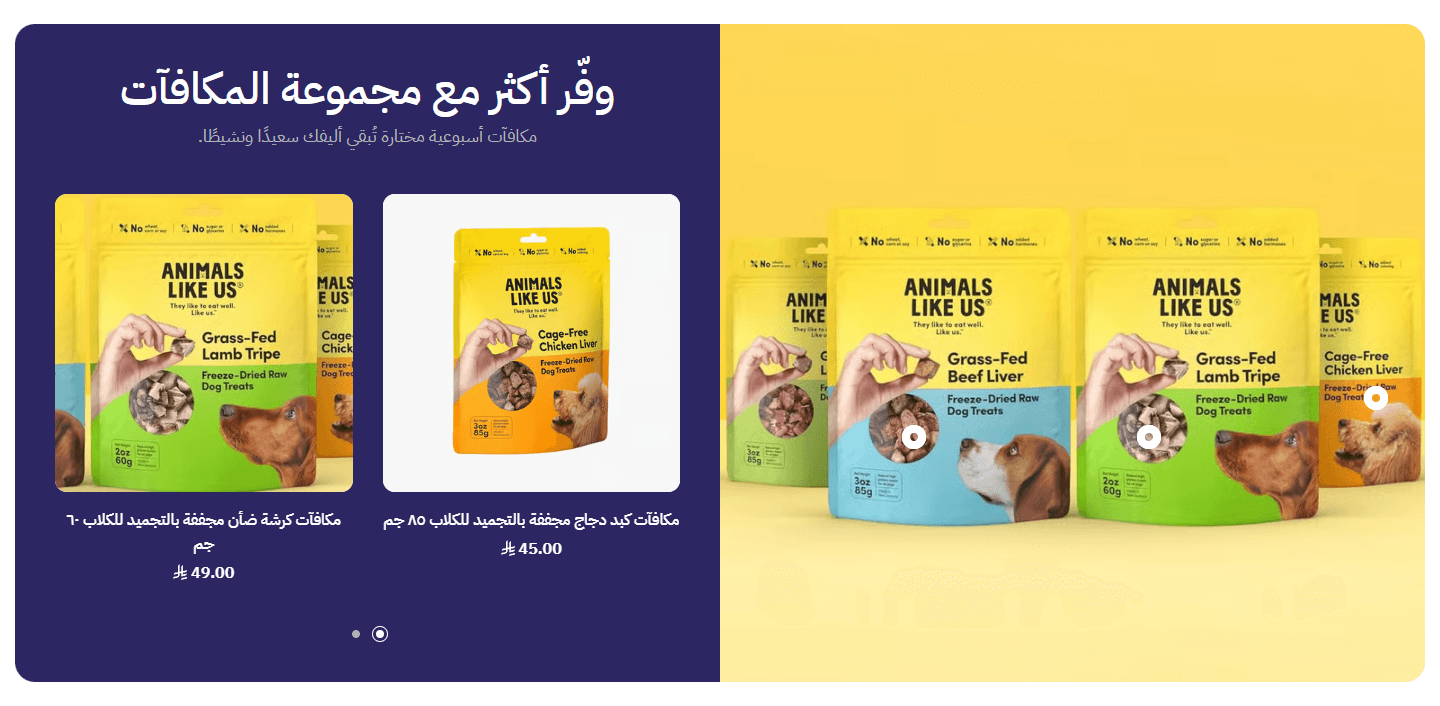
The panel, in your colour, holds your title and a two-product slider; no total or add-all.
Step by step
- Upload the look picture in “Image with the pins (needed for the section to show)”.
- Add a pin per product in “Product pins on the image” and choose its “Product (the pin shows once you pick one)”.
- Move “Pin position across (% from the left)” and “Pin position down (% from the top)” until it sits on the product.
- For extra products without pins, choose them in “Products beside the image (the pinned products are added by themselves)”.
Settings
- Section design: Everything you filled in stays when you switch, so try each in the preview.
- Text under the title: Describes the look.
- Image with the pins (needed for the section to show): Use one where every product is clearly visible.
- Second image, without pins (optional): Such as a close-up of the same look, on large screens only; same size as the main one: 910×1212 px.Shown with “Two images and a product list”
- Product pins on the image: Up to six, each tied to a product and placed by numbers.Up to 6 items
- Pin name (to find it in the list): For you to find it in the editor, e.g. Handbag; visitors see the product's name.
- Product (the pin shows once you pick one): It is added by itself to the products beside the picture.
- Pin position across (% from the left): 0 is the far left, 100 the far right, the same in Arabic and English since the picture never flips. Move it while watching the preview.
- Pin position down (% from the top): 0 is the top edge, 100 the bottom.
- Product card opens to the: On computers the card opens beside the pin; “Automatic” picks the wider side, and a side without room switches to the other. On tablets and phones it sits above or below the pin (rising from the screen bottom on small phones in some designs); in some designs and sizes no card opens and the pin takes the visitor to its product in the list.
- Products beside the image (the pinned products are added by themselves): Choose only products without a pin here.
- “Add all to cart” button text: Empty reads “Add all to cart”.Shown with “Product grid, image and total price”
- “Add all to cart” button text (the count and the total show beside it): Empty reads “Add all to cart”.Shown with “Pinned image beside a numbered list and an Add all button”
- Button text under each product (empty: “Order now”): Opens the product page; for a sold-out product it reads “Notify me when available”.Shown with “One-product slider beside an image with numbered pins”
- Autoplay: Without the visitor pressing anything.Shown with “Product grid, image and total price”
- Time on each slide (1000 = 1 second): 3000 is 3 seconds.Shown with “Product grid, image and total price” and when “Autoplay” is on
- Start again after the last slide: Instead of stopping at the end.Shown with “Product grid, image and total price”
- Show arrows: Shown when there is more than one product.Shown with “Product grid, image and total price”
- Show dots under the slider: For moving between slides; not the product pins on the picture.Shown with “Product grid, image and total price”
- Product panel color: The panel holding the title and products.Shown with “Image beside a colored product panel”
- Text color on the panel: Readable on the panel colour.Shown with “Image beside a colored product panel”
- Space above the section on mobile: “This design's own” follows “Space above the section”.
- Space below the section on mobile: “This design's own” follows “Space below the section”.
Plus the options in "Options every section shares", in the Home page sections chapter, except "Keep the image fixed while scrolling (parallax) - not in “Big word behind a product image”".
Tips
- Sizes: 700×700 px in “Product grid, image and total price”, 960×800 in “One-product slider beside an image with numbered pins”, 910×1212 in “Two images and a product list”, 885×720 in the other two.
- Pins stay on their product even when the picture is cropped, since their place is measured on the picture.
- The section needs the picture and at least one product, from a pin or the products beside it.
- The total and add-all count only products that go straight into the cart; one with options or sold out is left out. The total is current prices, no discount.
- In “Product grid, image and total price” on computers a pin highlights its product in the slider instead of opening a card, so “Product card opens to the” makes no difference there.
- “One-product slider beside an image with numbered pins” and “Image beside a colored product panel” sit flush against their neighbours; for a gap use “Space above the section” and “Space below the section”.
A wide picture with a large title, tiles of your store's benefits (fast delivery, a guarantee…) and cards for chosen products: why buy from you, with the products right there.
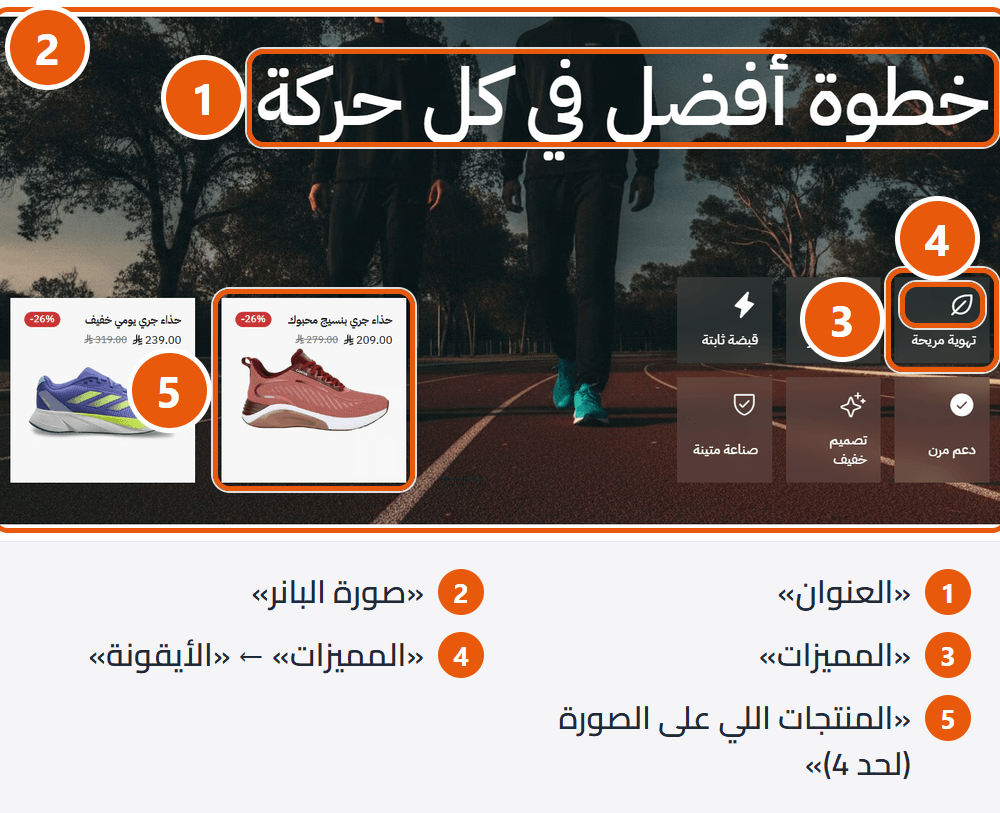
Step by step
- Upload the “Banner image”.
- Type the “Title”.
- Add each benefit in “Benefits” with a “Benefit name” and “Icon”.
- Choose the “Products on the image (up to 4)”.
- Text hard to read? Turn on “Color layer over the background” or change “Text color on the image”.
Settings
- Banner image: Behind the whole section, with text and products on it. Cropped to the section, so keep what matters in the middle.
- Benefits: Up to 12, each tile an icon, a name and an optional line.Up to 12 items
- Benefit name: Under the icon, e.g. Fast delivery.
- Short description (optional): A line explaining it; empty when the name says enough.
- Icon type: “Your own image” for an icon of your own.
- Icon: Above the benefit's name; pick the one that matches (Truck, Shield, Timer…).Shown when “Icon type” is “Ready-made icon”
- Icon image (square): Shown small in the icon's place; square, ideally a transparent PNG.Shown when “Icon type” is “Your own image”
- Products on the image (up to 4): Each card shows picture, name, price and any discount, with cart and view buttons, plus wishlist when it is on.
- Show the product description (with one product only): Under the card, up to three lines.
- Your own text instead of the product description (shows with one product only): Replaces the Zid description; empty uses the product's own.Shown when “Show the product description (with one product only)” is on
- First section on the page? Turn on to load its first image right away: Lower down the page, leave it off so the page opens faster.
- Text color on the image: Title, benefits and description; change it when a light picture hides white text.
- Space above the section on mobile: “This design's own” follows “Space above the section”.
- Space below the section on mobile: “This design's own” follows “Space below the section”.
Plus the options in "Options every section shares", in the Home page sections chapter, except "Keep the image fixed while scrolling (parallax) - not in “Big word behind a product image”".
Tips
- Picture 1920×900 px; the section's height changes with its text and products and the picture is cropped to fit, so keep what matters in the middle.
- Choose a dark or calm picture so white text reads, or turn on “Color layer over the background”.
- With no picture or background colour, the section uses the theme's main colour so text stays readable.
- Benefits sit three per row on computers and tablets, two on large phones, one on regular phones, so three or six look best.
- To control the products, put them in their own category and choose it in “Products on the image (up to 4)”; only the first four show.
- The “Title” is shown very large, so keep it to two or three words.
- “Full screen width” widens the text and products, visible only on very large screens; the picture spans the screen either way.
- “Section background color” shows when there is no “Banner image”.
- A “Section background image” hides the “Banner image”, so use one; the “Banner image” is simpler.
- “Space above the section” is the gap between the picture's top and the title, filled by the picture. Phones use it unless you set “Space above the section on mobile”.
Many products in little space: small cards stacked in sliding columns, with a promo banner among them. Each card has picture, name, price and cart button. For a wide range (best sellers, weekly deals) with an advert.
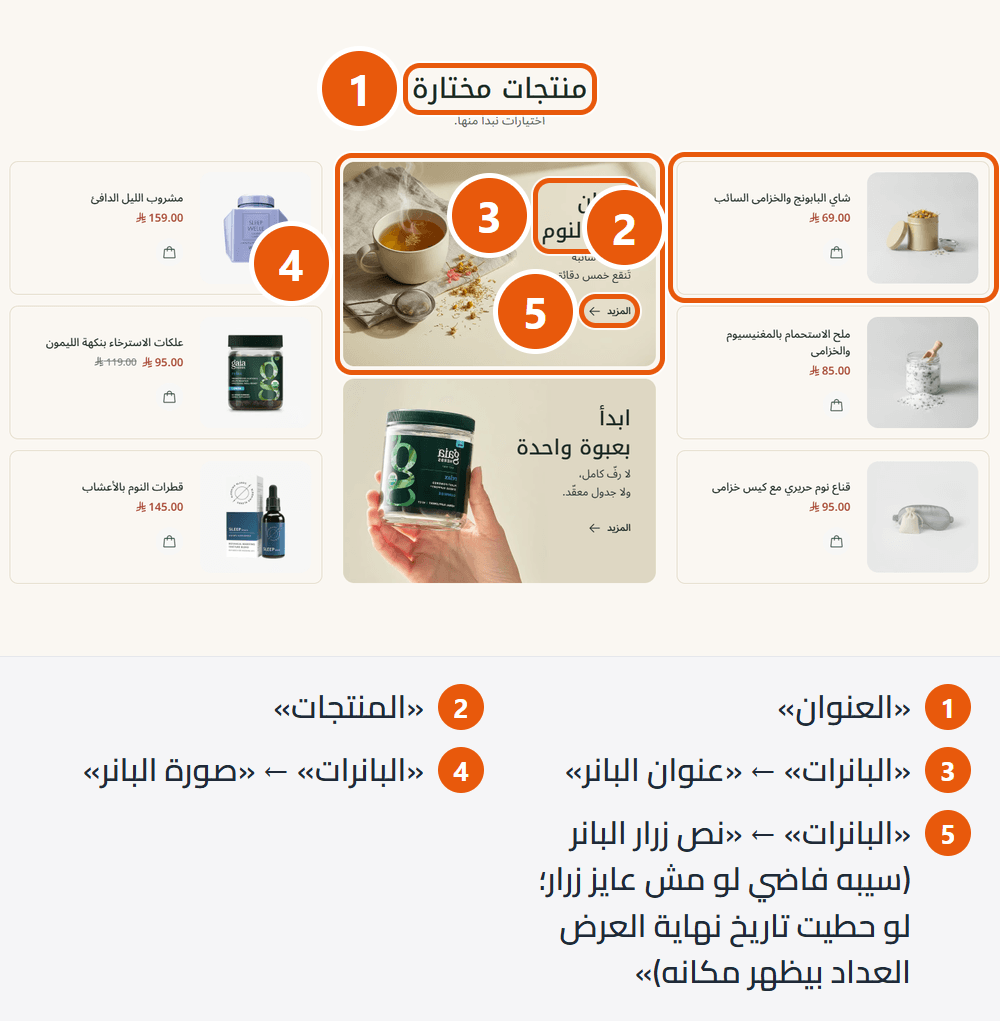
Section design
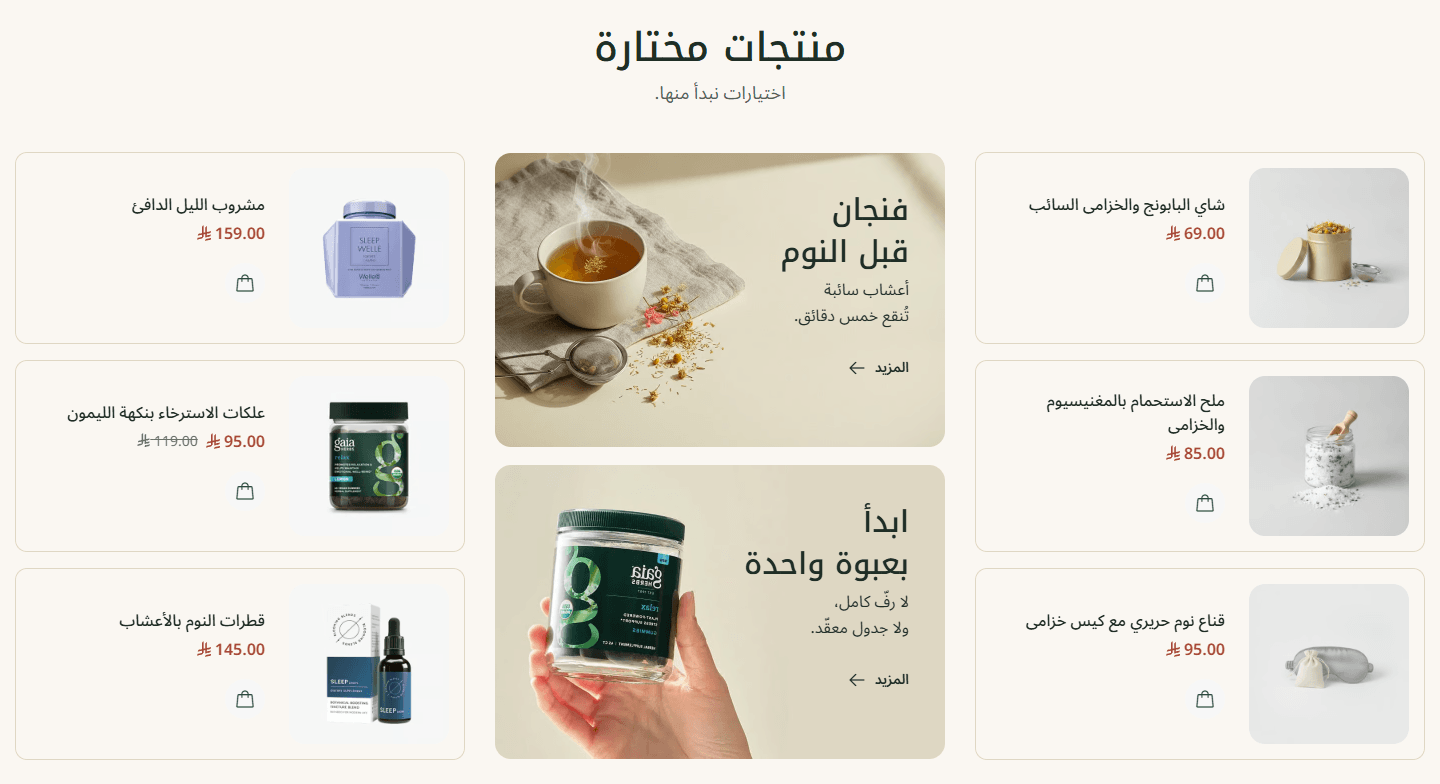
Each banner has a title, a line and an arrow link; a third and fourth make a second column. For several small offers.
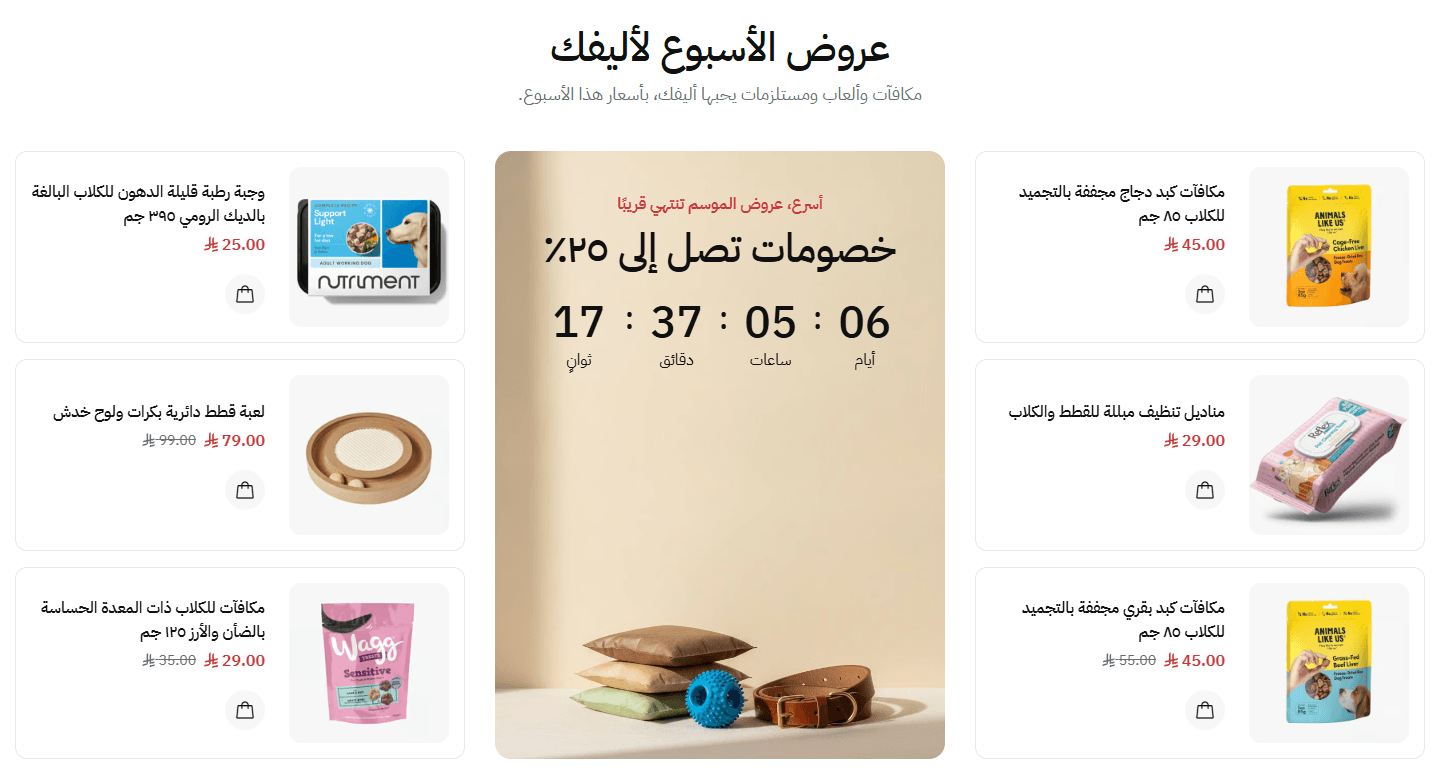
A column-high banner with a small line, title and button; a countdown replaces the button if you set an end date. For one strong, time-limited offer.
Step by step
- Open “Featured list” and choose a “Section design”.
- Choose the “Products”.
- Set “Products per column” and “Columns on desktop”.
- Add a banner in “Banners”: “Banner image”, “Banner title” and “Banner link (empty: the products page)”.
- Choose “Where the banner sits among the product columns”.
- Check the preview, then press “Publish”.
Settings
- Section design: Two small stacked banners, or one tall one.
- Text under the title: A short line.
- Products: They fill the columns in order, up to 24.
- Banners: A banner with neither picture nor words is not shown.Up to 4 items
- Small line above the banner title (in “Product columns with one tall banner” only): Such as the sale ends soon.
- Banner title: A tap opens the banner's link; line breaks you type are kept.
- Short description (in “Product columns with two small stacked banners” only): A line under the title.
- Offer end date and time (write it like 2026-12-31 23:59) - in “Product columns with one tall banner” only: The countdown replaces the button and disappears when time is up.
- Banner image: The words sit on it. Without one, the banner is a light block with the words inside.
- Mirror the image on Arabic pages: Arabic words sit on the right, so mirroring brings the picture's empty part behind them. Leave off if the picture has writing.
- Banner button text (leave empty for no button; with an offer end date the countdown shows in its place): Such as shop now. In the small banner it is a link with an arrow.
- Banner link (empty: the products page): Opens from the banner, its title or its button.
- Text colors: White for dark pictures, black for light ones; only with a picture.
- Columns on desktop: The banner column counts; the rest come into view as it slides.
- Columns on tablet: At once; the rest as it slides.
- Columns on mobile: At once; the rest as it slides.
- Products per column: On computers and tablets.
- Products per column on mobile: Smaller keeps the section shorter on phones.
- Where the banner sits among the product columns: With fewer columns, the banner goes last.
- Show the banner on mobile and tablet: Otherwise the banner shows on computers only.
- Autoplay: Every three seconds, pausing under the mouse.
- Start again after the last slide (the banner then shows at every width, and a mobile column holds as many products as a desktop one): Works only when all columns, the banner's included, number at least twice “Columns on desktop”: with 4, you need 8.
- Show arrows: Large computer screens only.
- Show bars under the slider: Show where the visitor is; tapping one moves there.
- Space above the section on mobile: When it should differ from computers, such as bringing sections closer on a small screen.
- Space below the section on mobile: When it should differ from computers.
Plus the options in "Options every section shares", in the Home page sections chapter, except "Keep the image fixed while scrolling (parallax) - not in “Big word behind a product image”".
Tips
- Small banner about 450×294 px, tall one about 450×608. Edges may be cropped, so keep what matters in the middle.
- Write the end with digits 0-9 (not ١٢٣), exactly: 2026-12-31 23:59 (year-month-day, then 24-hour time: 11 pm is 23:00). The countdown uses the visitor's device clock and time zone.
- When the offer ends, the countdown disappears and the button does not return by itself; clear the date to bring it back.
- The banner on phones and tablets needs “Show the banner on mobile and tablet”.
A bundle of 3 to 5 products in one box: shoppers change quantities or remove items, see the subtotal and add everything with one button. A product slider sits beside it. It raises order value.
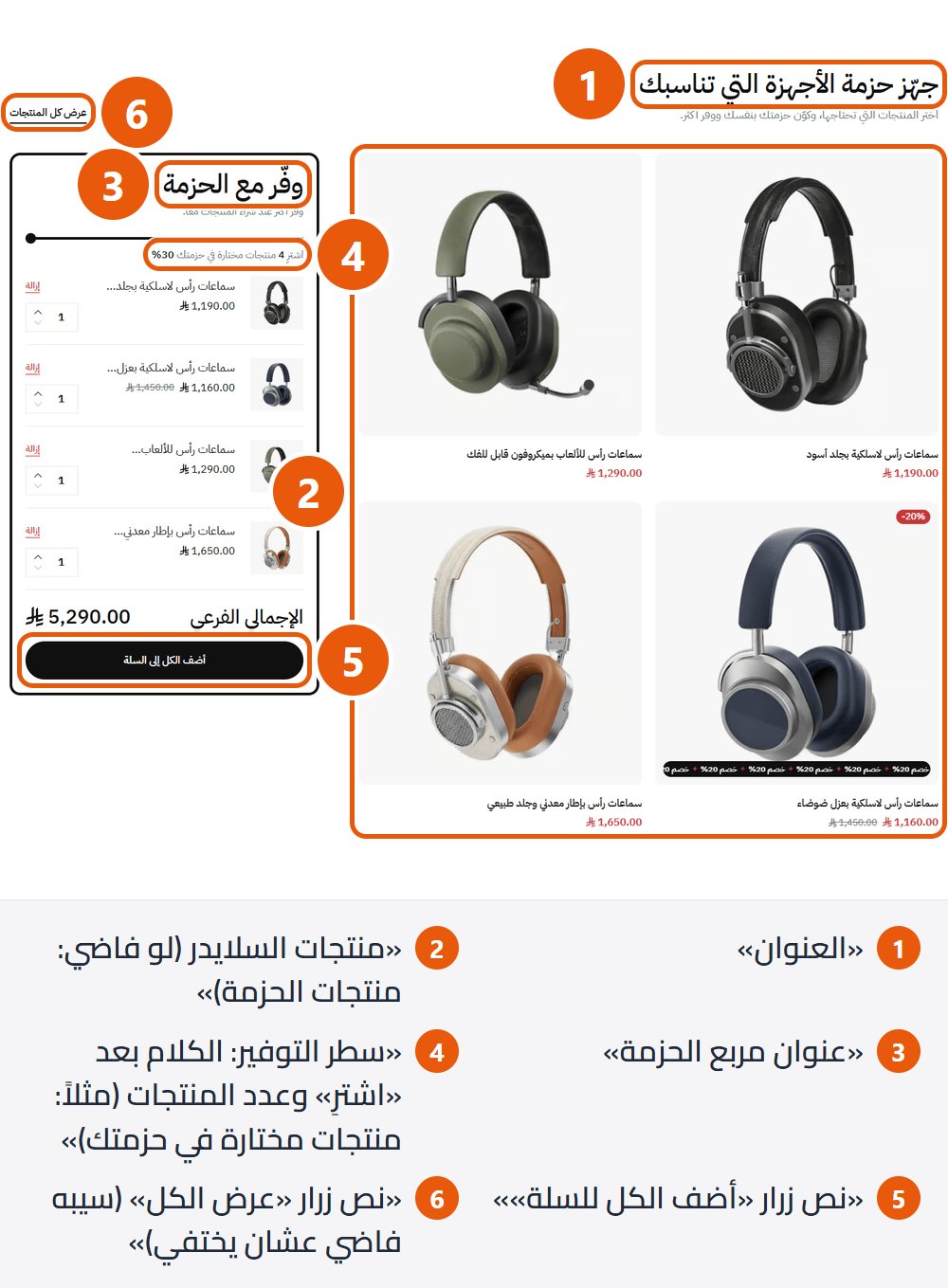
Step by step
- Choose the products in “Bundle products (3 to 5 products)”.
- For other slider products, choose them in “Slider products (empty: the bundle products)”.
- Type the “Bundle box title” and “Text under the bundle box title”.
- Type the “Savings line: the words after “Buy” and the product count (e.g. products in your bundle)” and the “Savings amount at the end of the line, in bold (e.g. 30%)”.
- Set the real discount in your Zid dashboard so prices match your words.
Settings
- Text under the title: Explains the bundle.
- Bundle products (3 to 5 products): Only the first five show; at least one is needed for the section to appear.
- Slider products (empty: the bundle products): Up to 12, for shoppers to browse more.
- Bundle box title: Such as Save with the bundle.
- Text under the bundle box title: Explains the offer.
- Savings line: the words after “Buy” and the product count (e.g. products in your bundle): The line reads “Buy”, the product count, your words, then the amount, e.g. Buy 4 products in your bundle 30%. The count shows with 3 products or more.
- Savings amount at the end of the line, in bold (e.g. 30%): Text only, no discount applied; set the real discount on the products in your Zid dashboard.
- “Add all to cart” button text: Empty reads “Add all to cart”.
- “View all” button text (leave empty to hide it): At the other end of the title row, such as View all products.
- “View all” button link (needed for the button to show): Such as a category. It starts as the all-products page; clearing it hides the button.
- Products per row on desktop: With twice this many products or more, they stack in two rows. Tablets and phones show two per row.
- Space above the section on mobile: “This design's own” follows “Space above the section”.
- Space below the section on mobile: “This design's own” follows “Space below the section”.
Plus the options in "Options every section shares", in the Home page sections chapter, except "Keep the image fixed while scrolling (parallax) - not in “Big word behind a product image”".
Tips
- The section applies no discount; the subtotal is the product prices after any sale price. If you write an amount, set that discount in your Zid dashboard.
- Choose products without options. One with options (size, colour) stays without a quantity, with “Choose options” to its page, and is left out of the subtotal and the cart add. A sold-out one shows faded, marked “Sold out”.
- Shoppers remove a product with “Remove”; if all are removed, “Restore bundle” brings them back.
- The button never adds more than stock, counting what is already in the shopper’s cart.
- To pick exact products, put them in their own category and choose it in “Bundle products (3 to 5 products)”.
One product with everything needed to buy it: photos, price, description, quantity, add to cart and “Buy now” straight to checkout. For a new arrival, best seller or weekly offer; one design shows two products side by side.
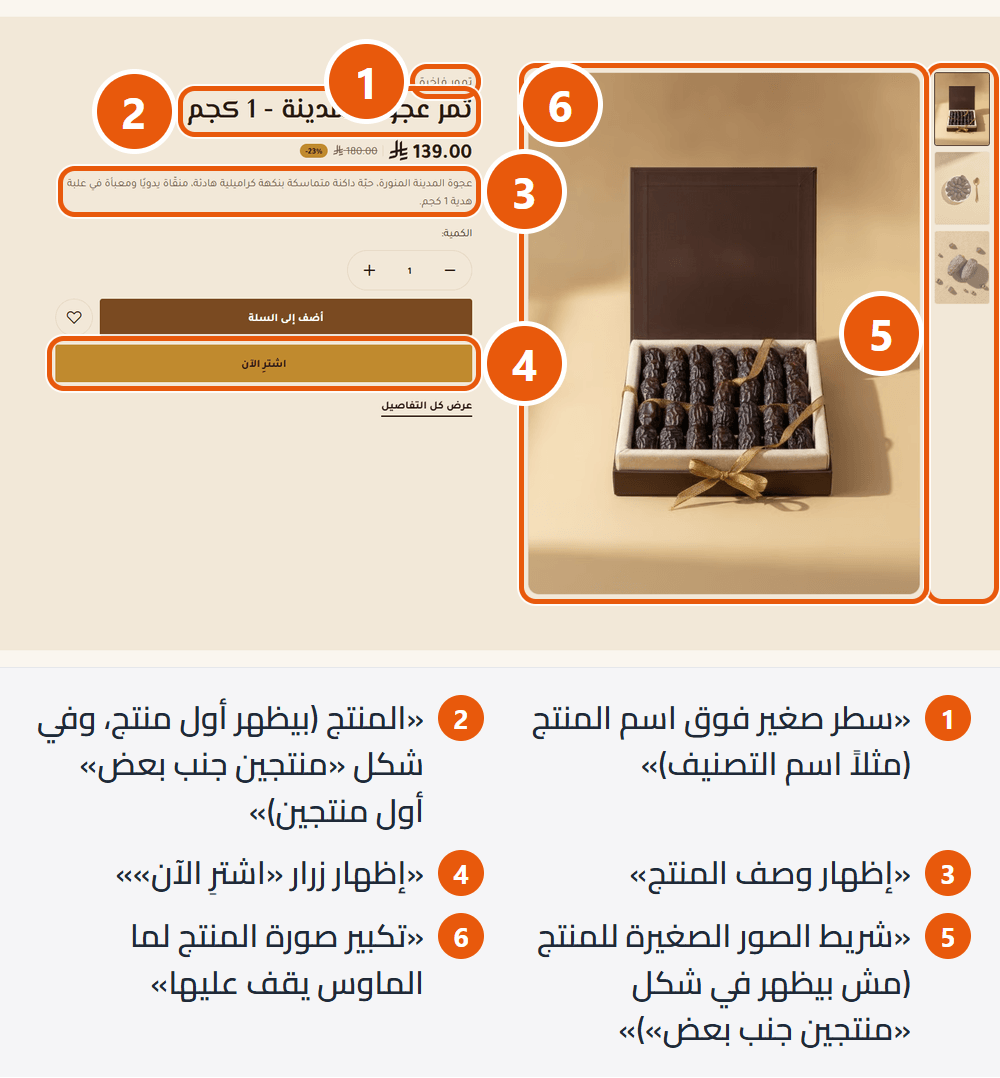
Section design
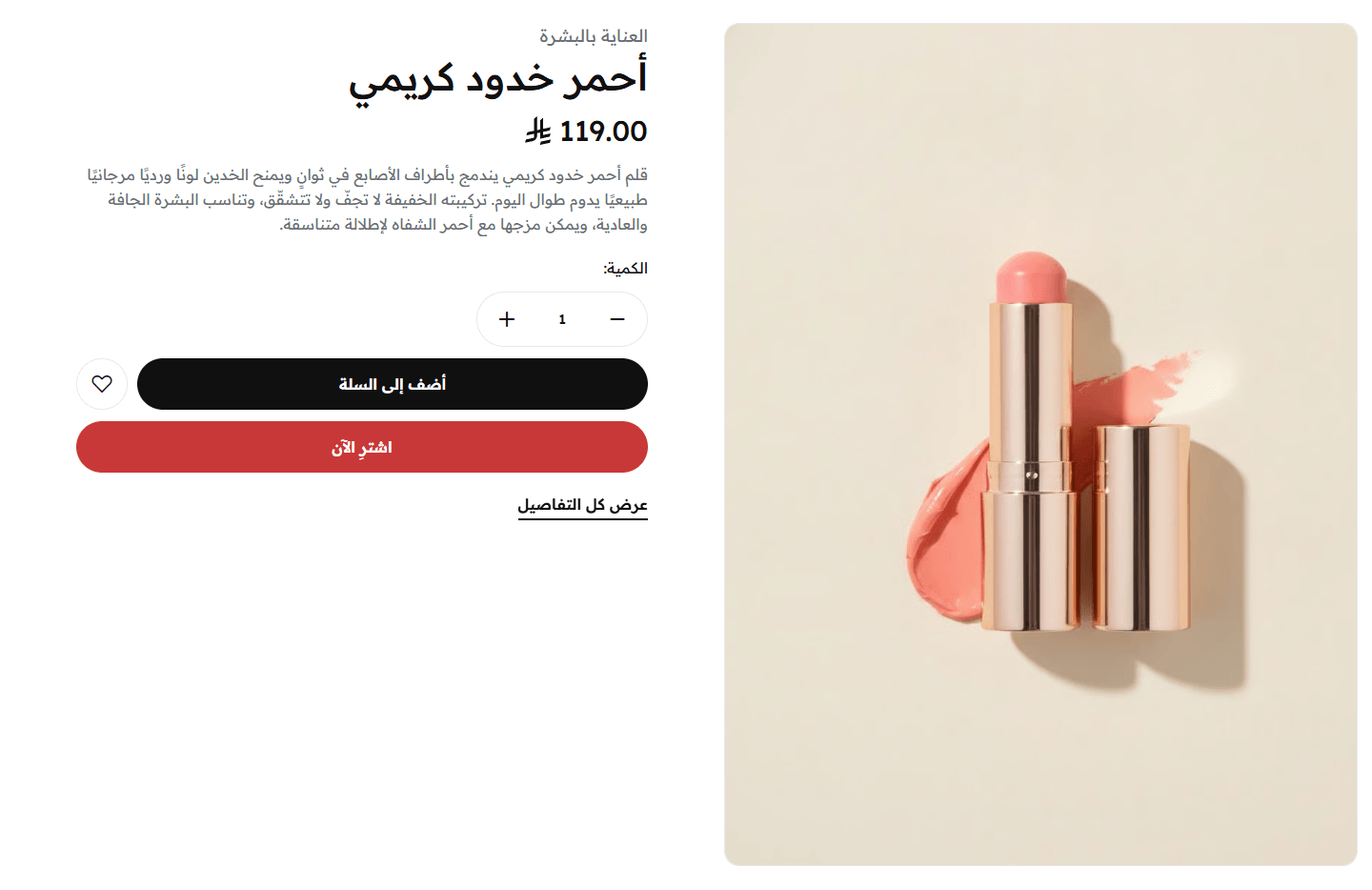
Details beside the photo: price, description, quantity, buy and wishlist buttons. Thumbnails form a column on computers, a row below on smaller screens. Shows the Zid badge (e.g. Best seller) if any. Comfortable for most stores.
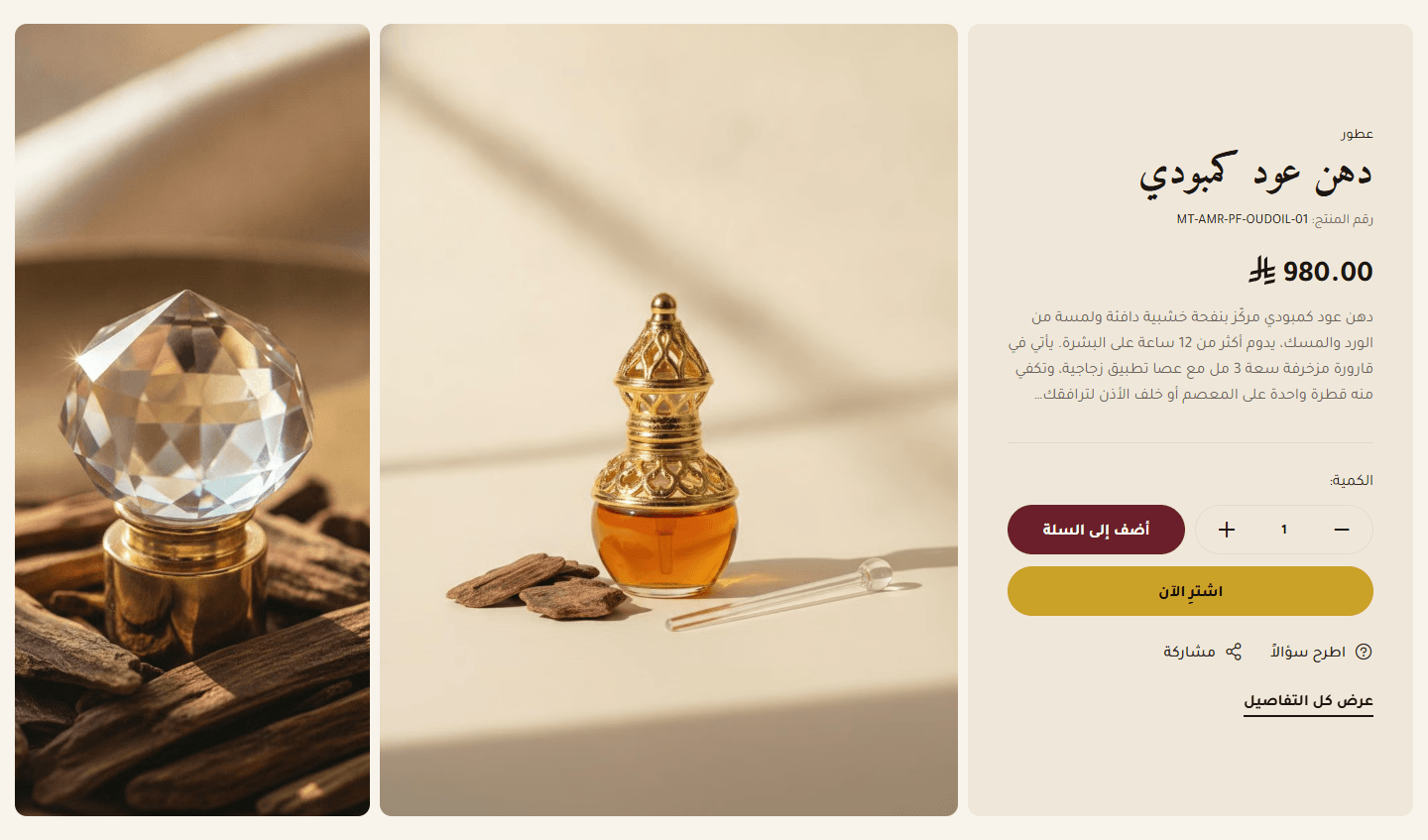
Details in a tinted panel; the extra picture shows on large screens only, and on phones details move under the photos. Also shows the “SKU”, “Share” and “Ask a question” when questions are on. Upscale for jewellery and premium products.
Thumbnails sit on the large photo on computers and below it on smaller screens. Shows the “SKU”, “Share” and “Ask a question” when questions are on. For introducing the product with a line such as Pick of the week.
Stacked on phones. Each has its name, description and a price button that adds it to the cart. For two products that go together, or to compare.
Settings
- Section design: Everything you filled in stays when you switch, so try each in the preview.
- Text under the title (shown only in the “Title, large image” and “Two products side by side” designs): Sums up the product or offer in a line.
- Small line above the product name (e.g. its category): Such as its category or New. In “Two products side by side, buy button with the price” it shows over both names.
- Product (the first one shows; in “Two products side by side”, the first two): With no product chosen, the section does not show.
- Show the product description: Under the price (under each name in “Two products side by side, buy button with the price”). Off for shorter details.
- Your own text instead of the product description (in “Two products side by side” each card shows its product's own): For a long Zid description or a sales line; empty uses the product's own.Shown when “Show the product description” is on
- Extra image beside the product image (optional): Such as the product in use. Large screens only; it zooms too with “Zoom the product image on hover”.Shown with “Details on one side, product images in the middle, an extra image on the other side”
- Decorative corner image (optional): Small and transparent (a leaf, say), peeking from each card corner. Empty for none.Shown with “Two products side by side, buy button with the price”
- Show the “Buy now” button: Adds to cart and goes to checkout (sign-in first if needed). In “Two products side by side, buy button with the price” it is the price button, which only adds to cart.
- Description: maximum lines: The rest is cut with three dots (…). Raise it for the full description, lower it for a shorter section.
- Product thumbnail strip (not in “Two products side by side”): “Follow the section design” shows them in every design except “Details on one side, product images in the middle, an extra image on the other side”; “Show” and “Hide” apply in any design. They appear only when the product has more than one photo.
- Zoom the product image on hover: On computers an enlarged view appears beside the photo, and pressing the photo on any screen opens all photos full screen. Off: pressing opens the product page. In “Two products side by side, buy button with the price” just a gentle zoom.
- “Buy now” button color (empty: the theme's colors): In “Two products side by side, buy button with the price” it colours each card's buy button. Change it to make the button stand out.Shown when “Show the “Buy now” button” is on
- “Buy now” button text color (empty: the theme's colors): Readable on the button colour.Shown when “Show the “Buy now” button” is on
- Space above the section on mobile: “This design's own” follows “Space above the section”.
- Space below the section on mobile: “This design's own” follows “Space below the section”.
Plus the options in "Options every section shares", in the Home page sections chapter, except "Keep the image fixed while scrolling (parallax) - not in “Big word behind a product image”".
Tips
- A product with options (size, colour) shows “Choose options” leading to its page instead of quantity and buy; a sold-out one shows “Notify me when available”. To buy straight from the section, pick a product without options.
- The section shows the first product you chose; to control which (or which two), put it in its own category and choose that.
- Photos come from the product in Zid. The large one is portrait on computers (close to 3 by 4) and nearer square on phones in most designs; it is cropped, so keep the product in the middle.
- Stars and review count show when reviews are on and the product is rated, in every design except “Two products side by side, buy button with the price”.
- “Extra image beside the product image (optional)” 1166×1544 px; “Decorative corner image (optional)” 306×344 px, a transparent PNG.
- “Details on one side, product images in the middle, an extra image on the other side” sits flush against its neighbours; for a gap use “Space above the section” and “Space below the section”.
- The “Title” shows centred at the top only in “Title, large image with thumbnails on it” and “Two products side by side, buy button with the price”.
A large banner for one message or offer visitors must not miss: a wide picture with title and button, a product picture ringed by features, a contact card with phone and WhatsApp, or a moving strip of words. Ten designs in “Section design”.
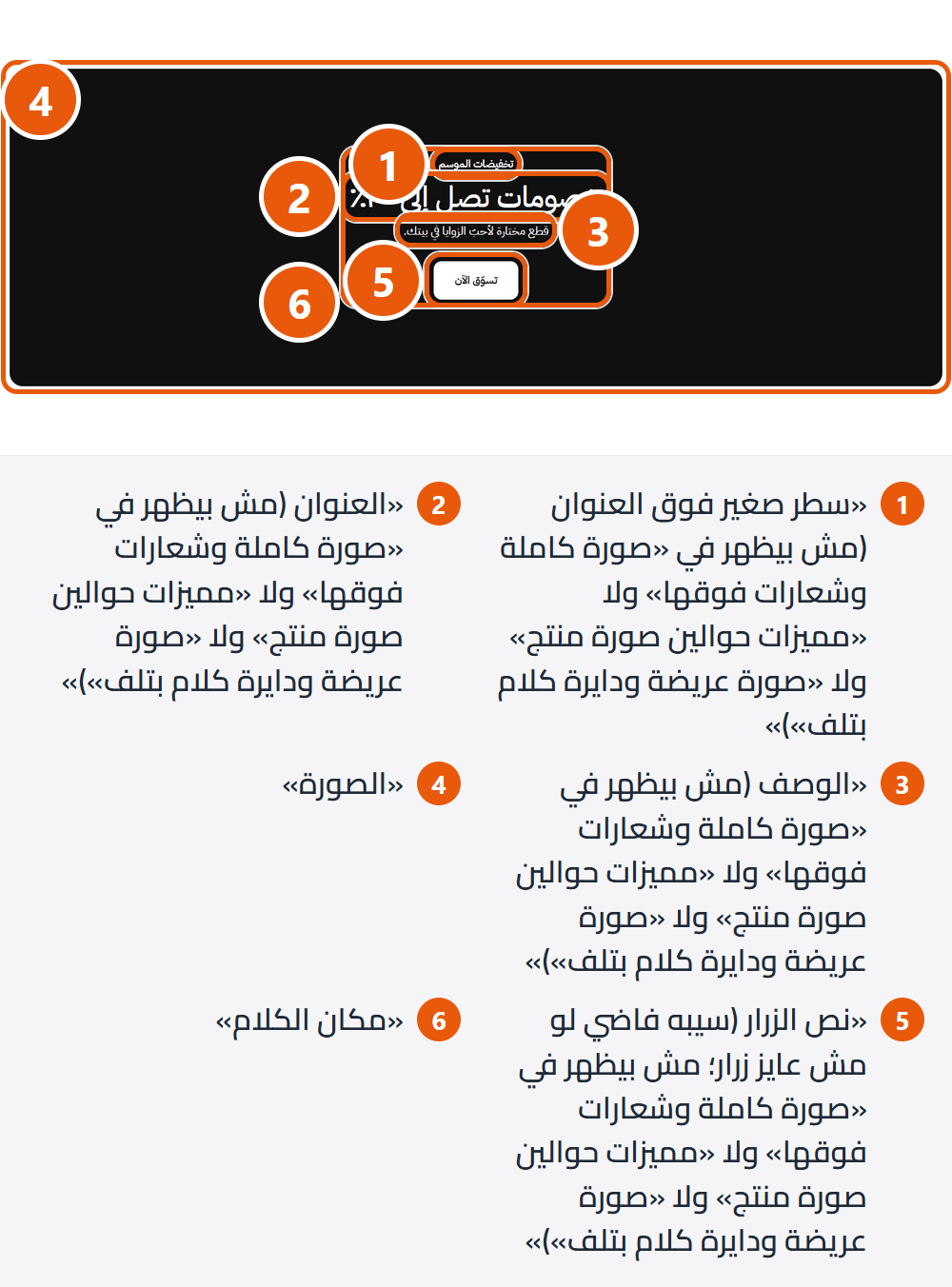
Section design
A small line, title, description and button, placed with “Text position”; tapping the picture opens the link. The simplest for an offer or new category.
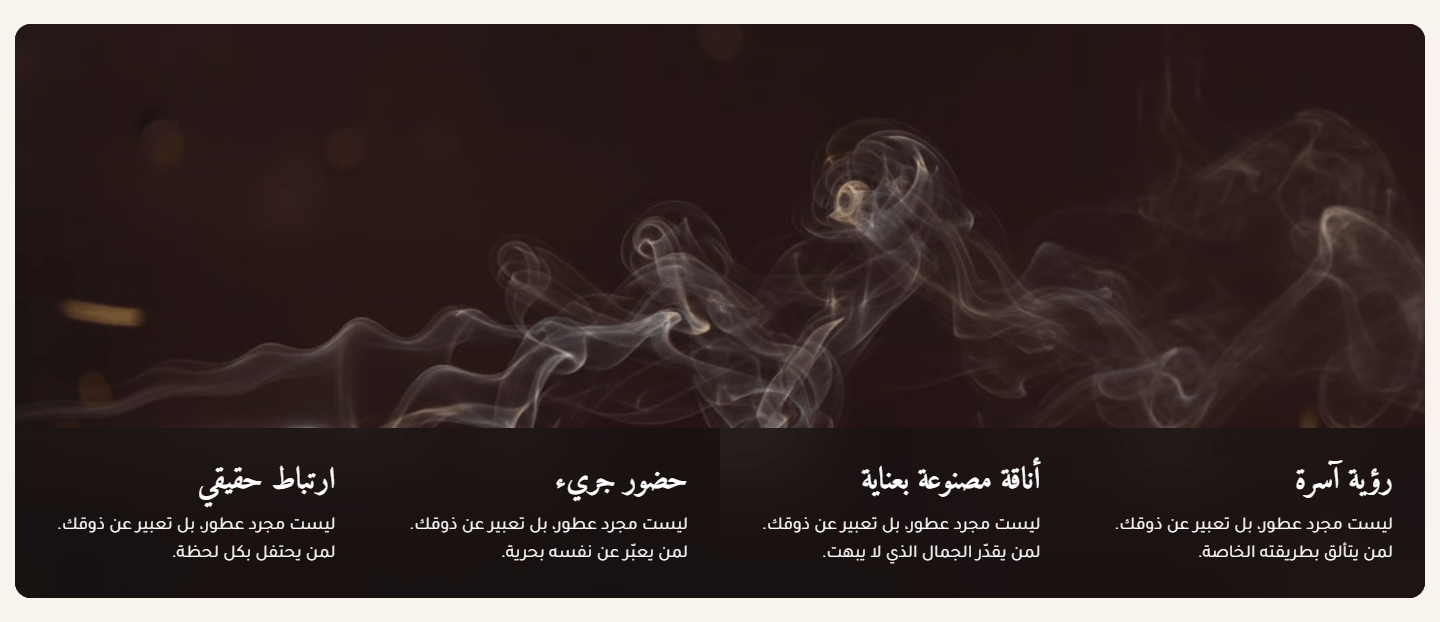
A row of short taglines (free shipping, one-year warranty) on a blurred band along the bottom, still or moving; no title or button. For your promises over a strong picture.
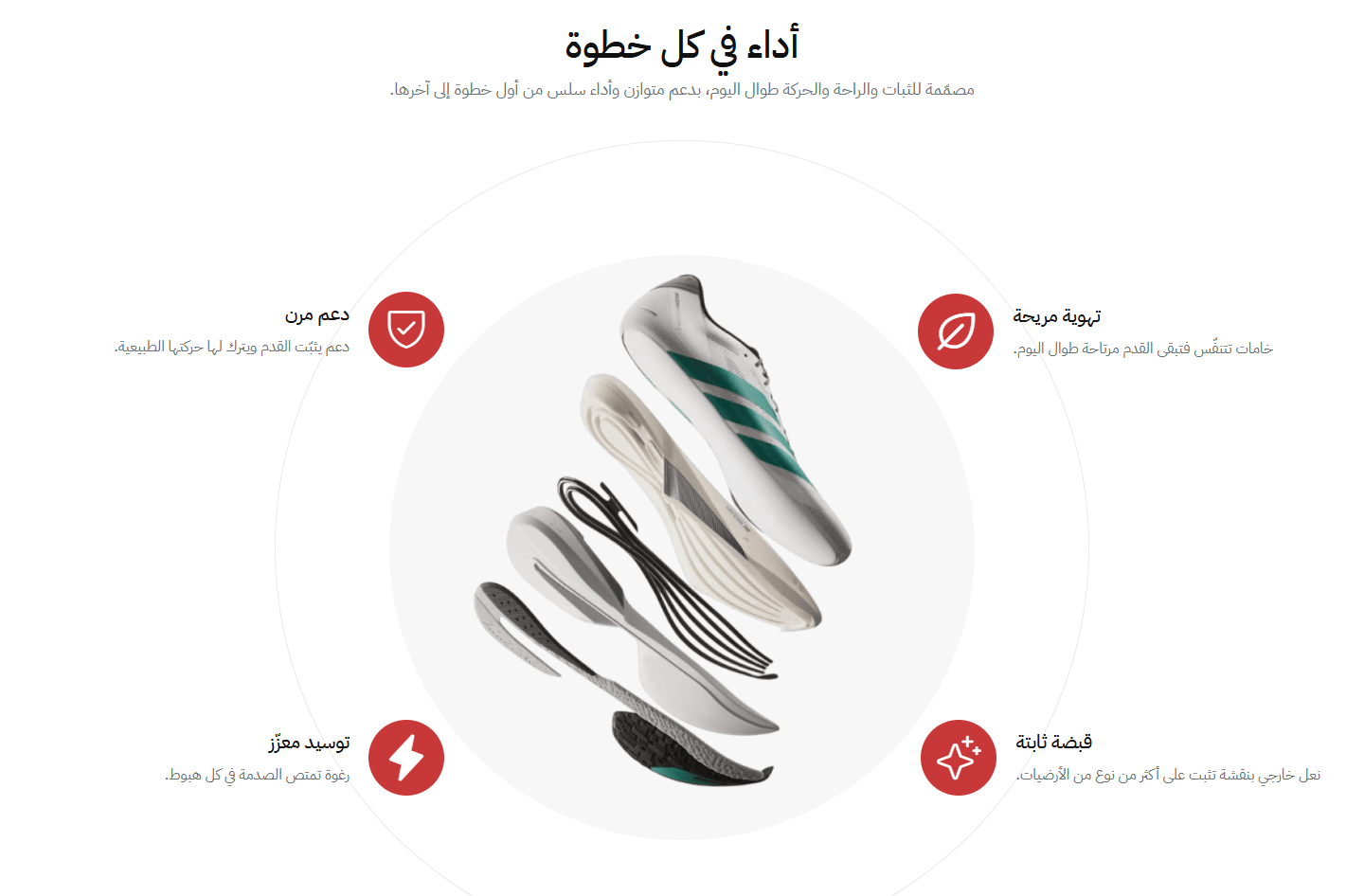
A centred title and a product picture in a circle, ringed by up to four icon features (below it on phones). For what makes your product different.
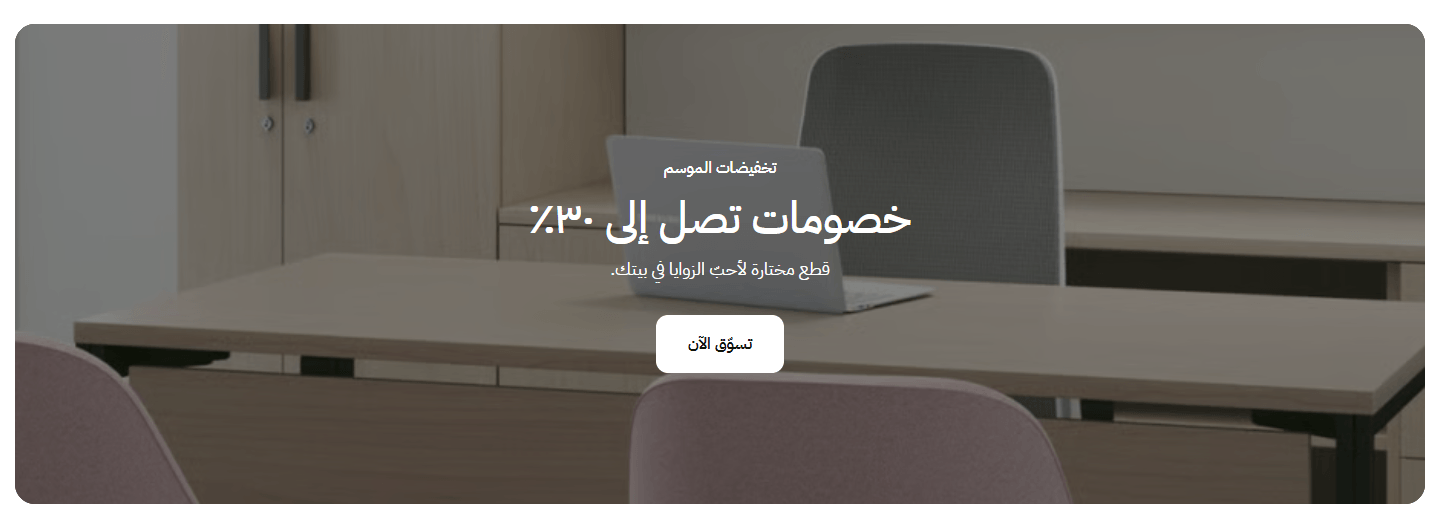
All the words centred on a rounded, lightly darkened picture. For a short, strong message.
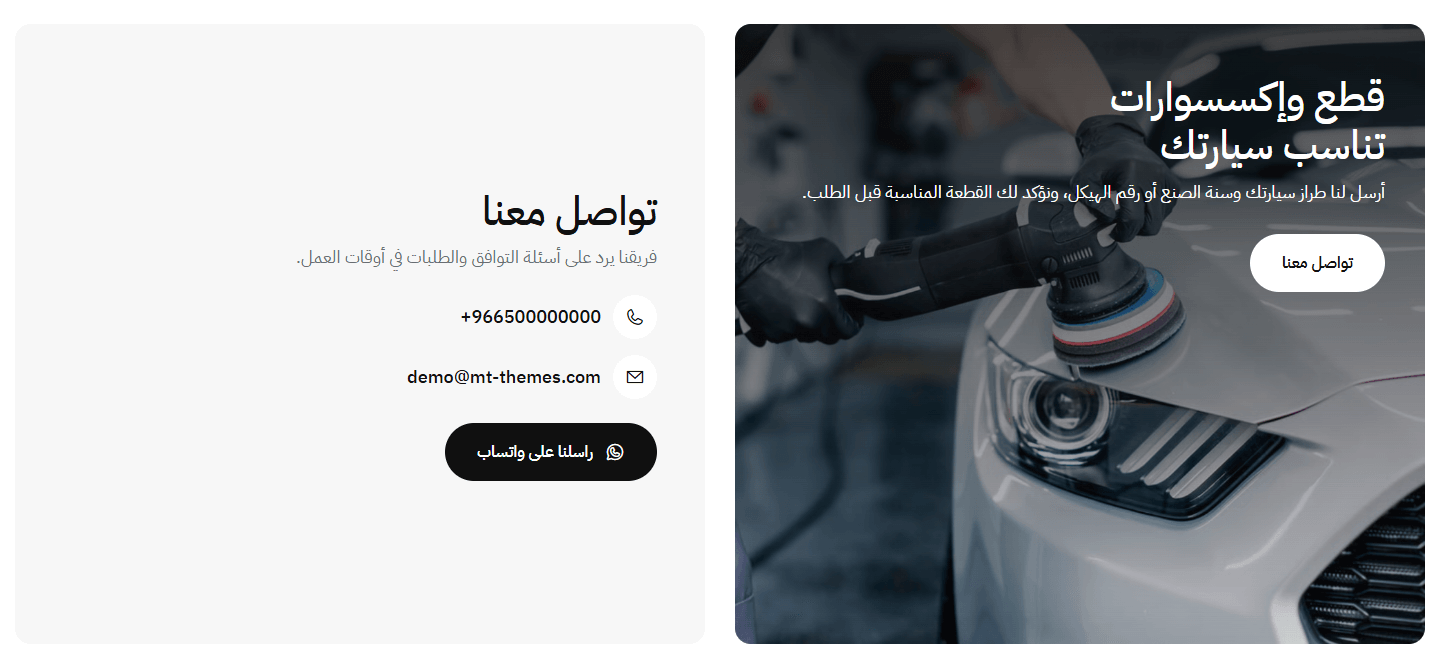
A card with a title, phone, email and WhatsApp button; empty ones come from your store's details. For special orders and advice.
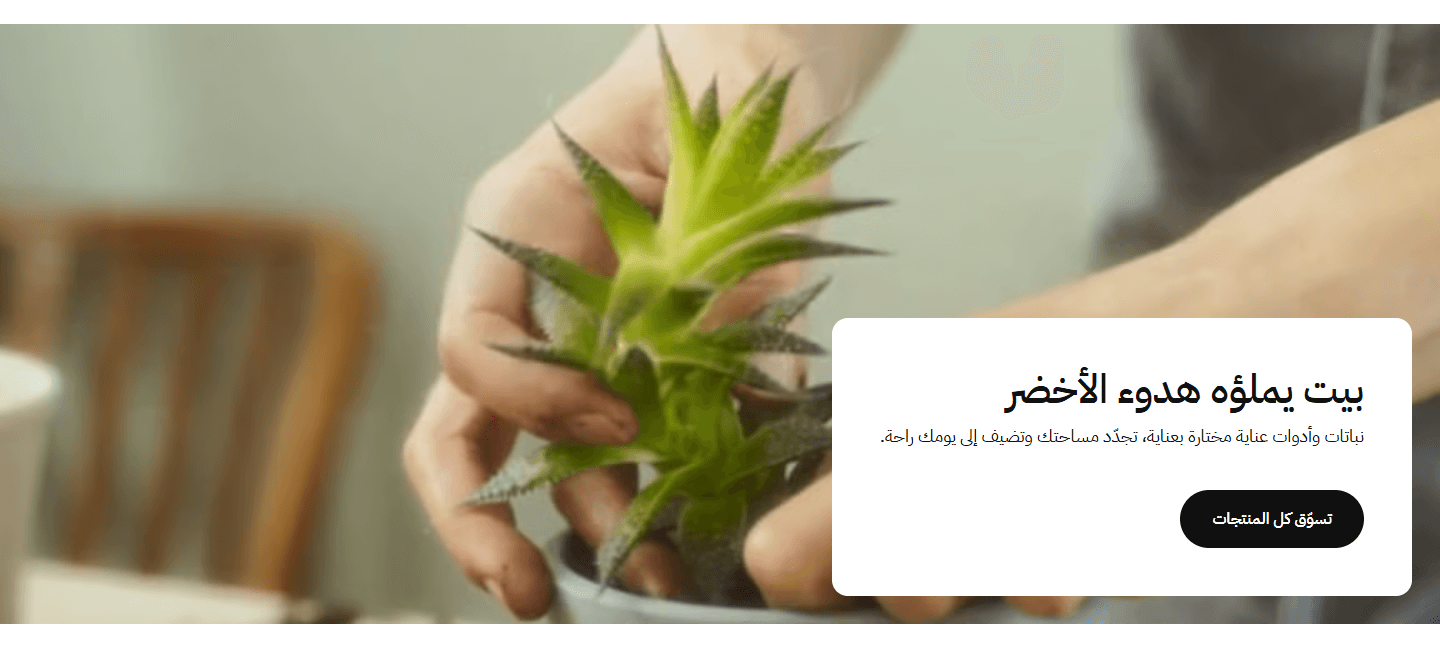
A white card in the picture's lower corner with title, description and a button in your store's button colour. For busy pictures that need a plain background for words.
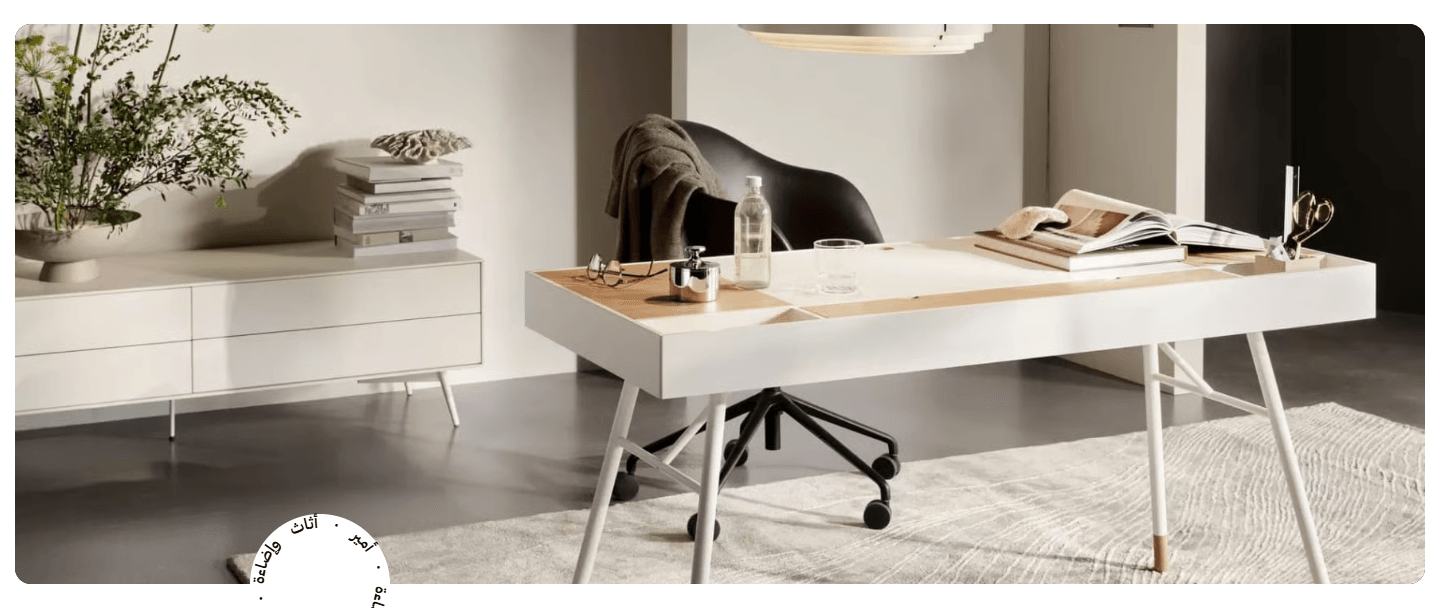
A turning circle of words (such as your store's name) half over the picture's edge; no title or button, and tapping the picture opens the link. Calm and refined for picture-led stores.
A wide, short picture with the words and a white button at one side (right in Arabic, left in English), halfway down. For an advert band between sections.
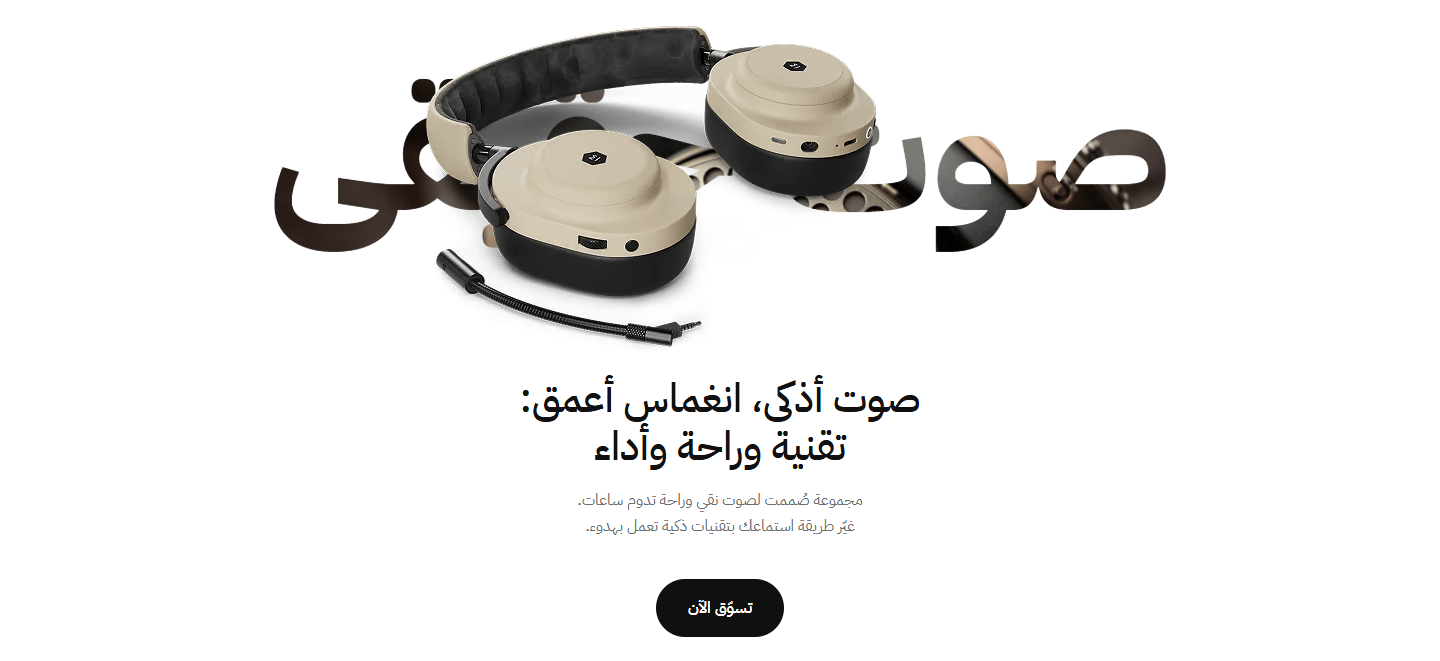
A huge word (product or brand name) filled with a picture or gradient, the background-free product in front, words and button below. For launching one product.
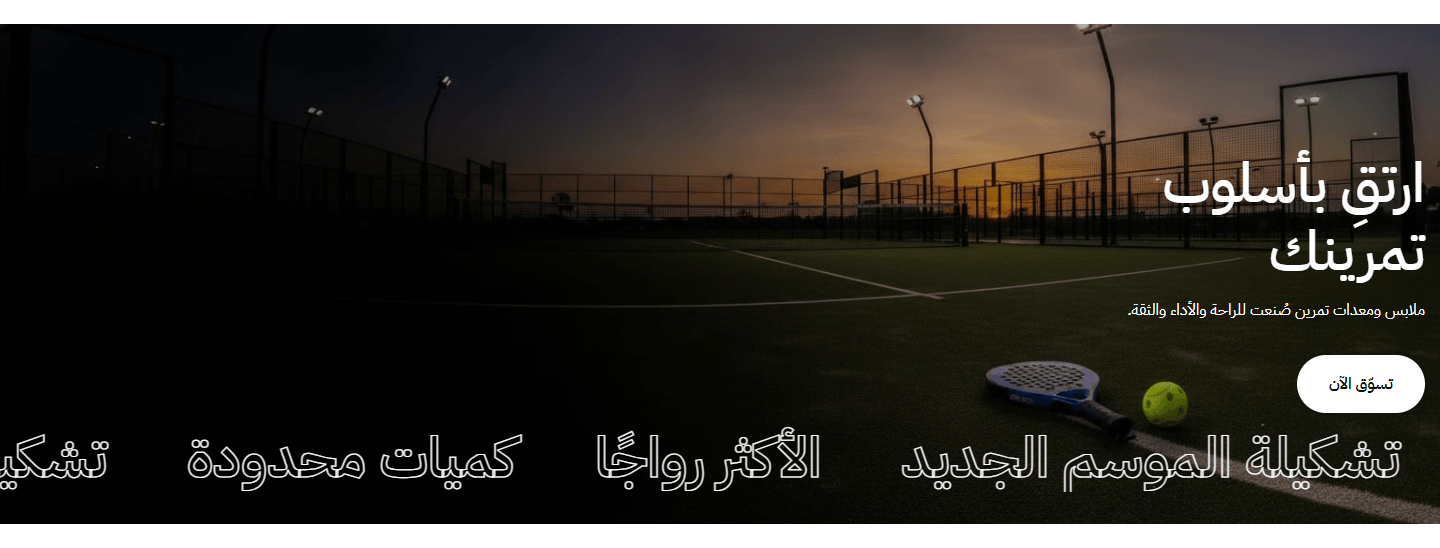
Title, description and a white button, with a big word strip always moving along the bottom. For a campaign or season whose name should stay in view.
Step by step
- Open “Feature banner” and choose a “Section design”.
- Upload the “Image”, plus a “Mobile image (optional)” if it crops badly on phones.
- Write the title and description.
- Write the button's words and set its link; no link, no button.
- Fill your design's own fields: features, taglines or contact card.
- Check the preview, then press “Publish”.
Settings
- Section design: Your picture and words stay, but each design uses only some.
- Feature style: Try both and keep the one that suits your colours.Shown with “Features around a product image”
- Small line above the title (not shown in “Full image with taglines”, “Features around a product image” or “Wide image with a turning circle of text”): Such as new, or for a limited time.
- Description (not shown in “Full image with taglines”, “Features around a product image” or “Wide image with a turning circle of text”): A line or two explaining the offer.
- Title: Above the product picture and features.Shown with “Features around a product image”
- Text under the title: A short line.Shown with “Features around a product image”
- Image: Most designs do not show without it. Each design's size is under the field.
- Mobile image (optional): For when the wide picture crops and loses detail on phones.
- Image description for Google and screen readers (alt) - optional: Such as black smart watch. Not shown on the page.Shown when “Keep the image fixed while scrolling (parallax) - not in “Big word behind a product image”” is off
- Mirror the image on Arabic pages: Arabic words sit on the right, so mirroring brings the empty part behind them. Off if the picture has writing or a logo.Shown with “Full-width single banner”
- Contact card title: Such as 'Need help?'Shown with “Banner beside a contact card (phone, email, WhatsApp)”
- Text under the contact card title: A line encouraging visitors to get in touch.Shown with “Banner beside a contact card (phone, email, WhatsApp)”
- Phone number (empty: your store's number): Called with one tap. Empty shows your store's Zid number.Shown with “Banner beside a contact card (phone, email, WhatsApp)”
- Email (empty: your store's email): Opens a new message with one tap.Shown with “Banner beside a contact card (phone, email, WhatsApp)”
- WhatsApp number with the country code, e.g. 966500000000 (empty: the phone number above): No leading zero, or the button will not show.Shown with “Banner beside a contact card (phone, email, WhatsApp)”
- WhatsApp button text (empty: “Message us on WhatsApp”): Such as 'Ask us on WhatsApp'.Shown with “Banner beside a contact card (phone, email, WhatsApp)”
- Text turning in the circle (repeated until it closes the ring, e.g. “Store name · ”; empty: no circle): Such as your store's name or motto.Shown with “Wide image with a turning circle of text on its edge”
- Where the circle sits on the image's bottom edge: Away from the picture's most important part.Shown with “Wide image with a turning circle of text on its edge”
- Big word behind the product image: Such as the product or brand name; short works best.Shown with “Big word behind a product image, text below”
- Image inside the word's letters (optional): Drifts slowly inside the letters. Empty fills them with a gradient from your accent colour to your headings colour.Shown with “Big word behind a product image, text below”
- Features (up to 4, two on each side): A feature without a name is not shown.Shown with “Features around a product image”Up to 4 items
- Feature name (needed for it to show): A couple of words, such as fast delivery.
- Short description (optional): A line explaining the feature.
- Icon type: “Your own image” if you have your own icon.
- Icon: Pick the closest in meaning.Shown when “Icon type” is “Ready-made icon”
- Icon image (square): Shown in the disc instead of a ready-made icon.Shown when “Icon type” is “Your own image”
- Taglines (the section does not show without them): Along the picture's bottom edge; at least one is required.Shown with “Full image with taglines”Up to 8 items
- Tagline title: A couple of words, such as free shipping.
- Short description (optional): A small line explaining it.
- Moving messages: They move in the strip along the bottom.Shown with “Wide image with a big moving strip of words along its bottom”Up to 10 items
- Message text: Such as the campaign's name.
- Button text (leave empty for no button; not shown in “Full image with taglines”, “Features around a product image” or “Wide image with a turning circle of text”): Such as shop now. The button needs a link.
- Link (needed for the button to show; not used in “Full image with taglines” or “Features around a product image”; in “Wide image with a turning circle of text” the whole image opens it): In most designs the title opens it too, in some the whole picture.
- First section on the page? Turn on to load its first image right away: Anywhere else, leave it off so the page opens faster.Shown when “Keep the image fixed while scrolling (parallax) - not in “Big word behind a product image”” is off
- Text position: “Start” is right in Arabic and left in English; “End” the opposite.Shown with “Full-width single banner”
- Movement speed: The strip pauses under the mouse.Shown with “Wide image with a big moving strip of words along its bottom”
- Movement direction: “With the reading direction” moves the strip right on Arabic pages and left on English ones; “Against the reading direction” the other way.Shown with “Wide image with a big moving strip of words along its bottom”
- Tagline motion: “Still” sits side by side, sliding when more than fit; “Moving strip” runs continuously.Shown with “Full image with taglines”
- Text color (empty: the design's own): For when the design's colour does not read on your picture.
- Space above the section on mobile: When it should differ from computers, such as bringing sections closer on a small screen.
- Space below the section on mobile: When it should differ from computers.
Plus every option in "Options every section shares", in the Home page sections chapter.
Tips
- Size varies by design and is under the “Image” field, e.g. about 2115×690 px for “Full-width single banner”.
- Where the words sit at one side, keep that side of the picture dark and calm.
- In “Features around a product image” and “Big word behind a product image, text below”, use a transparent PNG of the product.
- The WhatsApp number in “Banner beside a contact card (phone, email, WhatsApp)” looks like 966500000000, no leading zero.
- If the picture has writing or a logo, turn off “Mirror the image on Arabic pages”.
- In most designs, tapping the “Title” opens the link.
- “Color layer over the background” calms the section's background so words read; in “Wide image with a big moving strip of words along its bottom” it covers the picture itself, under the words.
Two pictures of the same thing in one frame, before and after, with a line visitors drag to see the difference themselves. For a skincare result, a cleaning product or a restoration.
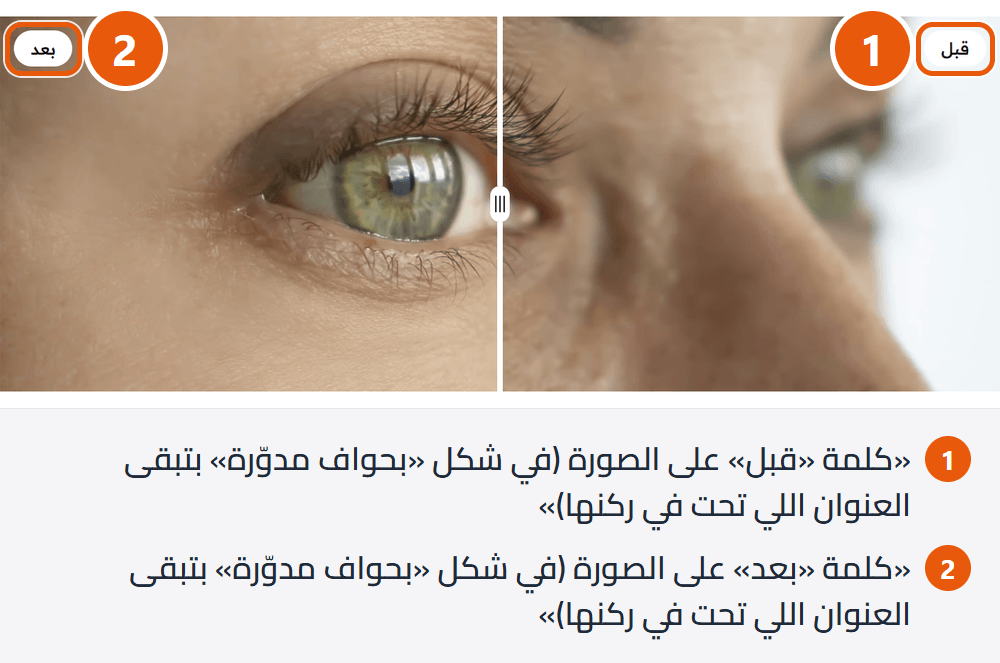
Section design
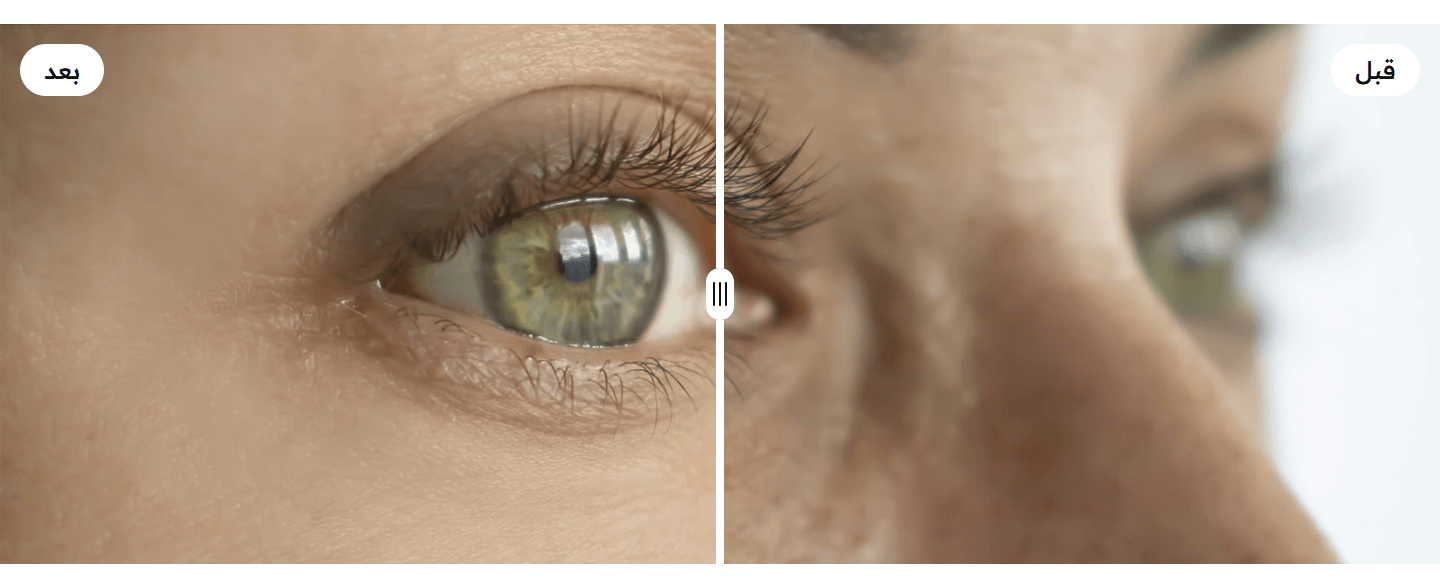
Edge to edge with no margins, your two words in small badges at the top. When the pictures alone show the difference.
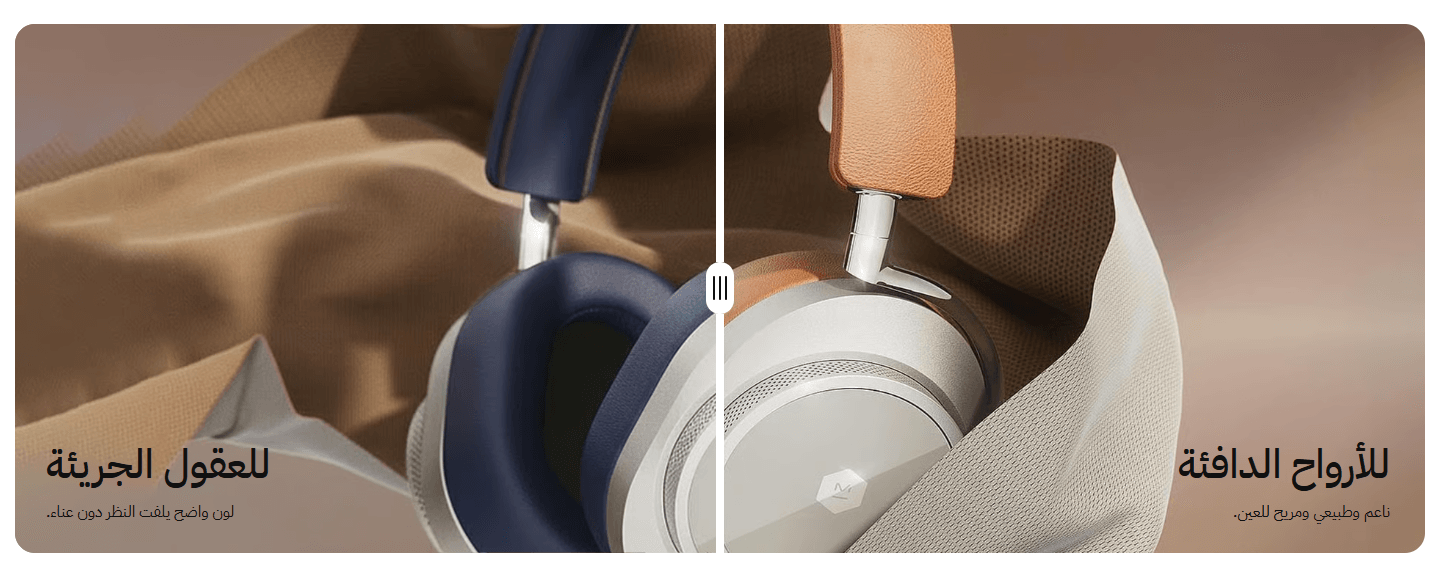
A rounded frame; on phones only the title shows, in a small top badge. When you want to say in words what changed.
Step by step
- In the editor, add the “Before / after comparison” section.
- Upload the “Before” and “After” images, same size and camera angle.
- Type each picture's word, e.g. 'Before' and 'After'.
- Choose a “Section design”.
- Check the preview, then publish.
Settings
- Section design: Your pictures and words stay when you switch.
- “Before” image: On the right in Arabic, the left in English; the line starts in the middle.
- “After” image: On the other side, same size and spot, so the only change is the result.
- “Before” label on the image (in the “Rounded corners” design it is the title in its bottom corner): Such as 'Before' or 'Before use'. On phones in a small top badge. Empty for no words.
- Line under the “Before” title (desktop and tablet only): Says how things were. Phones show the title alone.Shown with “Rounded corners, with a title and a line of text in each bottom corner”
- “After” label on the image (in the “Rounded corners” design it is the title in its bottom corner): Such as 'After' or 'After two weeks'. On phones in a small top badge.
- Line under the “After” title (desktop and tablet only): The result in plain words.Shown with “Rounded corners, with a title and a line of text in each bottom corner”
- Text color on the image: White for dark pictures, dark if yours are light at the bottom. Phone badges stay white with dark text.Shown with “Rounded corners, with a title and a line of text in each bottom corner”
- Space above the section on mobile: “This design's own” follows “Space above the section”; go smaller if the gap looks big on phones.
- Space below the section on mobile: “This design's own” follows “Space below the section”; go smaller if the gap looks big on phones.
Plus the options in "Options every section shares", in the Home page sections chapter, except "Title", "Keep the image fixed while scrolling (parallax) - not in “Big word behind a product image”".
Tips
- The section appears only with both pictures.
- Size 1920×720; the frame crops (more from the sides on phones), so keep what matters in the middle.
- Shoot both from the same spot in the same light, so the eye sees only the result.
- Visitors drag the line, or tap anywhere to move it there.
- A badge word hides while the line passes over it and returns after.
- The section has no space above or below; if it touches the one before, set “Space above the section”.
- “Full screen width” matters only on very wide screens; the frame already spans nearly the full width.
- “Section background color” shows only in the space around the pictures: above and below with spacing, and at the sides in “Rounded corners, with a title and a line of text in each bottom corner”.
- “Color layer over the background” does not cover the “Before” and “After” pictures, so you will rarely need it here.
One large statement in the middle saying who you are and what you offer, a small line above and text and a button below, leading to your About page or products.
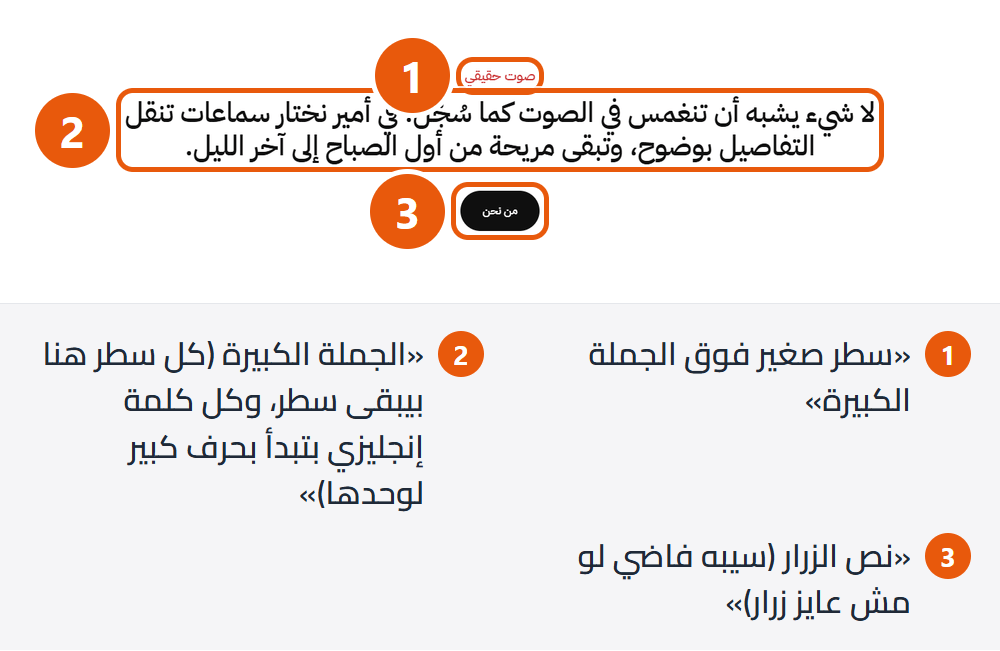
- Small line above the statement: Such as Our story, in one of the theme's accent colours.
- Extra text under the statement (optional): When you need to say more; empty if the statement is enough.
- Button text (leave empty for no button): Such as Learn more about us; the button shows once you write it.
- Button link (empty: the products page): Such as your About page.
- Text color (empty: the theme's colors, white over a background image): The small line, statement and paragraph. Change it if text does not read on the background.
- Space above the section on mobile: On phones and upright tablets. “This design's own” matches the desktop “Space above the section”, or the design's own if that was never changed.
- Space below the section on mobile: On phones and upright tablets. “This design's own” matches the desktop “Space below the section”, or the design's own if that was never changed.
Plus the options in "Options every section shares", in the Home page sections chapter, except "Keep the image fixed while scrolling (parallax) - not in “Big word behind a product image”".
Tips
- The statement looks best at one to three lines; details belong in “Extra text under the statement”.
- Each English word in the statement gets a capital first letter by itself.
- “Statement” is the key sentence: what you offer and to whom. To break a line at a word, start a new line there.
- With a dark “Section background color”, set a light “Text color”.
- With a “Section background image”, text turns white on a dark see-through box, readable on any picture.
A heading and a line or two in the middle, no pictures: to separate sections, introduce the next one, or say something short.
- Lines under the title (each one on its own line): Each line is its own paragraph. With the heading and lines all empty, the section does not appear.
- Line: A new line you type shows as a new line on the page.
- Space above the section on mobile: “This design's own” matches the desktop “Space above the section”, or the original if that was never changed.
- Space below the section on mobile: “This design's own” matches the desktop “Space below the section”, or the original if that was never changed.
Plus the options in "Options every section shares", in the Home page sections chapter, except "Keep the image fixed while scrolling (parallax) - not in “Big word behind a product image”".
Tips
- Text here uses the theme's dark colours, so keep the background light or turn on “Color layer over the background” in white.
- A short heading with one or two lines looks cleaner than a long paragraph.
- Keep “Section background color” light; there is no setting for the text colour here.
- Keep a “Section background image” light and calm so the dark text stays clear.
- Reduce “Space below the section” when this introduces the section straight after.
Your customers' words with names, photos and stars, beside the product and its price. Visitors trust a fellow customer more than any advert, so place this near your products.
You write these reviews here; they are not pulled from your product reviews.
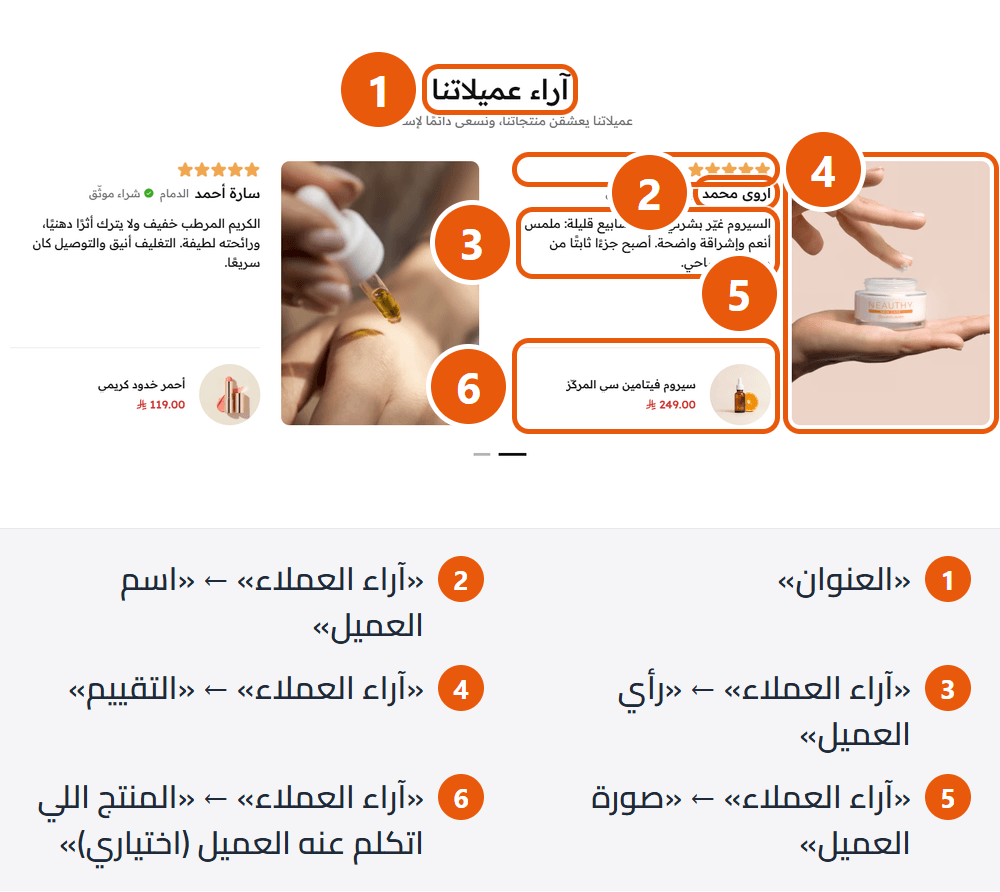
Section design
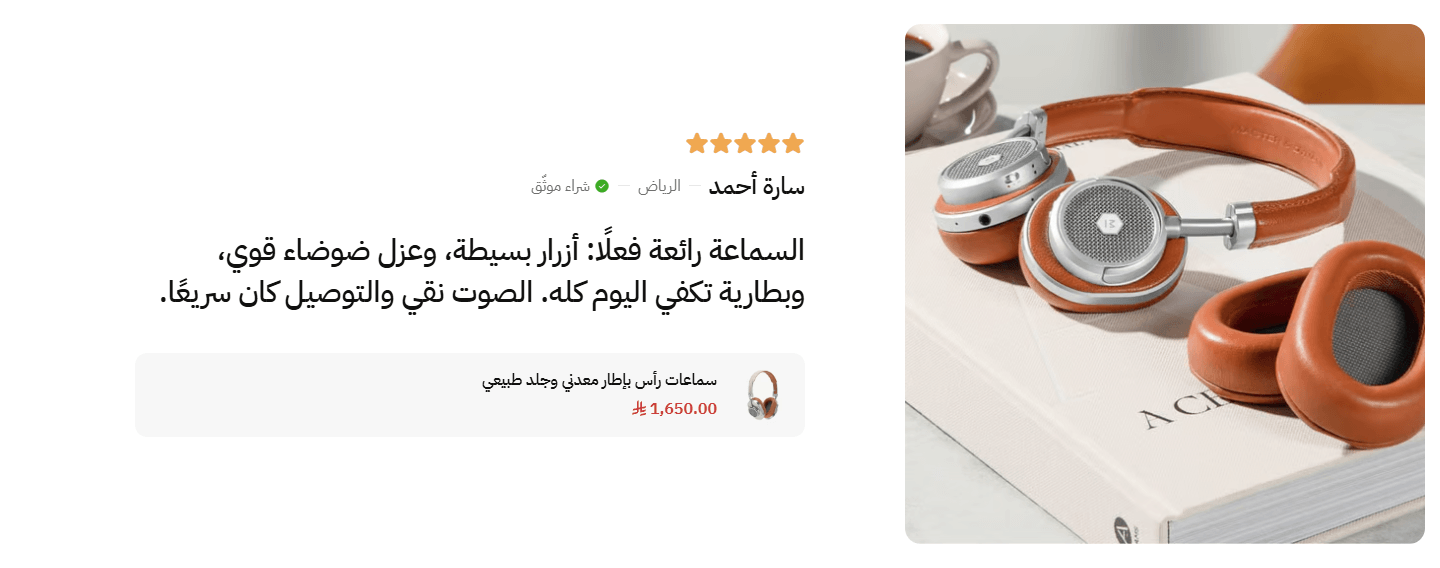
Photo and review move together; on phones the photo sits on top. For strong customer photos and a few key reviews.
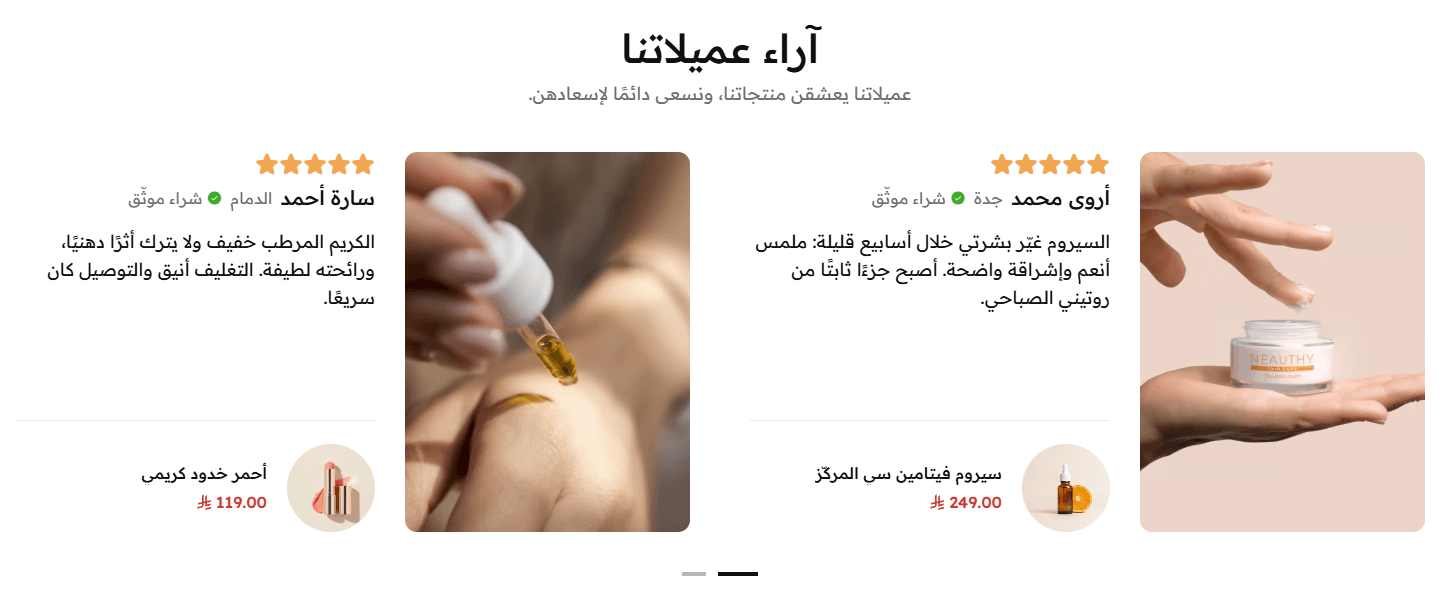
Photo, stars, name, review and product, two per row (one on phones). The photo is tall beside the text on computers, above it on tablets and phones. When photos show the product in use.
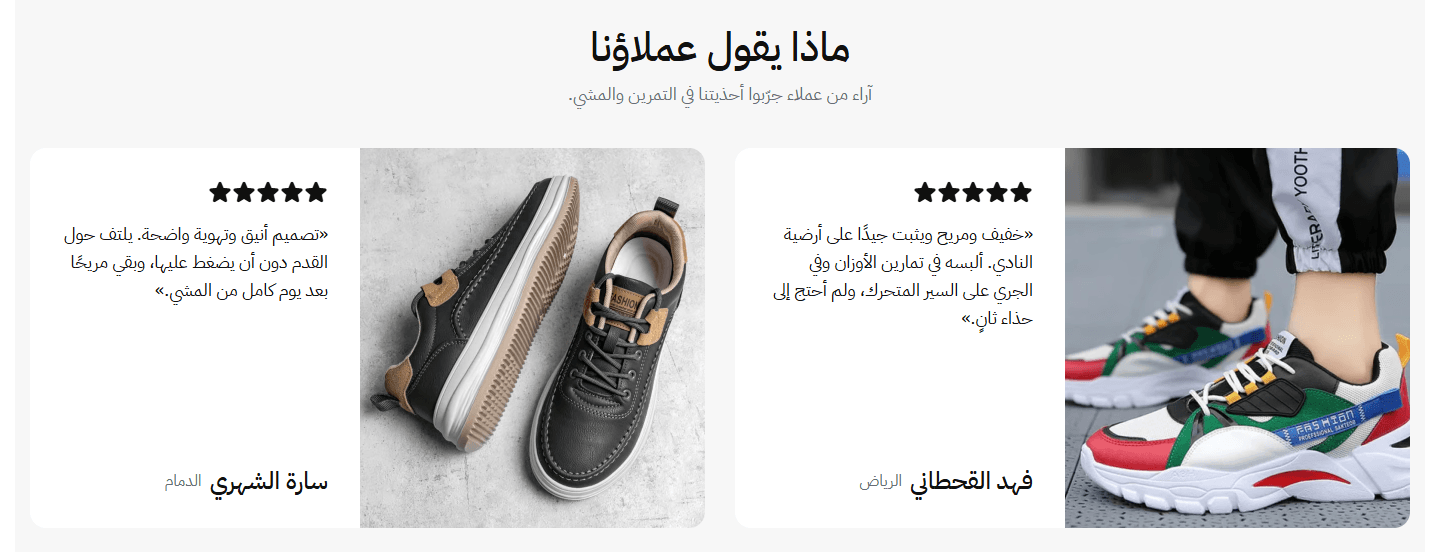
Half photo, half review on a rounded panel coloured by “Section background color”. Two per row (one on phones); the photo sits above the review on tablets and phones. For a section that reads as its own box.
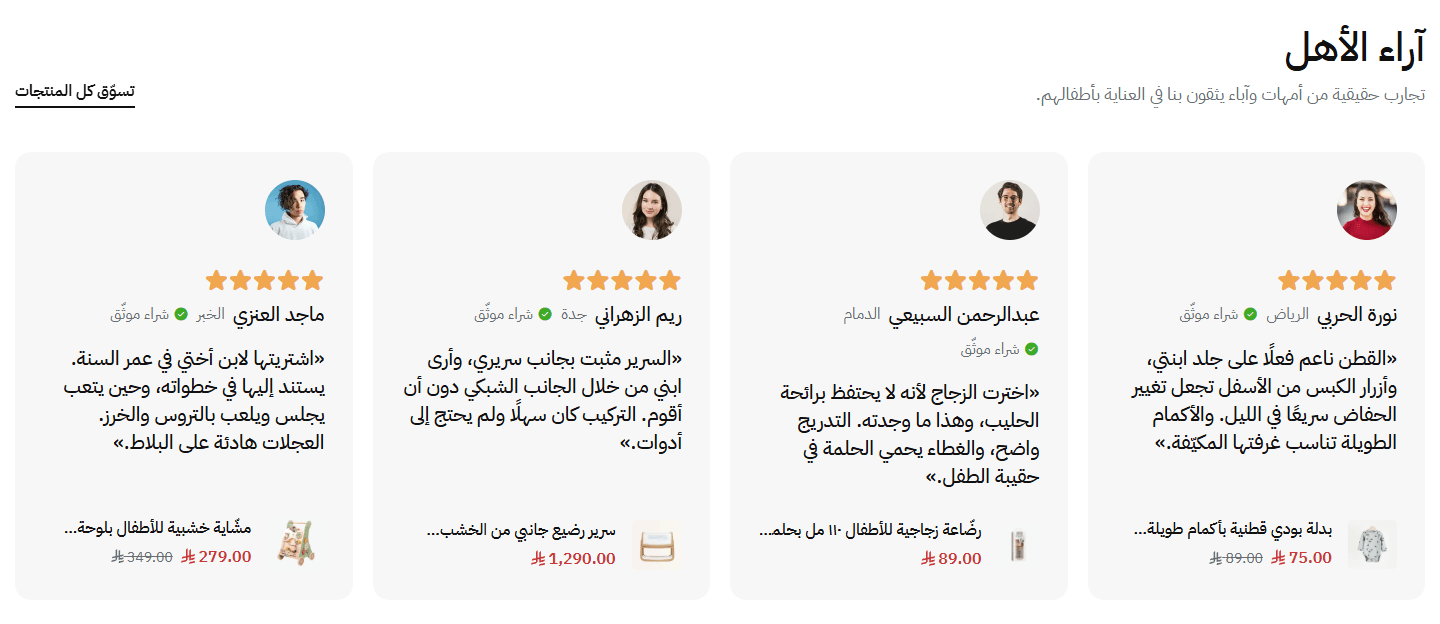
Four per row on a computer; a card changes colour under the mouse. The heading sits to one side with an optional “View all” button on the same line. For many short reviews.
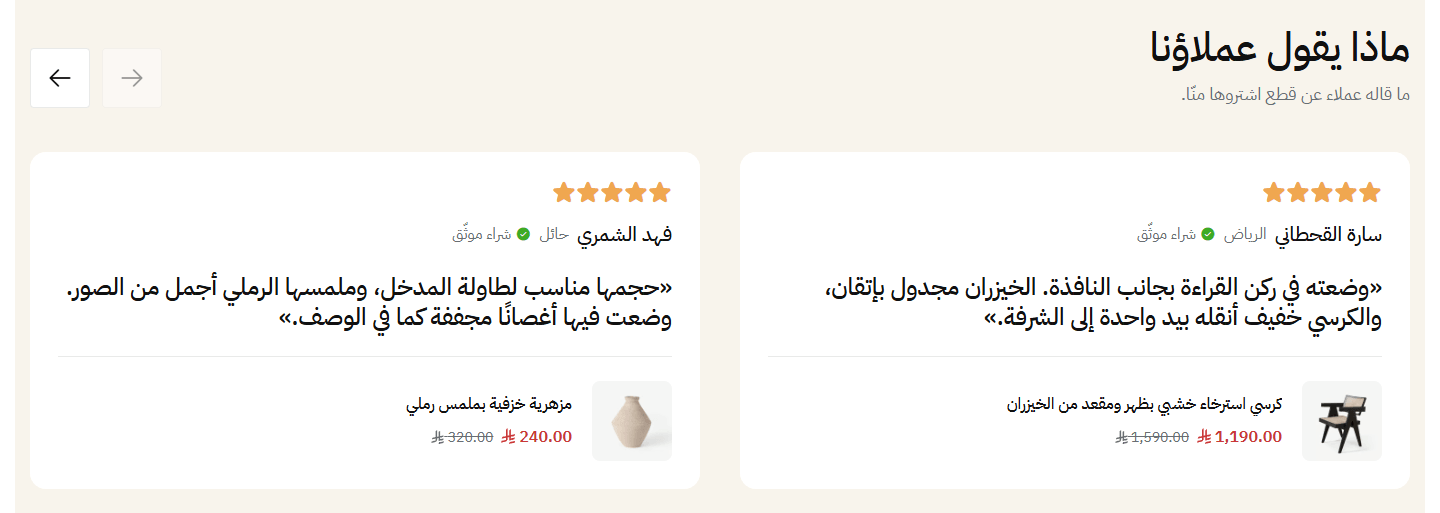
Two cards (one on phones) on a rounded panel, the photo small and round beside the name. When the words matter more than the photo.
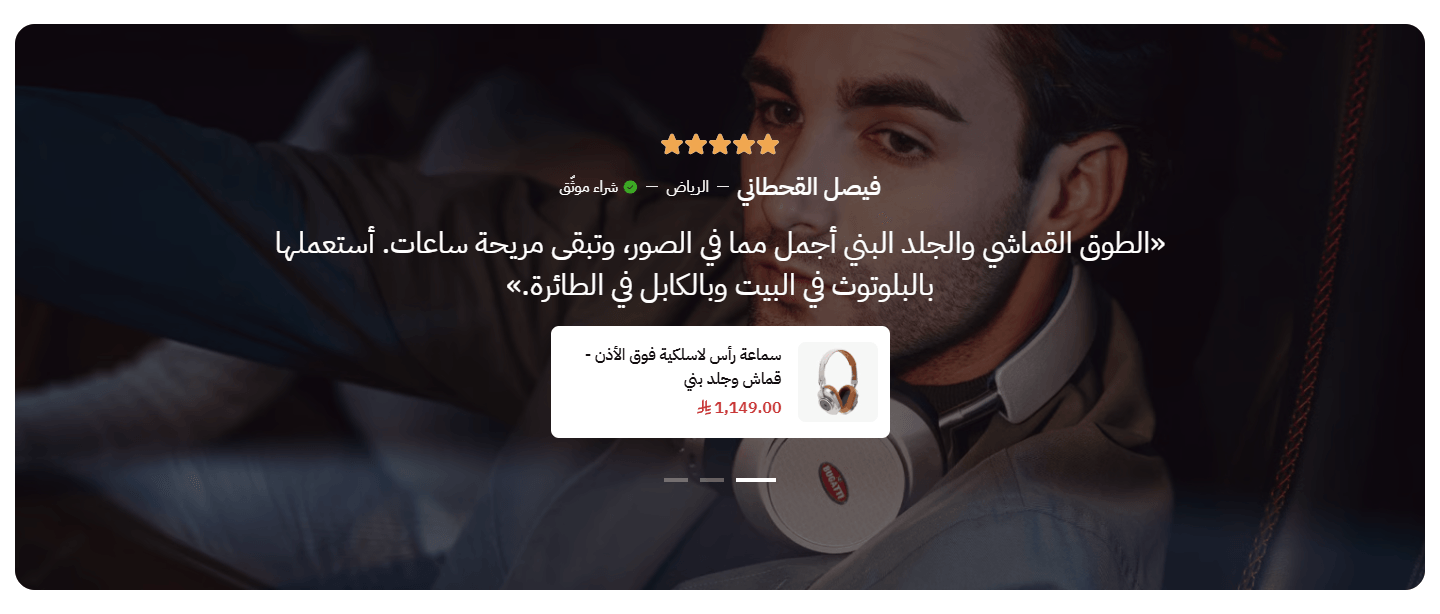
One review at a time in large white text over a dark picture from “Section background image”, with the product on a small white card below. For a strong review that stands out.
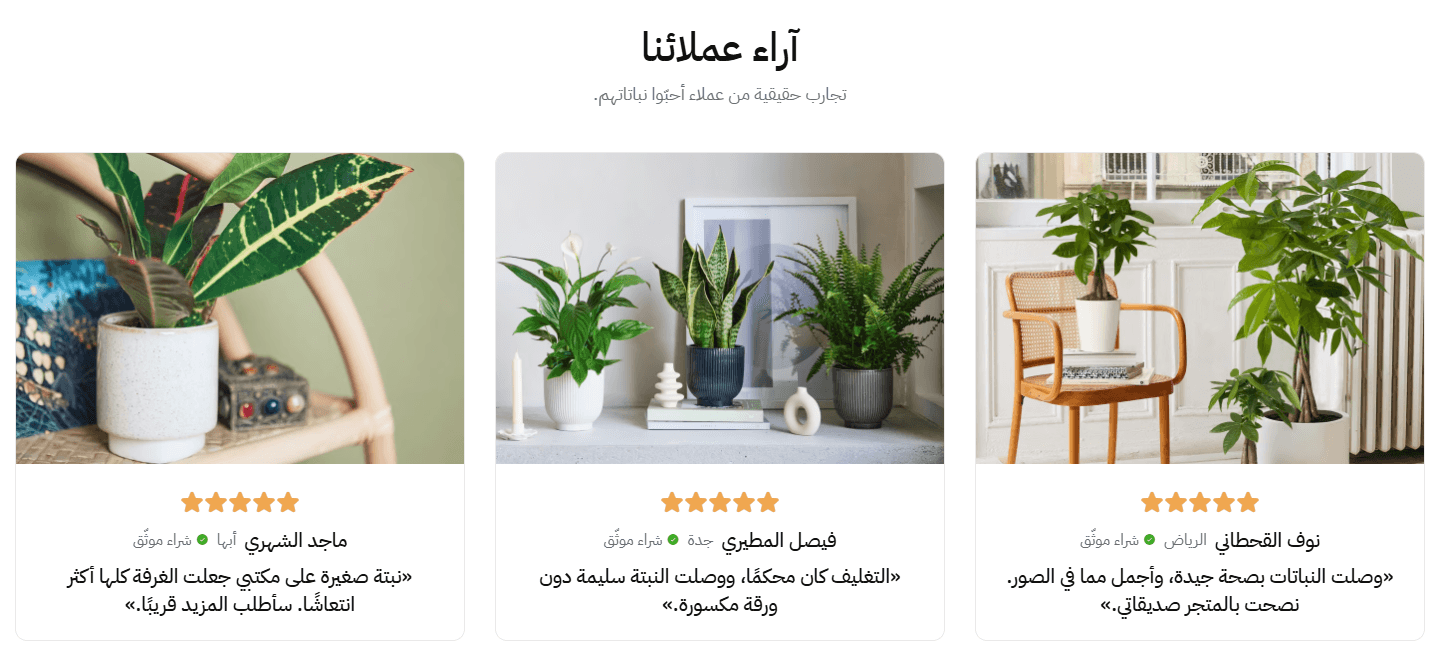
Three per row on a computer. A review linked to a product gets an eye button that opens it in a quick-view window. When customer photos show the product.
Step by step
- Open or add the “Testimonials” section.
- Add an item to the reviews list.
- Type the name and review, choose the rating, upload the photo.
- Pick the “Product the customer reviewed (optional)” so it shows with its price.
- Check the preview, then publish.
Settings
- Section design: Your reviews stay when you switch; each design shows the photo its own way.
- Text under the title: Optional, such as that these are real reviews from buyers.
- Customer reviews: Up to 12, each with a name, photo, rating and text, and optionally a product.Up to 12 items
- Customer name: As they like it shown, such as a first name and an initial.
- Job or city (optional): Beside the name, such as 'Riyadh'; it makes the review feel real.
- The review: Two or three sentences about a specific experience beat a long paragraph.
- Rating: It starts at 5.
- Show the “Verified buyer” badge: A green check and “Verified Buyer” beside the name. Ticked by default, so untick it for any review not from a real buyer.
- Customer photo: The customer, alone or with the product. Each design crops it differently (square, tall, wide or circle), so keep the face or product in the middle.
- Product the customer reviewed (optional): Shows with picture, name and price; a tap opens its page, turning the review into a sale.
- Price before discount (optional, shown only when the product has no sale price in the store): Struck through beside the price, printed as typed, so include number and currency. Needs a product picked; if the product is on sale in your store, the store's own original price shows instead, so usually leave it empty.
- “View all” button text beside the title (leave empty to hide it): Such as 'Shop all products', shown underlined; it needs a link.Shown with “Small cards, round customer photo”
- “View all” button link (needed for the button to show): It starts on all products; point it at a category if you like.Shown with “Small cards, round customer photo”
- Autoplay: Pauses under the mouse.
- Time on each slide (1000 = 1 second): 5000 is 5 seconds; raise it for long reviews.Shown when “Autoplay” is on
- Start again after the last slide: Instead of stopping at the end.
- Show arrows: Very wide screens only (1600 pixels or more). Phones and tablets swipe or use dots; wide laptops (1440 to 1599) can only drag, unless “Autoplay” is on.Shown with “Two linked sliders: the customer's photo and the review beside it”
- Show arrows beside the title: On the heading's line inside the panel; they hide when every review is in view.Shown with “White cards on a colored panel, arrows by the title”
- Show dots under the slider: Short bars showing where visitors are; tapping one jumps there, and they hide when every review is in view. In “Two linked sliders: the customer's photo and the review beside it” only on screens narrower than 1440 pixels.
- Card color on hover: On computers; pick one of your brand colours.Shown with “Small cards, round customer photo”
- Card text color on hover: Name, review, stars and price; readable on the card colour.Shown with “Small cards, round customer photo”
- Space above the section on mobile: “This design's own” follows “Space above the section”; go smaller if the gap looks big on phones.
- Space below the section on mobile: “This design's own” follows “Space below the section”; go smaller if the gap looks big on phones.
Plus the options in "Options every section shares", in the Home page sections chapter, except "Keep the image fixed while scrolling (parallax) - not in “Big word behind a product image”".
Tips
- A 700×700 customer photo suits every design; keep the face in the middle.
- In large-photo designs a review without a photo leaves a gap; give each a photo, or pick a small-photo design.
- In panel designs, “Space above the section” and “Space below the section” change the space inside the panel.
- When every review is in view the slider does not move and dots and arrows hide; add more reviews.
- Use real reviews with their authors' names, photos and permission.
- The “Title”, such as 'What our customers say', is centred above the reviews, and to one side in “Small cards, round customer photo” and “White cards on a colored panel, arrows by the title”.
- “Full screen width” spreads the section across the screen; in the panel designs (“Photo beside the review on a grey panel”, “White cards on a colored panel, arrows by the title”, “One centered review over a dark image”) the panel reaches both edges with square corners.
- “Section background color” is the panel colour in panel designs, and the colour under the picture in “One centered review over a dark image”, so keep it dark there.
- In “One centered review over a dark image” the “Section background image” is the picture behind the review, slightly faded so white text reads. Use a picture of your shop or product in use.
Your store's promises in a row: each with an icon, a name and a line, such as fast shipping, easy returns, secure payment, support. It answers visitors before they ask and nudges them to order.
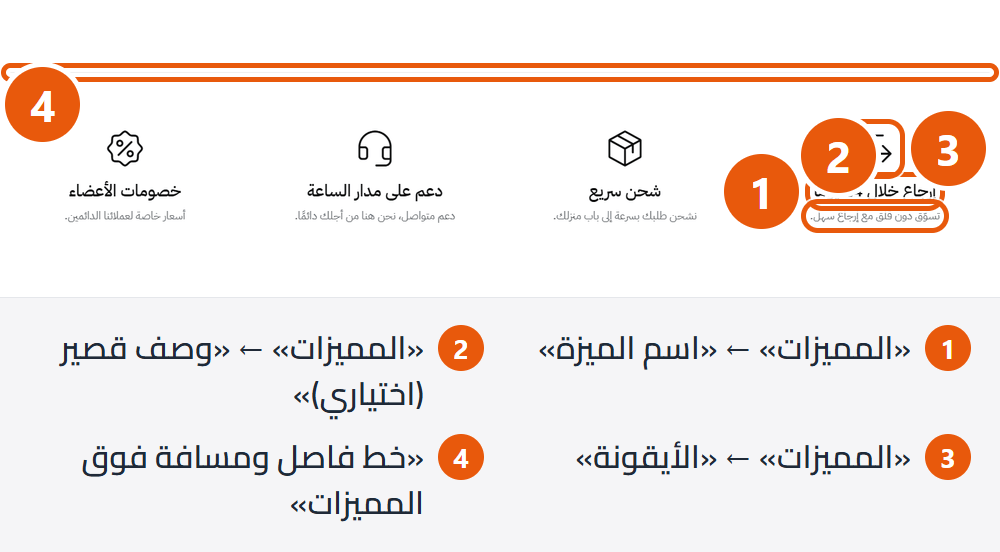
Section design

Generous space above and below. For benefits as a section of their own mid-page.

No space of its own above or below. A light band under a banner or between sections; to sit right under the one above, turn off “Divider line and space above the benefits”.
Step by step
- Open or add the “Benefits” section.
- Add a new item.
- Type the benefit's name and a short description.
- Choose the icon, or set “Icon type” to “Your own image” and upload yours.
- Check the preview, then publish.
Settings
- Section design: Your benefits stay when you switch.
- Benefits: Up to 8. Computers show 4, tablets 3, phones 1 or 2 by width; any more swipe in.Up to 8 items
- Benefit name: Two or three words, e.g. 'Free shipping'.
- Short description (optional): Such as 'Delivered within two days to every city'.
- Icon type: Ready-made icons take your headings colour; “Your own image” is for your brand's icons.
- Icon: Above the benefit's name; pick the match, e.g. “Truck” for shipping, “Shield” for a guarantee. For quality: “Check mark in a circle” or the lighter “Simple check mark”.Shown when “Icon type” is “Ready-made icon”
- Icon image (square): Small and square above the name; a square transparent PNG.Shown when “Icon type” is “Your own image”
- Divider line and space above the benefits: Turn it off when the section sits right under a banner.
- Space above the section on mobile: “This design's own” follows “Space above the section”; go smaller if the gap looks big on phones.
- Space below the section on mobile: “This design's own” follows “Space below the section”; go smaller if the gap looks big on phones.
Plus the options in "Options every section shares", in the Home page sections chapter, except "Title", "Keep the image fixed while scrolling (parallax) - not in “Big word behind a product image”".
Tips
- Four benefits fill a computer row exactly.
- Short names and one-line descriptions keep the row even.
- Icon image: square, 104×104 or larger, a transparent PNG.
Your customers' top questions (shipping, returns, sizes, payment) with answers, each opening on tap. Beside them a heading, short text and a button to your FAQ or contact page. Saves you messages and reassures before ordering.
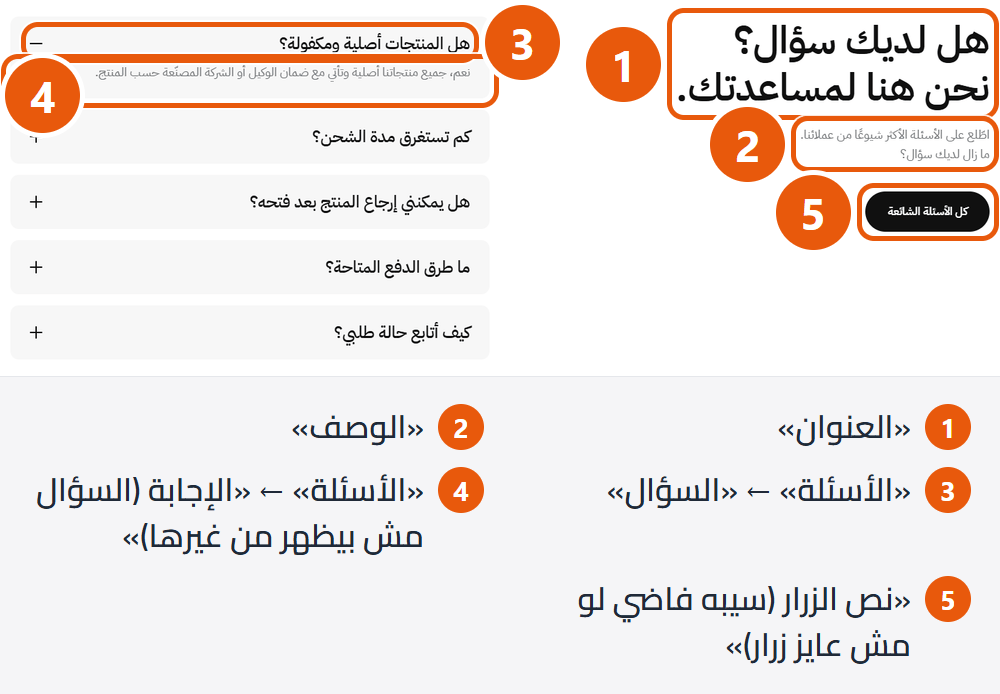
Step by step
- Open or add the “FAQs” section.
- Type the title and description.
- Add each question with its answer as a new item.
- For a button, type its words and link your FAQ or contact page.
- Check the preview, then publish.
Settings
- Description: Such as that these are the questions you hear most. Enter starts a new line.
- Questions: Up to 12. The first starts open; opening another closes it.Up to 12 items
- Question: In the customer's words, e.g. 'When will my order arrive?'.
- Answer (the question does not show without it): Short and clear. Enter starts a new line.
- Button text (leave empty for no button): Such as 'All FAQs' or 'Contact us'; the button needs a link.
- Button link (needed for the button to show): It starts on all products, so change it to your FAQ or contact page.
- Section fonts: The difference shows only on English pages with “Store look” set to “Tech (electronics)”. “The store's fonts” always uses your store's fonts.
- Space above the section on mobile: “This design's own” follows “Space above the section”; go smaller if the gap looks big on phones.
- Space below the section on mobile: “This design's own” follows “Space below the section”; go smaller if the gap looks big on phones.
Plus the options in "Options every section shares", in the Home page sections chapter, except "Keep the image fixed while scrolling (parallax) - not in “Big word behind a product image”".
Tips
- 5 to 8 questions you really get on WhatsApp and in messages.
- On a computer the heading and questions sit in two columns; on smaller screens the questions go under.
- The section has no space above or below; if it touches its neighbours, set “Space above the section” and “Space below the section”.
- The section does not appear unless at least one question has an answer.
- Split the “Title” over two lines with Enter, e.g. 'Have a question?' then 'We're here to help.'
Your blog's posts on the home page: tips and guides that bring customers to your products and your blog. Your latest posts automatically, or posts you write here.
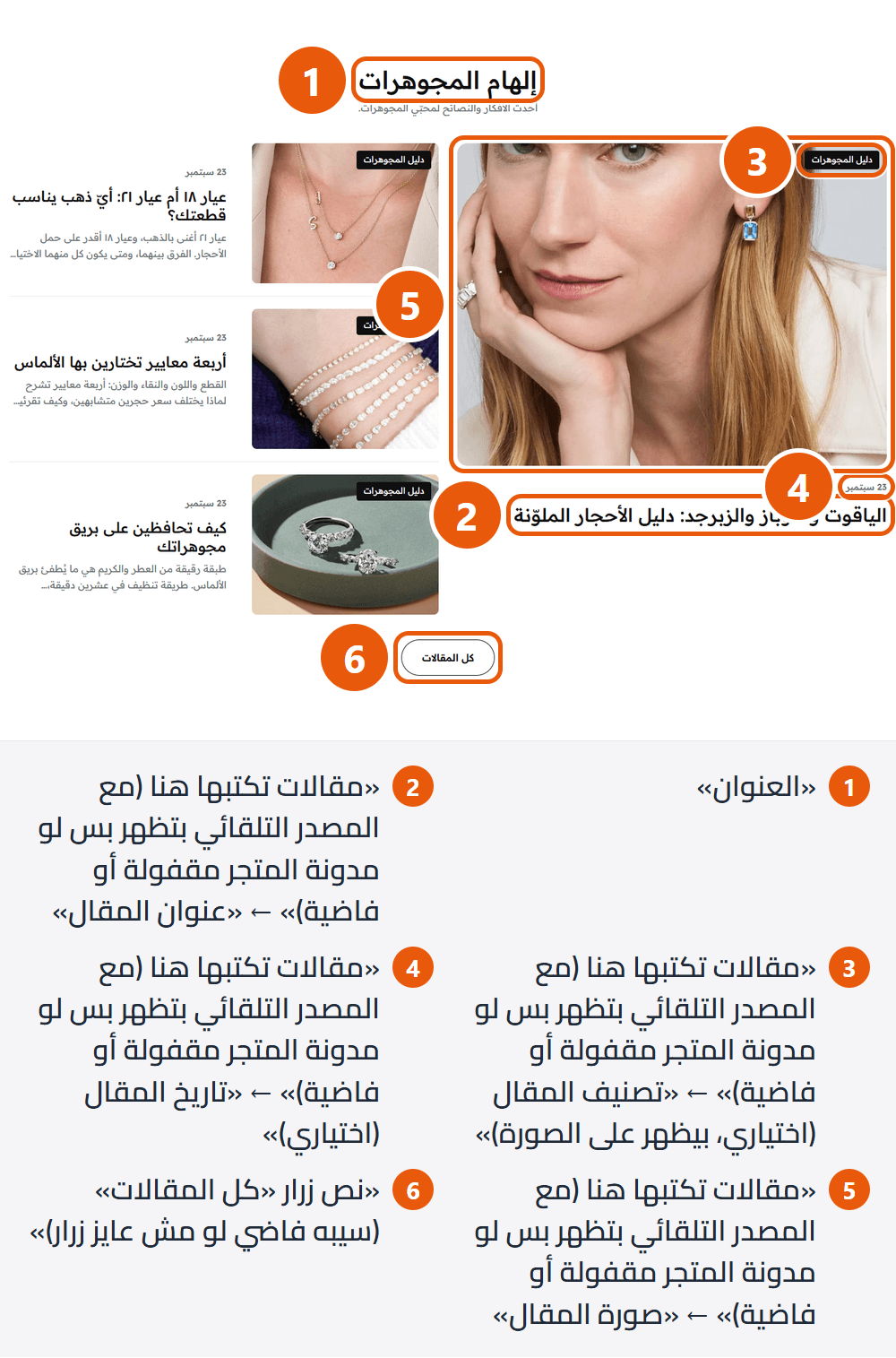
Section design
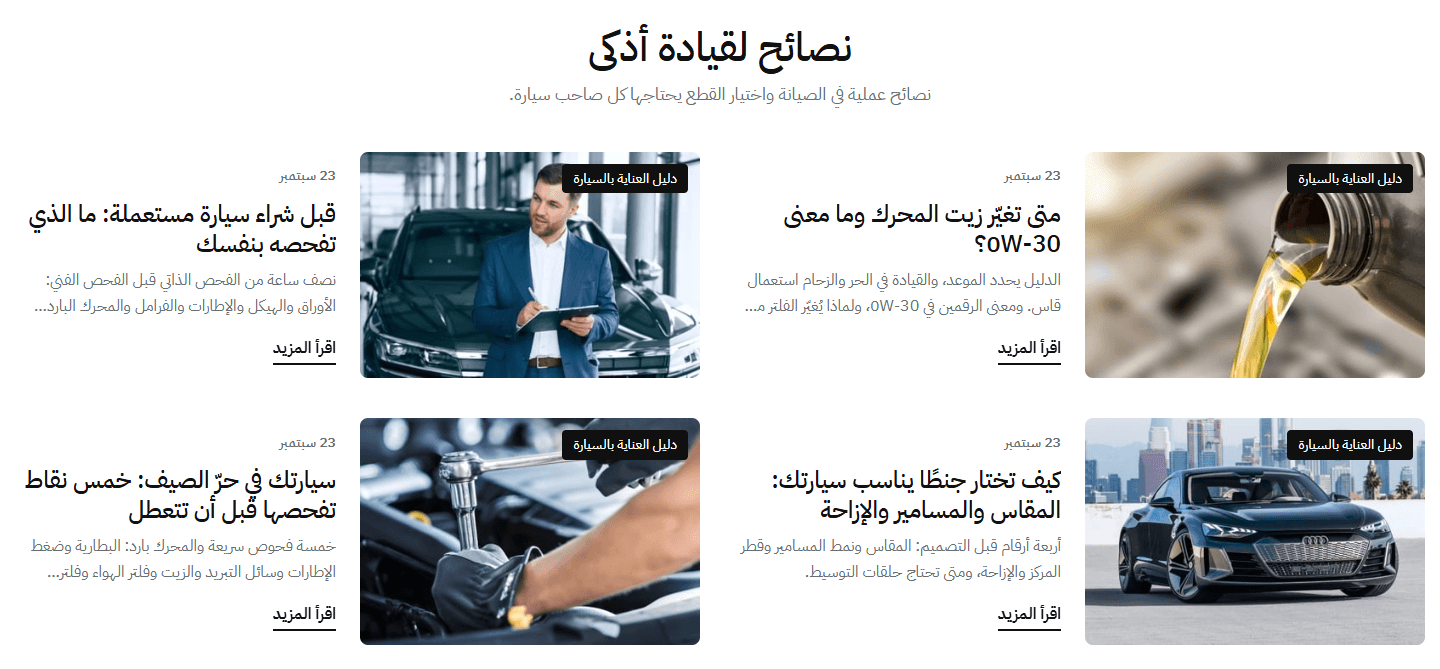
Two columns (one on phones); the picture beside the date, title, summary and “Read more”, above them on smaller screens. For posts with useful summaries.
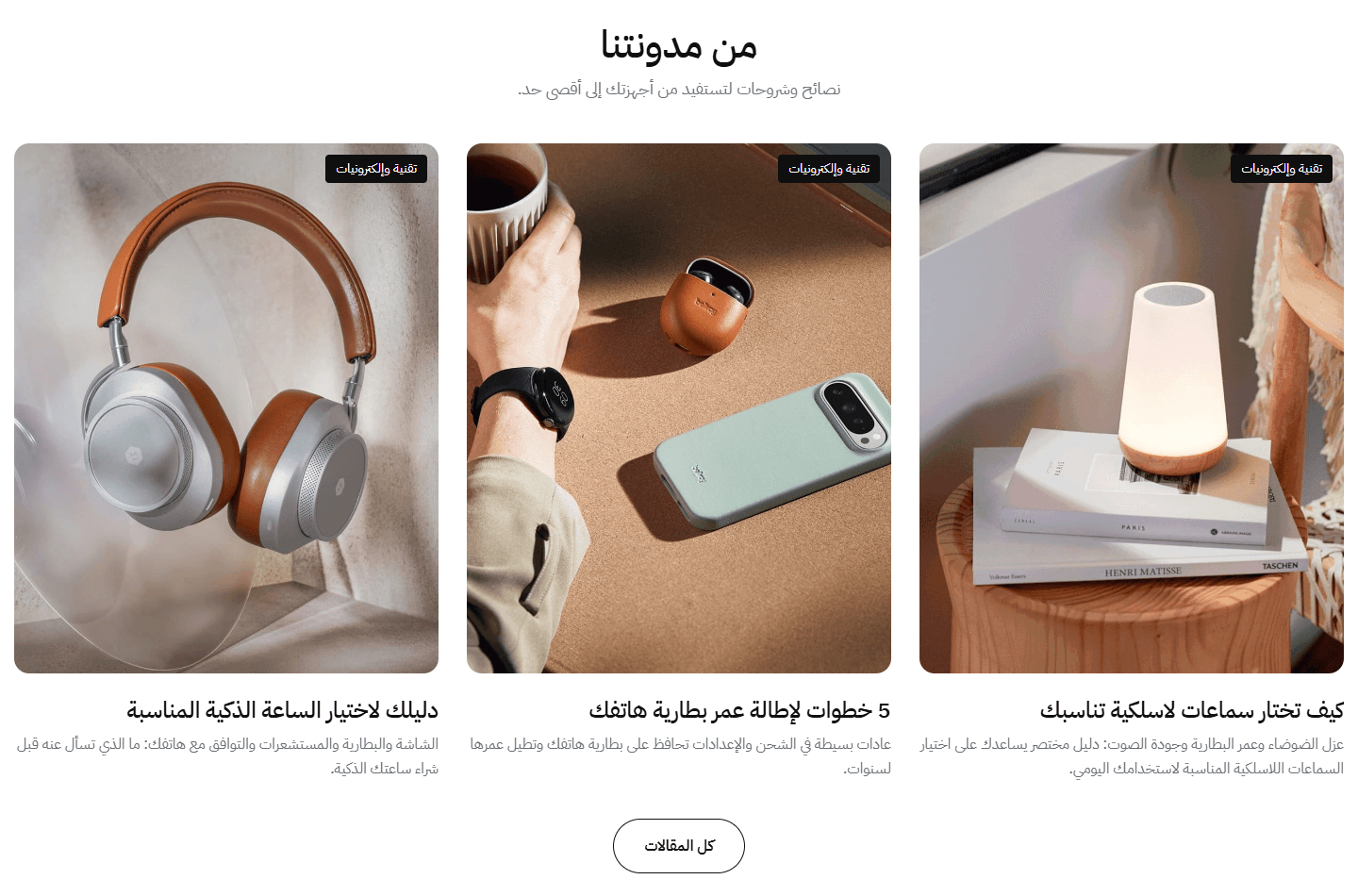
Three or two side by side on a computer, which visitors move through. Flexible for any number.
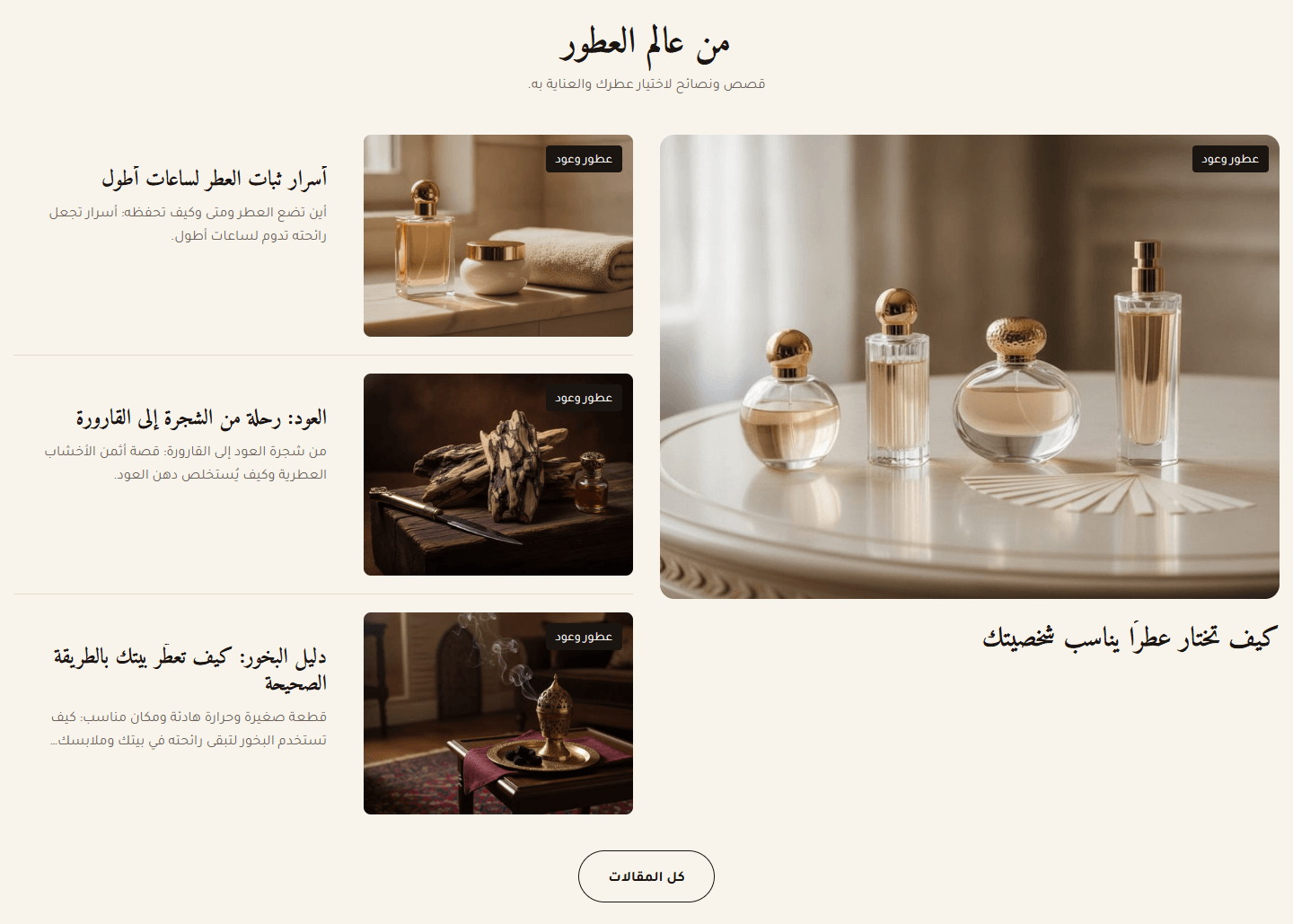
A post with a big picture beside a list with small ones; the large post has no summary unless it is alone. For a featured post.
Step by step
- Make sure the blog is on in Zid with published posts.
- Open “Blog” and set “Posts source” to “Automatic, from the store blog”.
- For one category: open your blog, click the category and paste the browser address into the category field.
- Choose the “Number of posts”, and type button words if you want one.
- Check the preview, then publish.
Settings
- Section design: Your posts and settings stay when you switch.
- Text under the title: Optional: what visitors will find on the blog.
- Posts source: Automatic shows your latest published posts and updates itself; it needs the blog on in Zid. “Posts I write here” shows only your list.
- Number of posts: “As the chosen design”: the slider fetches as many as it shows on a computer, the other two fetch 4. In “One large post beside a list” the number includes the large post.Shown when “Posts source” is “Automatic, from the store blog”
- Show posts from one blog category only (optional): type the category name or paste its link; leave empty for all posts: Easiest is to paste the category's link (from your blog, after clicking the category). If typing, use the word at the end of the link, not the visible name, or no posts appear.Shown when “Posts source” is “Automatic, from the store blog”
- Posts you write here (with the automatic source, shown only when the store blog is off or empty): Up to 12. With “Posts I write here” these show; with automatic they are a back-up when the blog is off or empty. A post without a title does not show.Up to 12 items
- Post title: Required for the post to show.
- Post excerpt (in the “One large post beside a list” design the large post shows none): A sentence or two inviting a read; keep it short.
- Post category (optional, shown on the image): In the picture's corner, e.g. 'Tips'.
- Post date (optional): Above the title as typed, e.g. '12 September 2026'.
- Post image: The same size for every post so cards line up.
- Post link (empty: the blog page): The post's page on your blog.
- “Read more” link under each post: “Show” in every design, “Hide” everywhere.
- “All posts” button text (leave empty for no button): Such as 'All posts'; the button needs a link.
- “All posts” button link (needed for the button to show): Starts on the blog page; with one category, left as is, it opens that category's page.
- Posts shown at once on desktop: 3 for smaller cards, 2 for bigger. Tablets show 2, phones 1 or 2 by width.Shown with “Posts in a slider”
- Post image shape: “As uploaded” keeps each picture's shape (cards may be uneven), and with automatic gives all one landscape shape. A fixed shape crops them alike.
- Autoplay: Pauses under the mouse.Shown with “Posts in a slider”
- Time on each slide (1000 = 1 second): 5000 is 5 seconds.Shown with “Posts in a slider” and when “Autoplay” is on
- Start again after the last slide: Instead of stopping at the end.Shown with “Posts in a slider”
- Show arrows: Hidden on phones, where visitors swipe.Shown with “Posts in a slider”
- Show dots under the slider: Short bars showing where visitors are; tapping jumps there. They hide when every post is in view.Shown with “Posts in a slider”
- Space above the section on mobile: “This design's own” follows “Space above the section”; go smaller if the gap looks big on phones.
- Space below the section on mobile: “This design's own” follows “Space below the section”; go smaller if the gap looks big on phones.
Plus the options in "Options every section shares", in the Home page sections chapter, except "Keep the image fixed while scrolling (parallax) - not in “Big word behind a product image”".
Tips
- Showing your typed posts instead of the blog's, or gone? The blog is off, has no published posts, or the category has none.
- Post pictures 1200×800, the same for all.
- With automatic, title and summary stop at two lines each, so keep blog summaries short.
- With automatic, posts appear a moment later into reserved space, so nothing jumps.
Photos laid out like an Instagram profile: squares in a slider with a button to your account below; each can lead to a product through a small eye button.
You upload these photos here; they are not pulled from Instagram.
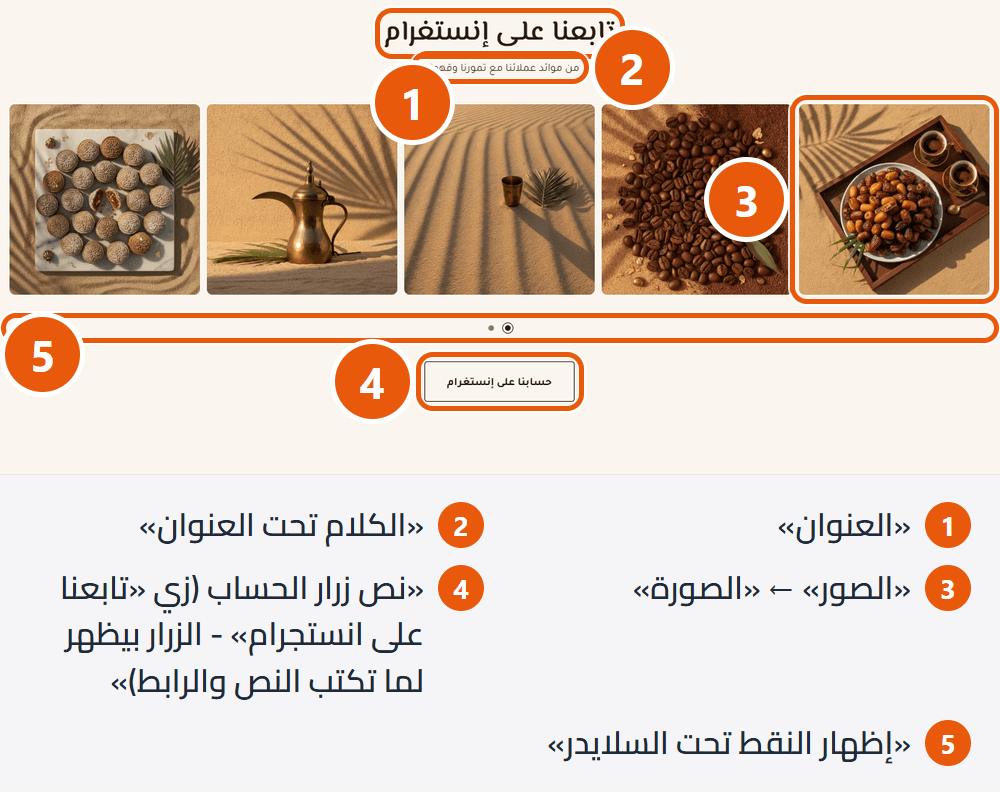
Step by step
- Open or add the “Gallery (Instagram style)” section.
- Add a photo as a new item.
- The product link and description are optional.
- Type your account button's words and link.
- Check the preview, then publish.
Settings
- Text under the title: Optional, such as your hashtag or an invitation to share photos.
- Images: Up to 20. Computers show 5, tablets 3, phones 2 or 3 by width; the rest slide in.Up to 20 items
- Image description for Google and screen readers (alt) - optional: Such as 'A customer wearing the black abaya'. Not printed on the photo.
- Image: Cropped square, so keep what matters in the middle. An item with no photo does not show.
- Link (optional: on hover a button on the image opens it): On phones and tablets the eye button always shows. Link the product in the photo so it becomes a way to buy.
- Account button text (e.g. “Follow us on Instagram” - the button shows when both text and link are set): Such as 'Follow us on Instagram' or your handle; it opens your account in a new tab.
- Account button link (needed for the button to show): Instagram or any other platform.
- Autoplay: Pauses under the mouse.
- Time on each slide (1000 = 1 second): 5000 is 5 seconds.Shown when “Autoplay” is on
- Start again after the last slide (from 6 images): With fewer than 6 photos it stays off.
- Show arrows: Wide computer screens only; smaller screens swipe.
- Show dots under the slider: Show where visitors are; tapping jumps there. They hide when every photo is in view.
- Space above the section on mobile: “This design's own” follows “Space above the section”; go smaller if the gap looks big on phones.
- Space below the section on mobile: “This design's own” follows “Space below the section”; go smaller if the gap looks big on phones.
Plus the options in "Options every section shares", in the Home page sections chapter, except "Keep the image fixed while scrolling (parallax) - not in “Big word behind a product image”".
Tips
- Photos are square; 700×700 works. Keep what matters in the middle, as edges may be cropped.
- Upload 6 or more; computers show 5, so with fewer the slider will not move or loop.
- Photos in one mood and light read as one tidy account.
Product page and cart
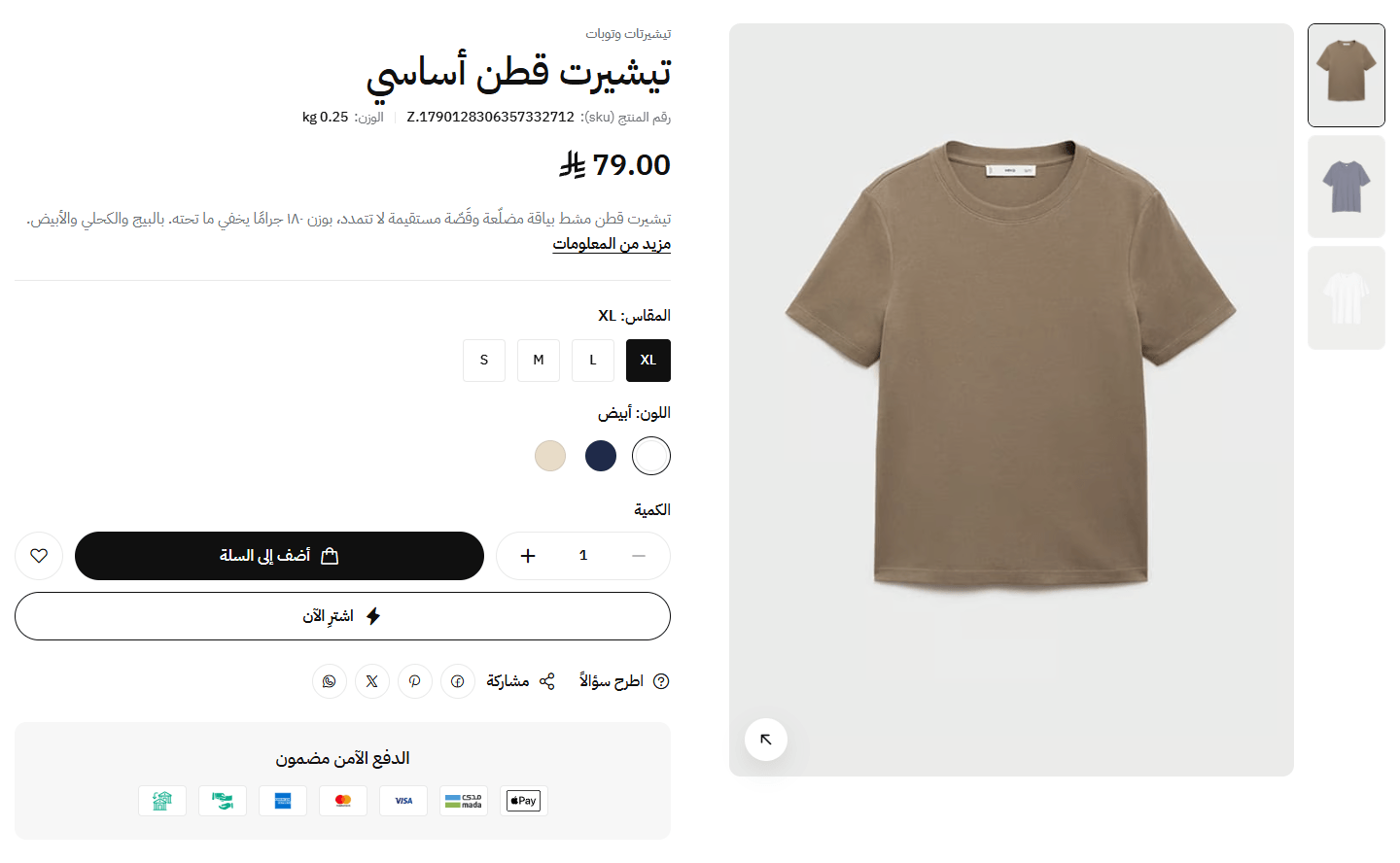
The product page, cart page and cart drawer: picture layout and zoom, color and size pickers, the size guide, the add-to-cart bar fixed at the bottom while scrolling, the free-shipping bar and the discount-code box. All in “Page settings”, for every product at once.
For every product page: picture layout and zoom, colour and size pickers, the size guide, shipping and returns lines, description and tabs, and suggested products, so customers find what they need to buy without asking you.
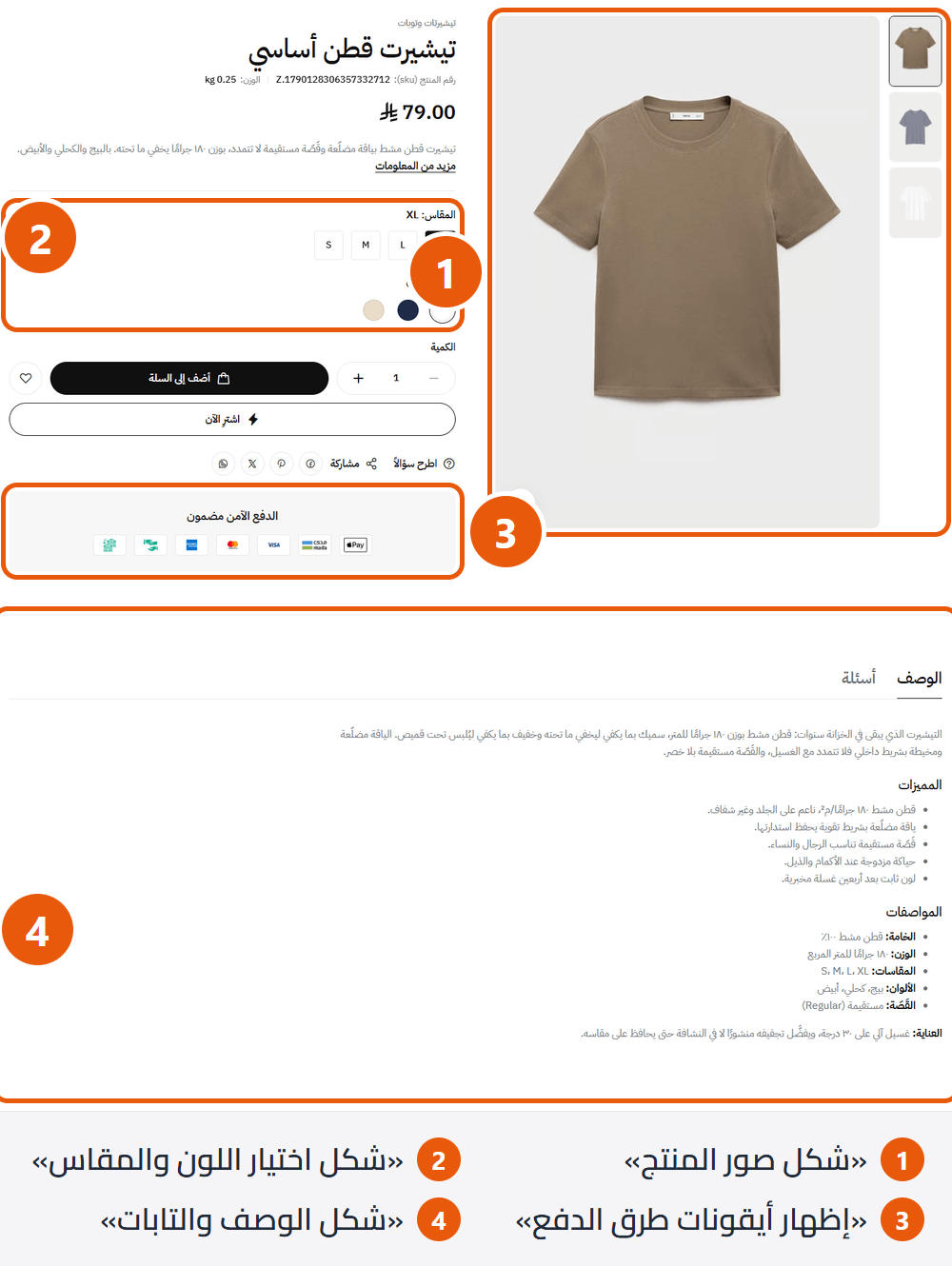
Step by step
- For a size guide, open “Product page”.
- Turn on “Show the “Size guide” button”.
- Upload the chart in “Size guide image”, notes in “Size guide text”.
- Try the button on any product, then press “Publish”.
Settings
- Product images layout: “Slider with thumbnails”: one large picture with small ones beside or below. “Two-column grid”: two per row. “Stacked”: each at full width. “One column, product info stays beside it”: price and buy button stay in view beside the pictures while scrolling.
- Thumbnails position (only with “Slider with thumbnails”): Beside the large picture or below it. Always below on screens smaller than a large desktop.Shown when “Product images layout” is “Slider with thumbnails”
- Image zoom: Inside the picture, in a panel beside it (wide screens only), with a round lens following the mouse, or none. Works with a mouse on desktop and with “Slider with thumbnails” only; phones open the picture full screen while “Open the image full screen on click” is on.
- Open the image full screen on click: Customers swipe through all the product's pictures. Very useful on phones.
- Show the product SKU: The Zid code under the product name, when the product or chosen option has one. Useful when customers order by code.
- Show how many times it sold: A line such as “Sold more than 25 times” under the name, once the product has sold. It reassures customers.
- Show the offer countdown: A countdown in days, hours, minutes and seconds under the price, for sales with an end date in Zid.
- Variant picker style: For option buttons such as size; “Dropdown” suits many values. A colour option shows coloured circles by itself when its name contains the word colour and all values are colour names (red, white, beige…); in “Dropdown” each colour gets a dot.
- Show the “Size guide” button: A button under the options opening your chart, on every product page, so one chart serves the whole store.
- Size guide button and window title (empty: “Size guide”): Such as “Size chart” or “Shoe sizes”.Shown when “Show the “Size guide” button” is on
- Size guide image: Shown across the window, never cropped.Shown when “Show the “Size guide” button” is on
- Size guide text: Under the picture, such as how to measure or advice between two sizes. Each line shows on its own.Shown when “Show the “Size guide” button” is on
- Show the “items left” bar (products with a set stock): An available and sold bar (“Available: 5”, “Sold: 20”) that nudges buying before stock runs out. For products with a set stock in Zid that have sold.
- Show the share buttons: On Facebook, Pinterest, X and WhatsApp.
- Extra info rows (like shipping and returns): Lines with an icon under the buy button on every product, such as “Free shipping over 200 SAR” or “Returns within 14 days”. The quick view (the card's eye button) shows the first 3 only.Up to 6 items
- Row text: Short and clear.
- Icon: Match the line, such as “Truck” for shipping or “Return” for returns.
- Show the payment method icons: The payment methods enabled in Zid, under the buy button, to reassure customers.
- Text above the payment icons (empty: “Guaranteed safe checkout”): Such as “Pay securely”.Shown when “Show the payment method icons” is on
- Description and tabs layout: For the description, reviews, questions and extra tabs under the product. On phones and tablets “Side tabs” become ordinary tabs above the content.
- Extra tabs beside the description: Beside “Description” on every product, such as “Shipping and delivery” or “How to use”. A tab shows only with both a name and content.Up to 6 items
- Tab name: What customers tap.
- Tab content: Each line shows on its own.
- Show related products (“You may also like”): A slider at the bottom with the products related to this one in Zid; with none, it does not appear.
- Show “Recently viewed”: Products this customer opened before, kept on their device only. With related products on, the two become side-by-side tabs.
- Keep an add-to-cart bar at the bottom of the screen while scrolling: Once the customer scrolls past the buy button, a bar with the picture, price and “Add to cart” lets them buy without scrolling up. Phones show the button with the price only; the bar hides when the product cannot be bought.
Tips
- The picture frame follows “Product image shape” and “How the image fits” in “Product card”; change them there for portrait or landscape photos.
- Upload a product's pictures at one size and background. The large picture shows up to 1200 pixels wide, so 1200×1200 (or 1200×1600 portrait) is sharp and holds up to zoom.
- One size guide serves all products; think before turning it on if you sell sizeless items (perfume, say) beside clothing.
- Info rows suit your shipping and returns policy; 2 to 4 are enough.
- The Reviews and Questions tabs appear by themselves when reviews and questions are on in your Zid settings.
The last step before payment, so everything here encourages the customer on: a clear title, the progressive discount, the free-shipping bar and the code field.
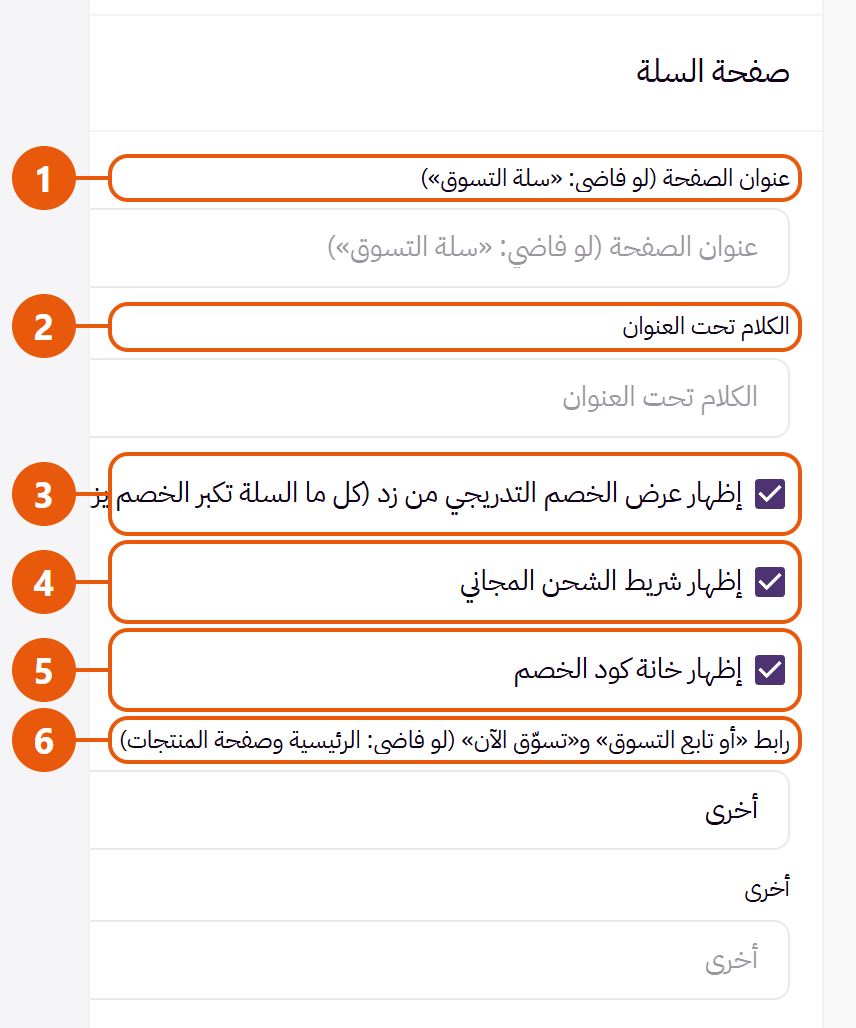
- Page title (empty: “Shopping cart”): Such as “Your bag” or “Your basket”.
- Text under the title: A small line such as “Cash on delivery available”, or empty.
- Show Zid's progressive discount offer (the bigger the cart, the bigger the discount): Your Zid progressive offer shows above the cart's products so customers add more to reach it.
- Show the free-shipping progress bar: With free shipping above an amount in Zid, the order summary shows a message such as “Add products with total of 50 SAR to get free shipping” and a “Read More” button listing the covered cities.
- Show the discount code field: The “Discount coupon” field. Turn it off if you use no codes, so customers do not leave to hunt for one.
- Link for “Or continue shopping” and “Shop now” (empty: home and the products page): For “Or continue shopping” under the order button and “Shop now” in an empty cart; your offers category, for example. Cart page only; the drawer's links are fixed.
Tips
- The free-shipping bar and progressive discount come from Zid; if missing, set up the offer or free-shipping rule first.
- Suggested products are set in “Cart recommendations”.
- For a banner above or below the cart, add it in “Internal advertisements” and tick “Cart page”.
A panel that slides in when a customer taps the cart icon or adds a product, to see their items and check out without leaving the page.
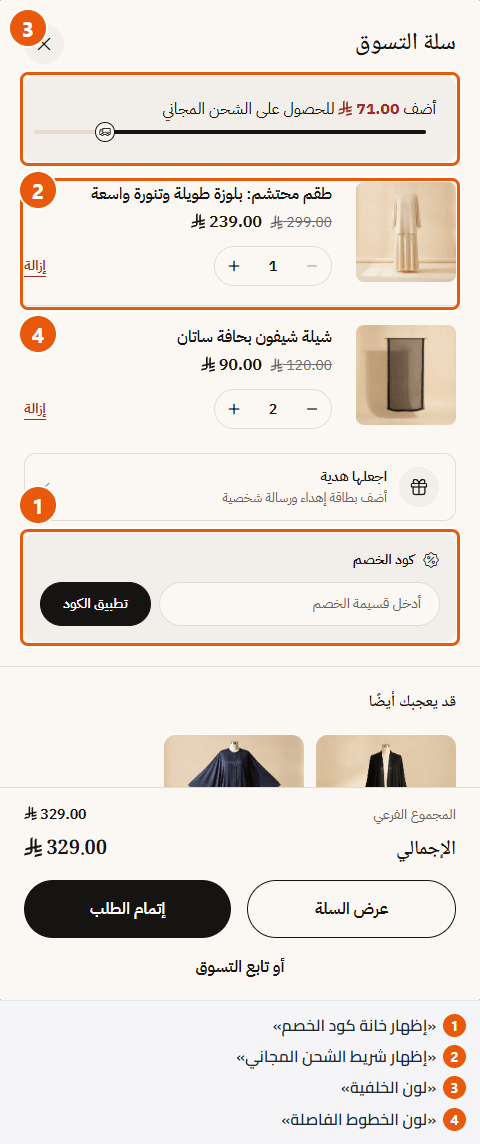
- Show the cart drawer: The cart icon opens the panel. Off: it goes straight to the cart page.
- Show the discount code field: The “Coupon code” field in the panel, without going to the cart page.
- Show the free-shipping progress bar: A bar at the top showing how much more gets free shipping, filling as items are added. Only with free shipping above an amount in Zid.
- Background color: Empty takes the page background.
- Text color: Names, prices and headings. Empty takes the store's text colours.
- Divider color: Between items and sections.
- Free-shipping bar color: The filled part. Empty takes “Primary color (buttons)”.
Tips
- The panel opens by itself after an add while “Open the cart drawer after adding a product (anywhere in the store, not only from cards)” is on in “Product card”.
- A dark background needs a light “Text color”.
- Suggested products are set in “Cart recommendations”.
- With gifting on in Zid, a “Make it a gift” row leads to the cart page for the gift details.
Footer
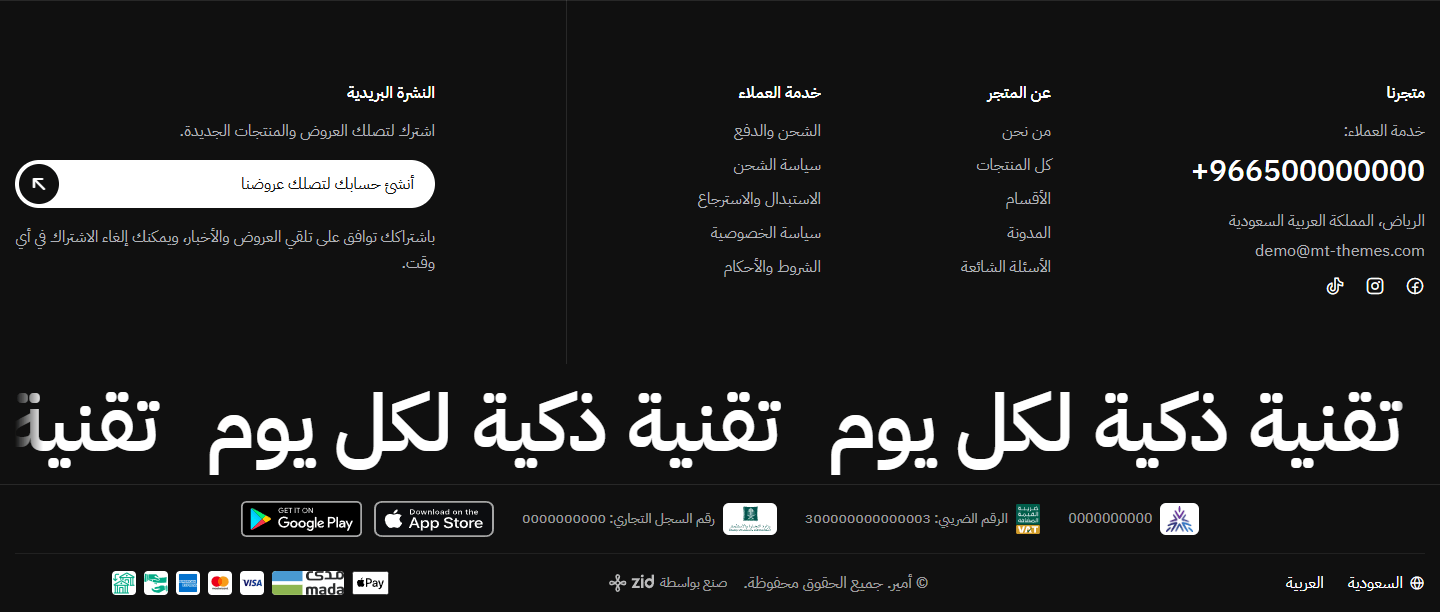
The bottom of every page, under “Footer” in the editor: “Footer” (four designs), “About the store”, the link columns “First column”, “Second column” and “Third column”, “Newsletter” and “Store benefits in the footer”. It also shows your VAT and commercial register numbers, payment icons and store app links.
The end of every page: contact details and policies, plus the VAT number, commercial register and payment methods that reassure shoppers. Four designs; here you also set the bottom line: copyright, payment icons and app links.
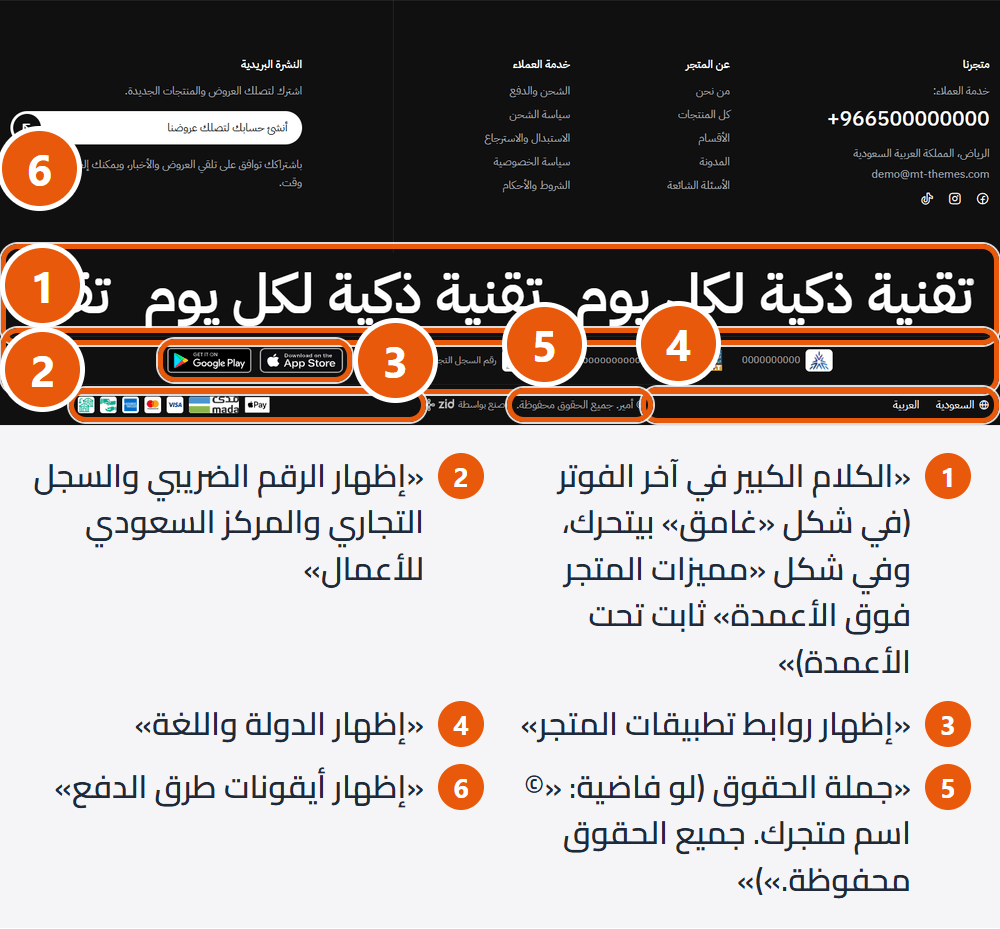
Footer design
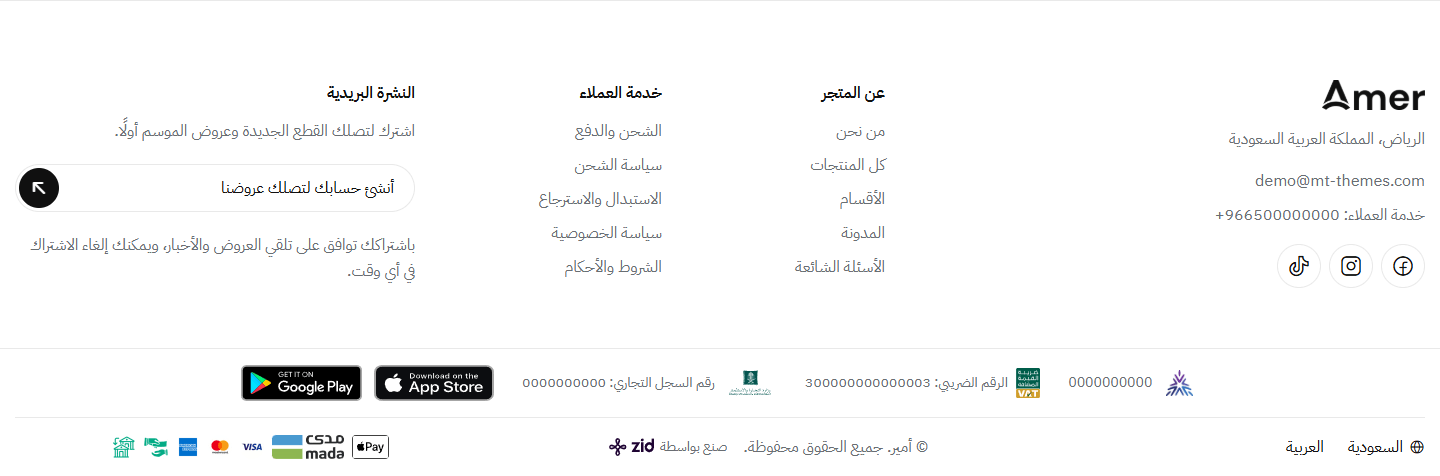
Your store column opens with the logo, then address, email, phone and round social buttons; link columns and newsletter follow. Clean for fashion and quiet stores.
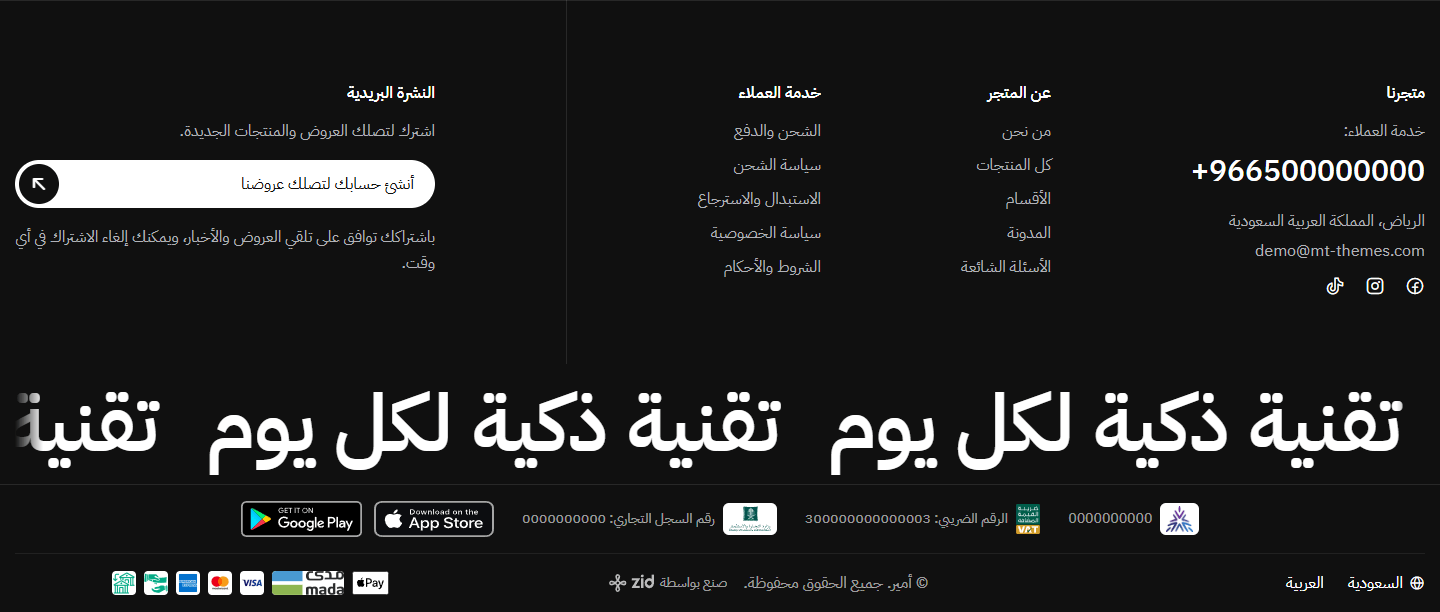
The columns, then a divider and the newsletter, and your large sentence moving across the screen if you write one. Striking for electronics and modern stores.
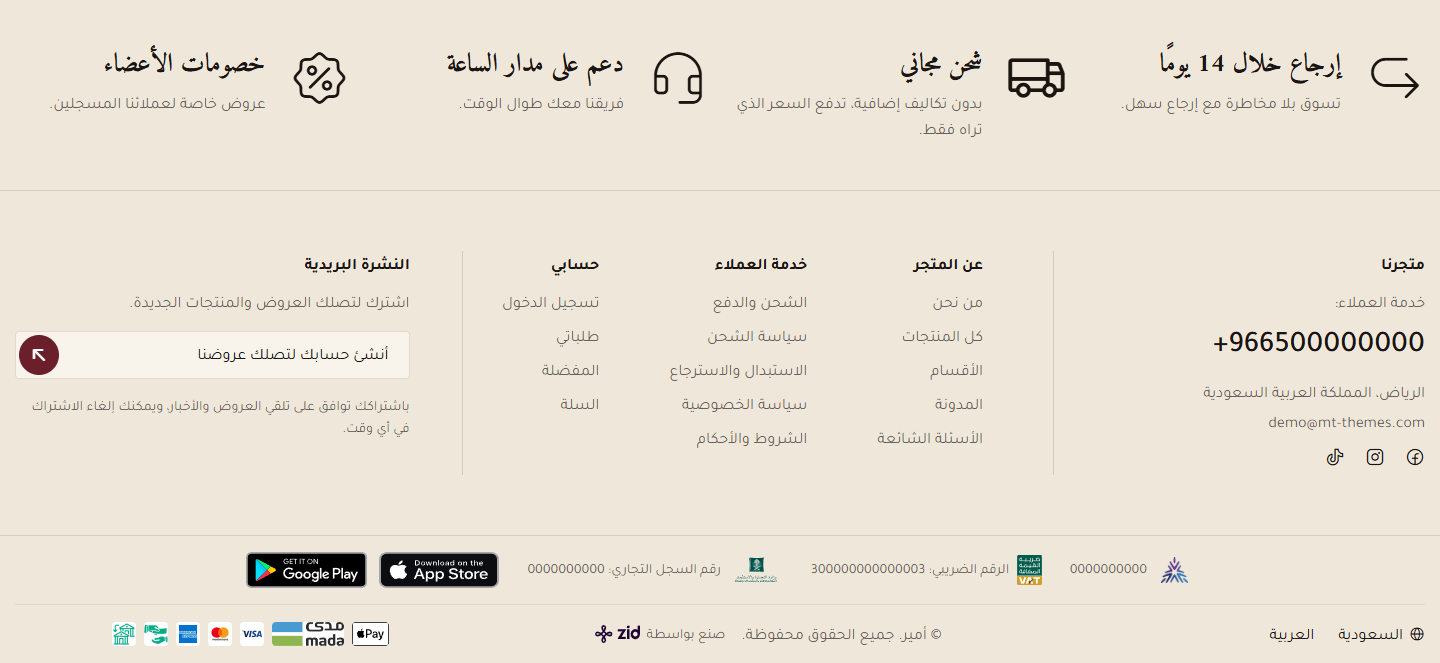
Benefits with icons (shipping, returns, support…) on the cards' background colour, restating your promises on every page.
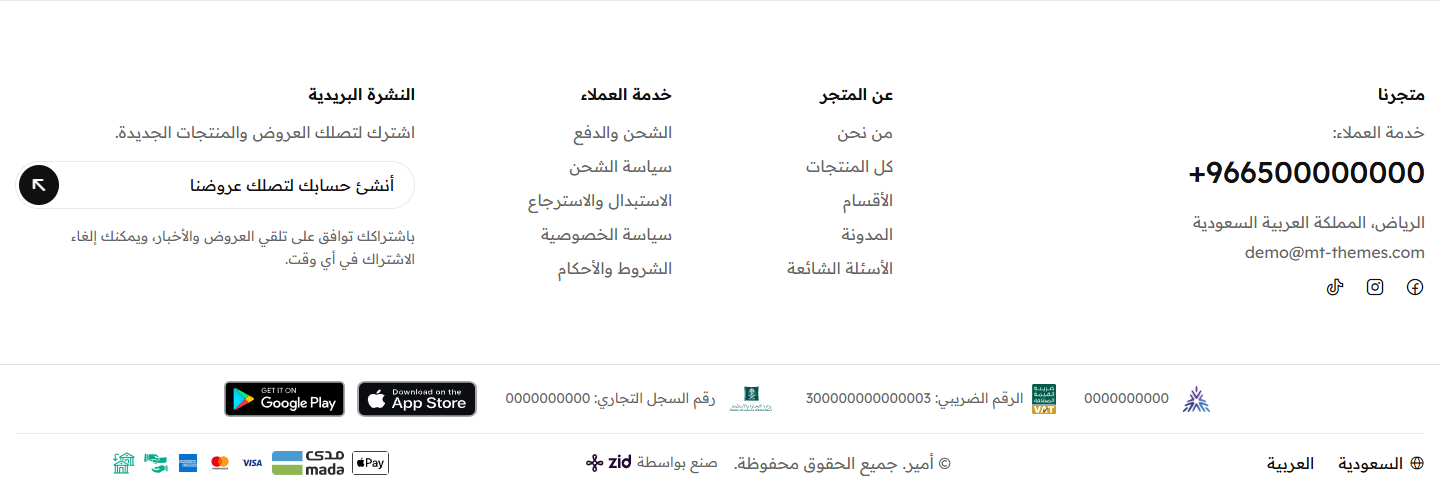
A thin line above; the columns and newsletter in one row. Simple, for any store.
Step by step
- Activate your payment methods in the Zid dashboard; their icons come by themselves.
- Open “Footer”, then the “Footer” group.
- Turn on “Show the payment method icons”.
- Press “Publish”; the icons sit on the last line and open the shipping and payment page.
Settings
- Footer design: Your columns and text stay when you switch.
- Show the logo instead of the “About the store” title: The header's logo tops the store column. Off shows a written title such as “Our store”.Shown with “Light: logo above the store details”
- Show the “My account” column (sign in, orders, wishlist): With “Login”, “My orders”, “Wishlist” and “Cart”. Useful for returning customers.
- Show the large text, still, under the columns: The sentence from the box below, still and centred. Off to start with.Shown with “Store benefits above the columns”
- Large text at the foot (moving in the “Dark” design, still under the columns in “Store benefits above the columns”): Such as your slogan or promise. In “Store benefits above the columns” it needs the switch above; other designs do not show it.
- Show the VAT number, commercial register and Saudi Business Center: Your Saudi Business Center record, VAT number with the ZATCA mark and commercial register with the Ministry of Commerce mark, each when its number exists. It reassures shoppers; keep it on.
- VAT number (if it isn't in your Zid store details): Zid's number wins when it has one.Shown when “Show the VAT number, commercial register and Saudi Business Center” is on
- Commercial register number (if it isn't in your Zid store details): Zid sometimes does not pass it to the storefront even when it is in your account; if missing, type it here.Shown when “Show the VAT number, commercial register and Saudi Business Center” is on
- Show your store app links: App Store and Google Play badges. Turn off if you have no app: they come with an example link.
- Your App Store link (a Zid app's own link is used by itself): If your app is not Zid-made, replace the address with your app's.Shown when “Show your store app links” is on
- Your Google Play link (a Zid app's own link is used by itself): If your app is not Zid-made, replace the address with your app's.Shown when “Show your store app links” is on
- Show country and language: On the bottom line. “Hide the country button” or “Hide the language button” in the header removes it here too.
- Copyright line (empty: “© Your store. All rights reserved.”): Write one only for different wording, such as your founding year.
- Show the payment method icons: The payment methods active in Zid; each icon opens the shipping and payment page. Keep it on so shoppers see they can pay their way.
Tips
- Phone, email, address, social accounts, VAT number and payment methods come from your Zid store details; update them there.
- On phones the columns fold under their titles and open on tap, keeping the page short.
- Footer settings are per language: after Arabic, switch the editor to English and check.
The footer's first column: a short line about you, support number, address, email and social accounts. Contact details come from your Zid store; you choose what shows.
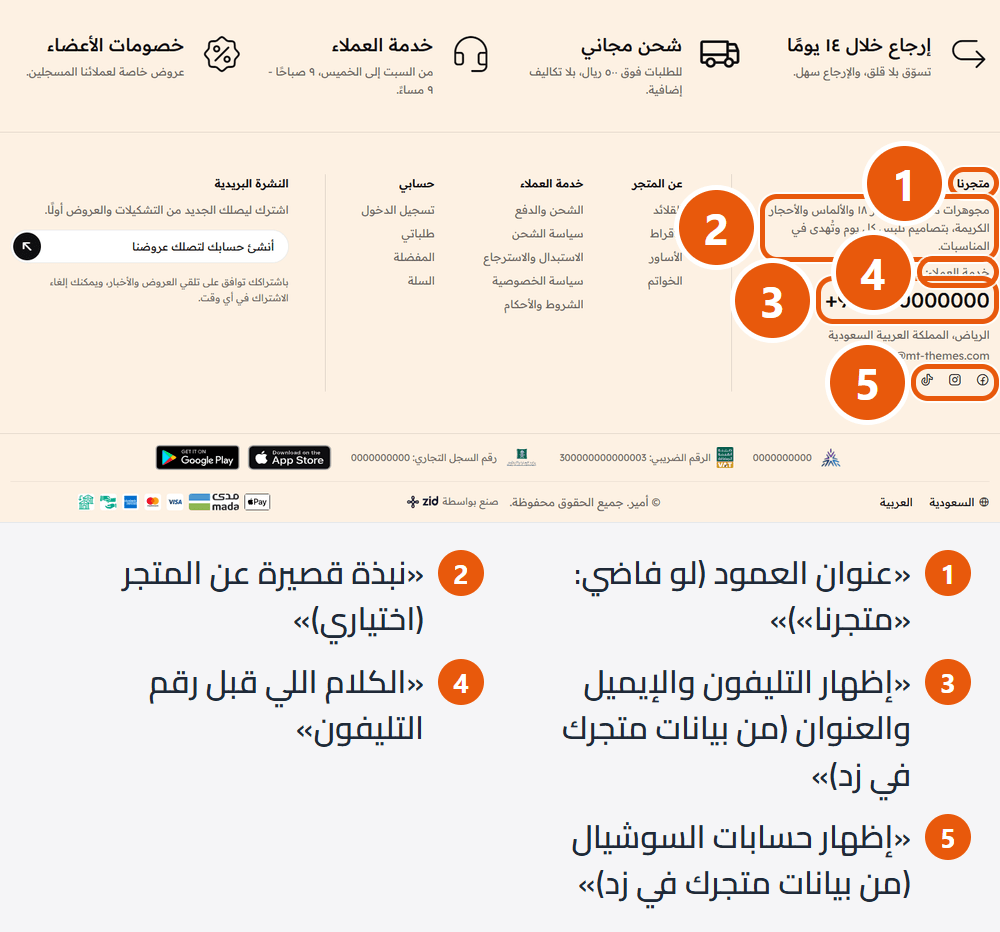
- Column title (empty: “Our store”): Such as “Our store” or “About us”. In “Light: logo above the store details” it shows only with the logo off.
- A short line about the store (optional): Such as “Original French perfume, delivered to your door”. Keep it short.
- Show phone, email and address (from your Zid store details): Tappable to call or write; the address opens on the map when your location is pinned in Zid.
- Text before the phone number: Such as “Customer support:” or “Call us:”. Empty shows the number alone.Shown when “Show phone, email and address (from your Zid store details)” is on
- Store address (if your Zid store details don't show one): Such as “Riyadh, Al Nakheel”. Zid's address wins when shown.Shown when “Show phone, email and address (from your Zid store details)” is on
- Show your social accounts (from your Zid store details): Facebook, Instagram, TikTok, Snapchat, X, YouTube, LinkedIn. An account missing in Zid does not show.
Tips
- Change the number, email or social accounts in your Zid store details, not here.
A link column under your own title, up to eight links, for pages shoppers look for at the bottom: categories, FAQs, returns, shipping.
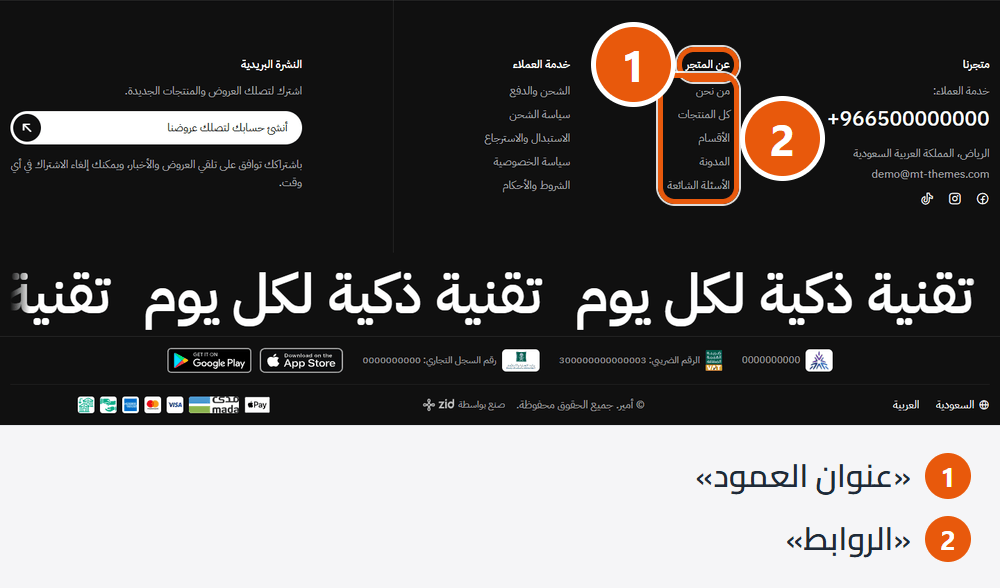
Step by step
- Open “Footer”, then “First column”.
- Write the “Column title”, such as “Shop”.
- Add a link in “Links”: its “Link text” and the page in “Link”.
- Repeat up to eight, then press “Publish”.
Settings
- Hide this column: Its links are kept, so you can bring it back any time.
- Column title: Such as “Shop” or “Customer service”. On phones, tapping it opens the column.
- Links: In order, up to eight. The column needs at least one link with both “Link text” and “Link”.Up to 8 items
- Link text: Such as “Returns policy”. Needed for the link to show.
- Link: Such as /faqs or any store page. Needed for the link to show.
Tips
- Type the page from the / (such as /products or /faqs), not the full address, so English shoppers land on the English page.
- Group links: one column for shopping, one for service and policies, one for the rest.
- The “Second column” and “Third column” work the same way.
Works like the “First column”; a good home for service and policies: FAQs, shipping and payment, returns.
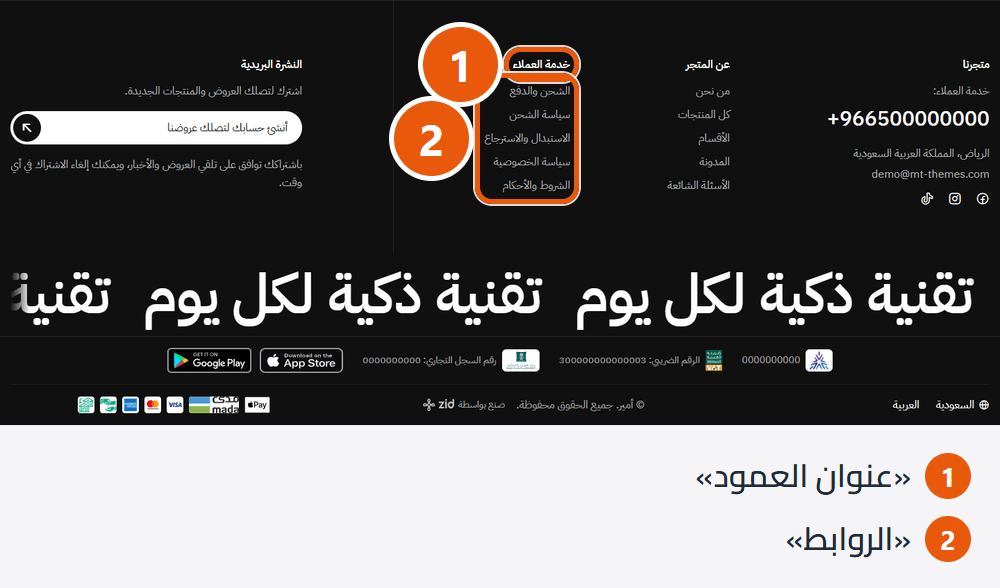
- Hide this column: Its links are kept, so you can bring it back any time.
- Column title: Such as “Customer service”. On phones, tapping it opens the column.
- Links: In order, up to eight. The column needs at least one link with both “Link text” and “Link”.Up to 8 items
- Link text: Such as “Shipping and payment”. Needed for the link to show.
- Link: Such as /shipping-and-payment. Needed for the link to show.
Works like the “First column”. If two columns are enough, leave it without links or hide it.
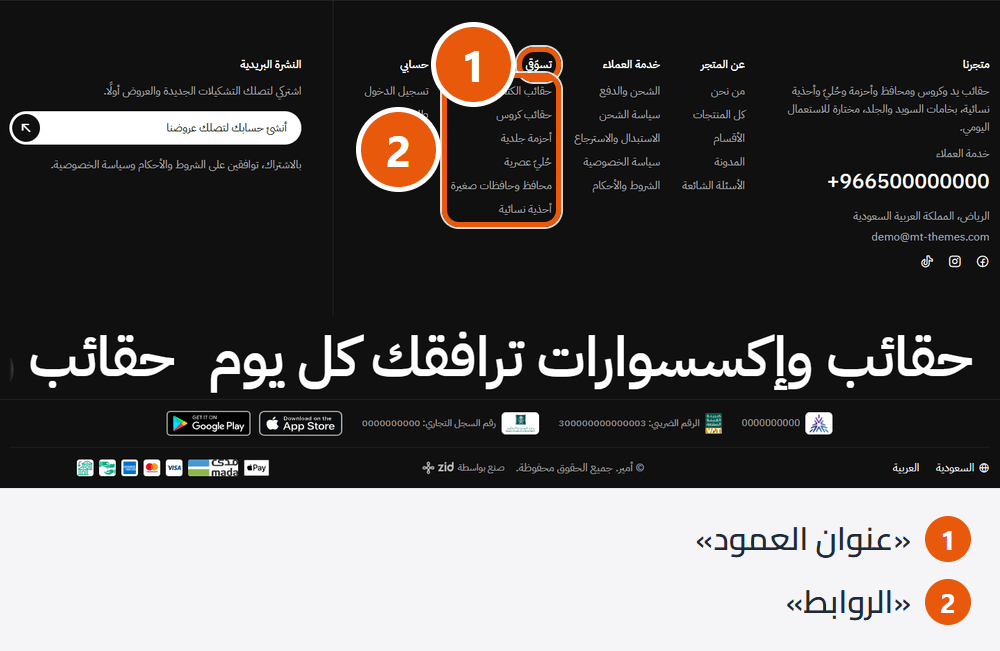
- Hide this column: Its links are kept, so you can bring it back any time.
- Column title: Such as “Links” or “Learn more”. On phones, tapping it opens the column.
- Links: In order, up to eight. The column needs at least one link with both “Link text” and “Link”.Up to 8 items
- Link text: Such as “About us”. Needed for the link to show.
- Link: A store page or an outside site. Needed for the link to show.
A footer spot inviting visitors to sign up for offers. With nothing connected it shows a sign-up button for your store; connect a mail service such as Mailchimp and an email box sends sign-ups straight to it.
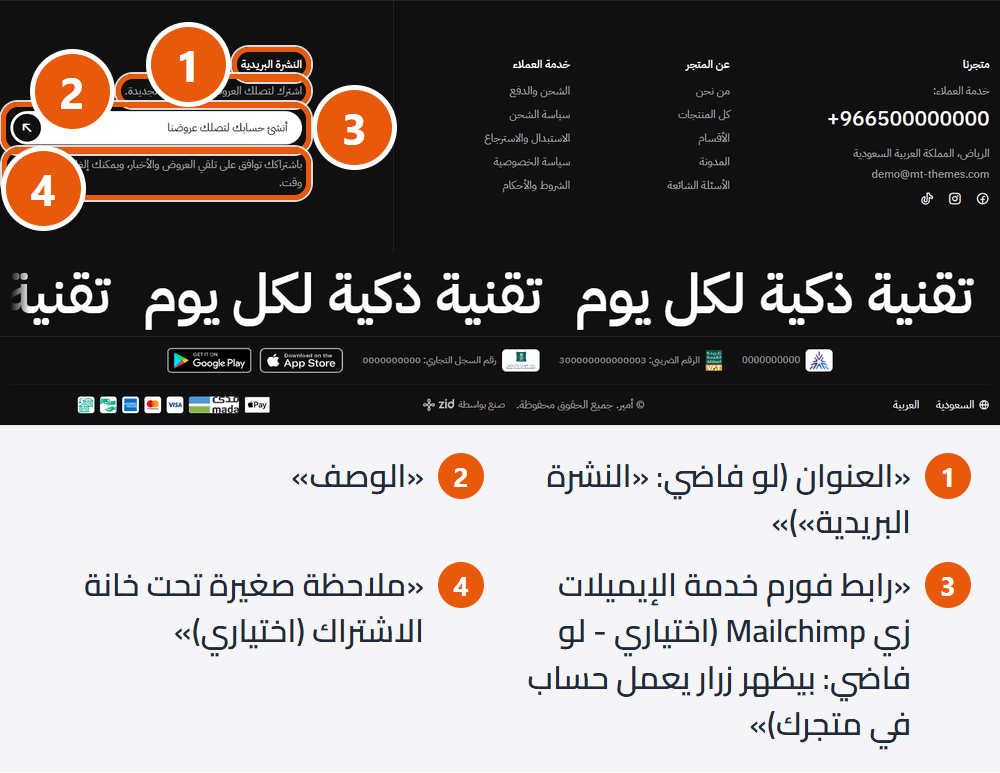
Step by step
- In Mailchimp, open your list's sign-up form code (Embedded form) and copy the address containing list-manage.com.
- Open “Footer”, then “Newsletter”.
- Paste it into “Mail service form address, e.g. Mailchimp (optional - empty: a button to create an account in your store)”.
- Leave “Email field name in that form (keep EMAIL if unsure)” as it is.
- Press “Publish”, sign up with your own email and check it reached your list.
Settings
- Show the newsletter: The newsletter column in the footer.
- Where the newsletter sits with three or more link columns, “My account” included (in the “Light: logo above the store details” footer only): “Its own column beside the links” keeps it in the row instead of dropping under the store details and leaving a gap under the links.Shown when “Show the newsletter” is on
- Title (empty: “Newsletter”): Such as “Be the first to know”.
- Description: What shoppers get, such as “Exclusive offers and new arrivals every week”.
- Mail service form address, e.g. Mailchimp (optional - empty: a button to create an account in your store): With the address, shoppers get an email box that sends straight to the service. Without it, a “Create an account to get our offers” button opens sign-in and sign-up; signed-in shoppers see “Manage your newsletter subscription”.
- Email field name in that form (keep EMAIL if unsure): Mailchimp uses EMAIL; change it only if your service names it differently. Without a form address it does nothing.
- Small note under the sign-up box (optional): Such as a note that shoppers can unsubscribe any time.
Tips
- Without a mail service, visitors create a store account and appear in your Zid customer list.
- With one, the confirmation opens in a new tab, so shoppers never leave your store.
A row of benefits with icons above the footer columns, such as fast shipping, easy returns and secure payment, reassuring shoppers on every page. Shown only in the “Store benefits above the columns” footer design, up to six.
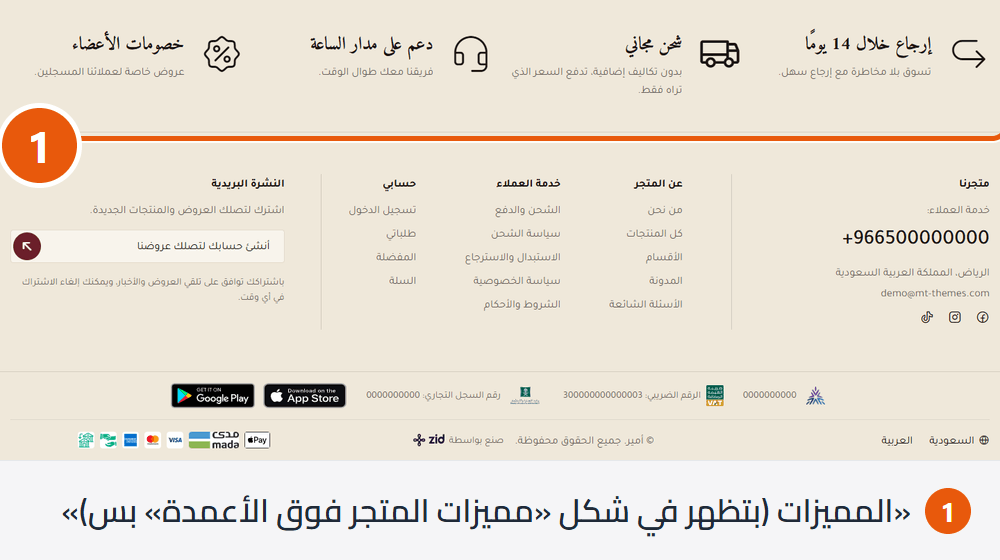
Step by step
- In “Footer”, “Footer” group, set “Footer design” to “Store benefits above the columns”.
- Open “Store benefits in the footer” and add a benefit.
- Write its “Benefit name”, such as “Fast shipping”, and a “Short description (optional)”, such as “Within 2-4 days”.
- Choose an “Icon” or upload an “Image instead of the icon (optional)”.
- Repeat up to six, then press “Publish”.
Settings
- Benefits (shown in the “Store benefits above the columns” design only): Side by side, wrapping to a new line when space runs short. A benefit without a name does not show.Up to 6 items
- Benefit name: Two or three words, such as “Free returns”. Needed for the benefit to show.
- Short description (optional): Such as “Within 14 days of delivery”.
- Icon: Fifteen icons in the footer's text colour; pick the closest, such as “Truck” for delivery or “Shield” for a guarantee.
- Image instead of the icon (optional): Square, 120×120px or larger, ideally a PNG with a clear background. It replaces the chosen icon.
Tips
- The picture shows as a small square, so a simple one-colour mark reads better than a detailed photo.
- Use your store's real promises (shipping, returns, payment), and never state one you cannot keep.
Page designs
Amer has 22 ready designs for different businesses, each with its own home page, colors, fonts and text. All share one theme and the same settings; only the look differs. How to apply one is in “Start here”.
Four of the 22 designs: perfume and oud, fashion, beauty and sneakers. Each has its own section order, colors and fonts, all share the settings in this guide, and you can browse them live on the demo store.
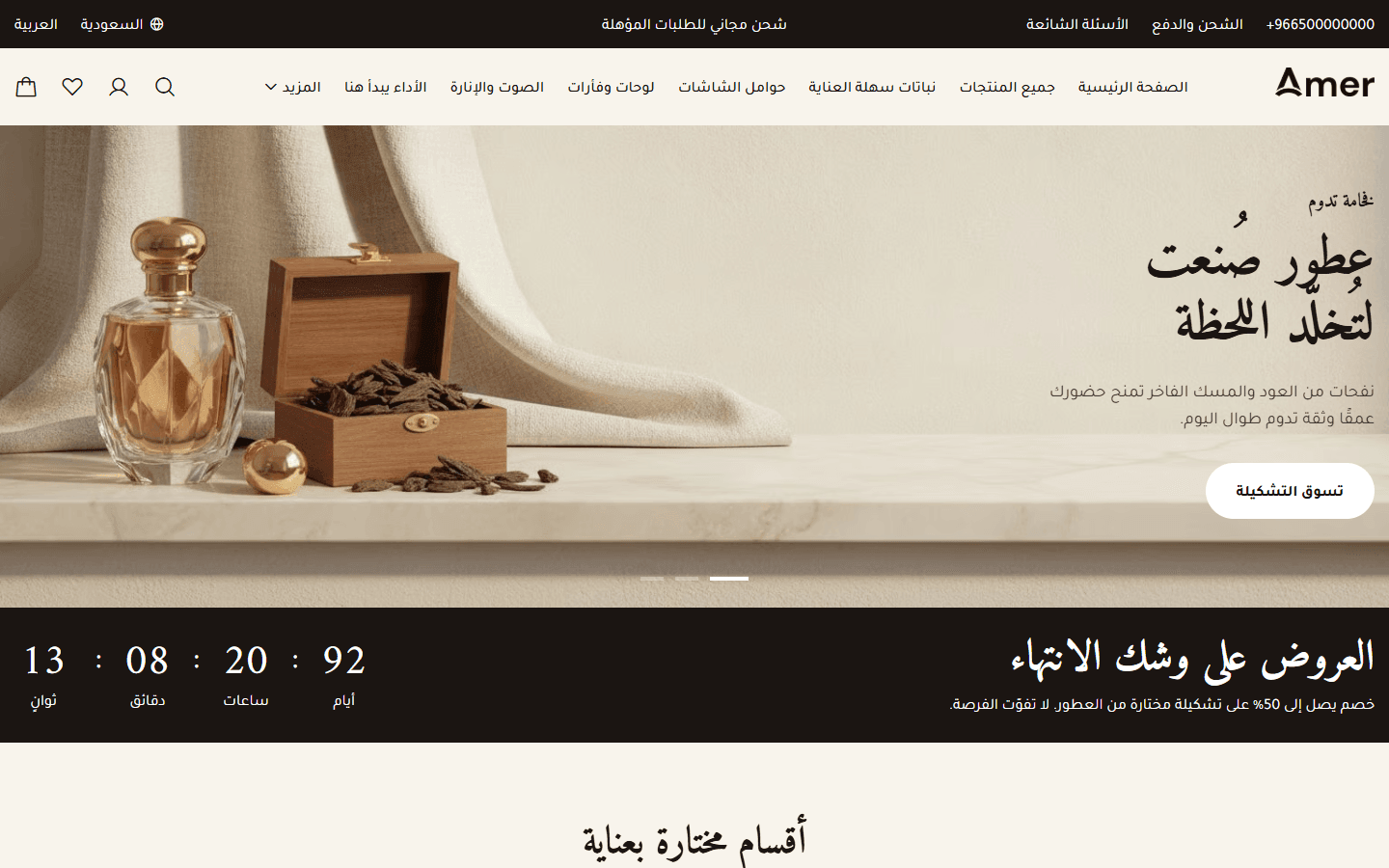
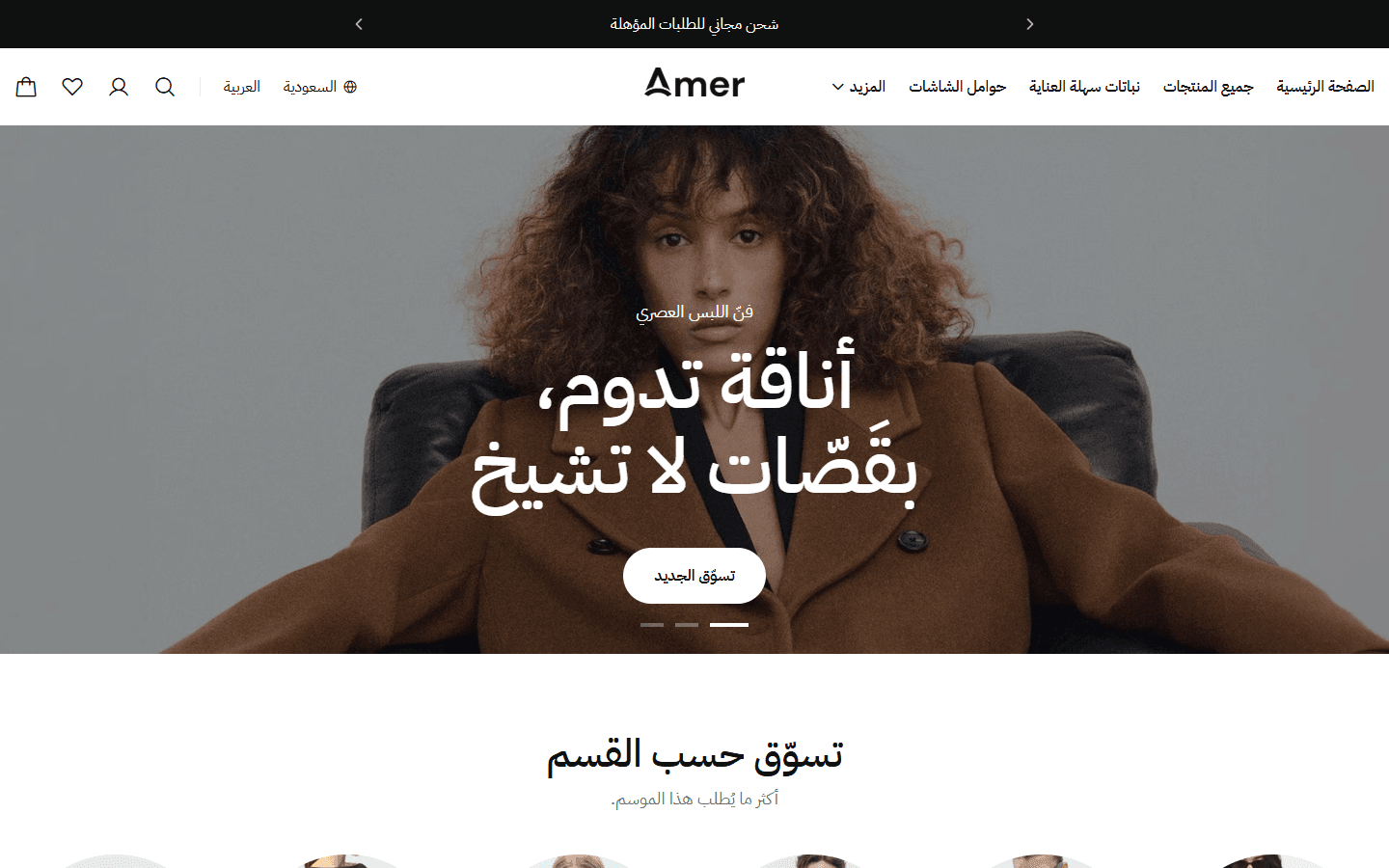
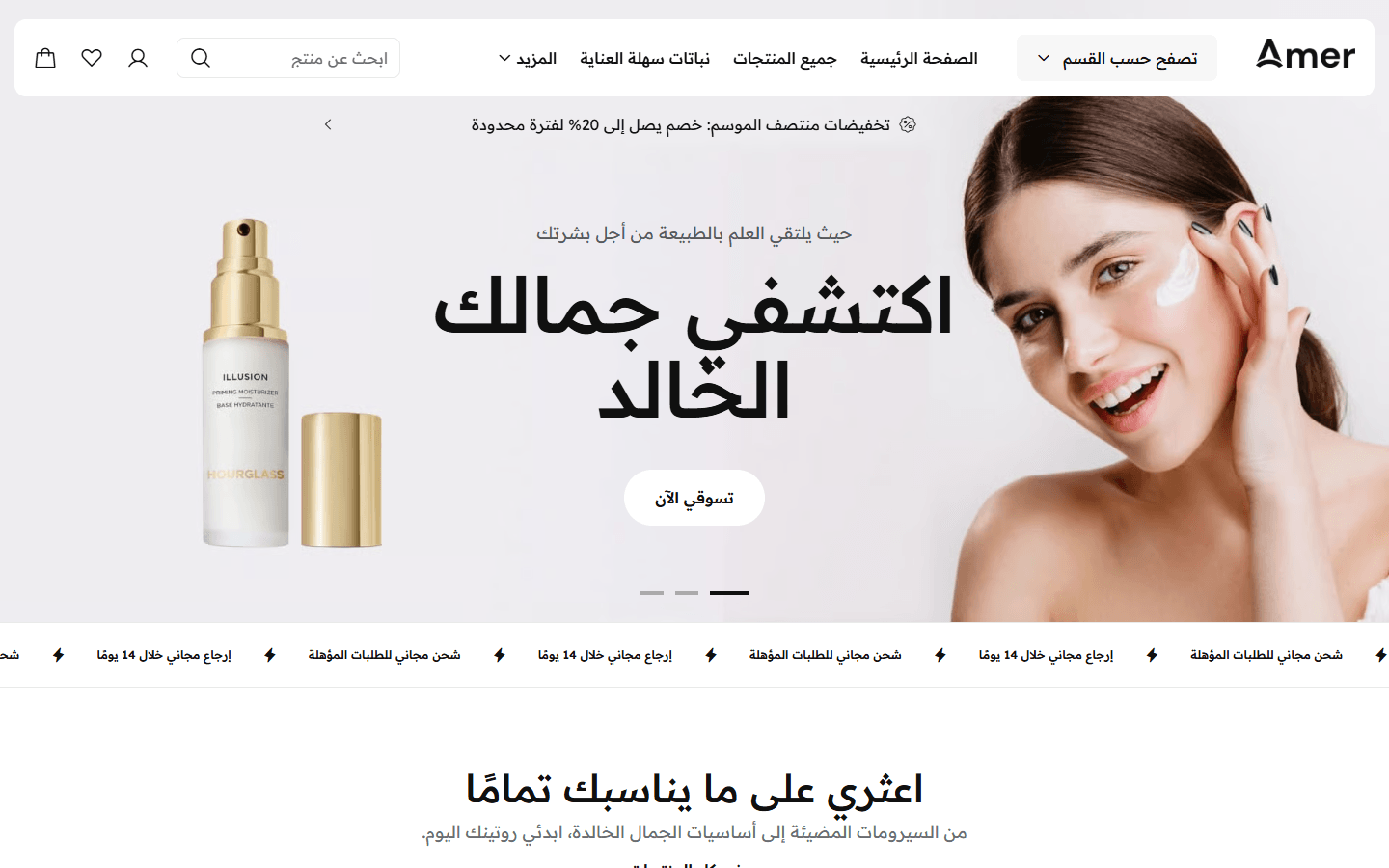
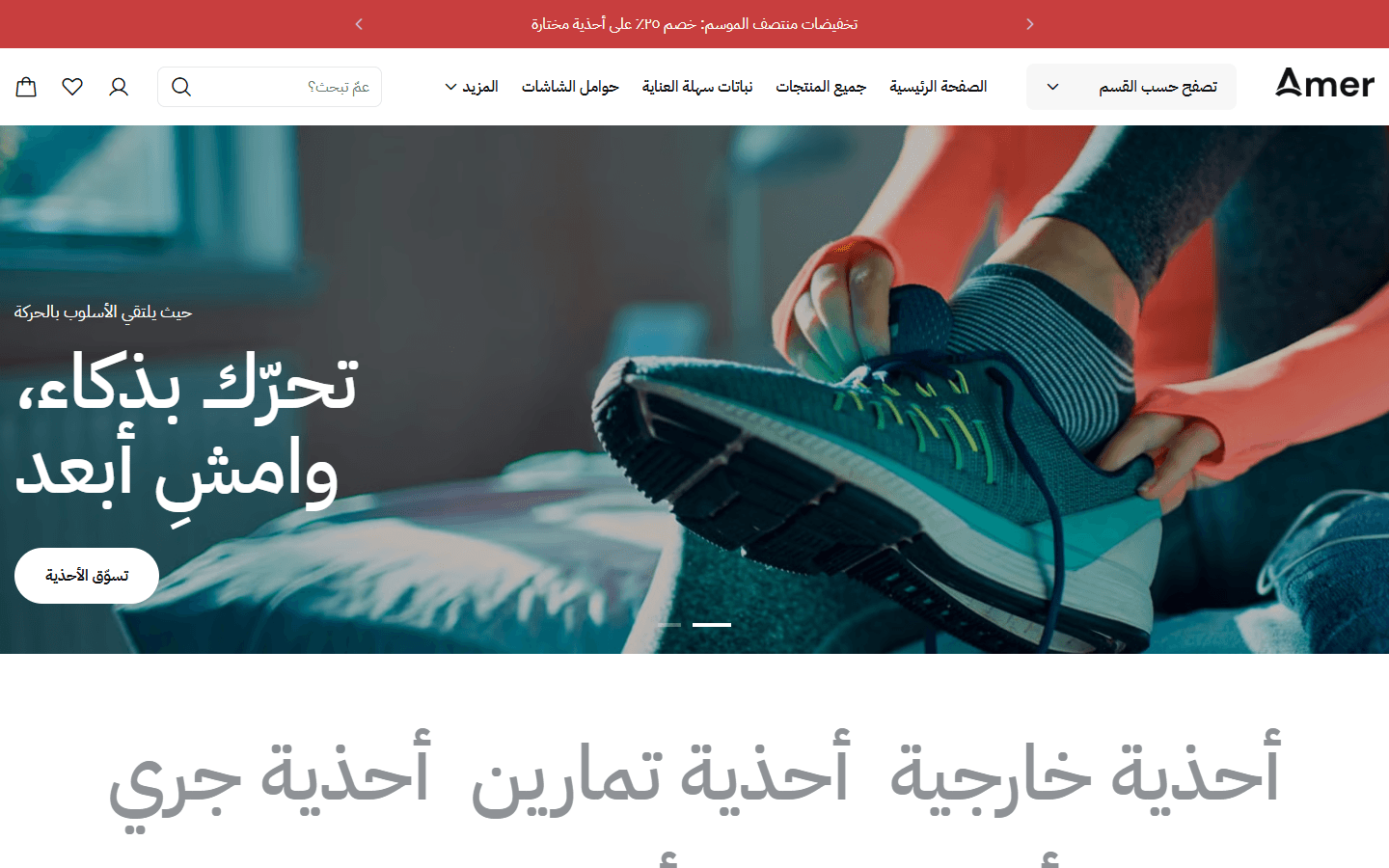
The floating “Designs” button on the demo store is for the demo only and does not come with the theme. To try a design on your store, use “Preview presets” as in “Applying one of the 22 designs”, in “Start here”.
Questions and fixes
The questions merchants ask most, each with a short fix. Not here? Reach us on +201551618967 or at [email protected].
Check these reasons in order.
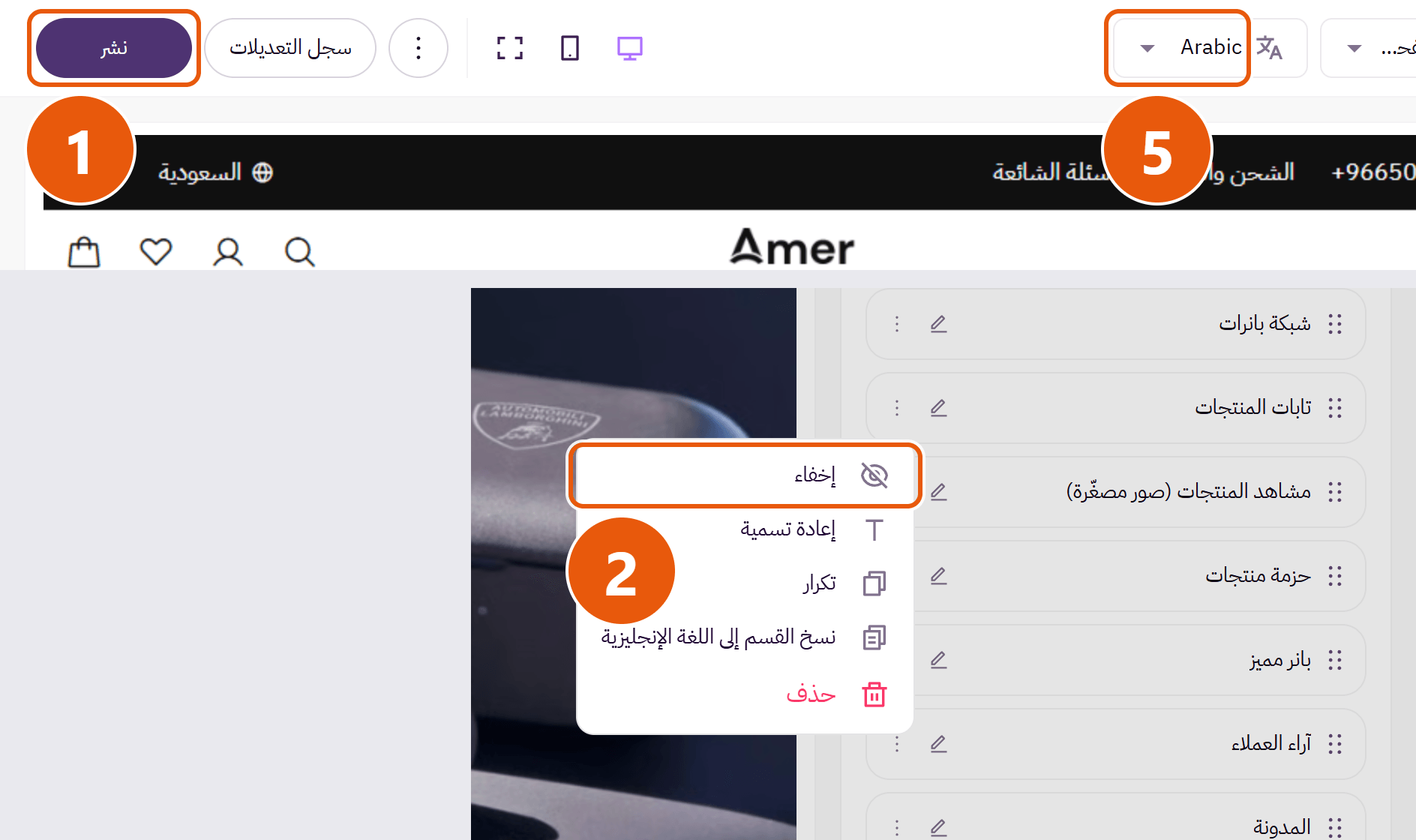
Step by step
- You have not pressed “Publish”: changes stay a draft only you see.
- The section is hidden: untick “Hide this section”, or choose “Show” from the menu beside its name.
- Its main content is empty: e.g. a banner whose required picture is missing, “FAQs” without answers, or a “Product carousel” without products.
- Its product source is empty: e.g. “Category products” for an empty category, or “On sale products” with nothing discounted.
- You are on the other language: English has its own sections; see the next question.
In Zid each language has its own home sections, header, footer and “Page settings”, so edits made with the editor in Arabic change Arabic pages only.
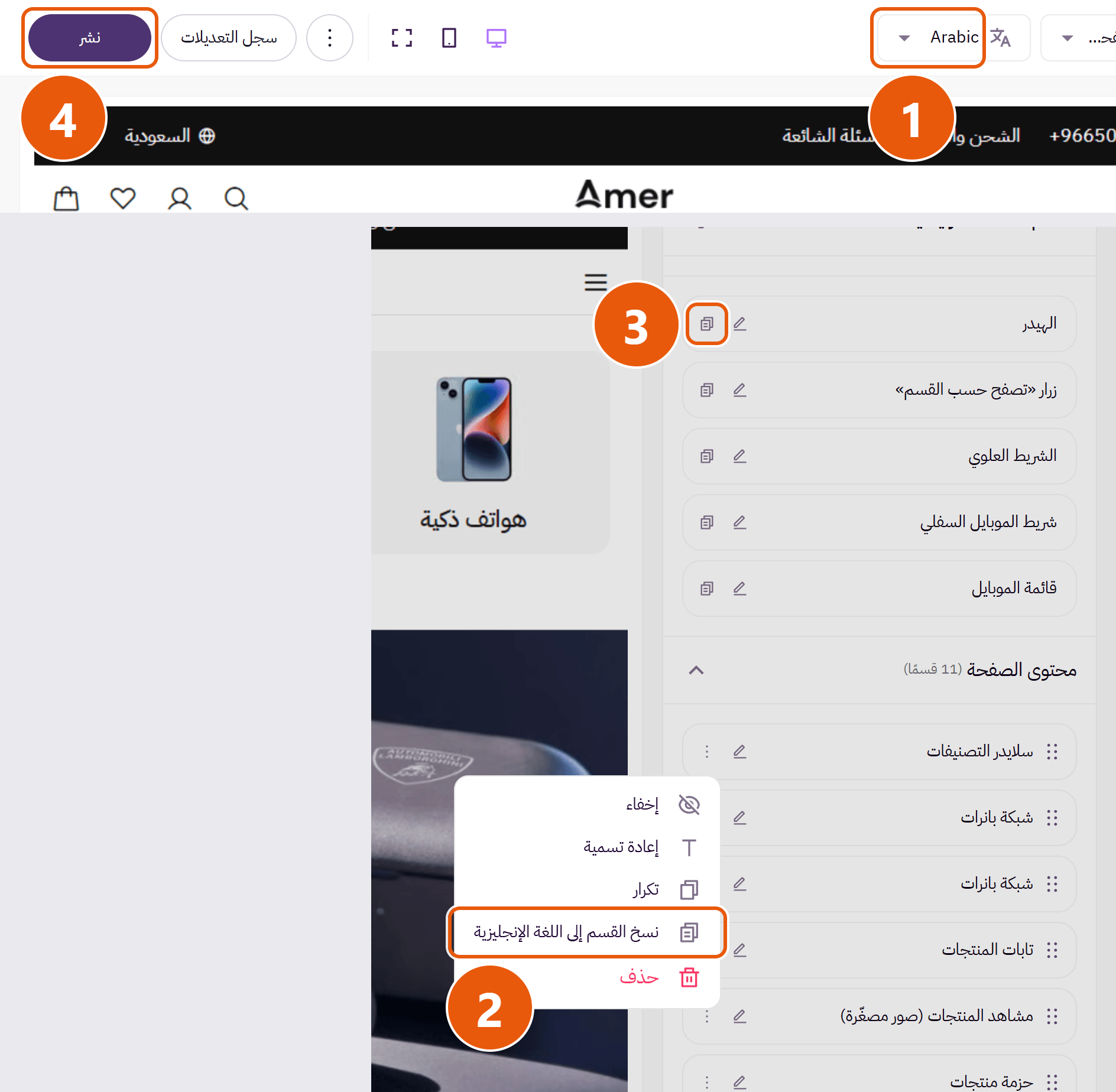
Step by step
- Switch the editor to English and repeat the change.
- To carry a home section over: “Copy section to English language” from the menu beside its name, then translate its text.
- Under “Header”, “Footer” and “Page settings”, a small copy icon beside each group’s name does the same.
- Check English before “Publish”; an empty English home page shows empty to shoppers.
The card says “Sold out” when the product’s Zid quantity is zero, not unlimited and not open for preorder. A product with options (sizes or colors) counts its options’ quantities, so options without quantity make it sold out even if the product itself has one.
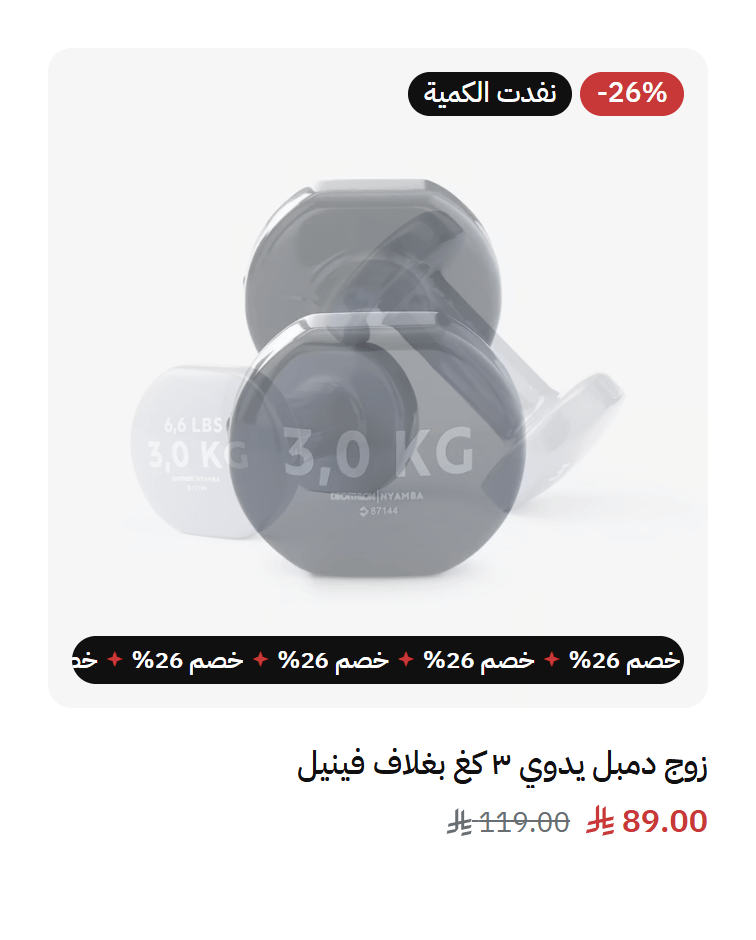
Step by step
- Open the product in your Zid dashboard.
- Without options: enter its quantity or make it unlimited.
- With options: give each option a quantity (every size, every color).
- Save and reopen the product in your store.
Tips
- In “Cart recommendations”, keep “Show sold-out products” off so they are not suggested.
A product on sale in Zid shows its sale price beside the old one, with the discount on the picture. If missing, the sale is usually not set on the product itself in Zid.
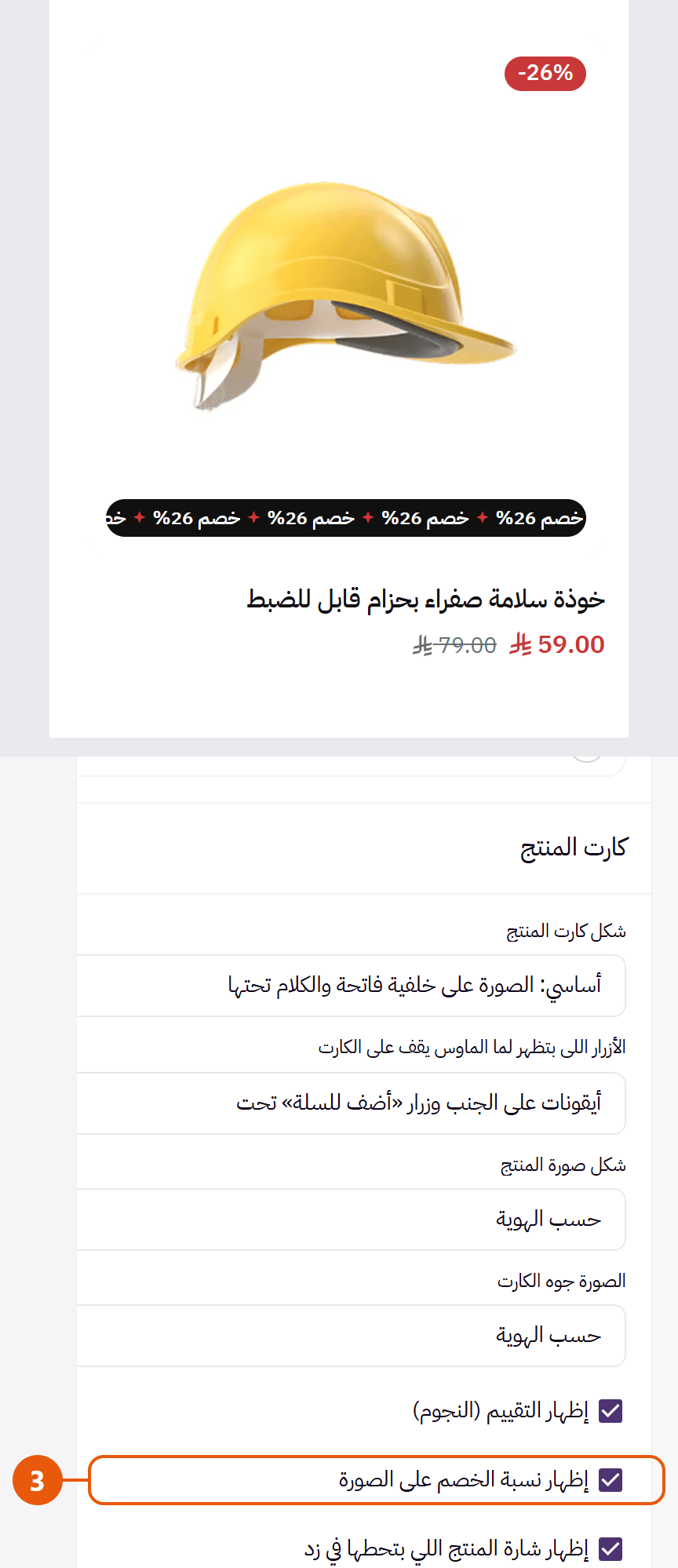
Step by step
- Open the product in your Zid dashboard and check its sale price is filled in.
- With options: set the sale price on each option; Zid prices the product from its options, and the product page shows the chosen option’s price.
- Discount missing from the picture? Tick “Show the discount percentage on the image” in “Product card” under “Page settings”.
Tips
- A sale with an end date shows a countdown on the card; to remove it turn off “Show the offer countdown” in “Product card”, and the same box in “Product page” for the product page.
- Its colour is “Sale price color” in “Main colors”.
The “Blog” section fetches your blog’s posts itself when “Posts source” is “Automatic, from the store blog”. Posts typed in the section show instead only when the blog is off, has no published posts, the category you typed has none, or the posts could not be fetched from Zid.
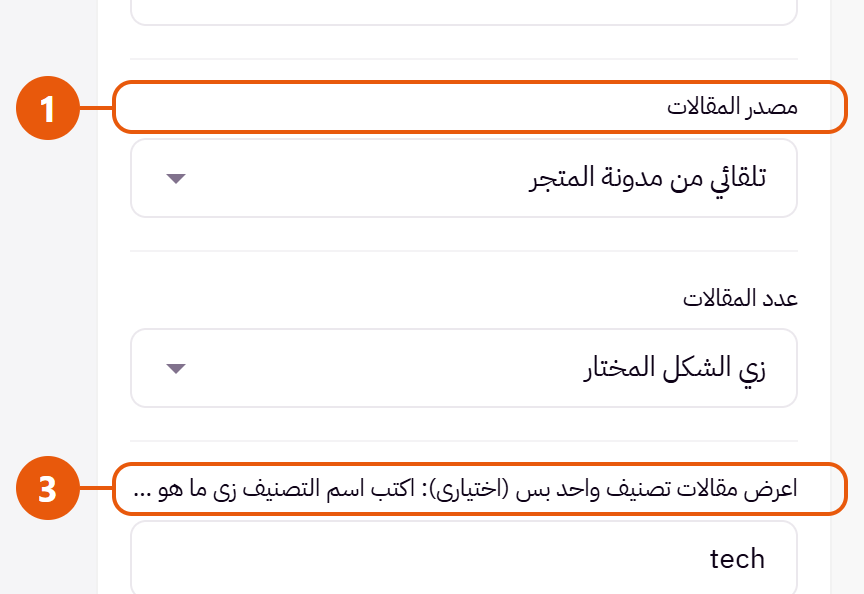
Step by step
- Change “Posts source” from “Posts I write here” to “Automatic, from the store blog”.
- Make sure the blog is on in Zid with published posts.
- If you typed a category in the box under “Number of posts”: paste the category’s link instead (a typed name works only if it matches the end of that link), check it has published posts, or clear the box for every post.
In “Category carousel”, each entry in “Categories” shows the category picked for it. With none picked, the section pulls your store’s categories itself, which is what you usually see after applying a design, since it cannot know your categories.
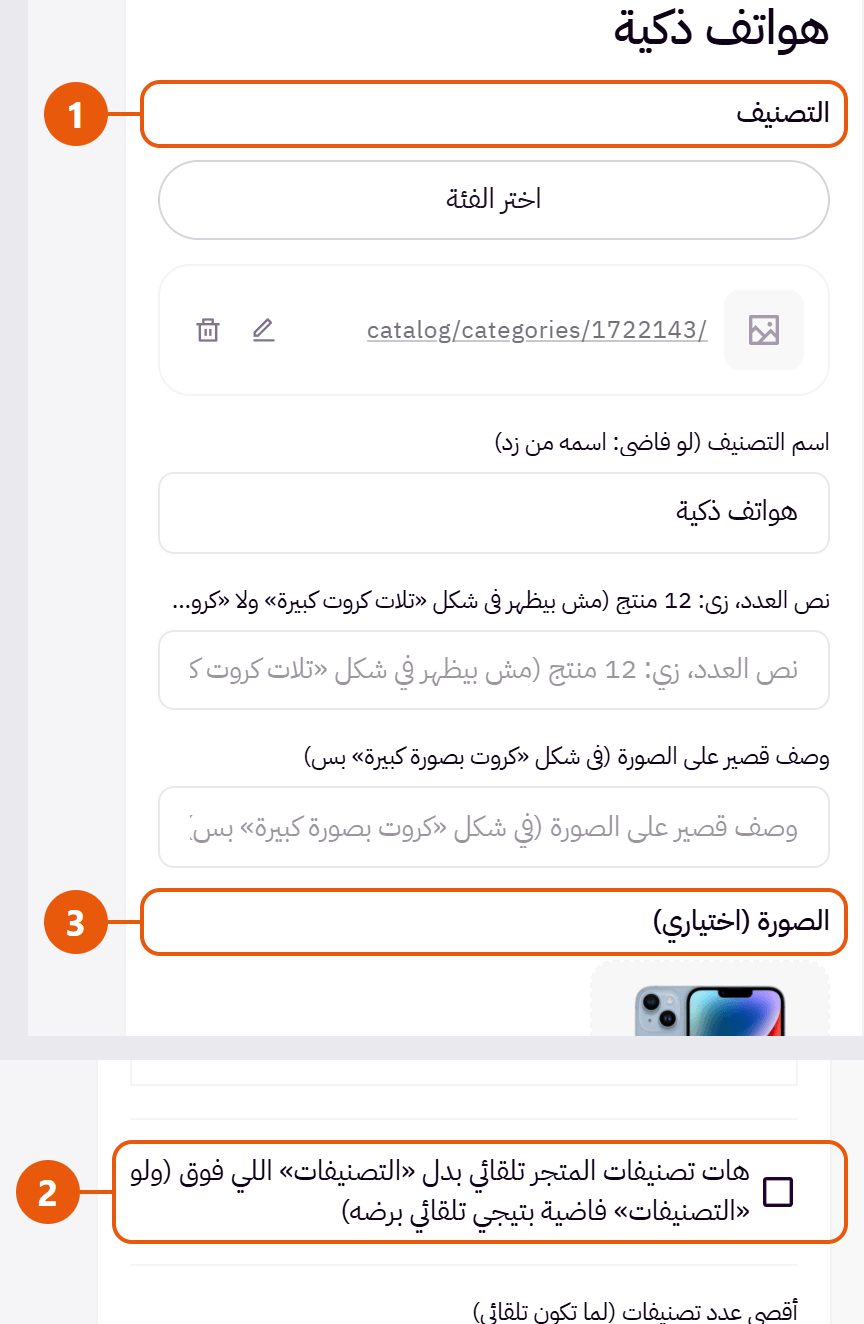
Step by step
- Go into each entry and pick its “Category”.
- To show only your picks, untick “Pull the store's categories automatically instead of “Categories” above (an empty “Categories” pulls them anyway)”.
- An empty “Image (optional)” shows the category’s Zid picture, so add one in your Zid dashboard or on the entry.
In “Page settings” → “WhatsApp and back-to-top button”: the color is “WhatsApp button color” and the icon’s is “WhatsApp button icon and text color”; left empty, they follow your store’s button colors.
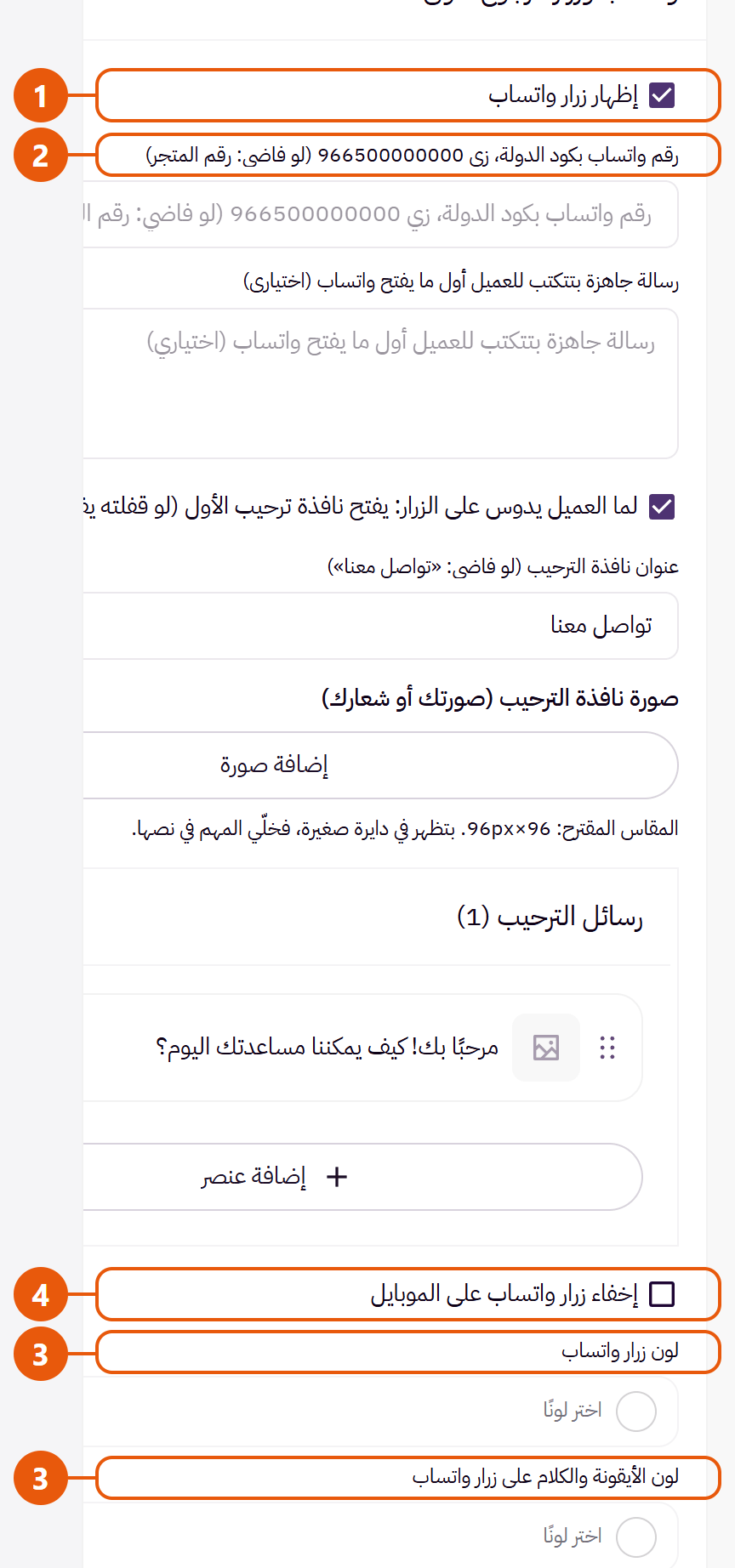
Step by step
- Tick “Show the WhatsApp button”.
- Type the number in “WhatsApp number with country code, like 966500000000 (empty: your store's number)”. Empty uses your Zid store’s number; with none there, the button does not show.
- Pick “WhatsApp button color” and “WhatsApp button icon and text color”.
- To hide it on phones only, tick “Hide the WhatsApp button on mobile”.
Tips
- These settings are per language: change them in the English editor too, or copy the group with the copy icon beside its name and translate the “Welcome messages”.
In the editor: “Header”, then the “Header” group, then “Logo”. Empty shows your Zid store logo; with none at all, the store name is written. The same logo appears on the loading screen, and in the footer when “Footer design” is “Light: logo above the store details”.
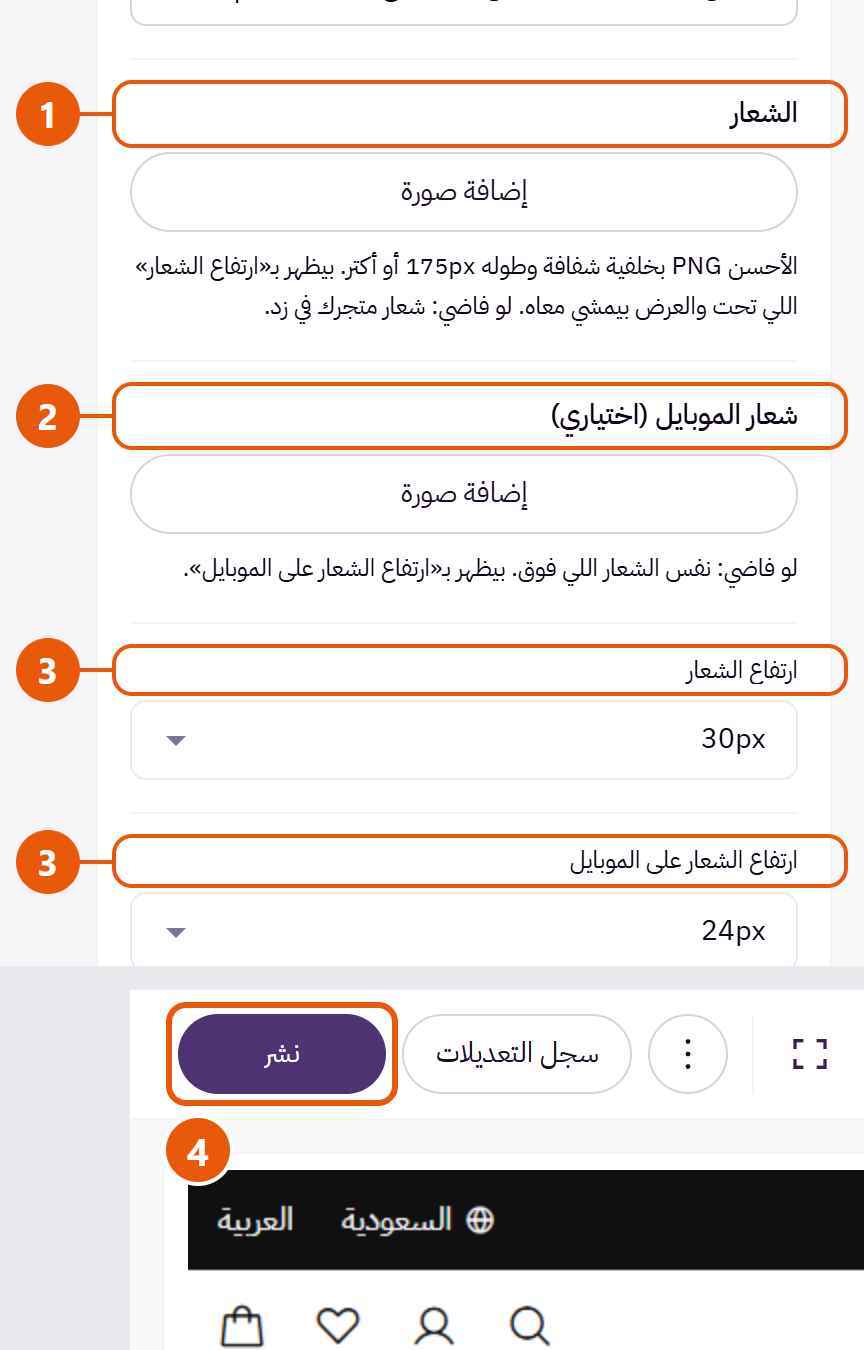
Step by step
- Upload it in “Logo”; a PNG with a clear background, 175 tall or more, is best.
- For a different phone logo, use “Mobile logo (optional)”.
- Size it with “Logo height” and “Logo height on mobile”.
- Press “Publish”.
Tips
- Logo not level with the icons? Keep “Line the logo up with the icons automatically” on, or move it with “Move the logo up or down (minus moves it up)”.
It shows as the store opens and leaves once the page is ready. Set it in “Page settings” → “Loading screen”.
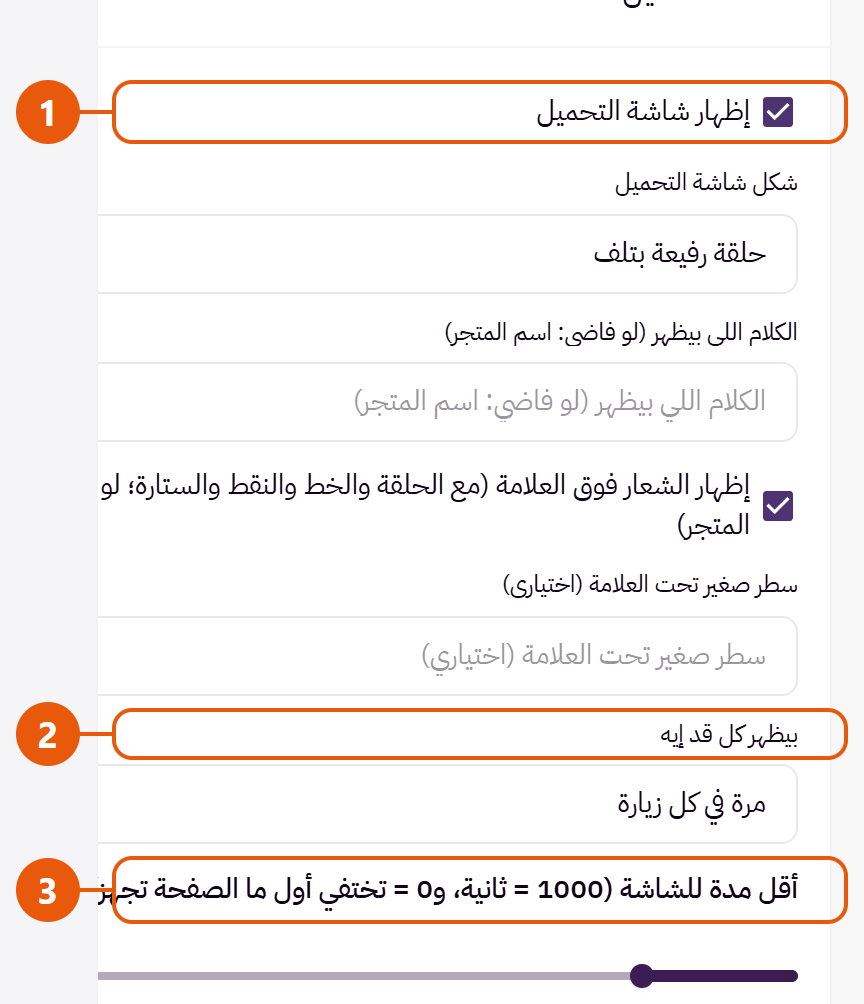
Step by step
- To remove it: untick “Show the loading screen”.
- To show it less: set “How often it shows” to “Once per visit” or “Once every 24 hours”.
- To leave sooner: set “Shortest time on screen (1000 = 1 second; 0 = leaves as soon as the page is ready)” to 0.
Tips
- In Zid’s editor it shows on every preview refresh, whatever you chose, so you can see it; customers see it per “How often it shows”.
Every section loads its own pictures and files, so each extra section, slider and video adds weight. What helps most:
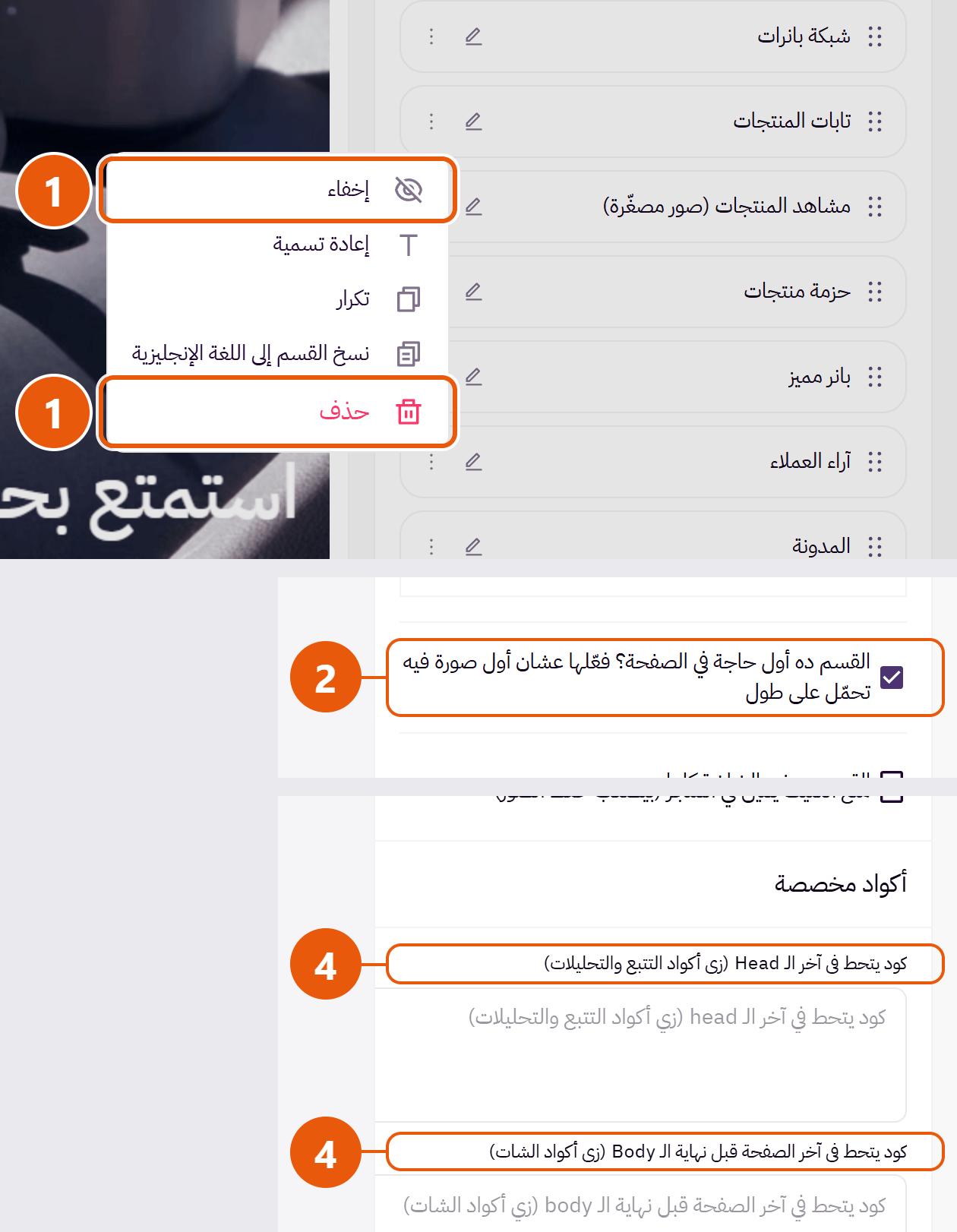
Step by step
- Keep the home page focused: hide or delete sections you do not need.
- Turn on “First section on the page? Turn on to load its first image right away” in the first section only; the “Main slider” does this by itself.
- An uploaded video in the “Main slider” weighs more than a picture: use a short, light video, or a picture.
- Every code in “Custom code” loads on every page; remove unused ones.
Tips
- For a calmer page: untick “Autoplay” in sliders, and “Headings and cards fade in as you scroll down” in “Look”.
- By default the loading screen stays at least 0.4 seconds; to show the store at once, set “Shortest time on screen (1000 = 1 second; 0 = leaves as soon as the page is ready)” to 0, or turn it off.
The “Advertising popup” shows to each visitor per “How often it shows”, and not again within that time to anyone who saw it, you included: once seen, your changes may not show to you.
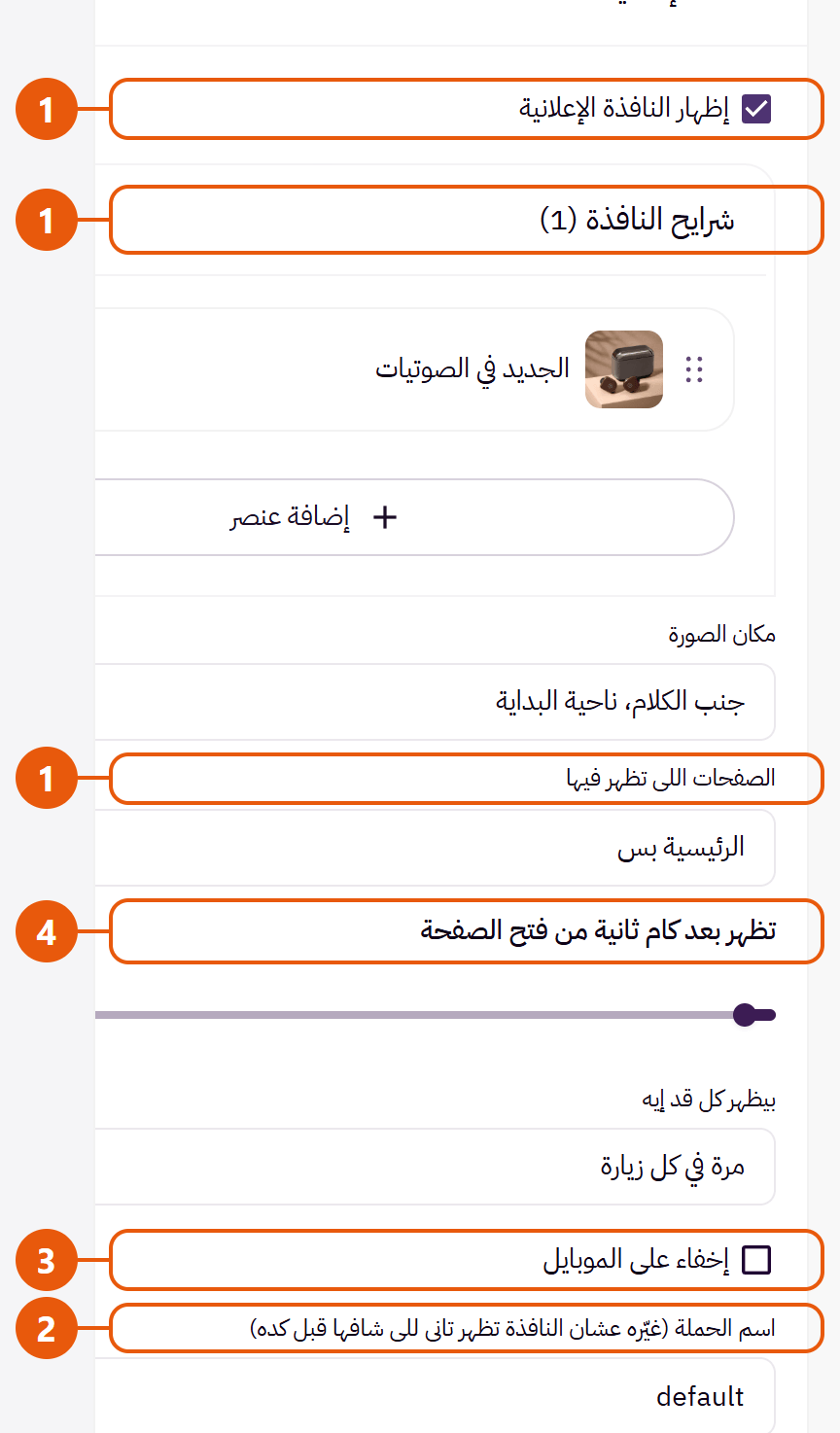
Step by step
- Check “Show the advertising popup” is ticked, a slide in “Popup slides” has a picture, title or text, and “Pages it shows on” covers your page.
- To show it again to everyone, you included, change the “Campaign name (change it to show the popup again to visitors who already saw it)”.
- With “Hide on mobile” ticked it does not show on phones.
- It waits the seconds set in “Seconds after the page opens”.
Your App Store and Google Play links are under “Footer”, in the “Footer” group. A Zid app’s links fill in by themselves; otherwise the theme’s link opens our site, mt-themes.com, until you add yours or hide the links.
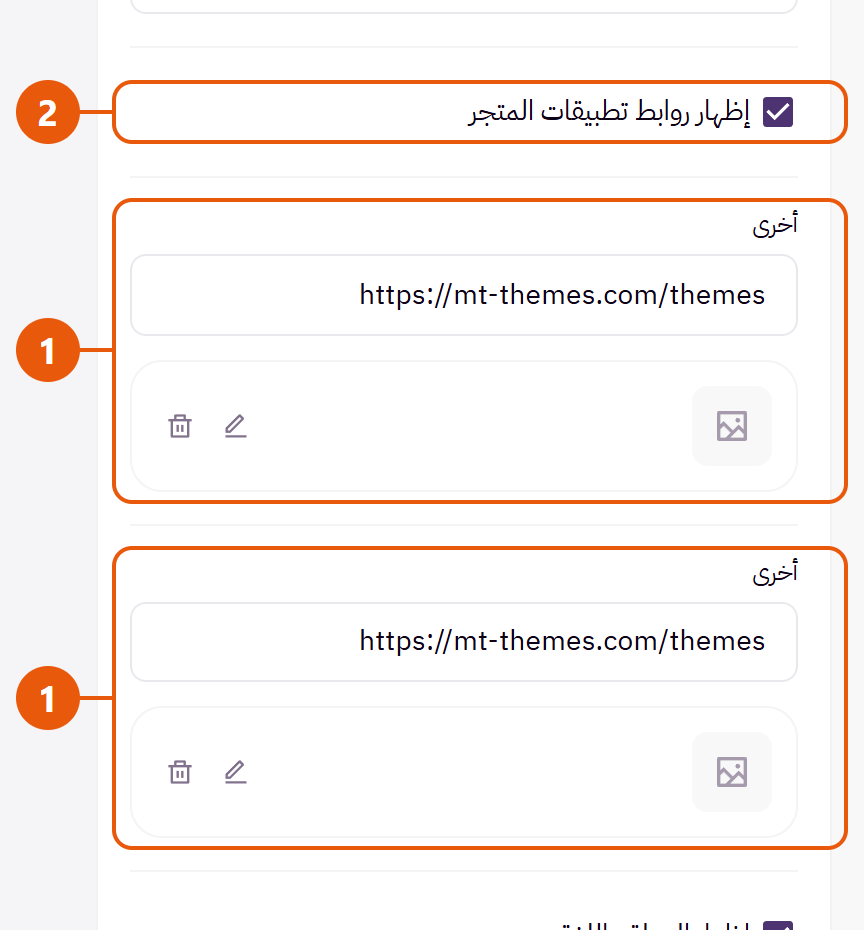
Step by step
- Put your links in “Your App Store link (a Zid app's own link is used by itself)” and “Your Google Play link (a Zid app's own link is used by itself)”.
- No app? Untick “Show your store app links”.
An applied design or imported file replaces your customization; how to go back depends on whether you published.
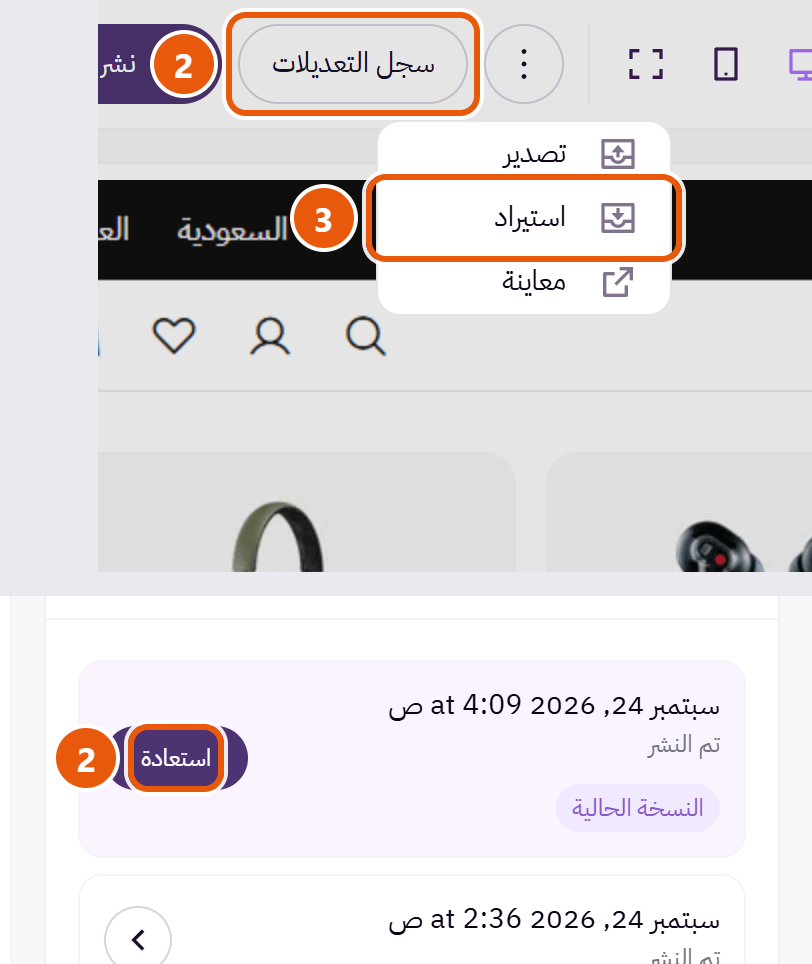
Step by step
- Not published: “Undo all changes” returns to the published version, also dropping every other unpublished change.
- Published: in “History” press “Restore” on the newest entry (“Current version”) to bring back the version live before your last publish. Check it, then press “Publish”.
- Have an exported file? “Import” it and your customization returns exactly, in both languages; then “Publish”.
Tips
- “History” keeps nothing unpublished, so press “Export” before applying a design to keep a copy.
Related themes
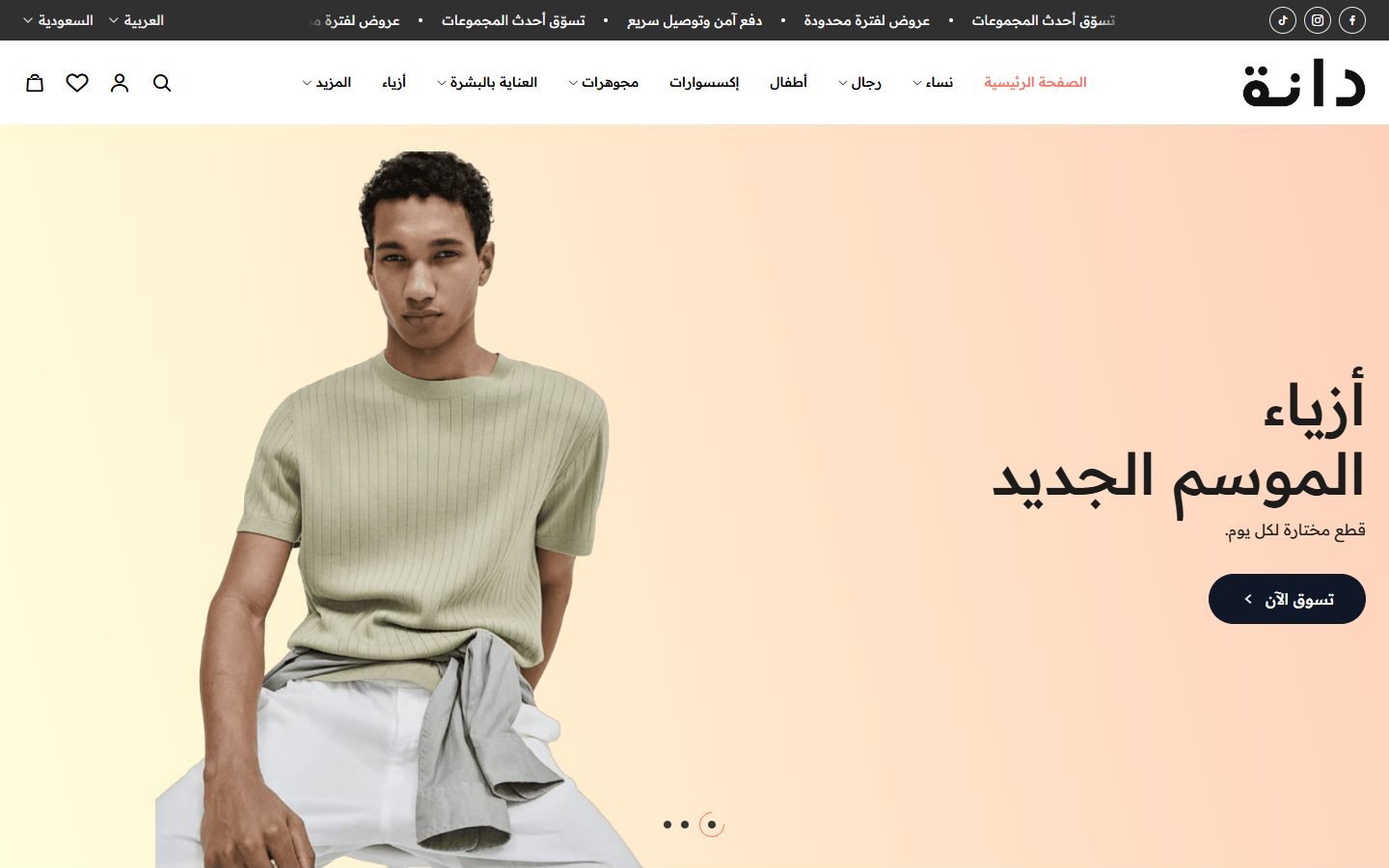
Dana
A Zid theme with 30 ready designs for different kinds of stores, in Arabic and English.
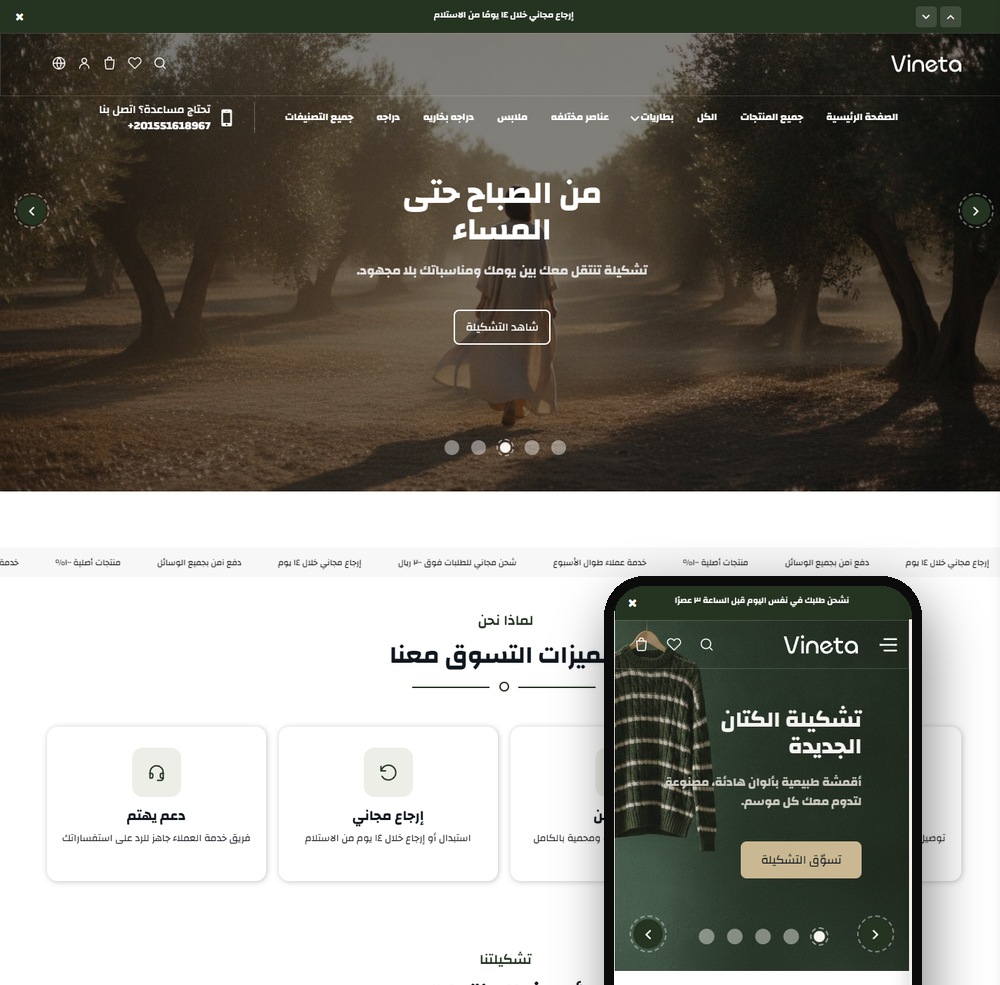
Vineta
A modern Zid theme with 22 sections and two product page designs, a true Arabic/English mirror.
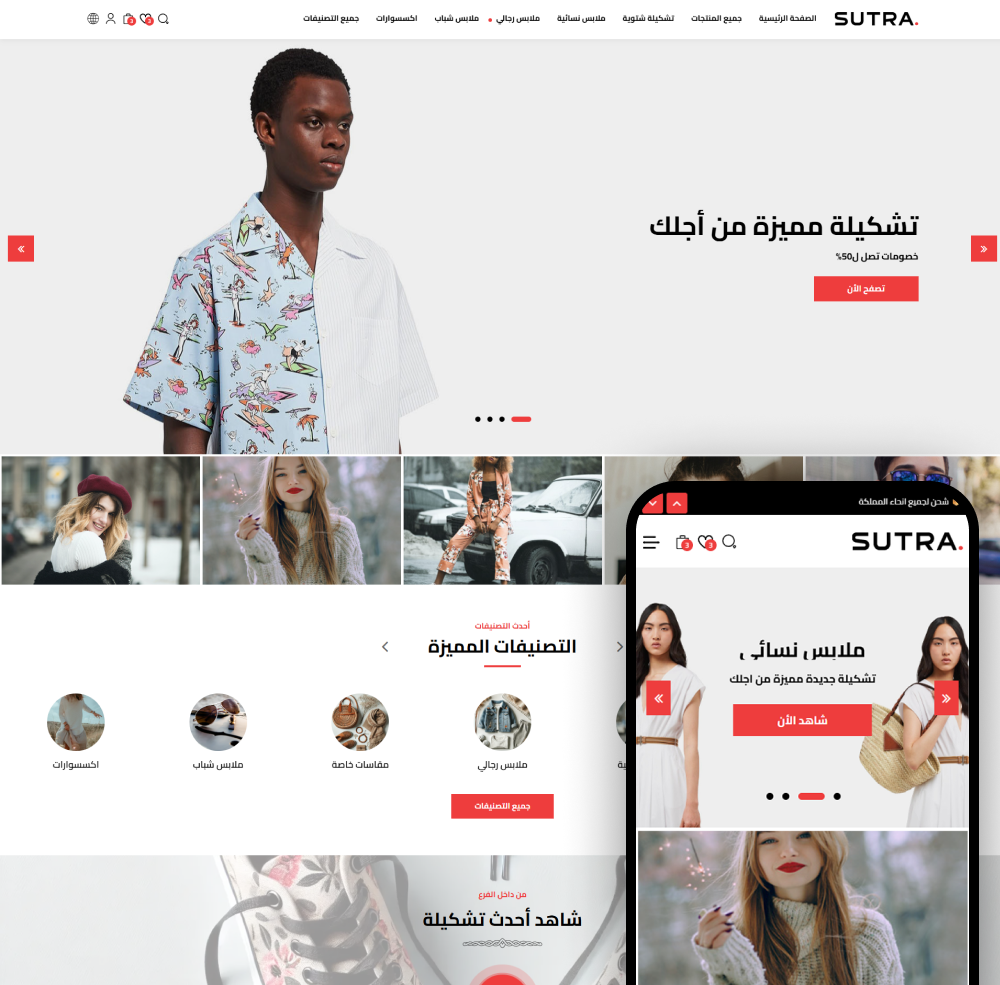
Sutra
Sutra - the best Zid store theme to grow your sales. Modern, mobile-friendly, and easy to customize.
Not sure which theme to pick?
Our team helps you pick the theme and customize it for your store.
Contact us